
Introduction
The SVBONY SX31 Night Vision Binoculars are designed for observing objects in low light or complete darkness. Featuring 4K video recording, 36MP photo capture, 8X digital zoom, and a 4.3-inch display, this device is suitable for various outdoor activities such as night hunting, patrol detection, camping, and wildlife observation. This manual provides detailed instructions for proper use and maintenance of your device.

The SVBONY SX31 Night Vision Binoculars allow for clear observation of nighttime details.
Package Contents
Please check the package contents upon unboxing to ensure all items are present:
- 1x SVBONY SX31 Night Vision Binoculars
- 1x USB Cable
- 1x Neck Strap
- 1x Cleaning Cloth
- 1x User Manual
- 1x 32GB TF Card

All items included in the SVBONY SX31 Night Vision Binoculars package.
Product Features
- 7-Level Infrared Illumination: Adjustable 3W 850nm infrared spotlight allows clear viewing of animals up to 250m in complete darkness.
- High-Resolution Capture: Record 4K, FHD, or HD videos and capture up to 36-megapixel photos day or night.
- 3.2-inch TFT HD Display: Features 15 levels of brightness adjustment for comfortable viewing in various lighting conditions.
- 8X Digital Zoom: Easily observe distant targets and capture fine details.
- Rechargeable Battery: Integrated 5000mAh lithium battery provides up to 14 hours of operation. Type-C charging interface is compatible with most power banks.
- Expandable Storage: Includes a 32GB TF card, expandable up to 128GB.
- Durable Construction: Made with silicone material for enhanced durability and water resistance.

Large 3.2-inch TFT LCD screen with 15 brightness levels.

8X digital zoom for detailed observation.
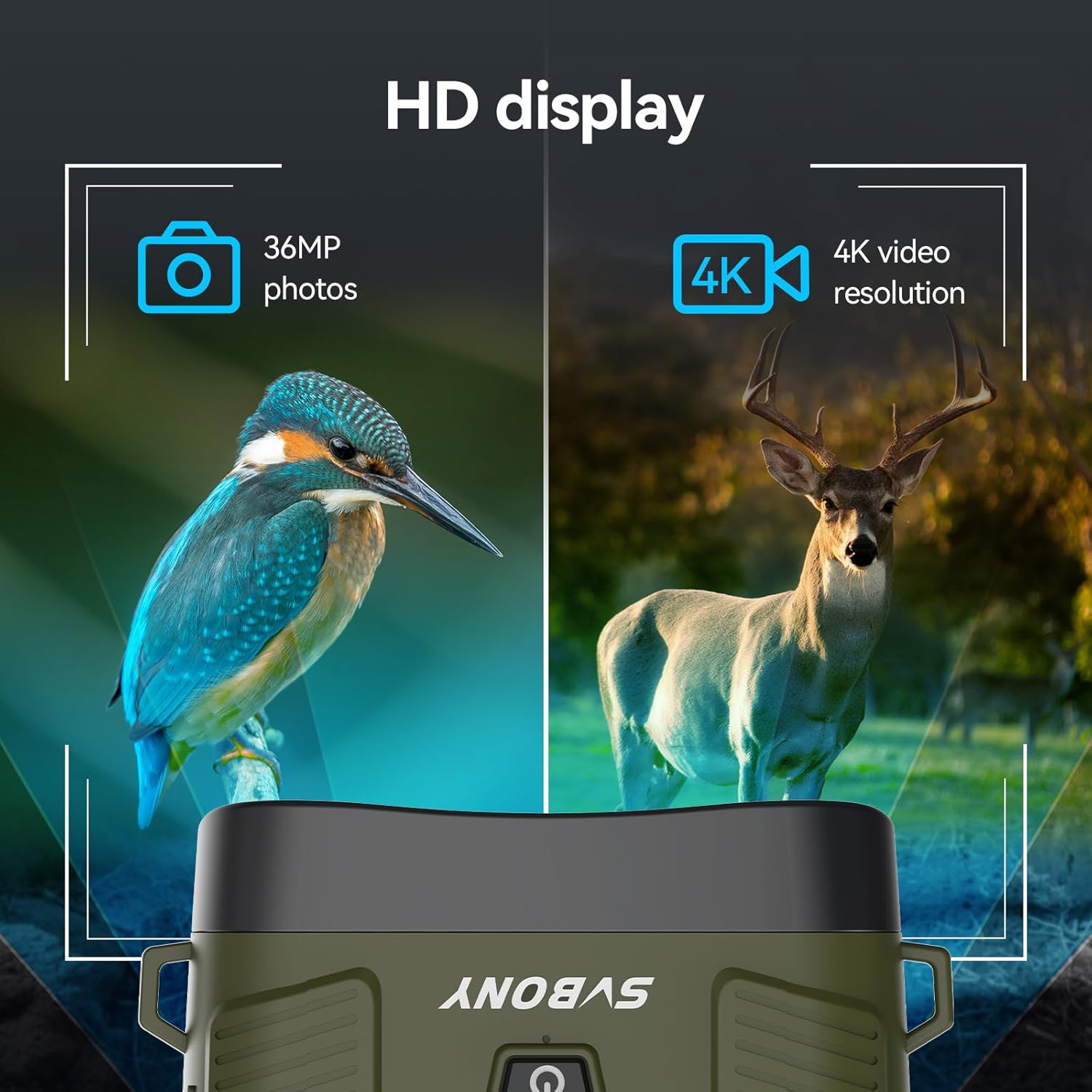
Capture 36MP photos and 4K HD videos.

Long-lasting 5000mAh rechargeable battery.

Adjustable 7-level 3W 850nm infrared illumination.
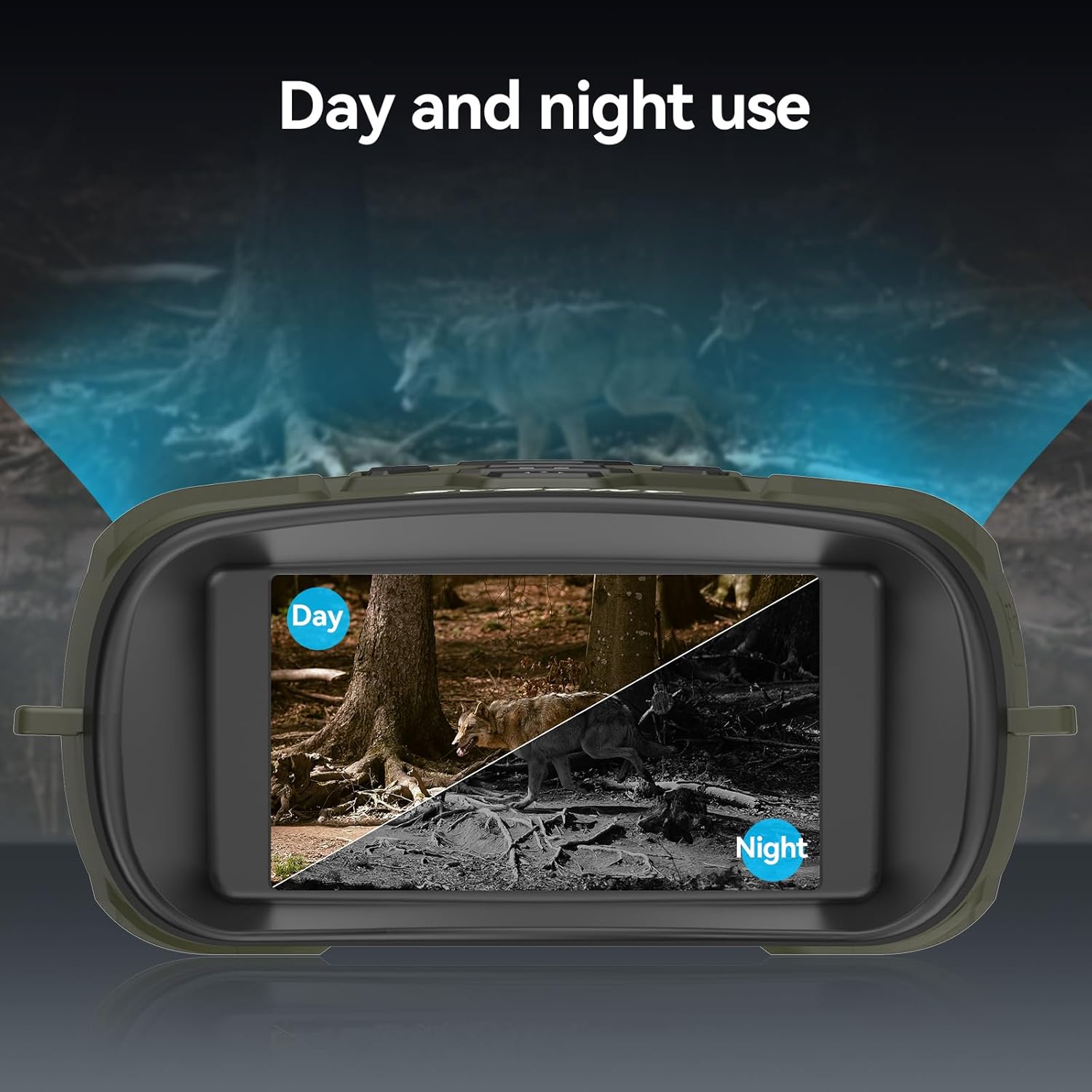
Versatile for both day and night use.

Wide field of view with 10° lens angle and 25mm aperture.

Effective observation distance up to 300m (984ft).

Durable silicone material for water resistance.
Setup
1. Charging the Device
Before first use, fully charge the built-in 5000mAh lithium battery. Connect the provided USB Type-C cable to the device's charging port and the other end to a compatible USB power source (e.g., wall adapter, power bank, computer USB port). The charging indicator will show the charging status.
2. Inserting the TF Card
Locate the TF card slot on the side of the device. Insert the included 32GB TF card (or an optional card up to 128GB) into the slot until it clicks into place. Ensure the card is inserted in the correct orientation to avoid damage.

Insert the TF card and connect the device for data transfer or charging.
3. Powering On/Off
To power on the device, press and hold the power button (usually marked with a power symbol) for a few seconds until the display illuminates. To power off, press and hold the power button again until the display turns off.
Operating Instructions
1. Menu Navigation
Use the 'MENU' button to access the device settings. Navigate through options using the directional buttons (up/down/left/right) and confirm selections with the 'OK' or 'MODE' button. Refer to the on-screen menu for specific settings like resolution, date/time, and auto-power off.
2. Adjusting IR Levels
In night mode, press the 'IR' button to cycle through the 7 infrared intensity levels (IR1 to IR7). Adjust the IR level based on ambient light conditions and observation distance for optimal clarity. Higher IR levels provide brighter illumination but consume more battery.
3. Digital Zoom
Use the zoom in (+) and zoom out (-) buttons to adjust the digital magnification from 1X to 8X. For stable viewing at higher zoom levels, consider using a tripod.
4. Photo and Video Capture
Press the 'MODE' button to switch between photo and video modes. In photo mode, press the 'Capture' button (often marked with a camera icon) to take a picture. In video mode, press the 'Capture' button to start recording, and press it again to stop. Recorded files are saved to the TF card.
5. Display Brightness Adjustment
Access the display settings through the menu to adjust the screen brightness. There are 15 levels of brightness. Lower brightness settings can help preserve your natural night vision and extend battery life.
6. Focus Adjustment
Rotate the focus wheel located on the objective lens barrels to achieve a sharp image. Adjust until the target appears clear on the display.

Adjust the focus wheel for a clear image.
7. Day and Night Mode
The device automatically adapts to ambient light conditions. In sufficient light, it operates in full-color day mode. As light diminishes, it transitions to black-and-white night vision mode, utilizing the infrared illuminator.
Maintenance
1. Cleaning
- Use the provided cleaning cloth to gently wipe the lenses. For stubborn smudges, use a lens cleaning solution specifically designed for optical surfaces.
- Clean the device body with a soft, damp cloth. Avoid harsh chemicals or abrasive materials.
2. Battery Care
- Recharge the battery regularly, even if the device is not in frequent use, to maintain battery health.
- Avoid fully discharging the battery for extended periods.
3. Storage
- Store the binoculars in a cool, dry place, away from direct sunlight and extreme temperatures.
- Use the included storage bag to protect the device from dust and scratches.
Troubleshooting
| Problem | Possible Cause | Solution |
|---|---|---|
| Device does not power on. | Low battery; Power button not held long enough. | Charge the battery; Press and hold the power button for several seconds. |
| Image is blurry. | Improper focus; Dirty lenses. | Adjust the focus wheel; Clean the lenses with the provided cloth. |
| Cannot record photos/videos. | TF card full or not inserted correctly; Incorrect mode. | Check TF card insertion and available space; Ensure device is in photo/video mode. |
| 36MP photos appear corrupted. | Potential firmware bug. | Try a lower resolution setting for photos. Check SVBONY's website for firmware updates. |
| Display is too bright at night. | Display brightness set too high. | Adjust the display brightness to a lower level via the menu settings. |
Specifications
| Feature | Detail |
|---|---|
| Brand | SVBONY |
| Model | SX31 |
| Color | Green |
| Weight | 500 Grams |
| Material | Rubber |
| Maximum Magnification | 8X (Digital Zoom) |
| Objective Diameter | 25 Millimeters |
| Infrared Illuminator | 3W 850nm, 7 levels adjustable |
| Display | 3.2-inch TFT HD, 15 levels brightness |
| Photo Resolution | Up to 36MP |
| Video Resolution | 4K, FHD, HD |
| Battery | Built-in 5000mAh Lithium |
| Storage | 32GB TF card included, supports up to 128GB |
| Model Number | FCAFDB24010501 |
Warranty and Support
For warranty information, technical support, or further inquiries, please refer to the official SVBONY website or contact their customer service directly. You can also visit the SVBONY Store on Amazon for product updates and additional resources.
