1. Introduction
This manual provides comprehensive instructions for the Hagibis CC10 USB3.0 Video Capture Card. This device features a dual USB-A/USB-C interface, ensuring compatibility with a wide range of devices including handheld game consoles, cars, laptops, tablets, mobile phones, and VR headsets like Meta Quest 3. It supports high-definition video capture and streaming at 1080P@60Hz and 2K@30Hz, with input up to 4K@60Hz. Designed for plug-and-play operation without the need for drivers or external power (unless using the PD version for charging), it is ideal for HD acquisition, teaching, game capture, live streaming, medical imaging, and online meetings.

Figure 1: Hagibis CC10 USB3.0 Video Capture Card with its dual USB-C and USB-A connectors.
2. Package Contents
Verify that all items are present in your package:
- Hagibis CC10 USB3.0 Video Capture Card
- User Manual
- (Optional, for PD version) USB-C Power Supply Cable
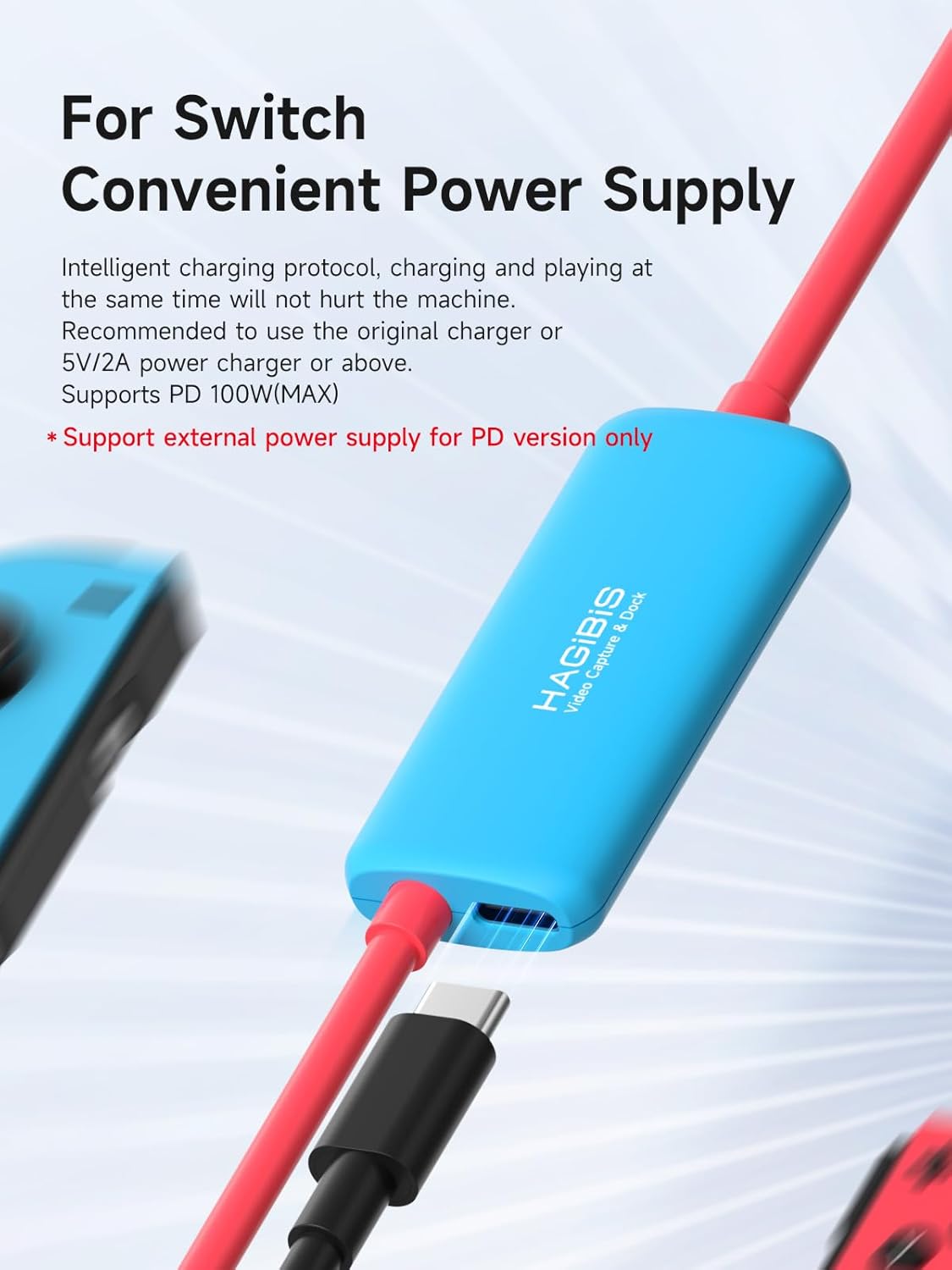
Figure 2: Contents of the Hagibis CC10 package, including the capture card, manual, and optional power cable.
3. Product Overview
The Hagibis CC10 features a compact design with versatile connectivity options. It includes an HDMI input for video sources and a dual USB-A/USB-C output for connecting to your computer or other recording devices. The PD (Power Delivery) version also includes a USB-C port for external power supply to ensure continuous operation and charging of the host device.

Figure 3: Close-up of the Hagibis CC10 showing the USB-C and convertible USB-A connectors.
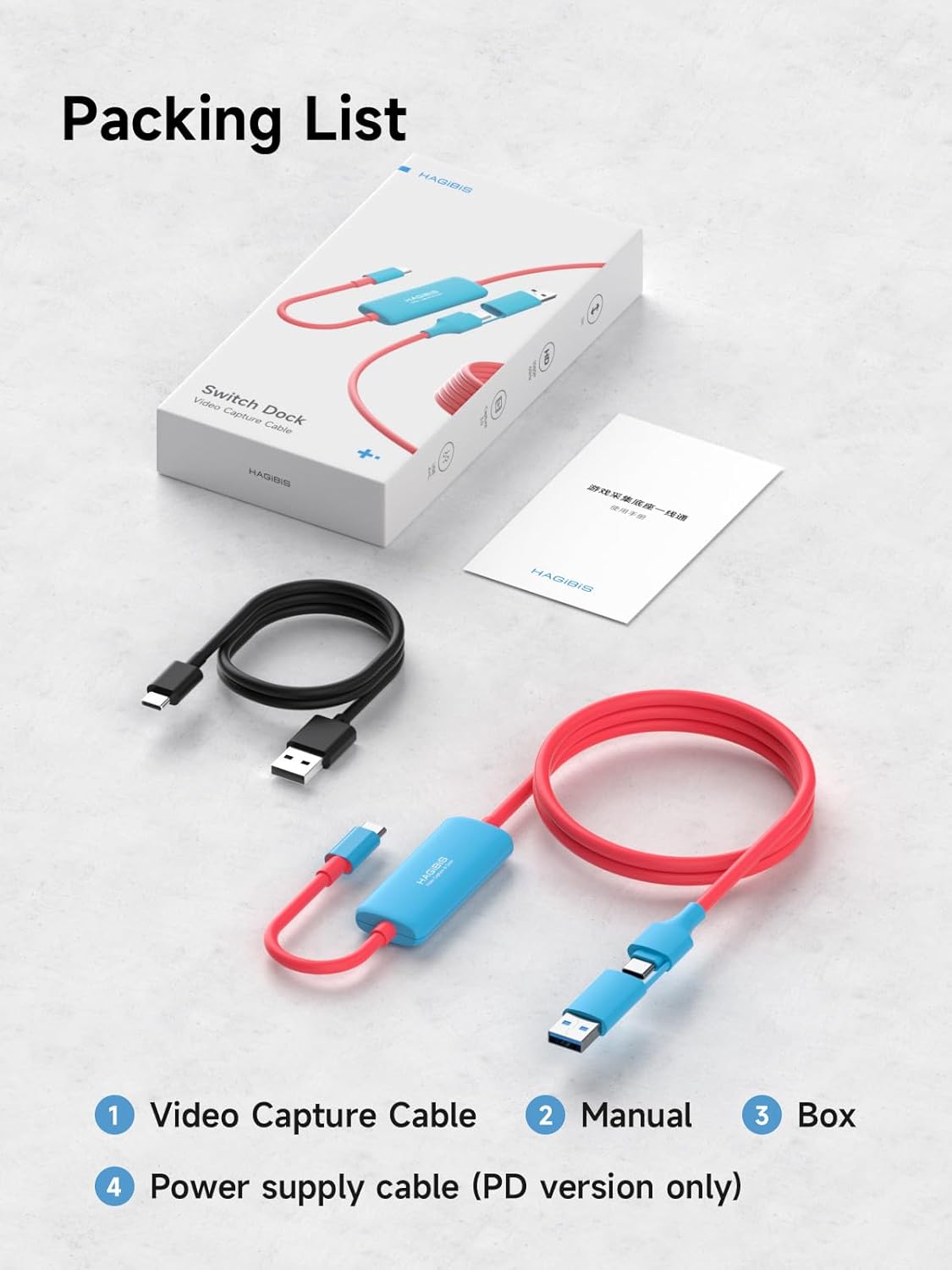
Figure 4: Diagram illustrating the dimensions and different versions (All-in-One and PD) of the Hagibis CC10.
4. Setup Instructions
Follow these steps to connect your Hagibis CC10 Video Capture Card to your desired device.
4.1. Connecting to a Computer/Tablet
- Connect your video source (e.g., Nintendo Switch, game console, smartphone) to the HDMI input port of the Hagibis CC10.
- Connect the USB-C or USB-A connector of the Hagibis CC10 to a compatible USB port on your computer, laptop, or tablet.
- If using the PD version and requiring power for the host device, connect an external 5V/2A or PD 100W (MAX) power charger to the PD port on the capture card.
- Open your preferred video capture software (e.g., OBS, Potplayer, MoniCon, CamX) on your computer or tablet.
- Select the Hagibis CC10 as the video input device within the software.

Figure 5: Nintendo Switch connected to a laptop via the Hagibis CC10 for gaming and recording.

Figure 6: Game console connected to a tablet, transforming it into a portable gaming screen using the Hagibis CC10.
4.2. Connecting to a Car System
- Connect your Nintendo Switch or other game console to the HDMI input port of the Hagibis CC10.
- Connect the USB-C or USB-A connector of the Hagibis CC10 to a compatible USB port in your car's infotainment system.
- Ensure your car system supports video input via USB.
- If using the PD version, connect an external power source to the PD port for stable operation.

Figure 7: Nintendo Switch connected to a car's display system for large-screen gaming during stops.
4.3. Power Delivery (PD Version Only)
The PD version of the Hagibis CC10 allows you to power your host device (e.g., Nintendo Switch) while capturing video. Connect a 5V/2A or PD 100W (MAX) power charger to the dedicated USB-C PD port on the capture card. This ensures uninterrupted gaming or streaming sessions.

Figure 8: The PD port on the Hagibis CC10, allowing external power for the host device.
Video 1: Official Hagibis video demonstrating the unboxing and connection of the USB3.0 Video Capture Card with 100W PD, showing how to connect it to a Nintendo Switch and a monitor.
Video 2: Demonstration of casting a Nintendo Switch to an iPad using a similar capture card, highlighting the connection process and the need for external power for active casting cables.
5. Operating Instructions
Once connected, the Hagibis CC10 operates as a plug-and-play device. No drivers are typically required. The device will be recognized as a webcam or video input source by compatible software.
5.1. Compatible Software
The Hagibis CC10 is compatible with various video capture and streaming software, including:
- OBS Studio (for Windows/macOS)
- Potplayer (for Windows)
- USB Camera (for Android)
- USB Camera Pro (for iPadOS 17)
- MoniCon (for iPadOS 17)
- CamX (for iPadOS 17)
- CapView (for iPadOS 17)
- Noir (for iPadOS 17)
5.2. Recording and Streaming
The capture card supports 1080P@60Hz and 2K@30Hz output for high-quality recording and live streaming. For optimal performance, ensure your software settings match the capabilities of the capture card.

Figure 9: Visual representation of smooth 1080P/60Hz HD recording capabilities.
5.3. OBS Software Operation
For OBS Studio users, follow these general steps:
- Connect the device. In OBS, click on the "Source" interface at the bottom and find "Video Capture Device".
- A window will pop up. Select "Create new" or "Add existing" and click "OK" to create a successful video capture device.
- Select "Hagibis" or "USB video" as the device. Check "Use custom audio device" below.
- Find the mixer interface, click the three-dot icon / gear icon, pop-up the Advanced Audio Properties window, select "Listen and Output".

Figure 10: Step-by-step guide for setting up the capture card in OBS Studio.
5.4. Potplayer Software Operation
For Potplayer users, follow these general steps:
- Open Potplayer, right-click the mouse, open "device settings", debug parameters according to the above chart, open the device. Potplayer software operating instructions.
- Single right mouse button, video-video recording-record video-start.

Figure 11: Step-by-step guide for setting up the capture card in Potplayer.
6. Maintenance
To ensure the longevity and optimal performance of your Hagibis CC10 Video Capture Card, follow these maintenance guidelines:
- Cleaning: Use a soft, dry cloth to clean the device. Avoid liquid cleaners or abrasive materials.
- Storage: Store the device in a cool, dry place away from direct sunlight and extreme temperatures.
- Handling: Avoid dropping the device or subjecting it to strong impacts. Do not bend the cables excessively.
- Connectivity: Always insert and remove connectors gently to prevent damage to the ports.
7. Troubleshooting
If you encounter issues with your Hagibis CC10, refer to the following common problems and solutions:
7.1. No Video/Black Screen
- Check Connections: Ensure all HDMI and USB cables are securely connected to both the source device, capture card, and computer/tablet.
- Power Supply: If using the PD version, ensure an adequate power supply is connected to the PD port, especially for power-intensive devices.
- Software Selection: Verify that the correct video input device (Hagibis CC10 or "USB Video") is selected in your capture software.
- Resolution/Refresh Rate: Some software or devices may have compatibility issues with higher resolutions or refresh rates (e.g., 4K@60Hz or 2K@144Hz). Try setting the output resolution in your software to 1080P@60Hz for stable compatibility.
7.2. Distorted/Crackling Audio
- Audio Sample Rate: Some software may have limited compatibility with higher audio sample rates (e.g., 96KHz required for 4K video). If experiencing distorted audio, try using capture software that supports 96KHz audio (e.g., OBS, MoniCon) or adjust the audio settings in your software to a compatible rate (e.g., 48KHz).
- Software Updates: Ensure your operating system and capture software are up to date. Sometimes, older software versions may not fully support the latest hardware capabilities.
Video 3: Troubleshooting guide for common issues like black screen or distorted sound when using a 4K capture card, providing solutions related to software compatibility and audio sample rates.
8. Specifications
| Feature | Detail |
|---|---|
| Model Number | CC10 |
| Product Dimensions | 6.06 x 3.07 x 0.98 inches |
| Item Weight | 1.41 ounces |
| Input Resolution | Up to 4K@60Hz |
| Output Resolution | Max 2560×1440@30Hz (2K@30Hz), 1080P@60Hz |
| Connector Type | USB Type A, USB Type C |
| Compatible Devices | Car, Gaming Console, Smartphone, Switch2, Tablet |
| Power Delivery (PD Version) | Up to 100W (MAX) |
| Color | Black |
9. Warranty and Support
Hagibis products are designed for reliability and performance. For warranty information or technical support, please refer to the official Hagibis website or contact their customer service directly. Keep your purchase receipt for warranty claims.


