
Babysense HDS2 & Dreamer 2.0 Bundle
Babysense 2-in-1 Video Baby Monitor & Smart Sound Machine User Manual
Model: HDS2 & Dreamer 2.0 Bundle
Introduction
This user manual provides comprehensive instructions for the Babysense 2-in-1 Bundle, which includes the Babysense HDS2 Video Baby Monitor with two HD cameras and the Babysense Dreamer 2.0 Smart Sound and Light Machine. This integrated system is designed to provide peace of mind by allowing you to monitor your child and create a soothing environment for their rest and play.
The Babysense HDS2 monitor features a 5-inch HD display, two-way audio, night vision, and temperature sensing. The Babysense Dreamer 2.0 offers a variety of sounds and customizable lighting, controllable via an app. Both components are designed for ease of use and reliable performance.
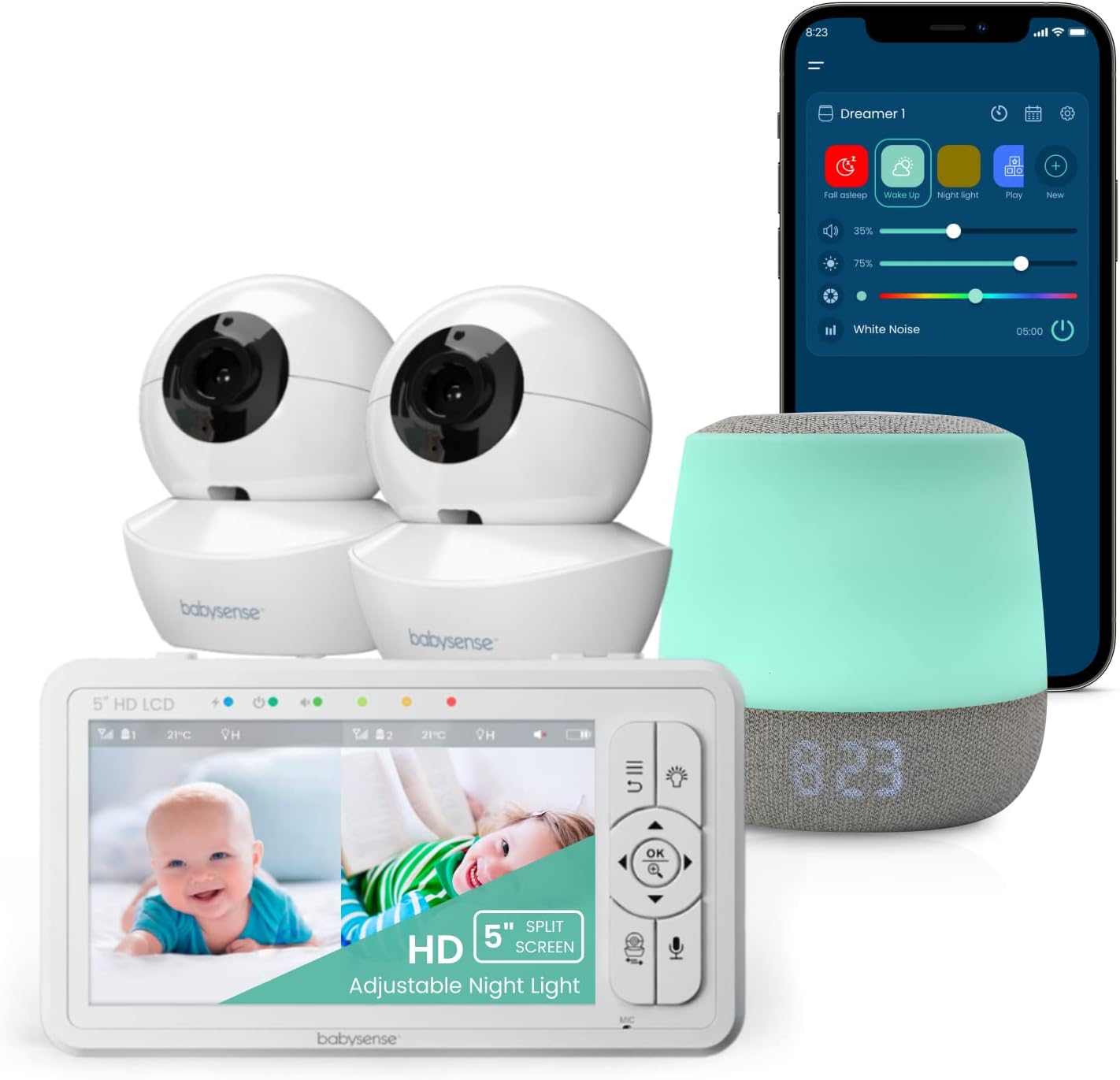
Figure 1: The Babysense 2-in-1 Video Baby Monitor and Smart Sound and Light Machine Bundle.
Product Overview
Babysense HDS2 Video Baby Monitor
The HDS2 system includes a portable parent unit with a 5-inch HD LCD display and two HD cameras. Key features include:
- 5-inch HD LCD Display: Provides a clear view of your baby.
- Two HD Cameras: Allows monitoring of multiple angles or children.
- Two-Way Audio: Enables communication with your baby.
- Auto IR Night Vision: Clear viewing in low light conditions.
- Temperature Sensor: Monitors the room temperature.
- Sound-Activated LED Lights: Visual alerts for baby's sounds.
- Secure & Interference-Free Connection: Ensures privacy and reliability.
Babysense Dreamer 2.0 Smart Sound and Light Machine
The Dreamer 2.0 is designed to create a calming environment with its sound and light features. Key features include:
- 28 Soothing Sounds: Includes lullabies, white noise, and nature sounds.
- Ambient Lighting: Customizable RGB colors and adjustable brightness.
- App Control: Manage settings and features via a smartphone application.
- Sleep Timer: Program the duration of sounds and lights.
Setup
Setting up the Babysense HDS2 Video Baby Monitor
- Charge the Parent Unit: Connect the parent unit to a power outlet using the provided adapter. Allow it to fully charge before first use.
- Position the Cameras: Place the cameras in a secure location within the baby's room, ensuring a clear view of the crib or play area. Avoid placing them within reach of the child.
- Connect Cameras to Power: Plug each camera into a power outlet using its respective power adapter.
- Power On: Turn on the parent unit and cameras. The units should automatically pair. If not, refer to the troubleshooting section for manual pairing instructions.

Figure 2: The 5-inch HD LCD monitor showing the split-screen feature, allowing simultaneous monitoring of two cameras.
Setting up the Babysense Dreamer 2.0 Smart Sound and Light Machine
- Connect to Power: Plug the Dreamer 2.0 machine into a power outlet.
- Download the App: Download the Babysense app from your device's app store.
- Pair with App: Follow the in-app instructions to connect the Dreamer 2.0 to your smartphone via 2.4GHz WiFi.
Operating the Babysense HDS2 Video Baby Monitor
Basic Functions
- Power On/Off: Press and hold the power button on the parent unit.
- Volume Control: Use the dedicated volume buttons on the parent unit to adjust audio levels.
- Two-Way Talk: Press and hold the microphone button on the parent unit to speak to your baby through the camera's speaker.

Figure 3: The two-way talk feature allows you to comfort your baby remotely.
Advanced Features
- Split-Screen View: Access the menu to select the split-screen option, allowing you to view feeds from both cameras simultaneously. The audio focus can alternate between cameras every 15 seconds in SCAN mode.
- Night Vision: The cameras automatically switch to infrared (IR) night vision in low light conditions, providing a clear black and white image.
- Zoom Function: Use the zoom controls on the parent unit to digitally zoom in on the camera feed (2X or 4X magnification).
- Pan and Tilt: Remotely adjust the camera's viewing angle using the directional buttons on the parent unit.
- Temperature Monitoring: The current room temperature is displayed on the parent unit screen.

Figure 4: Day and Night Vision capabilities ensure continuous monitoring.

Figure 5: The 2X/4X zoom feature allows for closer inspection of your baby.
Video 1: This video demonstrates the Babysense HD S2 monitor's features, including the clear video feed, split-screen functionality, and remote pan/tilt capabilities of the camera.
Video 2: This video highlights the key aspects of the Babysense Video Baby Monitor, focusing on its ease of use and the clarity of the display for monitoring children.
Operating the Babysense Dreamer 2.0 Smart Sound and Light Machine
Sound Functions
- Sound Selection: Use the Babysense app to choose from 28 soothing sounds, including lullabies, white noise, pink noise, brown noise, wake-up melodies, play-time music, and nature sounds.
- Volume Adjustment: Control the sound volume directly on the device or through the app.

Figure 6: The Dreamer 2.0 offers a wide range of sounds for various moments.
Light Functions
- Color Selection: Choose from a variety of RGB colors for ambient lighting via the app.
- Brightness Adjustment: Adjust the light intensity to your preference.
- Projections: Utilize the soft ambient lighting and colorful projections to enhance the nursery atmosphere.
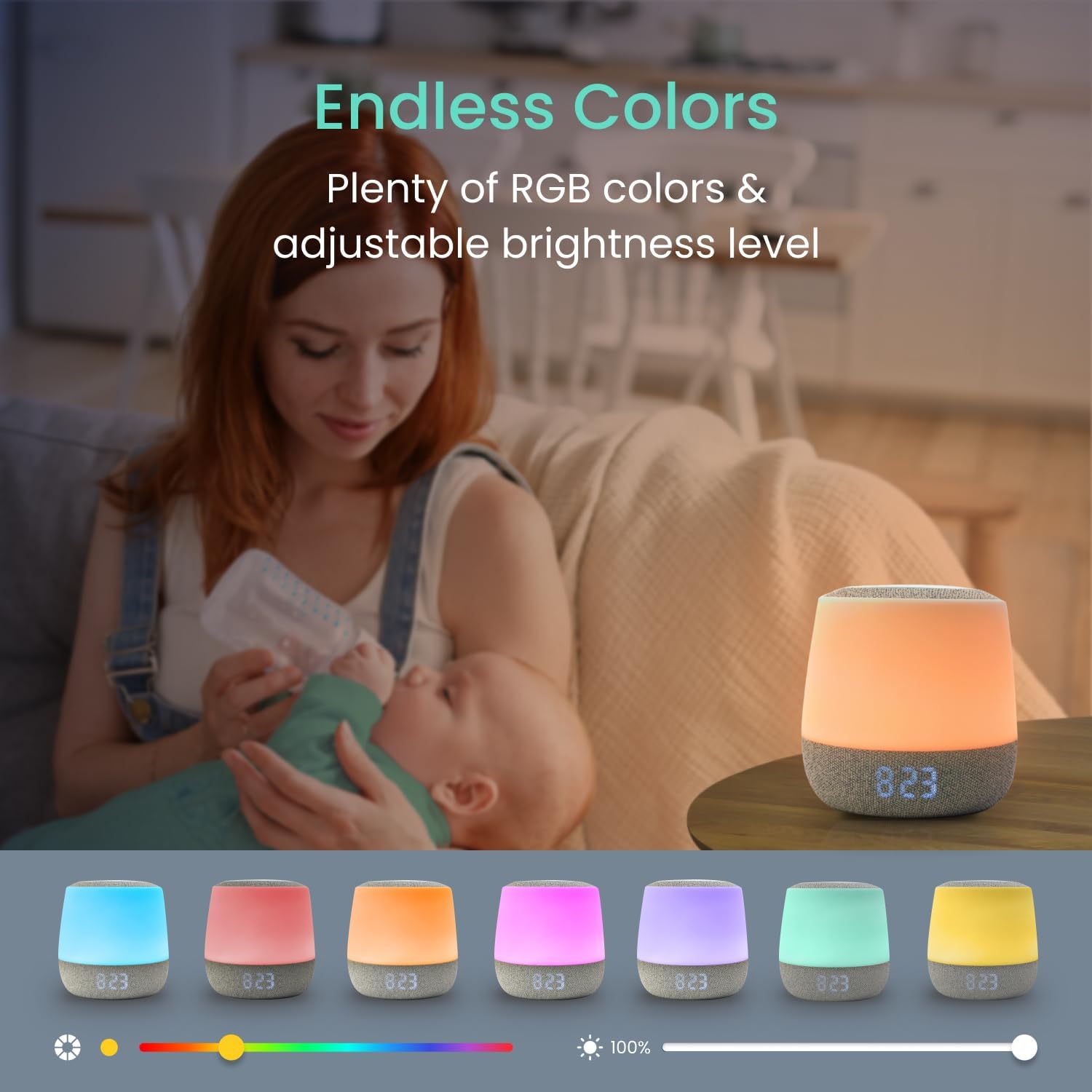
Figure 7: Customize the lighting with endless color options and adjustable brightness.
App Control
- Remote Management: Control all sound and light features from your smartphone.
- Multiple Device Control: Manage multiple Dreamer 2.0 units from a single app interface.
- Sleep Routines: Program custom sleep and wake-up routines.

Figure 8: The Babysense app provides comprehensive control over multiple Dreamer units.
Maintenance
Cleaning
- Parent Unit & Cameras: Wipe surfaces with a soft, dry cloth. Do not use abrasive cleaners or solvents.
- Dreamer 2.0: Clean the exterior with a soft, damp cloth. Ensure the device is unplugged before cleaning.
Battery Care (Parent Unit)
- To prolong battery life, avoid extreme temperatures.
- Charge the unit regularly, but avoid leaving it plugged in constantly for extended periods once fully charged.
Troubleshooting
No Signal/Poor Connection
- Ensure both the parent unit and cameras are powered on and within range (up to 1000ft in open space).
- Move the units closer to each other.
- Avoid placing units near other electronic devices that may cause interference (e.g., microwaves, Wi-Fi routers).
- If connection is lost, try re-pairing the camera to the parent unit by following the instructions in the monitor's settings menu.
No Audio/Poor Audio Quality
- Check the volume level on the parent unit.
- Ensure there are no obstructions blocking the microphone on the camera or the speaker on the parent unit.
- Verify the camera is properly connected and transmitting audio.
Dreamer 2.0 Not Connecting to App
- Ensure your smartphone is connected to a 2.4GHz Wi-Fi network. The Dreamer 2.0 does not support 5GHz networks.
- Restart the Dreamer 2.0 device and your smartphone.
- Follow the in-app pairing instructions carefully.
Specifications
| Product Name | Babysense 2-in-1 Video Baby Monitor & Smart Sound Machine Bundle |
| Model Numbers | HDS2 (Monitor), Dreamer 2.0 (Sound Machine) |
| ASIN | B0DNFZ1WXP |
| Monitor Display | 5-inch HD LCD |
| Cameras Included | 2 HD Cameras |
| Monitor Battery | 4000mAh (rechargeable) |
| Range | Up to 1000ft (line of sight) |
| Sound Machine Sounds | 28 (Lullabies, White Noise, Nature Sounds, etc.) |
| Sound Machine Connectivity | 2.4GHz Wi-Fi for app control |
| Date First Available | November 18, 2024 |
Warranty and Support
For detailed warranty information and customer support, please refer to the documentation included with your product or visit the official Babysense website. You can also contact Babysense customer service directly for assistance with product setup, operation, or troubleshooting.
Related documentsHDS2 & Dreamer 2.0 Bundle


Ask a question about this manual
Ask about setup, troubleshooting, compatibility, parts, safety, or missing instructions. Manuals+ will review the question and use this page’s manual context to help answer it.