
Typhur WT01
Typhur Sync One Smart Wireless Meat Thermometer User Manual
Model: WT01
Introduction
The Typhur Sync One Smart Wireless Meat Thermometer is designed to provide precise temperature monitoring for various cooking methods, including BBQ, grilling, oven baking, and smoking. With its advanced sensor technology and seamless connectivity, you can achieve perfectly cooked results every time. This manual provides essential information for setting up, operating, and maintaining your device.
Unboxing Your Typhur Sync One
Carefully unpack all components from the box. Ensure all items listed below are present:
- Typhur Sync Device Base x 1
- Meat Probe x 1
- Charging Cable x 1
- User Manual x 1

Image: The Typhur Sync One device base, a single meat probe, and a smartphone displaying the companion app interface with temperature readings.
Video: An official product video introducing the Typhur Sync One Wireless Meat Thermometer, showcasing its features and components.
Setup
Follow these steps for initial setup:
- Charge the Device Base: Connect the provided USB-C charging cable to the device base and a power source. The LCD will indicate charging status.
- Charge the Probe: Insert the meat probe into the designated slot on the top of the device base. The probe will begin charging automatically. A quick 2-minute charge provides an additional 2 hours of use.
- Download the Typhur App: Search for "Typhur" in your smartphone's app store (iOS or Android) and download the official application.
- Pair with App: Open the Typhur app and follow the on-screen instructions to pair your device base via Bluetooth. Once paired, you can connect the device base to your 2.4GHz WiFi network for unlimited range monitoring.

Image: The Typhur Sync One device base with a probe inserted into its charging slot, demonstrating the charging function.
Video: An official Typhur video demonstrating how to use the Typhur Sync Dual Wireless Meat Thermometer, including setup and pairing.
Operating Your Thermometer
The Typhur Sync One offers both manual control via the device base and smart control via the Typhur app.
Inserting the Probe
Carefully insert the meat probe into the thickest part of the meat, avoiding bones. The probe features 5 internal sensors and an ambient sensor for accurate readings.

Image: A detailed view of the Typhur Sync One probe inserted into a cut of meat, highlighting the locations of its multiple internal and ambient temperature sensors.
Setting Temperature (Device Base)
Use the navigation buttons on the device base to select your desired cooking mode (Manual or Smart) and set the target temperature. The LCD will display current internal and ambient temperatures.

Image: The Typhur Sync One device base showing its large LCD display with current internal and ambient temperatures, along with navigation buttons.
Setting Temperature (Typhur App)
For advanced control and recipe guidance, use the Typhur app. Select your meat type, cut, and desired doneness from hundreds of presets. The app provides real-time temperature graphs and estimated cooking times.
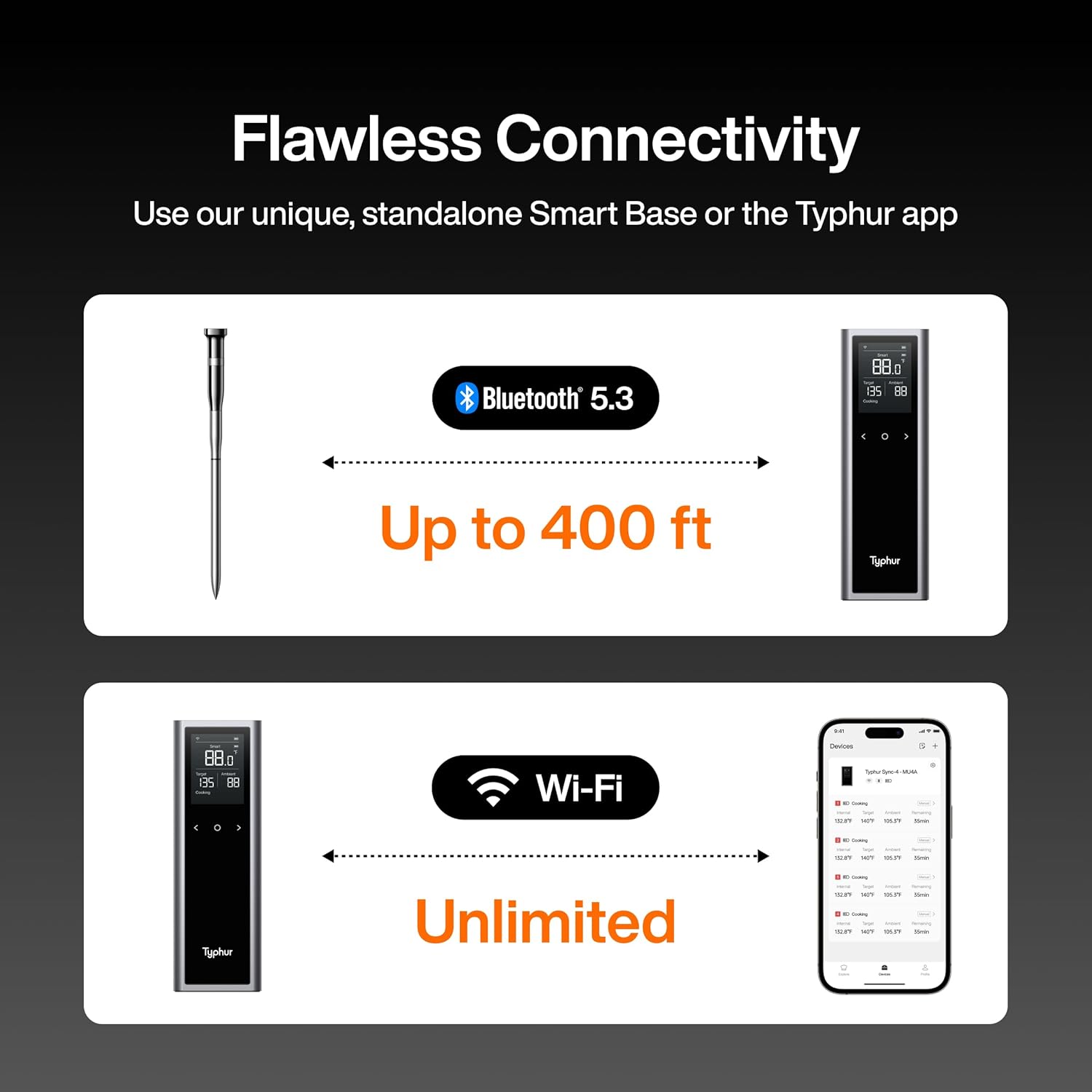
Image: A smartphone screen displaying the Typhur app, showing a cooking progress graph with internal, target, and ambient temperatures.
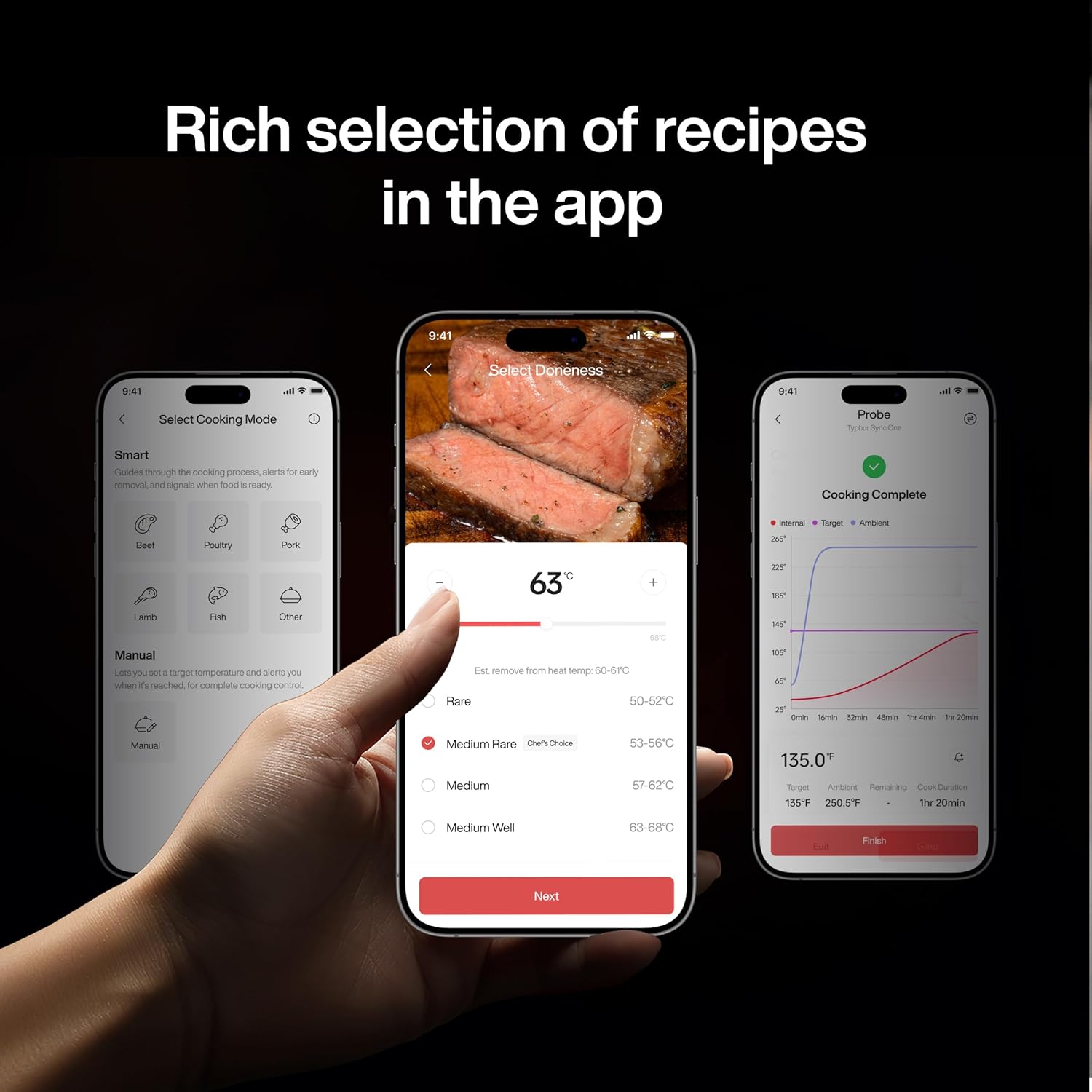
Image: The Typhur app interface on a smartphone, showing various meat types and doneness options for recipe selection.
The app will send smart alerts to your phone when your food is ready, even if you are away from the device base, thanks to its WiFi connectivity.
Maintenance
Proper care ensures the longevity and accuracy of your Typhur Sync One:
- Cleaning the Probe: The meat probe is IPX8 waterproof and dishwasher-safe. After each use, wash the probe with liquid detergent and water, or place it in the dishwasher. Wipe it dry with a clean cloth before storing.
- Cleaning the Device Base: Wipe the device base with a soft, damp cloth. Do not submerge the device base in water.

Image: The Typhur Sync One probe being rinsed under running water, demonstrating its waterproof feature.
Troubleshooting
If you encounter issues with your Typhur Sync One, try the following solutions:
- No Temperature Reading: Ensure the probe is fully inserted into the meat and the device base is powered on. Check if the probe is properly seated in its charging slot on the base.
- Connectivity Issues:
- For Bluetooth: Ensure your smartphone's Bluetooth is enabled and the device is within range (up to 400ft).
- For WiFi: Verify the device base is connected to a 2.4GHz WiFi network. Check your router's signal strength.
- Inaccurate Readings: Ensure the probe is inserted into the thickest part of the meat and not touching any bones. Calibrate the thermometer if necessary (refer to the app for calibration instructions).
- Battery Not Charging: Ensure the charging cable is securely connected to both the device base and the power source. Check the charging port for any debris.
Specifications
| Feature | Detail |
|---|---|
| Brand | Typhur |
| Model Name | Sync One Wireless Meat Thermometer (WT01) |
| Connectivity Technology | Bluetooth 5.3, Wi-Fi (2.4GHz) |
| Temperature Accuracy | ±0.5°F |
| Response Time | 0.5 seconds |
| Probe Sensors | 5 internal sensors, 1 ambient sensor |
| Upper Temperature Rating | 752°F (short-term exposure) |
| Waterproof Rating | IPX8 (Probe) |
| Battery Life | 50 hours (full charge), 2 hours (2-minute charge) |
| Display Type | LCD |
| Outer Material | Aluminum |
Warranty and Support
For warranty information and customer support, please refer to the official Typhur website or the contact details provided in the included User Manual (PDF). You can also find the User Manual here.
Related documentsWT01


Ask a question about this manual
Ask about setup, troubleshooting, compatibility, parts, safety, or missing instructions. Manuals+ will review the question and use this page’s manual context to help answer it.