Jingelsye Car Radio Stereo for Toyota Corolla (2014-2016)
Model: 4 Core 2G RAM+64G ROM 10 Inches
1. Introduction
This manual provides detailed instructions for the installation, operation, and maintenance of your Jingelsye Car Radio Stereo. This unit is designed for Toyota Corolla models from 2014 to 2016, offering enhanced features and connectivity for an improved driving experience.
The system features a 4-core processor, 2GB RAM, and 64GB of internal storage, ensuring smooth performance. The 10.1-inch screen provides a clear 1280x800 resolution display.
Image 1.1: Jingelsye Car Radio Stereo main unit.
Image 1.2: The car radio stereo integrated into a Toyota Corolla dashboard.
2. What's in the Box
Please verify that all components listed below are included in your package:
Car Radio Stereo Unit (1)
Backup Camera (1)
Power Cable (1)
GPS Module (1)
Canbus (1)
RCA Cable (1)
Reversing Cable (1)
USB Cable (2)
Crowbar (1)
Image 2.1: Overview of product packaging details and included accessories.
3. Setup and Installation
Installation of the Jingelsye Car Radio Stereo requires basic knowledge of car audio systems. If you are not comfortable with the process, professional installation is recommended.
3.1 Compatibility Check
This unit is specifically designed for Toyota Corolla models manufactured between 2014 and 2016. Note: It is not suitable for configurations with the original car radio having a touch screen and a clock located above the vents.
Image 3.1: Compatibility examples for Toyota Corolla 2014-2016 models.
3.2 General Installation Steps
Preparation: Disconnect the vehicle's battery before starting any electrical work.
Remove Old Unit: Carefully remove the existing car radio and dashboard trim. Use the provided crowbar to prevent damage.
Wiring: Connect the new power cable, RCA cables, USB cables, GPS module, and Canbus to the corresponding ports on the new head unit and the vehicle's wiring harness. Most connections are plug-and-play.
Backup Camera: Install the backup camera at the rear of the vehicle and route the reversing cable to the head unit. Connect it to the designated reversing input.
Fitment: Position the new head unit into the dashboard opening. Some minor trimming of plastic brackets may be necessary for a flush fit, as noted by some users.
Secure Unit: Secure the head unit and reattach the dashboard trim.
Reconnect Battery: Reconnect the vehicle's battery and test the unit.
For detailed wiring diagrams and specific vehicle panel removal instructions, refer to online resources or consult a professional installer.
4. Operating Instructions
This section details the various functions and features of your Jingelsye Car Radio Stereo.
4.1 Wireless CarPlay & Android Auto
The unit supports both wireless CarPlay and Android Auto. Connect your smartphone to access navigation, music, calls, and other apps directly on the car radio screen. Activate Siri or Google Assistant for voice control.
Image 4.1: Wireless CarPlay and Android Auto interfaces.
4.2 5G Wi-Fi & GPS Navigation
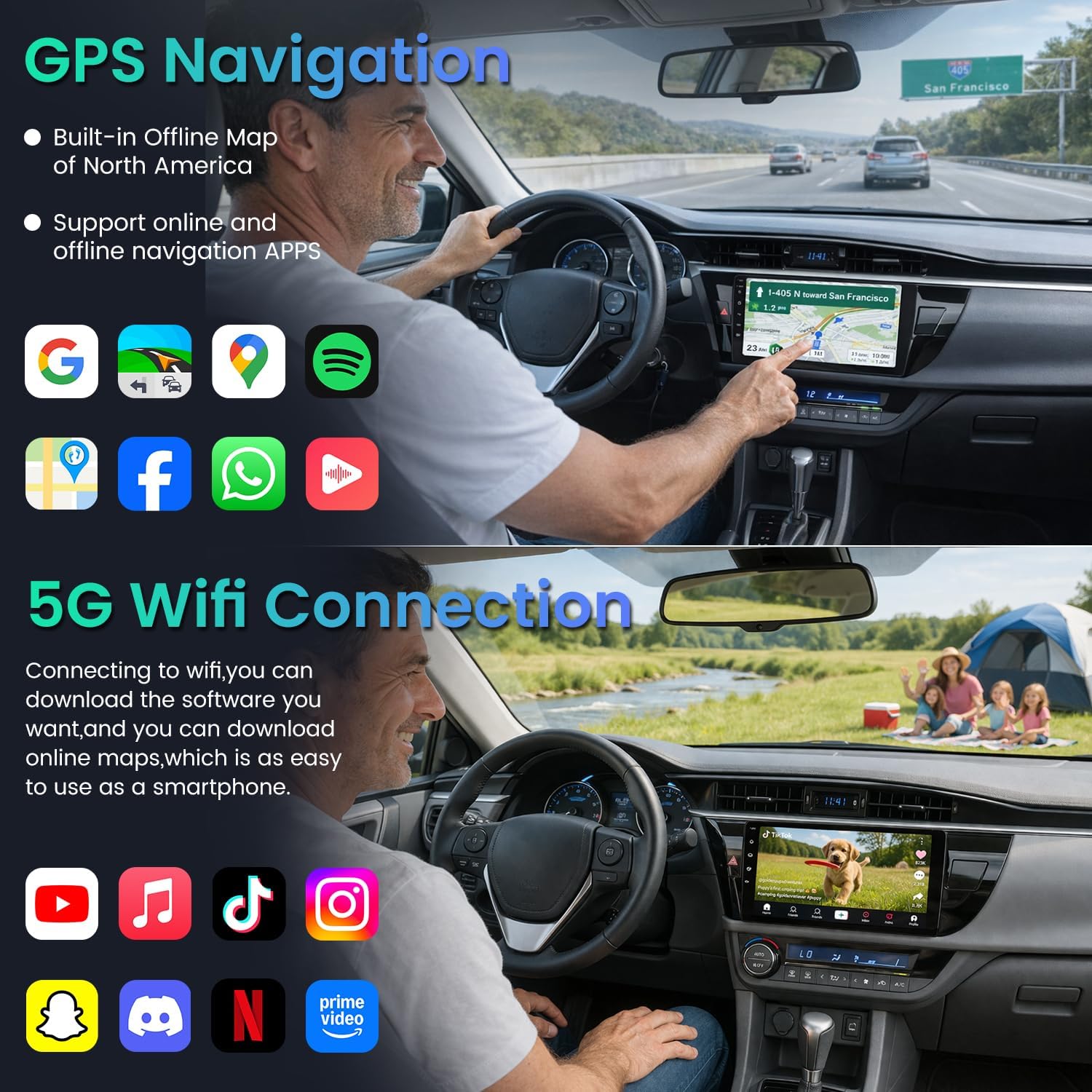
Connect to 5G Wi-Fi for fast internet access, enabling app downloads and online map updates. The built-in GPS navigation system provides real-time directions and supports offline maps for North, Central, and South America.
Image 4.2: GPS Navigation interface with map display.
Image 4.3: 5G Wi-Fi connectivity for online applications.
4.3 Bluetooth 5.0
Utilize Bluetooth 5.0 for stable, fast connections. This allows for hands-free calling, music streaming, and access to your phone's contact book directly from the head unit.
Image 4.4: Bluetooth calls and music streaming.
4.4 FM & RDS Radio
The integrated FM tuner provides clear radio reception. RDS (Radio Data System) functionality displays real-time information such as station names and song titles, where available.
Image 4.5: FM/RDS Radio interface.
4.5 Steering Wheel Control (SWC)
The unit supports steering wheel controls, allowing you to manage volume, tracks, and calls without taking your hands off the wheel. Configuration may be required in the system settings.
Image 4.6: Steering Wheel Control feature.
4.6 1080P Backup Camera
The system includes a 1080P backup camera for enhanced safety. When reverse gear is engaged, the display automatically switches to the camera view, providing a wide 170-degree angle and night vision capabilities.
Image 4.7: 1080P Rear Camera view.
4.7 Mirror Link
The Mirror Link feature allows you to mirror your smartphone screen onto the car radio display, providing easy access to your phone's apps and content.
Image 4.8: Mirror Link functionality.
4.8 Built-in EQ Setting
Adjust the audio output to your preference using the built-in Equalizer (EQ) settings. This allows for customization of sound frequencies and balance to optimize your listening experience.
Image 4.9: Built-in EQ Setting interface.
4.9 Voice Control
Utilize voice commands through Siri or Google Assistant for hands-free operation of navigation, music, and calls, enhancing safety while driving.
Image 4.10: Siri/Google Voice Control in action.
4.10 Product Overview Video
Video 4.1: An official overview of the Jingelsye car radio stereo for Toyota Corolla, demonstrating various features and functions.
5. Maintenance
To ensure the longevity and optimal performance of your car radio stereo, follow these maintenance guidelines:
Screen Cleaning: Use a soft, lint-free cloth to gently wipe the touchscreen. For stubborn smudges, slightly dampen the cloth with water or a screen-safe cleaner. Avoid harsh chemicals or abrasive materials.
Software Updates: Periodically check for available software updates through the system settings to ensure you have the latest features and bug fixes.
Cable Connections: Ensure all cables are securely connected. Loose connections can lead to intermittent functionality.
Environmental Care: Avoid exposing the unit to extreme temperatures, direct sunlight for prolonged periods, or excessive moisture.
6. Troubleshooting
This section addresses common issues you might encounter with your car radio stereo.
6.1 Common Issues and Solutions
Problem
Possible Cause
Solution
CarPlay/Android Auto does not connect automatically.
Temporary software glitch or connection issue.
Manually tap the CarPlay/Android Auto icon on the screen to initiate connection. Ensure Bluetooth and Wi-Fi are enabled on your phone. Restarting the head unit or phone may also resolve the issue.
Steering wheel controls (e.g., track skip) are reversed or not working.
Incorrect configuration or compatibility variation.
Access the SWC settings in the unit's menu and re-map the buttons. If mapping options are limited, you may need to adapt to the current configuration. Ensure Canbus is correctly installed.
Sound quality is not optimal.
Default EQ settings may not suit your preference or vehicle acoustics.
Adjust the built-in EQ settings (refer to Section 4.8) to customize the sound profile. Experiment with different presets or manual adjustments.
Unit does not power on.
Power cable disconnected or fuse blown.
Check all power connections. Inspect the vehicle's fuse box and the unit's inline fuse (if present) for any blown fuses.
Touchscreen is unresponsive.
Software freeze or temporary issue.
Perform a soft reset by pressing the reset button (if available) or by disconnecting and reconnecting the vehicle's battery.
7. Specifications
Detailed technical specifications for the Jingelsye Car Radio Stereo:
Feature
Detail
Brand
Jingelsye
Vehicle Service Type
Car (Toyota Corolla 2014-2016)
Screen Size
10.1 Inches
Display Type
LCD, Capacitive Touchscreen
Resolution
1280 * 800 IPS
Operating System
Android 12
Processor
4-Core
Memory (RAM)
2GB
Storage (ROM)
64GB
Connectivity
Bluetooth 5.0, USB, 5G Wi-Fi
Navigation System
Built-in GPS (BeiDou, GLONASS, GPS), supports Central/North/South America maps
Audio Output Mode
Stereo
Special Features
Wireless CarPlay, Android Auto, RDS, EQ, HiFi, FM, Mirror Link, SWC, 1080P Backup Camera support
Included Components
Backup Camera, Power Cable, GPS Module, Canbus, RCA Cable, Reversing Cable, USB Cable (x2), Crowbar
8. Warranty and Support
8.1 Warranty Information
Jingelsye products are covered by a standard manufacturer's warranty. Please refer to the warranty card included with your product or contact Jingelsye customer service for specific warranty terms and conditions.
8.2 Customer Support
If you encounter any issues or have questions regarding your Jingelsye Car Radio Stereo, please contact our customer support team. Good communication helps us resolve problems efficiently.
For assistance, you may refer to the contact information provided on the official Jingelsye website or through your purchase platform.
Ask a question about this manual
Ask about setup, troubleshooting, compatibility, parts, safety, or missing instructions. Manuals+ will review the question and use this page’s manual context to help answer it.