
1. Introduction and Overview
The NETUM F18W is a versatile 2D wireless barcode scanner designed for efficient and reliable data capture. It offers dual connectivity options and robust performance for various applications.
- 2-in-1 Connection: Supports both 2.4GHz wireless and USB cable connections for flexible use.
- Two Working Modes: Features a built-in memory of 256 KB, capable of storing over 2600 codes, allowing for scanning without an active connection.
- Large Capacity Battery: Equipped with an 1800mAh Li-Ion battery, providing continuous scanning for up to 100,000 times on a full charge.
- High Performance: Engineered for excellent performance and stability with a fully ergonomic design.

Figure 1: NETUM F18W 2D Wireless Barcode Scanner with its USB cable and 2.4GHz wireless receiver.
2. Package Contents
Upon opening the package, please verify that all components are present:
- NETUM F18W 2D Wireless Barcode Scanner
- Mini USB Receiver (2.4GHz)
- USB Cable
- User Manual (this document)
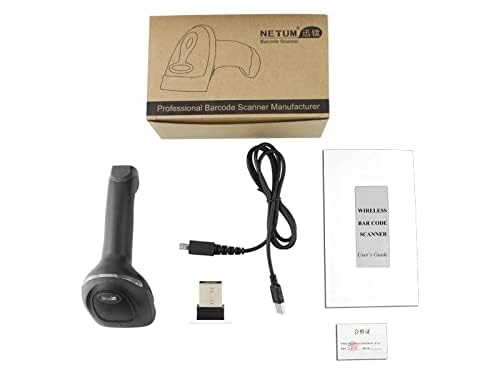
Figure 2: The NETUM F18W package includes the scanner, USB cable, wireless receiver, and user manual.
3. Setup
The NETUM F18W barcode scanner offers two primary connection methods: 2.4GHz wireless and USB wired. Both methods are plug-and-play, requiring no driver installation.
3.1. Wireless Connection (2.4GHz)
- Locate the Mini USB Receiver.
- Insert the Mini USB Receiver into an available USB port on your computer, laptop, or compatible device.
- The scanner will automatically pair with the receiver. A successful connection is typically indicated by an audible beep and/or a change in the scanner's indicator light.
3.2. Wired Connection (USB Cable)
- Connect one end of the provided USB cable to the scanner's USB port.
- Connect the other end of the USB cable to an available USB port on your computer, laptop, or compatible device.
- The scanner will be recognized as a standard HID keyboard device.
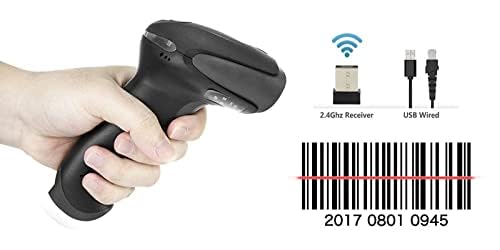
Figure 3: The scanner supports both 2.4GHz wireless (via receiver) and USB wired connections.
4. Operating Instructions
The F18W scanner is designed for ease of use. Once connected, it functions like a keyboard input device, entering scanned data directly into any active text field.
4.1. Basic Scanning
- Ensure the scanner is powered on and connected to your device.
- Point the scanner's window at the barcode you wish to scan.
- Press the trigger button. A red scan line will appear.
- Hold the scanner steady until you hear a beep, indicating a successful scan. The data will then be transmitted to your connected device.
4.2. Supported Barcode Types
The NETUM F18W supports a wide range of 1D and 2D barcode symbologies, including QR codes, Data Matrix, and MicroPDF417. Its powerful decode capacity covers:
Codabar, Code 93, MSI, Code 128, UCC/EAN-128, Code 39, EAN-8, EAN-13, UPC-A, UPC-E, ISBN, Industrial 25, Interleaved 25, Standard 25, 2/5 Matrix, USPS, FedEx.

Figure 4: The F18W scanner is capable of reading various 2D barcode formats.
4.3. Working Modes
The scanner features two working modes:
- Instant Upload Mode: Scanned data is immediately transmitted to the connected device. This is the default mode.
- Storage Mode: If the scanner is out of range or not connected, scanned data is stored in its internal 256 KB memory (up to 2600 codes). Data can be uploaded later when a connection is re-established.
4.4. Application Scenarios
The F18W scanner is suitable for a variety of environments due to its versatility and robust design.

Figure 5: The NETUM F18W scanner is ideal for use in retail, logistics, healthcare, and other inventory management settings.
5. Maintenance
To ensure the longevity and optimal performance of your NETUM F18W barcode scanner, follow these maintenance guidelines:
- Cleaning: Use a soft, dry, lint-free cloth to clean the scanner's exterior. For the scanning window, use a soft cloth slightly dampened with a mild, non-abrasive cleaner. Avoid harsh chemicals or abrasive materials.
- Battery Care: The built-in 1800mAh Li-Ion battery provides extensive usage. For best battery life, avoid fully discharging the battery frequently. Recharge the scanner when the battery indicator suggests low power.
- Storage: Store the scanner in a cool, dry place away from direct sunlight and extreme temperatures when not in use.
- Handling: Handle the scanner with care to prevent drops or impacts, which can damage internal components.
6. Troubleshooting
If you encounter issues with your NETUM F18W barcode scanner, please refer to the following common troubleshooting steps:
- Scanner not responding:
- Ensure the scanner is fully charged.
- Verify the USB cable is securely connected to both the scanner and the host device.
- If using wireless mode, ensure the Mini USB Receiver is properly inserted and the scanner is within range. Try re-pairing the scanner if necessary (refer to advanced configuration in the full manual if available).
- Test the scanner on a different USB port or a different computer to rule out port or device issues.
- No data transmitted after scanning:
- Confirm the scanner is successfully connected (e.g., indicator light, beep sound).
- Ensure there is an active text field or application open on your device where the scanned data can be input.
- Check if the barcode is damaged or poorly printed. Try scanning a known good barcode.
- Scanner beeps but no data:
- This might indicate the scanner is in storage mode. Connect the scanner to upload stored data.
- Ensure the correct barcode symbology is enabled if you are scanning a less common type.
For more complex issues, please contact customer support.
7. Specifications
| Feature | Detail |
|---|---|
| Brand | NETUM |
| Model | F18W |
| Product Dimensions | 5 x 10 x 6 cm |
| Item Weight | 250 g |
| Connectivity Technology | 2.4GHz Wireless, USB Cable |
| Compatible Devices | Desktop, Laptop, Smartphone, Tablet |
| Power Source | Corded Electric (for charging) |
| Battery | 1800mAh Li-Ion |
| Memory | 256 KB (stores over 2600 codes) |
| Supported Barcodes | 1D: Codabar, Code 93, MSI, Code 128, UCC/EAN-128, Code 39, EAN-8, EAN-13, UPC-A, UPC-E, ISBN, Industrial 25, Interleaved 25, Standard 25, 2/5 Matrix. 2D: QR, Data Matrix, MicroPDF417. |
8. Warranty and Support
8.1. Warranty Information
This product comes with a 6 Month Warranty from the date of purchase. Please retain your proof of purchase for warranty claims. The warranty covers manufacturing defects and malfunctions under normal use conditions.
8.2. Customer Support
For technical assistance, troubleshooting, or warranty inquiries, please contact NETUM customer support:
- Email: Sreeprojectors@gmail.com
- WhatsApp: +91 8341888860
- Manufacturer: NETUM
You can also visit the official NETUM brand page on Amazon for more product information.


