
Ricoh IM C3500
Contents
RICOH IM C3500 Color Laser Multifunction Copier User Manual
Model: IM C3500 | Brand: Ricoh
1. Introduction
This manual provides comprehensive instructions for the setup, operation, maintenance, and troubleshooting of your RICOH IM C3500 Color Laser Multifunction Copier. This device is designed for high-volume office environments, offering robust copy, print, and scan functionalities with advanced features like automatic duplexing and network connectivity.
Please read this manual thoroughly before using the machine to ensure proper operation and to maximize its lifespan.
2. Setup Guide
2.1 Unpacking and Placement
Carefully remove the copier from its packaging. Ensure all packing materials are removed from inside and outside the machine. Place the copier on a stable, level surface with adequate space for ventilation and access to power outlets.
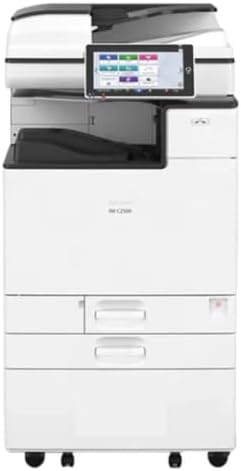
Figure 2.1: Front view of the RICOH IM C3500 Color Laser Multifunction Copier, showing its compact design and control panel.
2.2 Power Connection
Connect the power cord securely to the copier's power input and then to a grounded electrical outlet. Do not use extension cords or power strips that are not rated for the copier's power requirements.
2.3 Initial Paper Loading
Open the paper trays and load the desired paper size and type. The copier supports various sizes including Letter, Legal, 12 x 18, and other custom sizes via the bypass tray. Ensure paper is loaded correctly to prevent jams.
2.4 Software and Driver Installation
To enable printing and scanning from your computer, install the necessary drivers and software. These are typically provided on a CD/DVD or available for download from the official Ricoh support website. Follow the on-screen instructions for installation. For network connectivity, configure the Wi-Fi settings on the copier's control panel or via a wired Ethernet connection.
3. Operating Instructions
3.1 Basic Copying
- Place the original document face-down on the scanner glass or face-up in the Automatic Document Feeder (ADF).
- Select the "Copy" function from the control panel.
- Adjust settings such as number of copies, color/black & white, and duplexing (two-sided) as needed.
- Press the "Start" button to begin copying.
3.2 Printing Documents
Ensure the copier is connected to your network (Wi-Fi or Ethernet) and the drivers are installed on your computer. From your application, select "Print," choose the RICOH IM C3500 as your printer, and adjust print settings (e.g., paper size, color, duplex) before sending the print job.
3.3 Scanning Documents
The RICOH IM C3500 features a flatbed scanner. Place your document on the scanner glass or use the ADF. From the control panel, select "Scan" and choose your desired destination (e.g., Scan to PC, Scan to Email, Scan to Folder). Follow the prompts to complete the scan.
3.4 Automatic Duplexing
The copier supports automatic two-sided printing and copying. This feature can be enabled through the print driver settings on your computer or directly from the copier's control panel when performing copy operations. This saves paper and reduces environmental impact.
4. Maintenance
4.1 Cleaning the Copier
Regular cleaning helps maintain print quality and extends the life of your machine. Use a soft, lint-free cloth to wipe the exterior. For the scanner glass, use a glass cleaner applied to the cloth (not directly to the glass) to remove smudges and dust.
4.2 Replacing Toner Cartridges
The copier uses Black, Cyan, Magenta, and Yellow toner cartridges. When a toner cartridge is low or empty, a message will appear on the control panel. Refer to the on-screen instructions or the quick guide for specific steps on how to safely replace the toner cartridges.
4.3 Paper Tray Management
Ensure paper trays are not overfilled. Use only recommended paper types and weights to prevent paper jams and ensure optimal performance. Periodically clean dust and debris from the paper feed rollers.
5. Troubleshooting Common Issues
This section addresses common problems you might encounter. For more complex issues, consult the full service manual or contact customer support.
- Paper Jams: Follow the on-screen instructions to locate and clear jammed paper. Always turn off the machine before clearing jams if instructed.
- Poor Print Quality: Check toner levels. Perform a print head cleaning or calibration from the maintenance menu on the control panel. Ensure correct paper type settings.
- Connectivity Issues: Verify network cable connections or Wi-Fi settings. Restart the copier and your computer/router. Ensure drivers are correctly installed.
- Copier Not Responding: Turn the copier off, wait a few minutes, then turn it back on. Check power connections.
6. Technical Specifications
| Feature | Specification |
|---|---|
| Model Name | IM C3500 |
| Functions | Copy, Print, Scan (All In One) |
| Print Speed (Color/Monochrome) | Up to 35 ppm |
| Max Print Resolution | 1200x1200 dpi |
| Max Copy Resolution | 1200x1200 dpi |
| Duplex Printing | Automatic |
| Connectivity | Wi-Fi, USB |
| Max Input Sheet Capacity | 250 (standard tray), up to 4,700 pages (with optional trays) |
| Supported Sheet Sizes | Letter, Legal (Bypass), 12 x 18, Various sizes |
| Included Components | Toner Cartridges |
| Product Dimensions | 23 x 37.9 x 27 inches |
7. Warranty and Support
7.1 Warranty Information
This RICOH IM C3500 Copier comes with a 90 days limited warranty. This warranty covers defects in materials and workmanship under normal use. Please retain your proof of purchase for warranty claims.
7.2 Customer Support
For technical assistance, service requests, or further inquiries, please contact Ricoh customer support or the seller from whom you purchased the renewed product. Refer to the documentation provided with your purchase for specific contact details.
Ask a question about this manual
Ask about setup, troubleshooting, compatibility, parts, safety, or missing instructions. Manuals+ will review the question and use this page’s manual context to help answer it.