
1. Introduction
Thank you for choosing the Wisoqu Scrolling Remote Control. This device is designed to enhance your mobile phone and tablet experience by providing convenient remote control for various functions, including page turning, camera shutter activation, and video control. Please read this manual carefully before use to ensure proper operation and to maximize your enjoyment of the product.
Important Note: This device is compatible only with mobile phones and tablets. It is not suitable for e-readers such as Paperwhite or Oasis.
2. Product Overview
2.1 Key Features
- Cordless Remote Control: Manage short videos, reading, and media playback without touching your screen. Functions include scrolling up/down, sliding left/right, pause/start, volume adjustment, remote photography, video recording, return, and lock screen.
- Page Turning Control: Effortlessly flip pages in electronic books or documents (up, down, left, right) for a comfortable reading experience, especially in cold weather.
- Remote Camera Shutter: Capture photos and start/stop video recording remotely within a 10-15 meter range.
- Wide Compatibility: Connects quickly via Bluetooth V5.2 to mobile phones and tablets.
2.2 Package Contents
- 1 x Wisoqu Scrolling Remote Control
- 1 x Charging Cable
- 1 x User Manual
2.3 Remote Control Layout

Image: Detailed diagram illustrating the functions of each button on the remote control. The central button is for pause/play, surrounded by directional buttons for page up/down/left/right and volume control. Additional buttons are for photography/shoot, return, and a switch key.

Image: A close-up view of the remote control, emphasizing its USB charging capability, remote video recording function, page-turning feature, and long endurance.
3. Setup
3.1 Charging the Remote Control
Before first use, ensure the remote control is fully charged. Connect the provided charging cable to the remote's charging port and a standard USB power source (e.g., computer USB port, USB wall adapter). The charging indicator will show the charging status.

Image: Side view of the remote control, clearly showing the USB charging port for power input.
3.2 Bluetooth Pairing
- Ensure the remote control is powered on.
- On your mobile phone or tablet, navigate to the Bluetooth settings.
- Enable Bluetooth and search for available devices.
- Select the device named "Wisoqu Remote" (or similar) from the list to pair.
- Once paired, the remote control is ready for use.
4. Operating Instructions
The remote control features several buttons for various functions. Refer to the "Remote Control Layout" diagram in Section 2.3 for button identification.
4.1 General Functions
- Switch Key: Powers the device on/off.
- Pause/Play (Center Button): Click to pause or play media.
- Volume Up (Press and Hold 'Page Up' button): Increase media volume.
- Volume Down (Press and Hold 'Scroll Down' button): Decrease media volume.
- Return Button: Navigates back or exits current application/menu. Press and hold to lock the screen.
4.2 Media Control (Short Videos, Music)
- Scroll Up/Down: Use the respective directional buttons to scroll content vertically.
- Slide Left/Right: Use the respective directional buttons to slide content horizontally.
- Like (Double Click 'Pause' button): In some applications, double-clicking the center button may function as a 'like' action.
4.3 Reading Mode (E-books, Documents)
- Page Up/Down: Click the 'Page Up' or 'Scroll Down' buttons to turn pages vertically.
- Page Left/Right: Click the 'Left Page' or 'Right Page' buttons to turn pages horizontally.
4.4 Camera Control
- Photograph/Shoot Button: Open your device's camera app. Click this button to take a photo or start/stop video recording.
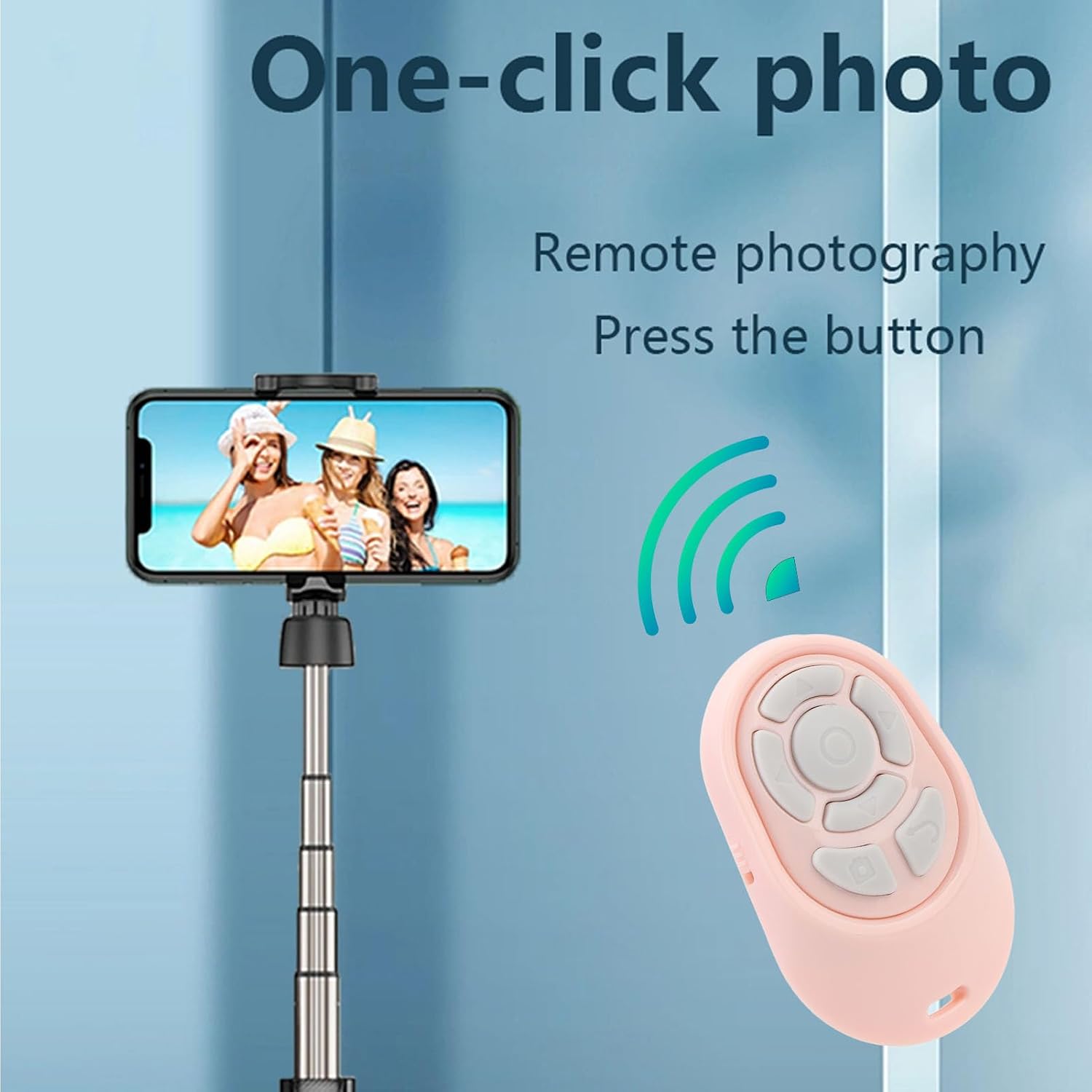
Image: An individual using the remote control to activate the camera shutter on a smartphone, which is set up on a tripod, demonstrating remote photography.

Image: A user operating the remote control to record video with a smartphone positioned on a tripod, illustrating its use for remote video recording.
5. Maintenance
5.1 Cleaning
Wipe the remote control with a soft, dry cloth. Do not use harsh chemicals or abrasive cleaners, as these may damage the surface or internal components.
5.2 Storage
Store the remote control in a cool, dry place away from direct sunlight and extreme temperatures. If storing for an extended period, ensure it is fully charged before storage and recharge periodically to maintain battery health.
6. Troubleshooting
| Problem | Possible Cause | Solution |
|---|---|---|
| Remote control does not power on. | Low battery. | Charge the remote control using the provided USB cable. |
| Cannot pair with phone/tablet. | Bluetooth is off on the device; remote is out of range; remote is already paired to another device. |
|
| Remote functions are not working. | Not properly paired; incompatible application; device is locked. |
|
7. Specifications
| Item Type | Phone Remote Controller |
| Bluetooth Version | V5.2 |
| Cordless Range | Approx. 10-15m / 32.8-49.2ft |
| Battery Type | 50mAh Lithium Ion Battery (Included) |
| Item Weight | 0.952 ounces |
| Product Dimensions | 5.12 x 3.54 x 0.79 inches |
| Model Number | Wisoququ3cfis5d6-13 |
8. Warranty and Support
For warranty information or technical support, please refer to the contact details provided with your purchase or visit the official Wisoqu website. Keep your proof of purchase for warranty claims.