
XINFUTE GTV_RC_AU
User Manual for XINFUTE GTV_RC_AU Remote Control
Model: GTV_RC_AU
Introduction
This manual provides comprehensive instructions for the setup, operation, and maintenance of your new XINFUTE GTV_RC_AU remote control. Designed as a replacement unit, it is compatible with EKO Hyundai Android TV Boxes and Streaming Media devices, offering voice control functionality. Please read this manual carefully to ensure proper use and longevity of your device.
Product Overview
Key Features:
- Type: TV Remote Control
- Ergonomic design for comfortable grip.
- Integrated Voice Search functionality.
- Direct access buttons for popular streaming services.
- Durable ABS Material construction.
Package Contents:
- 1 x XINFUTE GTV_RC_AU Remote Control
Note: 2 x AAA batteries are required and are not included in the package.
Setup
Battery Installation:
- Locate the battery compartment on the back of the remote control.
- Slide the battery cover downwards or press the latch to open it.
- Insert two (2) AAA batteries, ensuring the positive (+) and negative (-) terminals align correctly with the markings inside the compartment.
- Close the battery cover by sliding it back into place until it clicks securely.
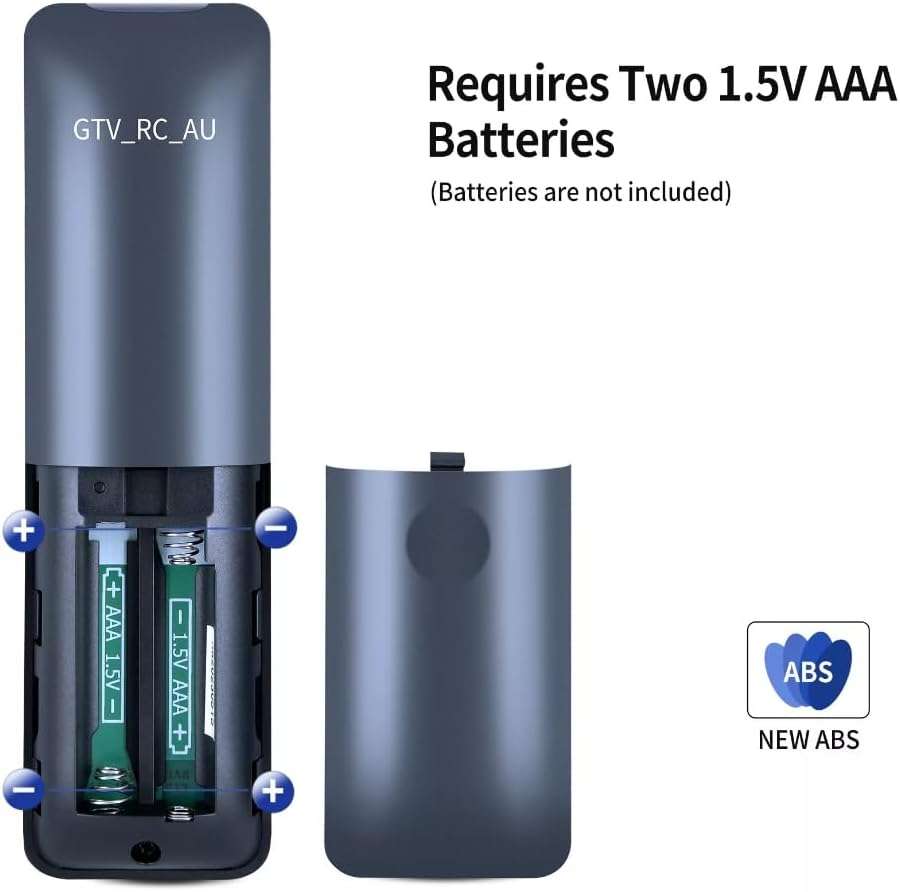
Figure 1: Correct battery installation for the GTV_RC_AU remote control. Ensure correct polarity for proper function.
Operating Instructions
The GTV_RC_AU remote control is designed for intuitive use with your EKO Hyundai Android TV Box. Most functions are accessible directly via dedicated buttons.

Figure 2: Layout of the GTV_RC_AU remote control buttons.
Button Functions:
- Power Button (⏻): Turns the TV Box On or Off.
- Mute Button (🔇): Mutes or unmutes the audio.
- Voice Control Button (🎤): Activates the voice assistant for commands and searches.
- User Profile Button (👤): Accesses user profiles or account settings.
- Settings Button (⚙️): Opens the device settings menu.
- Navigation Pad (Circular): Used to navigate through menus and select items.
- Back Button (←): Returns to the previous screen or menu.
- Home Button (🏠): Returns to the main home screen.
- TV Input Button (📺): Switches TV input sources.
- Volume Up/Down (VOL +/-): Adjusts the volume level.
- Channel Up/Down (CH +/-): Changes TV channels (if applicable).
- Numeric/Menu Button (123. / MENU): Accesses numeric keypad or menu options.
- Dedicated App Buttons: Direct access to YouTube, Netflix, Prime Video, and Disney+.
Pairing (If Required):
Typically, replacement remote controls like the GTV_RC_AU are designed to work out-of-the-box with compatible devices. If the remote does not respond, ensure batteries are correctly installed. Some Android TV Boxes may require a simple pairing process, usually initiated from the TV Box's settings menu under 'Remotes & Accessories' or 'Bluetooth Devices'. Refer to your TV Box's user manual for specific pairing instructions if needed.
Maintenance
- Cleaning: Use a soft, dry cloth to clean the remote control. For stubborn dirt, slightly dampen the cloth with water or a mild cleaning solution. Do not use abrasive cleaners or immerse the remote in water.
- Storage: Store the remote control in a cool, dry place away from direct sunlight and extreme temperatures.
- Battery Replacement: Replace batteries when the remote's performance degrades or it stops responding. Always replace both batteries at the same time with new ones.
Troubleshooting
Common Issues and Solutions:
- Remote not responding:
- Check if batteries are inserted correctly with proper polarity.
- Replace old batteries with new AAA batteries.
- Ensure there are no obstructions between the remote and the TV Box.
- If the TV Box uses Bluetooth, try re-pairing the remote (refer to your TV Box manual).
- Voice control not working:
- Ensure the remote is properly paired with the TV Box.
- Check the TV Box's internet connection, as voice commands often require online processing.
- Verify microphone permissions in your TV Box's settings.
- Buttons are sticky or unresponsive:
- Clean the remote control as described in the Maintenance section.
- Avoid spilling liquids on the remote.
Specifications
| Feature | Detail |
|---|---|
| Model Number | GTV_RC_AU |
| Type | TV Remote Control |
| Material | ABS Material |
| Color | Black |
| Power Source | 2 x AAA Batteries (not included) |
| Product Dimensions | 6 x 3 x 1 inches |
| Item Weight | 2.82 ounces |
| Special Features | Ergonomic, Voice Search |
| Compatible Devices | Television (EKO Hyundai Android TV Box, Streaming Media) |
Warranty and Support
Warranty Information:
This XINFUTE GTV_RC_AU remote control comes with a one-year warranty from the date of purchase. This warranty covers manufacturing defects and ensures the product functions as described under normal use. Please retain your proof of purchase for warranty claims.
Customer Support:
If you encounter any issues or have questions regarding your remote control that are not addressed in this manual, please contact our customer support team. You can typically find contact information on the product packaging or the retailer's website where you made the purchase. Please have your model number (GTV_RC_AU) and purchase details ready when contacting support.
- Email: [Refer to retailer's website or product packaging]
- Phone: [Refer to retailer's website or product packaging]
Ask a question about this manual
Ask about setup, troubleshooting, compatibility, parts, safety, or missing instructions. Manuals+ will review the question and use this page’s manual context to help answer it.