1. Introduction
This manual provides comprehensive instructions for the installation, operation, and maintenance of your NIVIAN Autonomous Access Control system. This device offers flexible and secure access management through multiple identification methods, including RFID cards, numeric PIN codes, and mobile application control.
Designed for both indoor and outdoor use, the NIVIAN Access Control system is built with high-strength, vandal-resistant materials and features IP68 protection for extreme weather conditions. Its integration with the Tuya Smart app allows for remote management, user authorization, and activity monitoring, creating a smart and automated access solution for homes and businesses.

Figure 1.1: NIVIAN Autonomous Access Control device and mobile application interface.
2. Product Overview
2.1 Key Features
- Flexible Access Methods: Supports RFID card, numeric PIN code, and mobile app (Tuya Smart) for access.
- WiFi Connectivity: Enables remote management and control via the Tuya Smart app.
- High Durability: Constructed from high-quality zinc alloy, rustproof, and vandal-resistant.
- Weatherproof: IP68 protection grade ensures resistance to extreme weather conditions.
- Smart Home Integration: Compatible with other Tuya-enabled smart devices for a comprehensive ecosystem.
- Easy Installation: Simple two-wire connection to electric lock and power supply.
- Relay Outputs: Includes outputs for push buttons, doorbells, and relays.
2.2 Package Contents
Verify that all components are present in the package:
- NIVIAN Access Control Unit (Model: NV-ACCESS-PIN-RFID-W)
- Mounting Screws and Wall Plugs
- User Manual (this document)
- Note: Power supply, electric lock, and optional opening button are not included.

Figure 2.1: Key features of the NIVIAN Access Control device.

Figure 2.2: Side view of the NIVIAN Access Control device.

Figure 2.3: Back view of the NIVIAN Access Control device.
3. Setup and Installation
3.1 Pre-installation Checklist
- Ensure you have a compatible electric lock (not included).
- Prepare a 12V/2A DC power supply (not included).
- Confirm stable 2.4GHz WiFi network coverage at the installation location.
- Download the Tuya Smart app from your device's app store (Download Tuya Smart App).
3.2 Wiring Diagram
The NIVIAN Access Control system requires a simple two-wire connection to your electric lock and power supply. Additional connections are available for an optional exit button and doorbell.

Figure 3.1: Basic wiring diagram for the NIVIAN Access Control system.
- Connect the power supply (12V/2A DC) to the designated power input terminals on the access control unit.
- Connect the electric lock to the relay output terminals (NO/NC, depending on your lock type).
- (Optional) Connect an exit button to the push button input terminals.
- (Optional) Connect a doorbell to the doorbell output terminals.
Important: Ensure all connections are secure and correctly polarized to prevent damage to the device or connected components. If unsure, consult a qualified electrician.
3.3 Physical Installation
- Choose a suitable mounting location, considering WiFi signal strength and accessibility.
- Mark the drilling points on the wall using the device as a template.
- Drill holes and insert wall plugs if necessary.
- Secure the access control unit to the wall using the provided screws.
- Route the wiring neatly and securely.
3.4 App Configuration (Tuya Smart)
- Open the Tuya Smart app and register/log in to your account.
- Add a new device by selecting "Add Device" or the "+" icon.
- Follow the in-app instructions to connect the NIVIAN Access Control to your WiFi network. This typically involves putting the device into pairing mode (refer to device LED indicators for status).
- Once connected, you can rename the device and access its settings.
4. Operating Instructions
4.1 Access Methods
The NIVIAN Access Control offers three primary methods for unlocking:
- RFID Card/Keychain: Present a registered RFID card or keychain to the reader area on the device.
- Numeric PIN Code: Enter a valid PIN code on the keypad and press the '#' key to confirm.
- Mobile App (Tuya Smart): Use the Tuya Smart app on your smartphone to remotely unlock the door.

Figure 4.1: Accessing the system using PIN code or RFID card/keychain.
4.2 User Management via Tuya Smart App
The Tuya Smart app provides comprehensive control over user access and permissions.
- Adding Users:
- Navigate to the device settings in the app.
- Select "User Management" or "Members".
- Add new users (e.g., family members, guests) and assign them specific access methods (PIN, RFID, app access).
- Creating Temporary Codes:
- Generate temporary PIN codes with defined validity periods (e.g., for visitors, cleaning staff).
- These codes can be shared remotely without providing physical keys.
- Remote Control:
- Open the door remotely from anywhere with an internet connection using the app.
- View detailed access logs and activity reports for each user.

Figure 4.2: Remote control and management via the Tuya Smart app.

Figure 4.3: Sharing temporary access permissions through the app.
5. Maintenance
5.1 Cleaning
To maintain the appearance and functionality of your access control unit:
- Wipe the surface with a soft, damp cloth.
- Avoid using abrasive cleaners, solvents, or harsh chemicals, as these can damage the finish or internal components.
5.2 Durability and Weather Resistance
The NIVIAN Access Control is designed for high strength and durability, featuring:
- Zinc Alloy Construction: Provides rustproof and vandal-resistant properties.
- Internal Resin Coating: Protects internal electronics from inclement weather.
- IP68 Protection: Ensures the device is completely waterproof and resistant to dust and extreme weather conditions, making it suitable for outdoor installation.
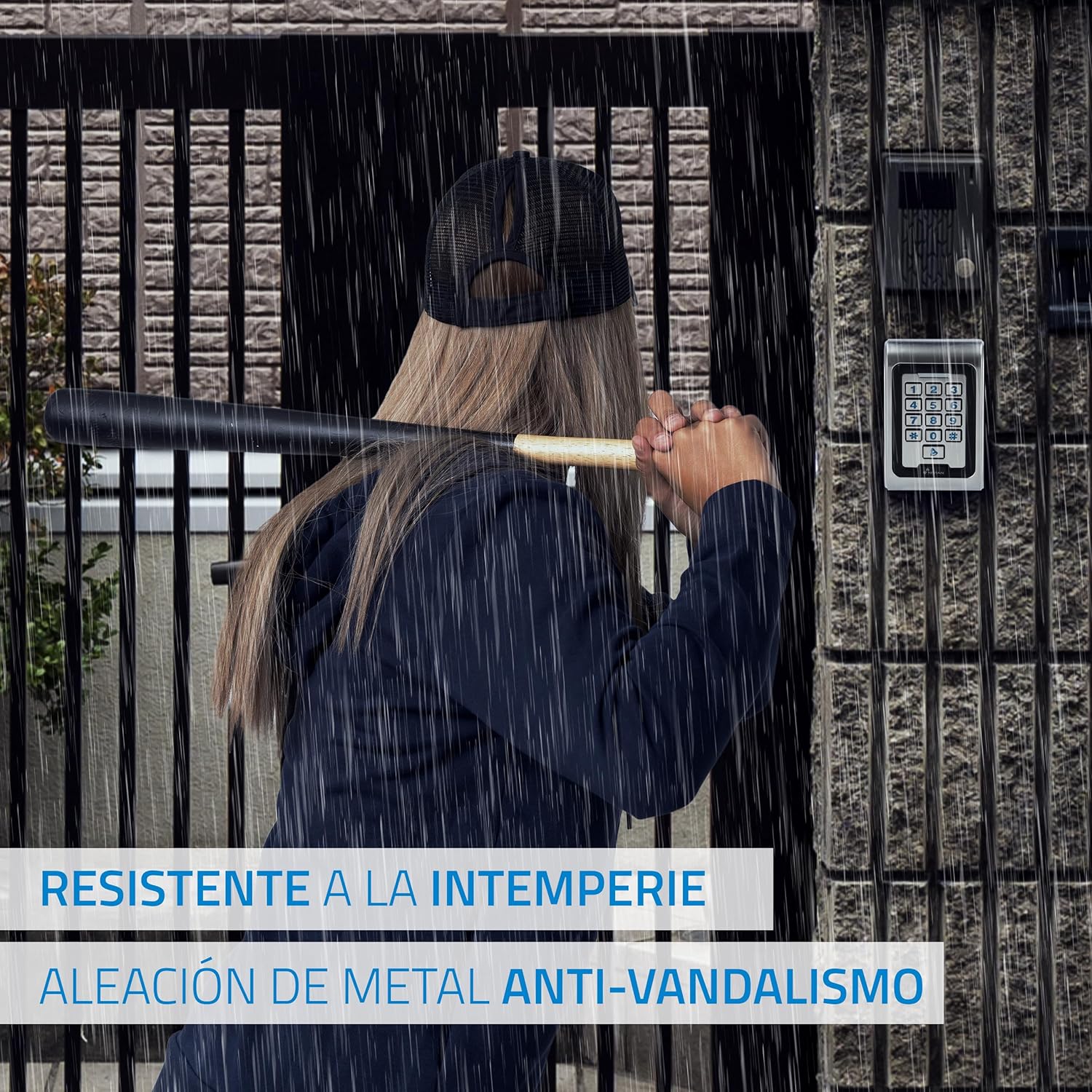
Figure 5.1: The device's resistance to weather and vandalism.
6. Troubleshooting
If you encounter issues with your NIVIAN Access Control, refer to the following common problems and solutions:
| Problem | Possible Cause | Solution |
|---|---|---|
| Device not powering on. | No power supply, incorrect wiring, faulty power adapter. | Check power connections. Ensure 12V/2A DC power supply is connected and functional. Verify wiring polarity. |
| Cannot connect to WiFi. | Incorrect WiFi password, 5GHz network, weak signal, device not in pairing mode. | Ensure you are connecting to a 2.4GHz WiFi network. Double-check password. Move device closer to router or use a WiFi extender. Put device into pairing mode as per app instructions. |
| RFID card/PIN not working. | Card/PIN not registered, incorrect PIN, damaged card. | Verify that the card or PIN is correctly registered in the Tuya Smart app. Re-enter PIN carefully. Try a different registered card/PIN. |
| Remote unlock via app fails. | No internet connection on phone or device, app not logged in, device offline. | Check your phone's internet connection. Ensure the access control device is online in the Tuya Smart app. Restart the app or device. |
| Doorbell/Exit button not functioning. | Incorrect wiring, faulty button/doorbell. | Verify wiring connections for the doorbell and exit button as per the diagram. Test the button/doorbell directly if possible. |
If the problem persists after attempting these solutions, please contact NIVIAN customer support.
7. Specifications
| Feature | Detail |
|---|---|
| Model Number | NV-ACCESS-PIN-RFID-W |
| Dimensions (L x W x H) | 12 x 7 x 2 cm |
| Weight | 0.63 Kilograms |
| Material | High-quality Zinc Alloy |
| Protection Grade | IP68 (Waterproof and Vandal-resistant) |
| Power Supply (Input) | DC 12V/2A (Not included) |
| Connectivity | 2.4GHz WiFi |
| Access Methods | EM Card, PIN, Tuya Smart App |
| Outputs | Relay (NO/NC), Push Button, Doorbell |
| Compatible App | Tuya Smart |
8. Warranty and Support
8.1 Warranty Information
NIVIAN products are manufactured to high-quality standards and are guaranteed against defects in materials and workmanship. For specific warranty terms and conditions, please refer to the warranty card included with your product or visit the official NIVIAN website.
8.2 Customer Support
For technical assistance, product information, or any inquiries, please contact NIVIAN customer support through the following channels:
- Official Website: Visit NIVIAN Home for information, technical support, and warranty details.
- Instagram: Follow us on @nivianhome_es for updates and community interaction.
- YouTube: Find tutorials and tips on our official YouTube channel: NIVIAN YouTube.

Figure 8.1: NIVIAN support channels.