
1. Introduction
The CHROX X99 Pro Android 13.0 TV Box is a smart multimedia player designed to transform your television into a powerful entertainment hub. Featuring the latest Android 13.0 operating system and a robust H313 Quad-core processor, this device offers fast performance, 4K video playback, and extensive connectivity options for an enhanced viewing experience.
2. Package Contents
Please verify that all items listed below are included in your package:
- 1 x CHROX X99 Pro Android 13.0 TV Box
- 1 x Power Adapter
- 1 x Remote Control
- 1 x HDMI Cable
- 1 x User Manual (this document)
3. Product Overview
The CHROX X99 Pro TV Box is equipped with advanced hardware to deliver a smooth and responsive user experience. Below is an overview of the device and its ports.

Figure 3.1: Top view of the CHROX X99 Pro Android TV Box, showing the 'X99 Pro' logo and '5G' indicator.
3.1 Front and Side Panels

Figure 3.2: Side view of the CHROX X99 Pro Android TV Box, highlighting the USB ports and TF card slot.
The side panel features two USB ports (one USB 3.0 and one USB 2.0) for connecting external storage devices, keyboards, mice, or other peripherals. A TF card slot is also present for expanding storage.
3.2 Rear Panel
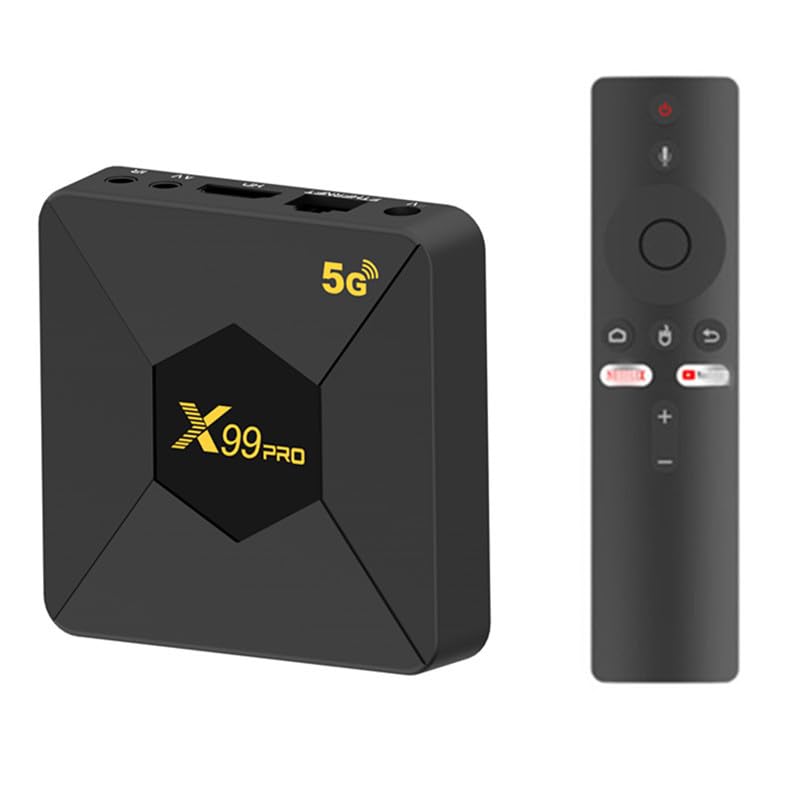
Figure 3.3: Rear view of the CHROX X99 Pro Android TV Box, showing the power input, Ethernet, HDMI, AV, and IR ports.
The rear panel provides essential connectivity:
- DC 5V Power Input: Connect the provided power adapter here.
- Ethernet (RJ-45): For wired network connection.
- HDMI: Connect to your TV or display for video and audio output.
- AV: Analog video/audio output for older TVs.
- IR: External IR receiver port (if applicable).
4. Setup Guide
Follow these steps for initial setup of your CHROX X99 Pro TV Box:
- Connect to TV: Use the provided HDMI cable to connect the HDMI port on the TV Box to an HDMI input port on your television. Note the HDMI input number on your TV (e.g., HDMI 1, HDMI 2).
- Connect to Power: Plug the power adapter into the DC 5V input port on the TV Box, then plug the adapter into a wall outlet. The device should power on automatically, or you may need to press the power button on the remote control.
- Connect to Network (Optional):
- Wired Connection: Connect an Ethernet cable from your router to the Ethernet port on the TV Box.
- Wireless Connection: Skip this step for now; you will configure Wi-Fi during the initial software setup.
- Select TV Input: Turn on your TV and use its remote control to select the correct HDMI input source that corresponds to where you connected the TV Box.
- Initial Setup: The Android system will boot up. Follow the on-screen prompts to select your language, connect to Wi-Fi (if not using Ethernet), and complete any other initial configuration steps.
5. Operating Instructions
5.1 Remote Control
The included remote control allows you to navigate the Android interface. Familiarize yourself with its buttons:
- Power Button: Turns the device on/off or puts it into standby mode.
- Navigation Buttons (Up/Down/Left/Right): Move cursor or selection.
- OK Button: Confirms selection or opens an item.
- Back Button: Returns to the previous screen.
- Home Button: Returns to the main Android home screen.
- Menu Button: Accesses context-sensitive menus.
- Volume Buttons: Adjusts audio volume.
5.2 Navigating the Android Interface
The CHROX X99 Pro runs on Android 13.0, providing a user-friendly interface. Use the remote control's navigation buttons to move between apps and settings. Press the OK button to launch an application or confirm a selection.
5.3 Installing and Managing Applications
You can install applications from the pre-installed app store or by sideloading APK files. To manage apps:
- Go to Settings > Apps to view installed applications.
- Select an app to see options like Open, Force Stop, Uninstall, Clear Data, or Clear Cache.
5.4 Network Settings
To configure network connectivity:
- Go to Settings > Network & Internet.
- For Wi-Fi, select Wi-Fi, choose your network, and enter the password.
- For Ethernet, ensure the cable is connected; the device should automatically obtain an IP address.
5.5 Bluetooth Pairing
To connect Bluetooth devices (e.g., headphones, game controllers):
- Go to Settings > Connected devices > Pair new device.
- Put your Bluetooth device into pairing mode.
- Select your device from the list on the TV Box to pair.
6. Specifications
Detailed technical specifications for the CHROX X99 Pro Android 13.0 TV Box:
| Feature | Specification |
|---|---|
| Brand | CHROX |
| Model Name | X99 Pro |
| Operating System | Android 13.0 |
| CPU | H313 Quad-core Cortex-A53 |
| GPU | Mali-T720MP2 |
| RAM | 2GB DDR3 |
| ROM | 8GB EMMC |
| Wi-Fi | 2.4G/5GHz Dual Band |
| Ethernet | 10/100M RJ-45 |
| Bluetooth | Supported |
| USB Host | 1x USB 3.0, 1x USB 2.0 |
| Video Output | HDMI 2.0 (up to 8K, 6K@30fps MAX Resolution Output with HDR, CEC, HDCP 2.2) |
| Card Reader | SD/SDHC/MMC cards |
| Video Decoding | 8K H.265, 4K@60fps, 3D support |
| Supported Video Formats | AVI, RM, RMVB, TS, VOB, MKV, MOV, ISO, WMV, ASF, FLV, DAT, MPG, MPEG |
| Supported Audio Formats | MP3, WMA, AAC, WAV, OGG, AC3, DDP, TRUEHD, DTS, HD, FLAC, APE |
| Supported Photo Formats | HD JPEG, BMP, GIF, PNG, TIFF |
7. Troubleshooting
If you encounter issues with your TV Box, refer to the following common problems and solutions:
- No Power:
- Ensure the power adapter is securely connected to the TV Box and a working power outlet.
- Try a different power outlet.
- No Display on TV:
- Check that the HDMI cable is firmly connected to both the TV Box and the TV.
- Verify that your TV is set to the correct HDMI input source.
- Try a different HDMI cable or HDMI port on your TV.
- No Wi-Fi Connection:
- Go to Settings > Network & Internet > Wi-Fi and ensure Wi-Fi is enabled.
- Check if your Wi-Fi password is entered correctly.
- Restart your Wi-Fi router and the TV Box.
- Ensure the TV Box is within range of your Wi-Fi router.
- Remote Control Not Responding:
- Replace the batteries in the remote control.
- Ensure there are no obstructions between the remote control and the TV Box's IR receiver.
- Applications Crashing or Freezing:
- Go to Settings > Apps, select the problematic app, and try Clear Cache or Clear Data.
- If the issue persists, try Uninstall and then reinstall the app.
- Ensure the TV Box has sufficient free storage space.
8. Maintenance
To ensure the longevity and optimal performance of your CHROX X99 Pro TV Box, follow these maintenance guidelines:
- Keep Clean: Regularly wipe the device with a soft, dry cloth. Avoid using liquid cleaners or abrasive materials.
- Ventilation: Ensure the device is placed in a well-ventilated area to prevent overheating. Do not block any ventilation openings.
- Temperature and Humidity: Operate the device within recommended temperature and humidity ranges. Avoid extreme heat, cold, or damp environments.
- Power Off Properly: Always power off the device correctly through the system menu or by using the remote control's power button to put it into standby. Avoid simply unplugging it from the power source.
- Software Updates: Periodically check for system updates in Settings to ensure you have the latest features and security patches.
- Avoid Physical Damage: Do not drop, strike, or attempt to disassemble the device. Unauthorized opening voids any warranty.
9. Warranty and Support
The CHROX X99 Pro Android 13.0 TV Box comes with a standard manufacturer's warranty. Please refer to the warranty card included in your package for specific terms and conditions, including the warranty period and coverage details.
For technical support, troubleshooting assistance beyond this manual, or warranty claims, please contact the seller or manufacturer directly through the contact information provided at the point of purchase or on the product packaging. When contacting support, please have your product model (X99 Pro) and purchase details readily available.