1. Introduction
Thank you for choosing the Olfjurk Remote Controlled Automatic Dog & Cat Feeder. This device is designed to provide scheduled and controlled feeding for your pets, ensuring they receive appropriate portions even when you are away. Featuring app control, freshness preservation, and dual power options, this feeder offers convenience and peace of mind for pet owners.
2. Product Overview
2.1 Components
- Feeder Base with Control Panel
- Food Bucket (Hopper)
- Food Bucket Lid with Desiccant Compartment
- Stainless Steel Food Bowl
- AC Power Adapter
- Desiccant Pack (pre-installed or separate)
2.2 Feeder Diagram
The following diagram illustrates the main components of your automatic pet feeder.
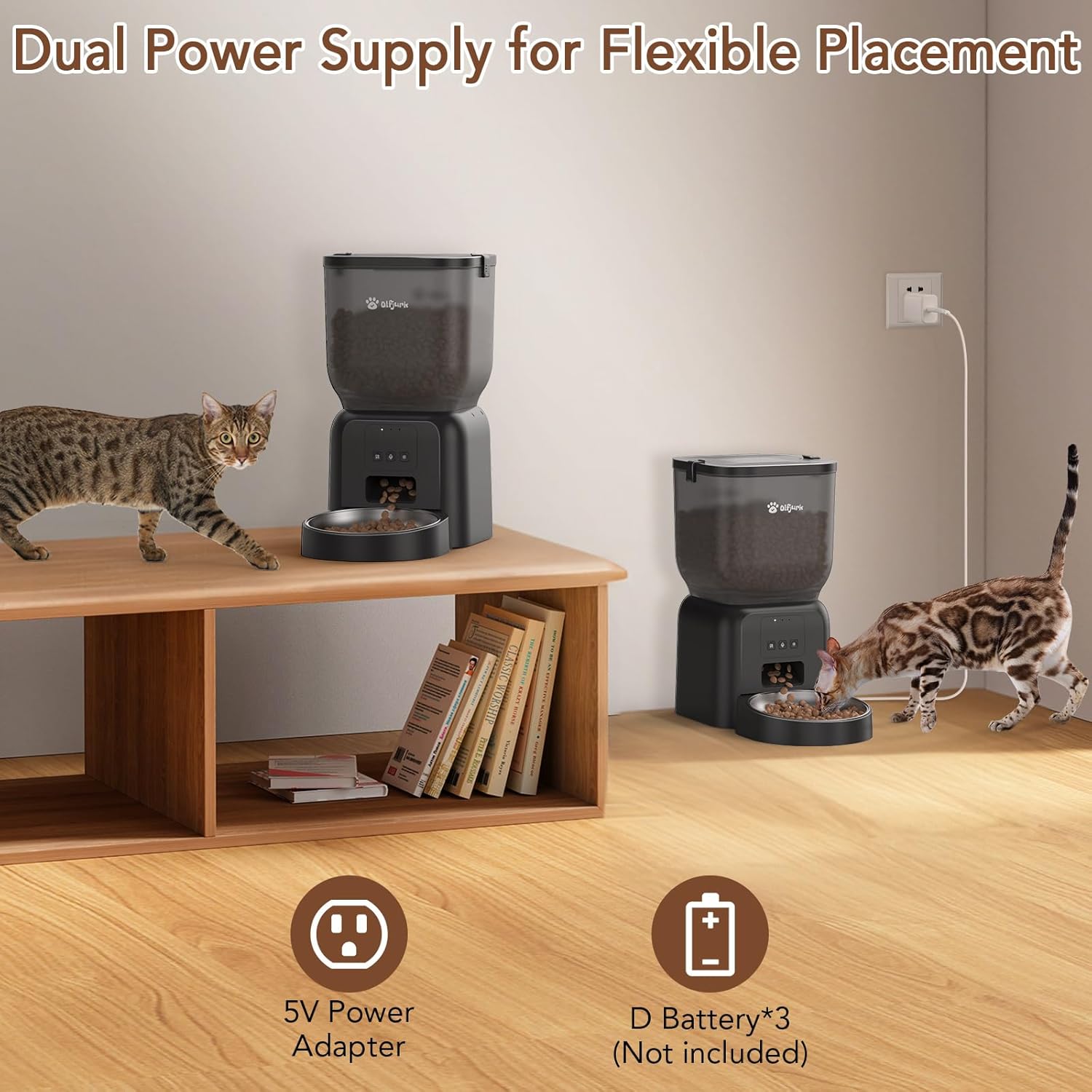
Image: Labeled diagram of the Olfjurk Automatic Pet Feeder, highlighting the Food Bucket Lid, Buckle, Desiccant, Control Panel, Food Outlet, and Food Dish. Dimensions are also indicated.
3. Setup
3.1 Assembly
- Place the feeder base on a flat, stable surface.
- Insert the stainless steel food bowl into the designated slot at the front of the base.
- Align the food bucket (hopper) with the base and twist gently to secure it in place.
- Open the food bucket lid and ensure the desiccant pack is properly seated in its compartment to maintain food freshness.
- Fill the food bucket with dry pet food. Ensure the kibble size is suitable (under 13mm) to prevent jamming.
- Close the food bucket lid securely using the buckle.
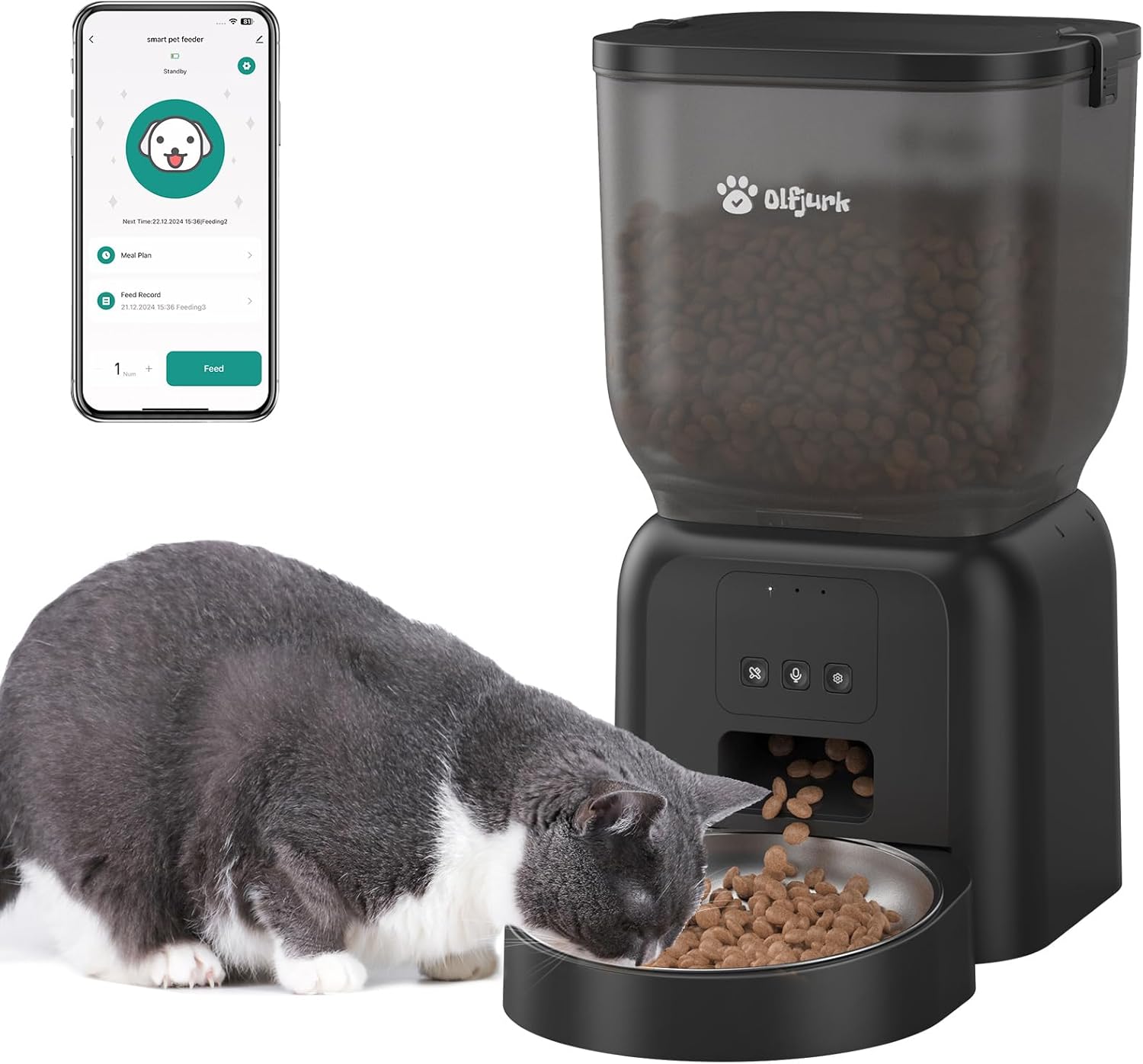
Image: The Olfjurk Automatic Pet Feeder in use, showing a cat eating from the stainless steel bowl, with a smartphone displaying the feeder's app interface in the background.
3.2 Power Supply
The feeder supports dual power supply options:
- Primary Power: Connect the provided AC power adapter to the feeder and a wall outlet.
- Backup Power: For uninterrupted operation during power outages, install three (3) Type D batteries (not included) into the battery compartment located at the bottom of the feeder.
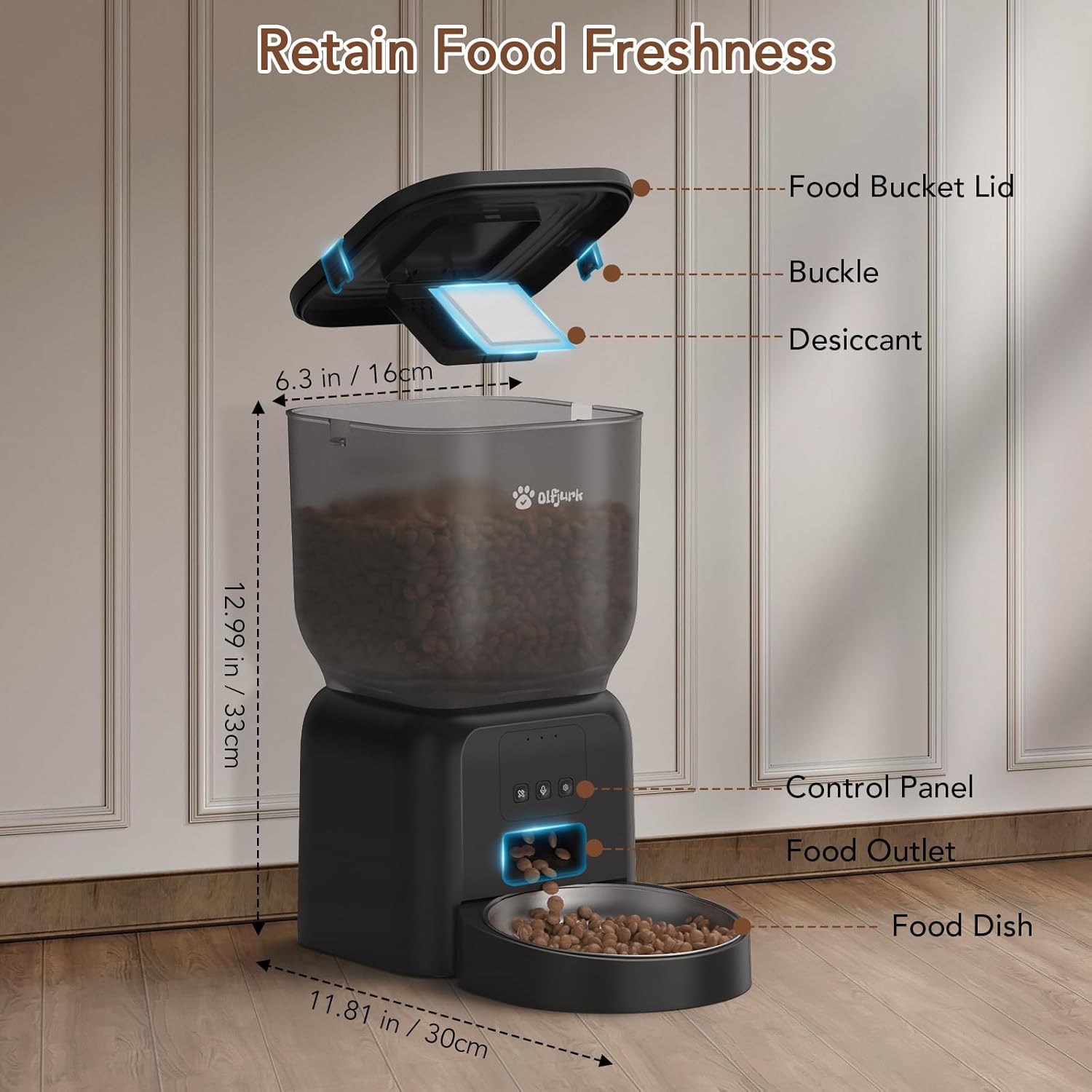
Image: Two Olfjurk Automatic Pet Feeders positioned in a home environment, illustrating the dual power supply options: one connected to a 5V power adapter and the other indicating the use of 3 D batteries (not included).
3.3 App Connection (Wi-Fi)
To utilize the remote control features, connect the feeder to your home Wi-Fi network:
- Download the companion app (e.g., Tuya Smart or Smart Life) from your smartphone's app store.
- Register or log in to your account.
- Ensure your smartphone is connected to a 2.4GHz Wi-Fi network. The feeder does not support 5GHz networks.
- Follow the in-app instructions to add a new device. This typically involves putting the feeder into pairing mode (refer to the feeder's control panel for specific button presses, usually holding a button until an indicator light flashes).
- Once connected, you can name your feeder and begin setting up feeding schedules.

Image: A woman interacting with the feeder's mobile application on her smartphone, with two cats feeding from an Olfjurk Automatic Pet Feeder in the background, illustrating remote control capabilities.
4. Operating Instructions
4.1 Scheduling Meals via App
The app allows for flexible and customized feeding schedules:
- Open the feeder's device page in the app.
- Navigate to the 'Meal Plan' or 'Schedule' section.
- Add new feeding times, specifying the time of day and the number of portions (1-15 portions per meal).
- You can set up to 6 meals per day.
- Save your schedule. The feeder will automatically dispense food at the programmed times.

Image: The Olfjurk Automatic Pet Feeder with a cat eating from the bowl, alongside a smartphone screen showing a detailed feeding schedule with days of the week and meal times, indicating 1-6 meals, 1-16 portions, and 4L capacity.
4.2 Manual Feeding
- Via App: On the feeder's device page, locate the 'Feed' button. You can select the number of portions to dispense and tap 'Feed' for an immediate meal.
- Via Feeder Button: Press the manual feed button on the control panel (refer to the diagram for location) to dispense one portion of food instantly.
4.3 Personalized Voice Message
Record a custom voice message (up to 10 seconds) that plays during each feeding to call your pet:
- In the app, navigate to the voice recording settings for the feeder.
- Follow the prompts to record your message.
- You can also set how many times the message repeats during a feeding event.
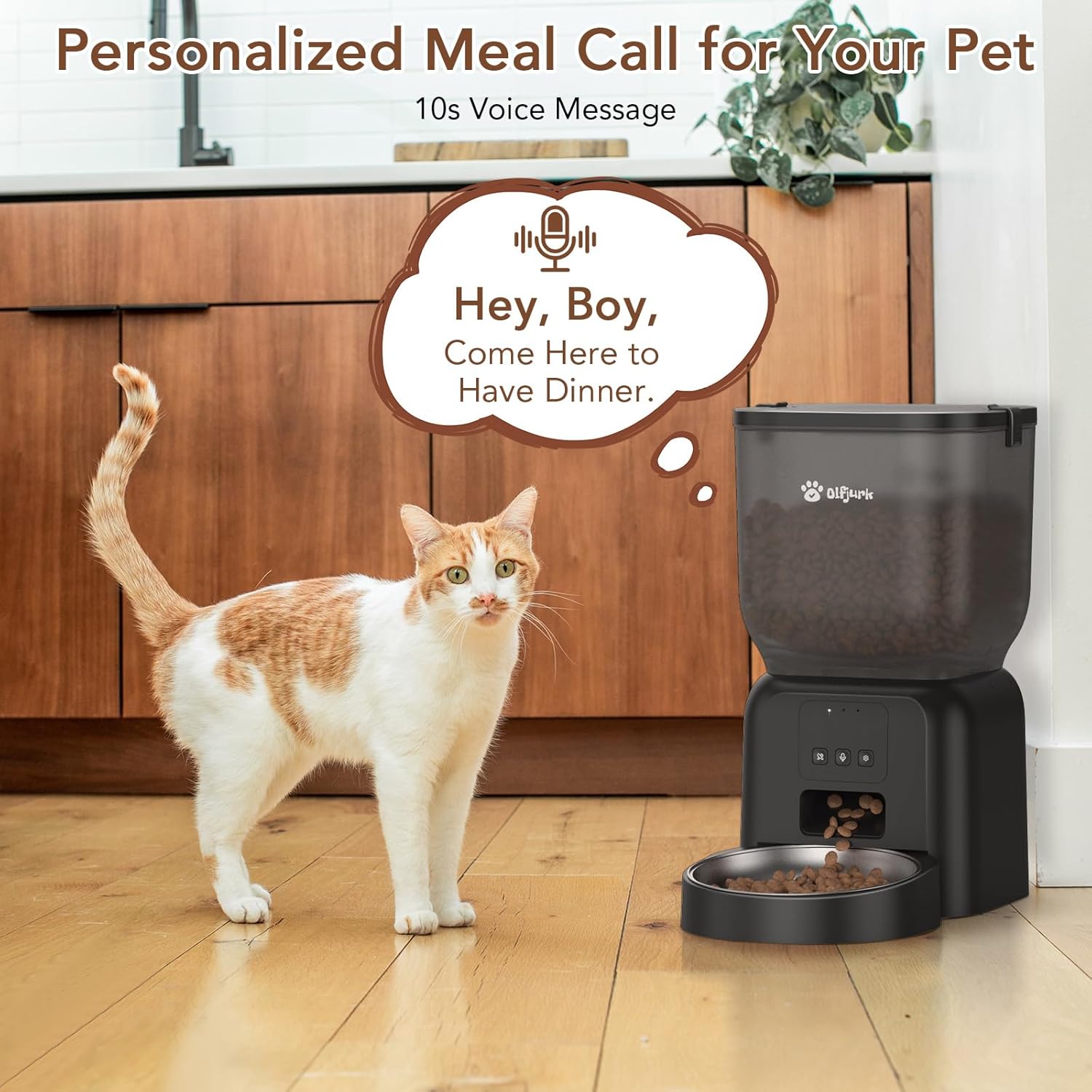
Image: An Olfjurk Automatic Pet Feeder with a cat standing nearby, and a speech bubble above the feeder indicating a 10-second voice message, such as "Hey, Boy, Come Here to Have Dinner."
5. Maintenance and Cleaning
Regular cleaning ensures hygiene and proper functioning of the feeder.
- Stainless Steel Bowl: Remove the bowl and wash it with mild soap and water. Rinse thoroughly and dry completely before reinserting.
- Food Bucket (Hopper): Detach the food bucket from the base. Wipe the interior with a damp cloth. For deeper cleaning, it can be washed with mild soap and water, but ensure it is completely dry before reattaching and refilling.
- Feeder Base: Wipe the exterior of the base with a dry or slightly damp cloth. Do not immerse the base in water.
- Desiccant Pack: Replace the desiccant pack every 1-2 months, or as needed, to maintain food freshness.
- Anti-Stuck Structure: Periodically check the food outlet and dispensing mechanism for any food residue or blockages. The feeder features an anti-stuck structure designed for smooth dispensing, but occasional checks are recommended.

Image: An internal view of the Olfjurk Automatic Pet Feeder, highlighting its anti-stuck structure, which is suitable for dry food kibble under 13mm in size.
6. Troubleshooting
- Feeder not dispensing food:
- Check if the food bucket is empty.
- Ensure the feeder is powered on and connected to the power adapter or has charged D batteries.
- Verify that the food outlet is not blocked by kibble.
- Confirm the kibble size is appropriate (under 13mm).
- Check the app for any error messages or if the schedule is correctly set.
- App not connecting to feeder:
- Ensure your Wi-Fi network is 2.4GHz.
- Check if the feeder is in pairing mode (indicator light flashing).
- Restart your router and the feeder.
- Ensure your smartphone is close to the feeder and connected to the same 2.4GHz Wi-Fi network during setup.
- Voice message not playing:
- Ensure the message was recorded and saved successfully in the app.
- Check the volume settings in the app.
- Food not staying fresh:
- Ensure the food bucket lid is securely closed.
- Replace the desiccant pack if it has expired or is saturated.
7. Specifications
| Feature | Specification |
|---|---|
| Model Number | PF002W |
| Capacity | 4 Liters |
| Dimensions (L x W x H) | 7.6 x 7.6 x 9.3 inches |
| Item Weight | 3.54 pounds |
| Power Supply | DC 5V Power Adapter (included), 3x Type D Batteries (not included) |
| Wi-Fi Connectivity | 2.4GHz only |
| Max Meals per Day | 6 |
| Portions per Meal | 1-15 |
| Voice Recording | Up to 10 seconds |
| Material | Food-grade plastic, Stainless Steel bowl |
8. Warranty and Support
For warranty information, technical support, or any product-related inquiries, please refer to the contact details provided with your purchase or visit the official Olfjurk website. Keep your purchase receipt for warranty claims.


