1. Introduction
This manual provides detailed instructions for the MESWAO Active Stylus Pen, designed to enhance your interaction with compatible MESWAO tablets. Please read this manual thoroughly before using the product to ensure proper operation and longevity.
Package Contents:
- 1 x MESWAO Active Stylus Pen
- 3 x Replacement Nibs
- 1 x User Manual (this document)

Image: The MESWAO Active Stylus Pen, a sleek white digital pen with a button on the side and a USB-C port at the top.
2. Compatibility
The MESWAO Active Stylus Pen is specifically designed for use with the following MESWAO tablet models:
- MESWAO 14-inch Tablet (Support Tablet with G99 CPU Only)
- MESWAO 15.6-inch Tablet (Support Tablet with G99 CPU Only)
Important: This stylus is NOT compatible with 14.1-inch tablets, other tablet models, iPhones, Android phones, Microsoft devices, or any other non-specified devices. Please verify your tablet model before use.

Image: Two MESWAO tablets, one 15.6-inch and one 14-inch, displayed side-by-side, illustrating the compatible tablet sizes for the stylus.
3. Setup
3.1 Charging the Stylus
The stylus features a built-in rechargeable battery. Before first use, or when the battery is low, charge the stylus using a USB-C cable (not included).
- Locate the USB-C port at the top end of the stylus.
- Insert a USB-C cable into the port.
- Connect the other end of the USB-C cable to a power source (e.g., USB wall adapter, computer USB port).
- The indicator light on the stylus will illuminate during charging.
- A full charge takes approximately one hour and provides up to 100 hours of continuous use.
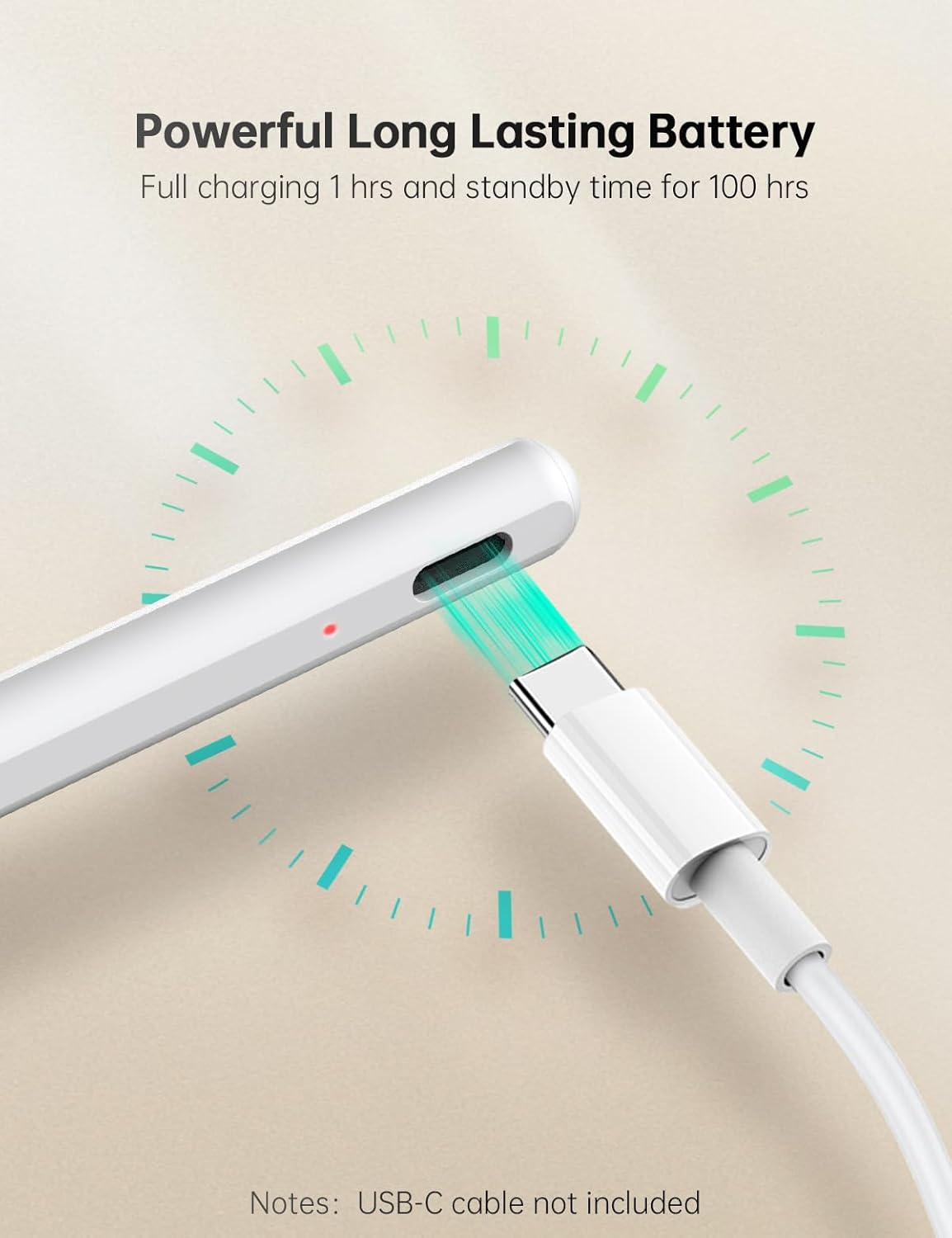
Image: Close-up view of the stylus pen's USB-C charging port with a USB-C cable inserted, showing a red indicator light and a circular graphic representing fast charging.
3.2 Initial Use
The MESWAO Active Stylus Pen does not require any drivers or Bluetooth pairing. Simply power it on and begin using it with your compatible MESWAO tablet.
- Press the On/Off button located on the side of the stylus to power it on. The indicator light will turn off when the stylus is ready for use.
- The stylus will automatically power off and enter sleep mode after 3 minutes of inactivity to conserve battery.
4. Operating Instructions
4.1 General Operation
The stylus provides a natural writing and drawing experience on your MESWAO tablet.

Image: A hand holding the stylus pen, writing notes on a MESWAO tablet screen, demonstrating smooth and precise input.
4.2 Key Features
- High Precision and Smoothness: With 4096 levels of pressure sensitivity, the stylus delivers precise and detailed strokes. Ink flows smoothly from the fine tip with minimal lag or delay, ideal for note-taking, sketching, and professional work.
- Palm Rejection: Rest your hand comfortably on the tablet screen while writing or drawing without worrying about accidental touches or marks. This feature allows for a natural and uninterrupted creative process.

Image: A hand holding the stylus and resting on a tablet screen, with a green dashed line indicating the palm rejection area, allowing comfortable writing or drawing.
- Tilt Sensitivity: The stylus supports tilt sensitivity, allowing you to shade and adjust line thickness by tilting the pen, similar to a traditional pencil. This is particularly useful for artists and designers for creating realistic shadows and detailed drawings.

Image: Two examples demonstrating tilt sensitivity: one showing the stylus at a 90-degree angle for note-taking, and another at a 60-degree angle for drawing, illustrating how tilting affects input.
- Eraser Button: A conveniently located button near your thumb allows for quick corrections and erasing.
- On/Off Button: Used to power the stylus on and off.
4.3 Stylus Components Overview

Image: A detailed diagram of the stylus pen, highlighting its components: Replaceable Pen Tip, Eraser Button, On/Off Button, Indicator Light, and USB-C Port. Also shows how to replace the pen tip and the light behavior.
5. Maintenance
5.1 Cleaning
To maintain the stylus's performance and appearance:
- Wipe the stylus body with a soft, dry, lint-free cloth.
- Do not use abrasive cleaners, alcohol, or chemical solvents, as these may damage the stylus.
5.2 Replacing the Pen Nib
If the pen nib becomes worn or damaged, it can be replaced with one of the included replacement nibs.
- Gently pull the old nib straight out from the stylus.
- Insert a new nib firmly into the stylus until it clicks into place.
Refer to the "More Details" image in Section 4.3 for a visual guide on nib replacement.
5.3 Storage
Store the stylus in a cool, dry place away from direct sunlight and extreme temperatures. Avoid dropping the stylus or subjecting it to strong impacts.
6. Troubleshooting
| Problem | Possible Cause | Solution |
|---|---|---|
| Stylus not responding | Low battery Stylus is off Incompatible tablet | Charge the stylus fully. Press the On/Off button to turn it on. Ensure your tablet is a compatible MESWAO 14-inch or 15.6-inch model with G99 CPU. |
| Inaccurate or delayed input | Worn or damaged nib Screen protector interference | Replace the pen nib. Ensure your screen protector is compatible with stylus use. |
| Palm rejection not working | Software issue on tablet Incorrect usage | Restart your tablet. Ensure your hand is resting naturally on the screen. |
| Stylus not charging | Faulty cable or power source Damaged charging port | Try a different USB-C cable and power adapter. If the issue persists, contact customer support. |
7. Specifications
| Feature | Detail |
|---|---|
| Model Number | AEM-089MSII |
| Dimensions (L x W x H) | 6.5 x 0.04 x 0.04 inches (16.51 x 0.10 x 0.10 cm) |
| Item Weight | 14g (0.03 lbs) |
| Pressure Sensitivity | 4096 levels |
| Battery Type | Rechargeable (1 CR5 equivalent internal battery) |
| Charging Time | Approx. 1 hour |
| Continuous Use Time | Up to 100 hours |
| Auto Sleep | After 3 minutes of inactivity |
| Color | White |
| Material | Polycarbonate (PC), Acrylonitrile Butadiene Styrene (ABS) |
| Compatibility | MESWAO 14-inch and 15.6-inch Tablets (G99 CPU only) |
8. Warranty and Support
MESWAO is committed to product quality and customer satisfaction. If you encounter any product problems while using this stylus, please contact our customer support team.
- After-sales Service: We provide assistance and solutions within 24 hours for any product issues.
- Contact Information: Please refer to the contact details provided on the MESWAO official website or your purchase platform for support.
For more information about MESWAO products and support, visit the official MESWAO store: MESWAO Store on Amazon.


