
Lenovo IP Duet 3 Chrome 11Q727
Lenovo IP Duet 3 Chrome 11Q727 User Manual
Model: IP Duet 3 Chrome 11Q727
Brand: Lenovo
Introduction
The Lenovo IdeaPad Duet 3 Chromebook is a versatile device designed for both work and entertainment. It features a 10.95-inch 2K near-borderless touchscreen display, powered by the efficient Snapdragon 7c Gen 2 Compute Platform, offering robust performance and all-day battery life. This manual provides essential information for setting up, operating, maintaining, and troubleshooting your device.

Image: Front view of the Lenovo IP Duet 3 Chromebook with the detachable keyboard attached, displaying the Chrome OS desktop.
Setup
1. Unboxing and Initial Inspection
Carefully remove all components from the packaging. Ensure the following items are present:
- Lenovo IdeaPad Duet 3 Chromebook tablet
- Detachable keyboard
- Power adapter and USB-C charging cable
- Documentation (this manual, safety guide)
Inspect the device for any physical damage before proceeding.
2. Initial Charge
Before first use, it is recommended to fully charge your Chromebook. Connect the USB-C charging cable to one of the USB-C ports on the device and the power adapter to a wall outlet.

Image: Side view of the Lenovo IP Duet 3 Chromebook, highlighting the USB-C ports and the kickstand mechanism.
3. Powering On/Off
To power on, press and hold the power button located on the side of the device until the Lenovo logo appears. To power off, click the time in the bottom-right corner of the screen, then click the power icon.
4. Initial Chrome OS Setup
Follow the on-screen prompts to complete the initial setup:
- Select your language and accessibility options.
- Connect to a Wi-Fi network.
- Accept the Chrome OS Terms of Service.
- Sign in with your Google Account. If you don't have one, you can create one.
- Choose your sync preferences.
Operating
1. Attaching and Detaching the Keyboard
The Lenovo IP Duet 3 features a detachable keyboard. To attach, align the magnetic connectors on the keyboard with the corresponding pins on the bottom edge of the tablet. The magnets will snap it into place. To detach, gently pull the tablet away from the keyboard.

Image: Angled view of the Lenovo IP Duet 3 Chromebook with the detachable keyboard attached, showcasing its laptop-like configuration.
2. Touchscreen Usage
The 10.95-inch display supports multi-touch gestures:
- Tap: Select an item or open an app.
- Tap and Hold: Access context menus or move icons.
- Swipe: Scroll through pages or switch between apps.
- Pinch-to-Zoom: Zoom in or out on images and web pages.
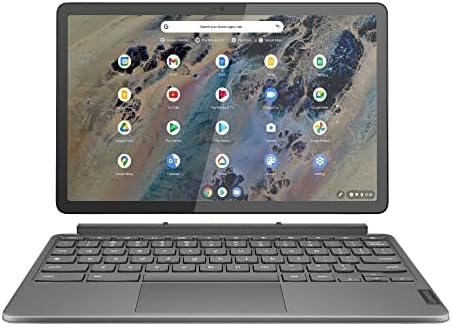
Image: Front view of the Lenovo IP Duet 3 Chromebook in tablet mode, without the keyboard, displaying the Chrome OS interface.
3. Chrome OS Navigation
Familiarize yourself with the Chrome OS interface:
- Shelf: The taskbar at the bottom of the screen for quick access to apps and system functions.
- App Launcher: Click the circle icon in the bottom-left corner to view all installed applications.
- Quick Settings: Click the time/status area in the bottom-right corner to access Wi-Fi, Bluetooth, volume, and other settings.
4. Connectivity
- Wi-Fi: Connect to wireless networks via the Quick Settings panel.
- Bluetooth: Pair with Bluetooth devices like headphones or mice through the Quick Settings or Chrome OS settings.
- USB-C Ports: The device features two USB-C ports for charging, data transfer, and connecting peripherals.
5. Battery Life
The Lenovo IP Duet 3 Chromebook is designed for all-day battery life. Actual battery performance may vary based on usage and settings.
Maintenance
1. Cleaning Your Device
- Screen: Use a soft, lint-free cloth, slightly dampened with water or a screen cleaner. Avoid harsh chemicals.
- Keyboard and Body: Wipe with a soft, dry cloth. Use compressed air to remove debris from between keys.
2. Software Updates
Chrome OS automatically updates in the background to provide the latest features and security patches. You can check for updates manually by going to Settings > About Chrome OS > Check for updates.
3. Storage Management
Your device comes with 64 GB of SSD storage. To manage storage, use the Files app to delete unnecessary files or utilize cloud storage services like Google Drive.
4. Battery Care
To prolong battery lifespan, avoid extreme temperatures and try to keep the battery charge between 20% and 80% when possible.
Troubleshooting
Common Issues and Solutions
- Device not powering on: Ensure the device is charged. Connect the power adapter and wait a few minutes before attempting to power on again.
- Wi-Fi connectivity issues: Check if Wi-Fi is enabled in Quick Settings. Restart your router and the Chromebook.
- Slow performance: Close unnecessary tabs and applications. Restart the Chromebook. Check for Chrome OS updates.
- Keyboard not responding: Ensure the keyboard is securely attached. Detach and reattach it. Restart the Chromebook.
Factory Reset (Powerwash)
If you encounter persistent issues, a factory reset (Powerwash) can restore your Chromebook to its original state. Warning: This will erase all local data on your device.
- Go to Settings.
- Scroll down and click "Advanced".
- Under "Reset settings", click "Powerwash".
- Follow the on-screen instructions.
Specifications
| Feature | Detail |
|---|---|
| Brand | Lenovo |
| Model Name | IP Duet 3 Chrome 11Q727 |
| Operating System | Chrome OS |
| CPU Model | Snapdragon 7c G2 |
| Processor Speed | 2.5 GHz |
| Screen Size | 10.9 Inches (10.95" 2K near-borderless display) |
| Hard Disk Description | 64 GB SSD |
| Total USB Ports | 2 (USB-C) |
| Color | Storm Grey |
| Product Dimensions | 6.47 x 10.15 x 0.31 inches |
| Item Weight | 1.14 pounds |

Image: Back view of the Lenovo IP Duet 3 Chromebook, showing the Lenovo logo and Chromebook branding.
Warranty and Support
As this is a renewed product, warranty terms and support may differ from new products. Please refer to the specific warranty information provided by the seller at the time of purchase. For general support or inquiries regarding renewed products, you may also contact Amazon Renewed customer service.
For further assistance, visit the official Lenovo support website or consult the Amazon Renewed store page for your purchase.
Related Documents - IP Duet 3 Chrome 11Q727
 |
Lenovo ThinkPad T14s Gen 6 Snapdragon User Guide and Specifications Concise HTML guide for the Lenovo ThinkPad T14s Gen 6 Snapdragon, covering setup, features, and technical specifications like SAR information. |
 |
Lenovo ThinkPad T14s Gen 6 Snapdragon User Guide Comprehensive user guide for the Lenovo ThinkPad T14s Gen 6 Snapdragon laptop. Learn about setup, AI features, Copilot integration, intelligent cooling, power management, and troubleshooting. Access support resources for your Snapdragon-powered ThinkPad. |
 |
Lenovo ThinkPad T14s Gen 6 Snapdragon User Guide Comprehensive user guide for the Lenovo ThinkPad T14s Gen 6 Snapdragon laptop, covering setup, features, troubleshooting, and maintenance. Learn how to get the most out of your device. |
 |
Lenovo HUSMM32 Enterprise Performance 12G SAS SSDs Product Guide (withdrawn product) This product guide details the Lenovo HUSMM32 Enterprise Performance 12Gb SAS SSDs, covering their features, technical specifications, endurance, and compatibility across various Lenovo server platforms including ThinkSystem, System x, Flex System, and NeXtScale. It also outlines warranty, physical specifications, operating environment, agency approvals, and related resources. |
 |
ThinkSystem Kioxia CM6-V Mainstream NVMe PCIe 4.0 x4 SSDs Product Guide This product guide provides detailed information on the ThinkSystem Kioxia CM6-V Mainstream NVMe PCIe 4.0 x4 SSDs, including their features, technical specifications, server compatibility, operating system support, warranty, and physical characteristics. |
 |
Lenovo ThinkSystem M.2 ER2 Read Intensive SATA 6Gb SSDs Product Guide A comprehensive product guide detailing the features, specifications, part numbers, server compatibility, and operating requirements for Lenovo ThinkSystem M.2 ER2 Read Intensive SATA 6Gb SSDs. |
Ask a question about this manual
Ask about setup, troubleshooting, compatibility, parts, safety, or missing instructions. Manuals+ will review the question and use this page’s manual context to help answer it.