Introduction
The Strex External CD/DVD Drive is a versatile and portable optical drive designed to bring CD and DVD functionality back to modern laptops and computers that often lack built-in drives. This device allows you to read, burn, and copy CDs and DVDs, install software, watch movies, and create backups. With its plug-and-play design and broad compatibility across Windows, Mac, and Linux operating systems, it offers a convenient solution for all your optical media needs.
What's in the Box
- 1x Strex External DVD Drive
- 1x Carrying Case
- 1x Instruction Manual

Image: The package contents, showing the external DVD drive, its protective carrying case, and the included instruction manual.
Key Features
- Multifunctional: Functions as both a reader and burner for CDs and DVDs.
- Plug & Play: No additional drivers required; automatically recognized by your computer.
- High-Speed Data Transfer: Equipped with USB 3.0 and USB-C for fast reading and burning.
- Broad Compatibility: Supports Windows, Mac OS (all versions), and Linux.
- Compact & Portable Design: Slim profile with integrated cable and anti-slip pads, ideal for travel.
- Included Carrying Case: For convenient and safe transport.

Image: An overview of the drive's main features, including USB 3.0 and Type-C connectivity, burning capability, compact design, and integrated cable.
Setup
Setting up your Strex External CD/DVD Drive is straightforward due to its Plug & Play functionality.
- Connect the Drive: Locate an available USB-A or USB-C port on your laptop or computer. The integrated USB cable on the Strex drive features both connector types.
- Plug In: Insert the appropriate USB connector (USB-A or USB-C) from the drive's integrated cable directly into your computer's port.
- Automatic Recognition: Your operating system (Windows, Mac, or Linux) will automatically detect and install the necessary drivers. No manual driver installation or external power adapter is required.
- Ready for Use: Once recognized, the drive will appear as an available optical drive in your computer's file explorer or Finder, ready for use.

Image: Demonstrates the simple Plug & Play setup, showing the drive connected to a computer and a disc being inserted.
Operating Instructions
The Strex External CD/DVD Drive supports various functions for optical media.
Reading Discs (CD-ROM, DVD-ROM, VCD-ROM)
- Gently press the eject button on the drive to open the disc tray.
- Place your CD or DVD onto the tray, ensuring it is centered and securely seated.
- Gently push the tray back into the drive until it clicks shut.
- Your computer's operating system should automatically detect the disc. You can then access its contents via File Explorer (Windows) or Finder (Mac).
- For multimedia playback (movies, music), it is recommended to use a media player such as VLC Media Player.
Burning/Writing Discs (CD-R, CD+/-RW, DVD-R, DVD+/-RW, DVD-R DL)
- Insert a blank, writable CD or DVD into the drive as described above.
- Use your operating system's built-in burning software (e.g., Windows Media Player, Finder's burning utility) or third-party burning software to select the files you wish to write to the disc.
- Follow the on-screen prompts of your chosen software to initiate the burning process.
- Ensure the drive is not disconnected during the burning process to prevent data corruption.
Other Applications
- Software Installation: Insert software installation discs to install programs, operating systems, or games.
- Data Backup: Use writable discs to create physical backups of important files.

Image: Various usage scenarios for the drive, including watching movies, burning discs, installing software, and performing data backups.
Compatibility
Operating Systems
The Strex External CD/DVD Drive offers wide compatibility with various operating systems:
- Windows (11, 10, 8.1, 8, 7, XP)
- Mac OS (all versions)
- Linux
It is ideal for use with laptops and computers from brands like Apple (MacBook Air, MacBook Pro, iMac), Dell, HP, Lenovo, ThinkPad, Sony, Samsung, Asus, Acer, and others that lack a built-in optical drive.
Disc Types
The drive is compatible with the following disc types:
- CD-ROM, CD-R, CD+/-RW
- DVD-ROM, DVD-R, DVD+/-RW, DVD-R DL
- VCD-ROM

Image: Illustrates the universal compatibility with various operating systems and the dual USB 3.0 and Type-C connectivity.
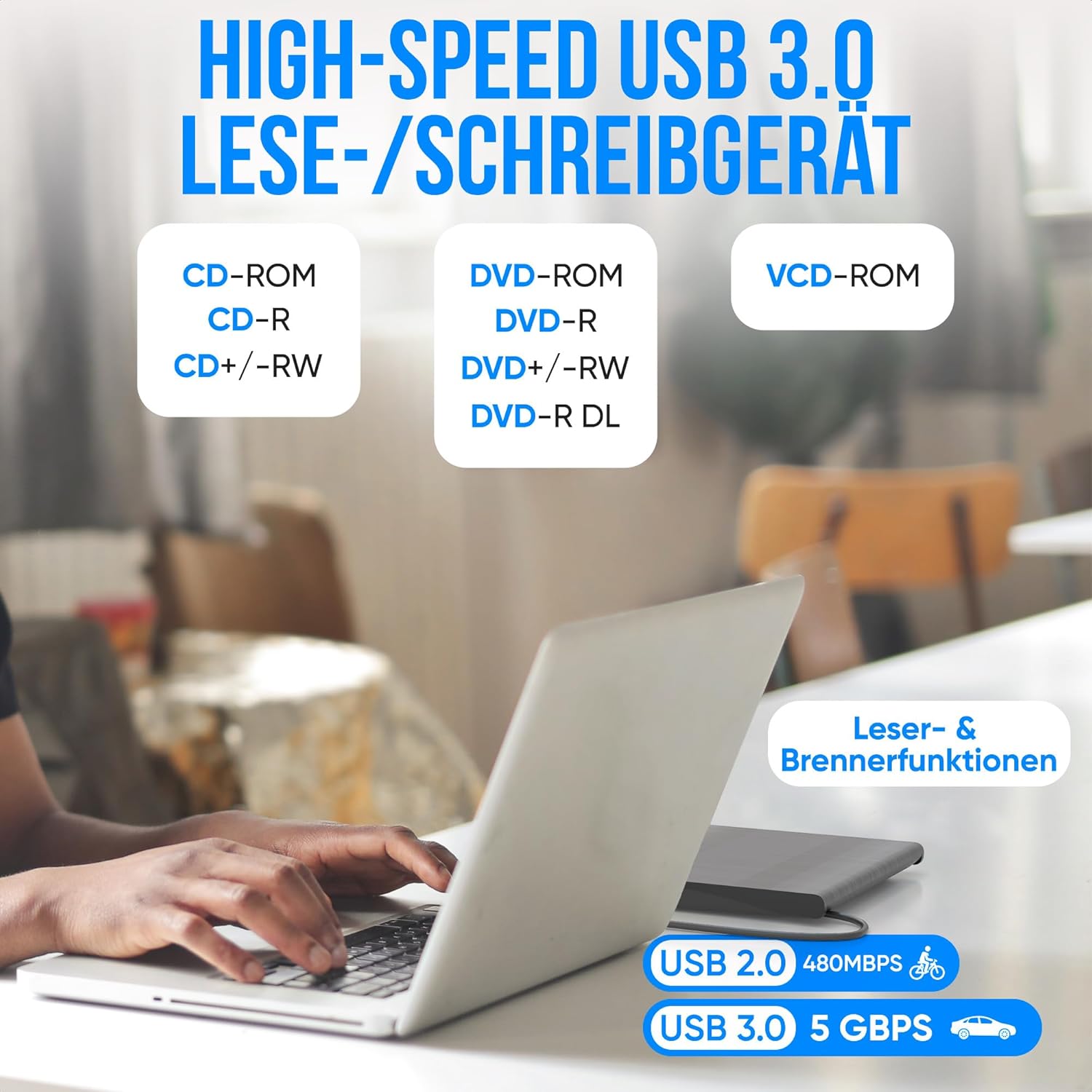
Image: Shows the range of supported disc formats and emphasizes the high-speed data transfer capabilities of USB 3.0.
Maintenance
To ensure the longevity and optimal performance of your Strex External CD/DVD Drive, follow these maintenance guidelines:
- Cleaning: Use a soft, dry, lint-free cloth to wipe the exterior of the drive. Do not use liquid cleaners or abrasive materials. Avoid opening the disc tray unnecessarily to prevent dust accumulation inside.
- Handling Discs: Always handle discs by their edges. Avoid touching the data surface. Store discs in their cases when not in use to prevent scratches.
- Storage: When not in use, store the drive in its included carrying case to protect it from dust, scratches, and minor impacts. Keep it in a cool, dry place away from direct sunlight and extreme temperatures.
- Cable Care: The integrated cable can be conveniently stored at the bottom of the drive. Ensure it is not bent sharply or tangled, which could damage the internal wires.
- Avoid Liquids: Keep the drive away from water and other liquids. Ingress of liquids can cause severe damage to the internal electronics.
Troubleshooting
If you encounter issues with your Strex External CD/DVD Drive, try the following troubleshooting steps:
- Drive Not Recognized:
- Ensure the USB cable is securely connected to both the drive and your computer's USB port.
- Try connecting the drive to a different USB port on your computer.
- Restart your computer.
- If using a USB hub, try connecting the drive directly to the computer.
- Disc Not Reading/Burning:
- Check if the disc is clean and free of scratches or smudges. Clean it gently with a soft, lint-free cloth if necessary.
- Ensure the disc is correctly seated in the tray, label side up.
- Try a different disc to rule out a faulty disc.
- For burning, ensure you are using a compatible, blank writable disc (e.g., CD-R, DVD-R).
- Verify that your burning software is correctly configured and up-to-date.
- Slow Performance:
- Ensure you are connected to a USB 3.0 port on your computer for optimal speed. USB 2.0 ports will result in slower transfer rates.
- Close any unnecessary applications running in the background that might be consuming system resources.
- Tray Not Opening/Closing:
- Ensure the drive is powered (connected to a USB port).
- Gently press the eject button. If it still doesn't open, there might be a small emergency eject hole (often requiring a straightened paperclip) on the front panel, though this model emphasizes automatic tray operation.
Specifications
| Product Type | External DVD Player with Burner and Carrying Case |
| Brand | Strex |
| Model Number | SP299 |
| Connection Type | USB 3.0 A and USB-C (integrated cable) |
| Functions | Read, Burn, and Rip CDs, DVDs, and PC Games |
| Compatible Disc Types | CD-R, CD-ROM, CD+/-RW, DVD-ROM, DVD-R, DVD+/-RW, DVD-R DL, VCD-ROM |
| Operating System Compatibility | Windows, Linux, Mac OS |
| Max. Write/Read Speed | 24x CD / 8x DVD |
| Plug & Play | Yes |
| Cable Length | 25 cm (integrated) |
| Weight | 300 grams |
| Color | Black |
| Product Dimensions (L x W x H) | 14.4 x 14.4 x 1.8 cm |

Image: Detailed view of the drive's dimensions, integrated cable storage, and anti-slip pads.
Warranty and Support
For warranty information and technical support, please refer to the contact details provided with your purchase or visit the official Strex website. Keep your proof of purchase for warranty claims.
For multimedia playback, we recommend using VLC Media Player, a free and open-source cross-platform multimedia player.


