Introduction
Welcome to the DUDUDRAGON Instant Print Kids Camera user manual. This camera is designed for young creators, offering a fun and interactive way to capture memories. It features dual front and rear cameras, instant black-and-white printing, 1080P video recording, and various creative modes. Please read this manual carefully to ensure proper use and maintenance of your camera.
What's in the Box

Image: Contents of the DUDUDRAGON Instant Print Kids Camera package, including the camera, print paper rolls, color pens, SD card, and Type-C cable.
- 1 x Instant Camera
- 3 x Roll Print Paper
- 5 x Color Pen
- 1 x 32GB SD Card
- 1 x Type C Cable
Setup
1. Charging the Camera
Before first use, fully charge the camera. Connect the provided Type-C USB cable to the camera's charging port and the other end to a USB power adapter (not included) or a computer's USB port. The charging indicator will show the charging status. A full charge provides approximately 4-5 hours of continuous use.

Image: The camera connected via Type-C cable to a laptop, illustrating charging and data transfer capabilities.
2. Inserting the SD Card
Locate the SD card slot on the side of the camera. Insert the included 32GB SD card into the slot until it clicks into place. Ensure the card is inserted in the correct orientation. This card is essential for saving color photos and videos.
3. Loading Print Paper
- Step 1: Open the paper compartment cover. Locate the latch or button to release the cover of the paper compartment.

Image: A visual guide showing the steps to load print paper into the camera, starting with opening the paper compartment.
- Step 2: Install the print paper roll. Place a new roll of thermal print paper into the compartment. Ensure the paper feeds from the bottom of the roll towards the printing slot.
- Step 3: Pull out 1 inch of paper then close the cover. Gently pull out about one inch of paper from the slot, then close the compartment cover firmly until it clicks.
Operating Instructions
Basic Operation
- Power On/Off: Press and hold the power button to turn the camera on or off.
- Navigation: Use the directional buttons to navigate through menus and options on the 2.4-inch screen.
- Shutter Button: Press the shutter button to take a photo or start/stop video recording.
Photography Features

Image: A comprehensive overview of the camera's features, highlighting its capabilities for photography, video, and entertainment.
Dual Front & Rear Cameras
The camera is equipped with both front and rear lenses, allowing for versatile shooting, including selfies. Switch between cameras using the designated button or menu option.

Image: Two children using the camera's front-facing lens to take a selfie, demonstrating the dual camera functionality.
Instant Printing
Capture a moment and print it instantly in black and white. The camera prints photos in approximately 1 second. Color images are saved to the 32GB SD card.

Image: Illustrates the option to save color photos to the SD card or print black and white photos instantly.
You can also adjust the printing density:

Image: Demonstrates three printing modes (Low, Middle, High) for adjusting print density.
1080P Video Recording
Record high-definition 1080P videos. Switch to video mode and press the shutter button to start and stop recording.
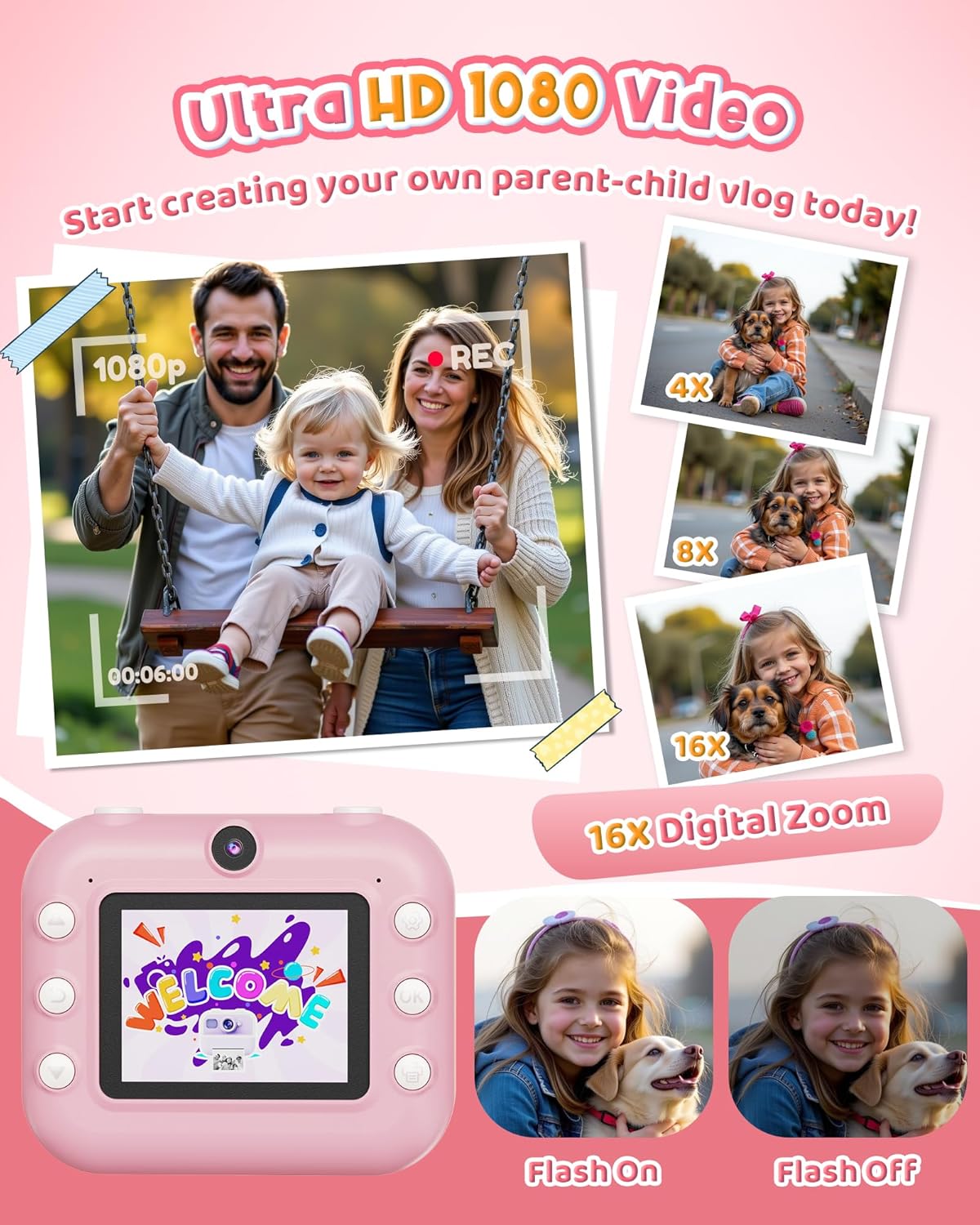
Image: A family capturing a moment with the camera in 1080P video mode, also highlighting the 16X digital zoom capability.
Digital Zoom
The camera supports up to 16x digital zoom. Use the zoom buttons to adjust the magnification before taking a photo or recording a video.

Image: Visual demonstration of the camera's 4x, 8x, and 16x digital zoom levels.
Flash Function
Activate or deactivate the built-in flash to improve image quality in low-light conditions.

Image: Shows the difference in image quality with the camera's flash turned on and off.
Creative Modes & Filters
Enhance your photos with 20 frames and 7 filters. Explore various fun frames and stickers to personalize your prints.
- Time-lapse: Set a delay for photos (3s, 5s, or 10s) to capture group shots or self-portraits.
- Continuous Shooting (Burst Mode): Capture 3 or 5 shots in a rapid sequence with a single press of the shutter button.

Image: Children engaging with the camera's creative features, including coloring printed photos and applying fun filters and stickers.

Image: Illustrates the selfie timer function with options for 3, 5, or 10-second delays before capturing a photo.

Image: Demonstrates the burst shooting feature, capturing multiple photos in quick succession.
Entertainment Features
- Puzzle Games: The camera includes 5 built-in puzzle games for entertainment.
- MP3 Player: Load MP3 audio files onto the SD card to use the camera as a portable music player.

Image: Illustrates the camera's entertainment features, including built-in puzzle games and MP3 music playback.
Maintenance
- Keep the camera clean by wiping it with a soft, dry cloth.
- Avoid exposing the camera to extreme temperatures, direct sunlight, or moisture.
- Store the camera in a safe place when not in use to prevent damage.
- Use only the recommended thermal print paper for optimal printing results.
Troubleshooting
| Problem | Possible Cause | Solution |
|---|---|---|
| Camera does not turn on. | Low battery. | Charge the camera fully using the provided Type-C cable. |
| Photos are not printing. | No print paper or paper loaded incorrectly. | Check if paper is loaded correctly and if there is enough paper. Ensure the paper is thermal paper. |
| Poor print quality. | Low battery, incorrect print density setting, or low-quality paper. | Ensure camera is charged. Adjust print density settings (Low, Middle, High). Use recommended thermal paper. |
| Cannot save color photos/videos. | SD card not inserted, full, or corrupted. | Ensure SD card is properly inserted. Check available space. Format the SD card (this will erase all data). |
| Camera freezes. | Software glitch. | Press and hold the power button for 10 seconds to force a restart. If issues persist, contact customer support. |
Specifications
| Model Name | M8 |
| Brand | DUDUDRAGON |
| Maximum Webcam Image Resolution | 48 MP |
| Optical Zoom | 16 x |
| Image Stabilization | Digital |
| Supported File Format | JPEG, MP4 |
| Photo Sensor Technology | CMOS |
| Aspect Ratio | 4:3 |
| Item Weight | 15.2 ounces |
| Batteries | 1 Lithium Ion batteries required (included) |
| Manufacturer | Shenzhen Yamaxtech Co., LTD |
Warranty and Support
For warranty information and customer support, please refer to the contact details provided on the product packaging or the official DUDUDRAGON website.
The product is crafted from high-quality, non-toxic materials and designed with shockproof protection to ensure durability.


