
NETUM Q700, C750
NETUM Q700 Handheld Barcode Scanner Mobile Computer & C750 Mini Barcode Scanner
User Manual
1. Introduction and Overview
This manual provides detailed instructions for the NETUM Q700 Handheld Barcode Scanner Mobile Computer and the NETUM C750 Mini Barcode Scanner. These devices are designed to enhance efficiency in various environments, including retail, warehousing, logistics, and asset management, by providing robust and versatile barcode scanning capabilities.
The NETUM Q700 is a powerful Android 11-based PDA that combines the functionality of a smartphone, mobile computer, and 1D/2D barcode scanner. It features a durable, rugged design, a large touchscreen, and comprehensive connectivity options.
The NETUM C750 is a compact and portable 1D/2D barcode scanner, offering flexible connectivity via Bluetooth and 2.4G wireless, ideal for inventory management and point-of-sale applications.

Figure 1: NETUM Q700 Handheld Barcode Scanner Mobile Computer (left) and NETUM C750 Mini Barcode Scanner (right).
2. Product Components
2.1 NETUM Q700 Handheld Barcode Scanner Mobile Computer
The Q700 is an integrated device featuring a 5.5-inch touchscreen, an octa-core processor, 3GB RAM, and 32GB ROM. It supports 1D and 2D barcode scanning, NFC, Wi-Fi 6, and Bluetooth 5.0. Its IP67 rating ensures durability in challenging environments.

Figure 2: Overview of NETUM Q700's efficient core and universal communication capabilities, including Android 11, Octa-core 2.0GHz processor, 3GB RAM + 32GB ROM, Bluetooth 5.0, NFC, 2.4GHz, 5G, Wi-Fi, and GNSS/GPS/GLONASS/BeiDou.

Figure 3: The NETUM Q700 features a 5.5-inch IPS HD touchscreen that supports operation with gloves or wet hands. Device dimensions are approximately 15.5cm (height), 7.5cm (width), and 1.7cm (thickness).
2.2 NETUM C750 Mini Barcode Scanner
The C750 is a compact, portable 1D/2D barcode scanner. It connects wirelessly via Bluetooth or a 2.4G USB dongle, making it versatile for various devices like tablets, smartphones, and PCs. It is designed for quick and efficient scanning tasks.

Figure 4: The NETUM C750 Mini Barcode Scanner, shown with its USB-C charging cable and 2.4G wireless USB dongle for versatile connectivity.

Figure 5: Detailed view of the NETUM C750 Mini Barcode Scanner, highlighting its dimensions (124mm length, 41mm width, 25mm height), USB Type-C port, hooking ring, and physical switch.
3. Setup
3.1 NETUM Q700 Initial Setup
- Charging: Connect the Q700 to a power source using the provided USB-C cable. The device has a 5000mAh battery, providing up to 12 hours of continuous working time and over 490 hours of standby time.
- Power On: Press and hold the power button on the side of the device until the screen illuminates.
- Initial Configuration: Follow the on-screen prompts to complete the Android 11 setup, including language selection, Wi-Fi connection, and Google account setup.
- Network Connectivity: Configure Wi-Fi (Wi-Fi 6 supported) or insert a SIM card for 4G LTE connectivity as needed.
3.2 NETUM C750 Initial Setup
- Charging: Connect the C750 to a power source using its USB-C cable.
- Power On: Flip the physical switch to the ON position.
- Connectivity Options:
- Bluetooth Pairing: Turn on Bluetooth on your host device (smartphone, tablet, PC). Scan the Bluetooth pairing barcode provided in the C750's quick start guide (not included in this manual, refer to C750 specific documentation). Select 'NETUM C750' from the list of available devices to pair.
- 2.4G Wireless (USB Dongle): Plug the 2.4G USB dongle into a USB port on your computer or compatible device. The scanner will automatically connect to the dongle.
4. Operating Instructions
4.1 NETUM Q700 Operation
- Barcode Scanning: Point the integrated scanner engine at a 1D or 2D barcode and press the scan button (typically located on the side or front). The device will emit a beep or vibration upon successful scan.
- Touchscreen Usage: The 5.5-inch capacitive touchscreen supports multi-touch gestures and can be operated even with gloves or wet hands.
- NFC Functionality: For NFC tag reading, hold the device near an NFC tag. The Q700 is equipped with a Newland Scanner Engine and supports decoding most 1D/2D barcodes and NFC tags.
- Application Usage: Navigate the Android 11 interface to open pre-installed or downloaded applications for data collection, inventory management, or other tasks.

Figure 6: The NETUM Q700 is equipped with NFC capabilities and a Newland Scanner Engine, supporting the decoding of most 1D/2D barcodes and NFC tags.
4.2 NETUM C750 Operation
- Barcode Scanning: Aim the scanner at the barcode and press the trigger button. The scanner will emit a light beam to read the barcode.
- Mode Switching: If using both Bluetooth and 2.4G wireless, refer to the C750's specific manual for instructions on switching between modes, usually by scanning specific configuration barcodes.
- Indicator Lights: Observe the indicator lights for status (e.g., power, connection, scan success).

Figure 7: The NETUM C750 barcode scanner supports multi-languages, allowing users to choose freely among English, German, Japanese, French, Italian, and Spanish.
5. Maintenance
- Cleaning: Use a soft, lint-free cloth slightly dampened with water or a mild screen cleaner to clean the display and scanner window. Avoid abrasive materials or harsh chemicals.
- Battery Care: For optimal battery life, avoid fully discharging the devices frequently. Charge them regularly. The Q700 has a 5000mAh non-removable battery.
- Storage: Store the devices in a cool, dry place away from direct sunlight and extreme temperatures when not in use.
- Durability: The Q700 is IP67-rated, making it waterproof, dustproof, and drop-resistant from up to 1.8m (5.9ft) onto concrete. While rugged, avoid unnecessary drops or impacts.
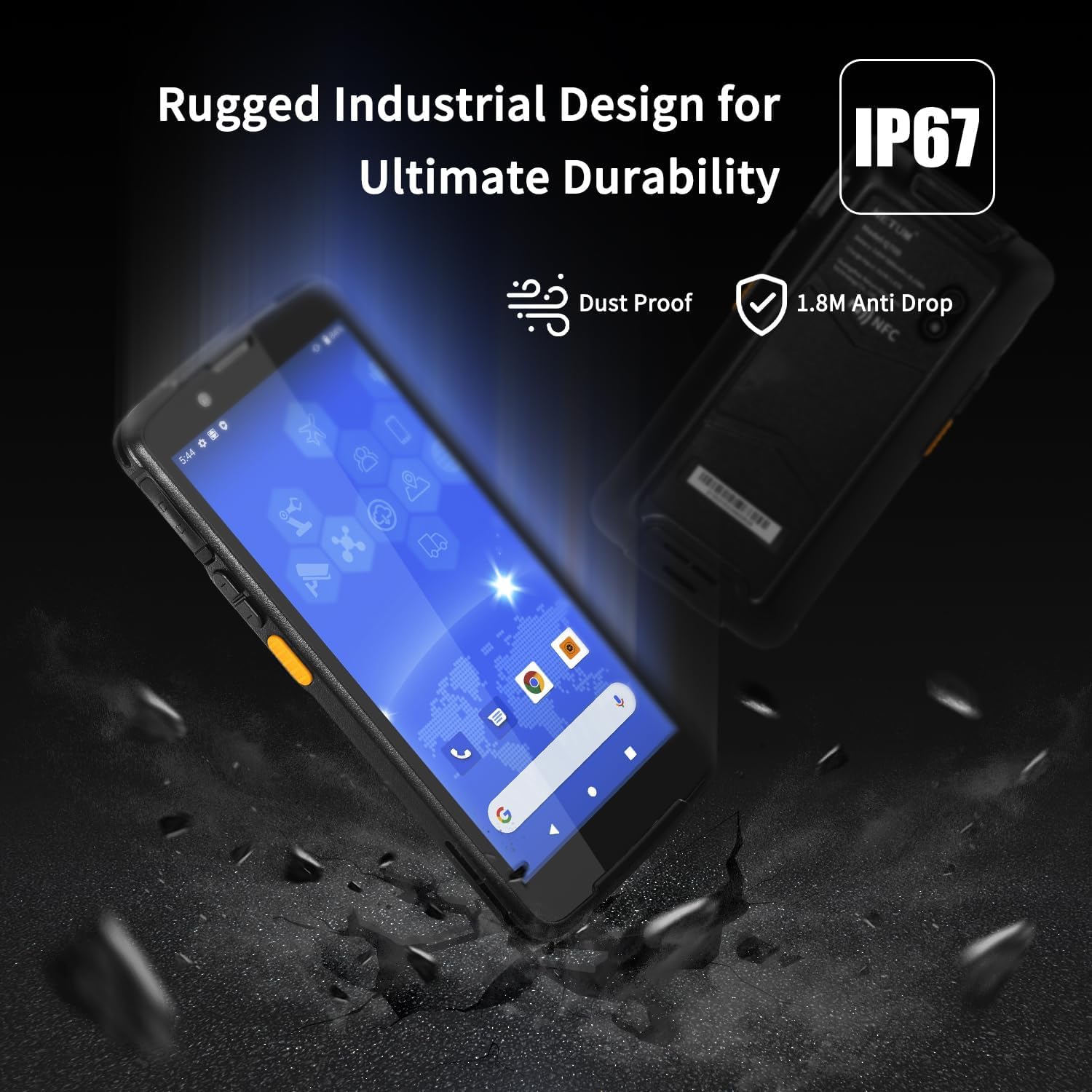
Figure 8: The NETUM Q700 features a rugged industrial design with an IP67 rating, indicating it is dustproof and resistant to drops from up to 1.8 meters.

Figure 9: The NETUM Q700 offers superior endurance with its 5000mAh non-removable battery, providing over 400 hours of standby time, over 12 hours of continuous working time, and approximately 4 hours of charging time.
6. Troubleshooting
| Problem | Possible Cause | Solution |
|---|---|---|
| Device not powering on | Low battery; System crash | Charge the device; Perform a hard reset (refer to specific device guide for button combination). |
| Scanner not reading barcodes | Barcode damaged/unreadable; Scanner window dirty; Incorrect symbology settings | Try a different barcode; Clean the scanner window; Check device settings for supported barcode types. |
| Bluetooth/2.4G connection issues (C750) | Not paired; Out of range; Interference | Re-pair the device; Ensure scanner is within range; Move away from sources of interference. |
| Q700 Wi-Fi/4G connectivity issues | Incorrect network settings; Weak signal | Verify network credentials; Move closer to Wi-Fi router or ensure good cellular signal. |
7. Specifications
7.1 NETUM Q700 Handheld Barcode Scanner Mobile Computer
- Operating System: Android 11
- Processor: Octa-core 2.0GHz
- Memory: 3GB RAM + 32GB ROM
- Display: 5.5-inch IPS HD Touchscreen (5-point capacitive, supports gloves/wet hands)
- Scanner: Integrated 1D/2D Barcode Scanner (Newland Scanner Engine)
- Connectivity: Wi-Fi 6, Bluetooth 5.0, 4G LTE, NFC, GNSS/GPS/GLONASS/BeiDou
- Battery: 5000mAh Non-Removable (up to 12 hours continuous work, 490 hours standby)
- Durability: IP67-rated (waterproof, dustproof), 1.8m (5.9ft) drop resistance
- Dimensions: Approx. 15.5cm x 7.5cm x 1.7cm
7.2 NETUM C750 Mini Barcode Scanner
- Scanning Capability: 1D and 2D Barcodes
- Connectivity: Bluetooth, 2.4G Wireless (USB Dongle)
- Power Source: Battery Powered
- Interface: USB Type-C for charging
- Dimensions: Approx. 124mm x 41mm x 25mm
- Supported Languages: English, German, Japanese, French, Italian, Spanish
8. Warranty and Support
For warranty information and technical support, please refer to the official NETUM website or contact your authorized reseller. Keep your purchase receipt as proof of purchase for any warranty claims.
For more information about NETUM products, visit the NETUM Brand Store on Amazon.
Related documentsQ700, C750


Ask a question about this manual
Ask about setup, troubleshooting, compatibility, parts, safety, or missing instructions. Manuals+ will review the question and use this page’s manual context to help answer it.