
1. Introduction
This manual provides essential information for the proper use and maintenance of PaperPlanet Thermal Receipt Paper, Model ABZKIT11C. This thermal paper is specifically designed for optimal performance with Clover Compact C801 thermal receipt printers. Each roll ensures clean, smudge-free printing for various business needs.
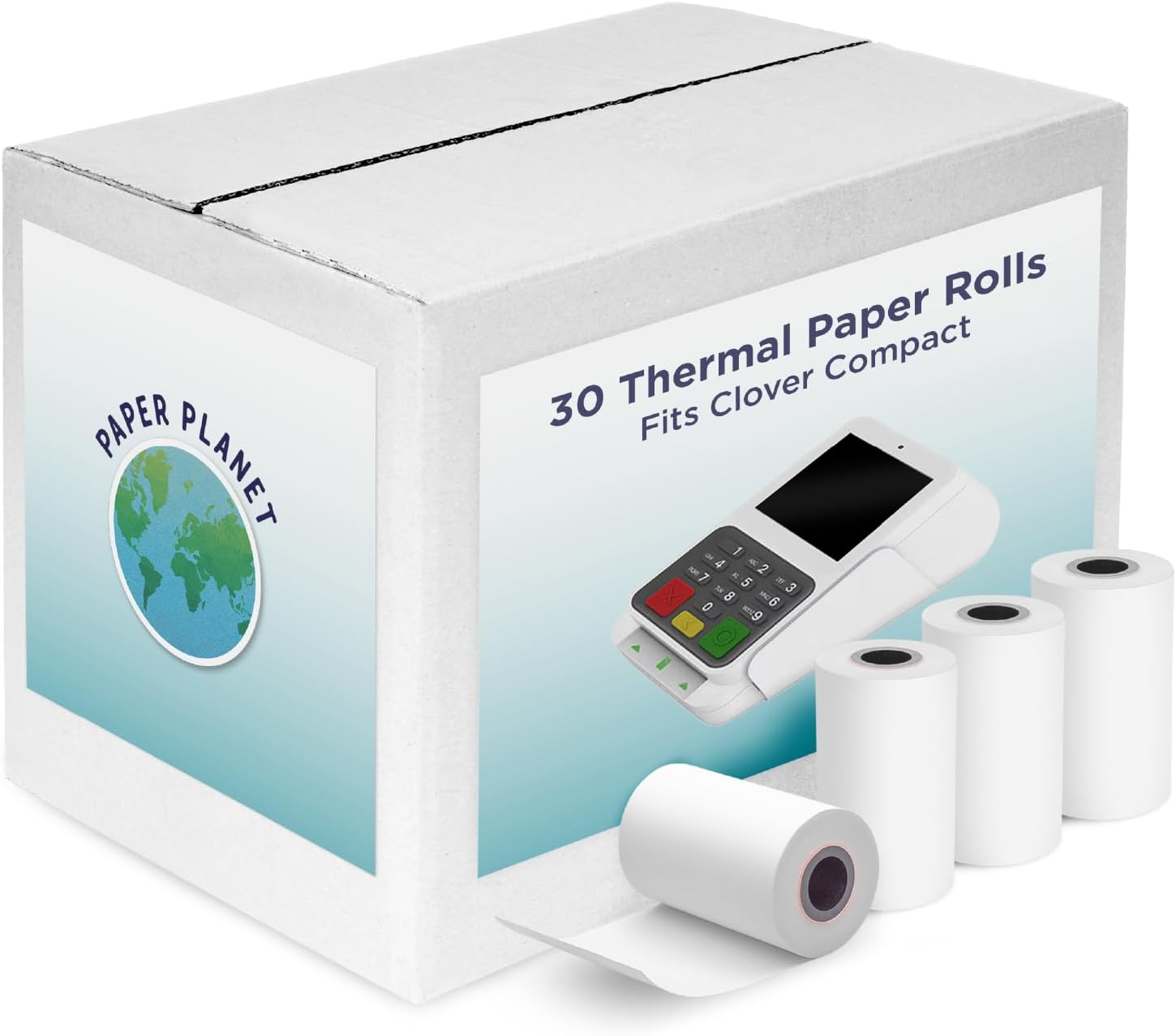
Figure 1.1: Packaging for PaperPlanet Thermal Receipt Paper (30 rolls). This image displays the product box containing multiple rolls of thermal paper, indicating its compatibility with Clover Compact devices.
2. Product Features
- High Quality Thermal Paper: Manufactured with a special heat-sensitive coating for inkless receipt printing, ensuring clean and smudge-free results.
- Extended Roll Length: Designed to provide more prints per roll compared to standard thermal printer paper, reducing the frequency of roll changes.
- Low Paper Warning: Each roll includes a visible pink warning mark near the end, indicating when the paper supply is running low.
- BPA-Free: Produced using high-quality, BPA-free materials for consumer and environmental safety.

Figure 2.1: Detail of a thermal paper roll with the pink warning stripe. This stripe becomes visible as the paper supply diminishes, alerting the user to replace the roll soon.
3. Compatibility
PaperPlanet Thermal Receipt Paper (Model ABZKIT11C) is specifically engineered to be fully compatible with the Clover Compact Thermal Printer, model number C801. These rolls are sized to fit perfectly within the printer's paper compartment, ensuring smooth operation and reliable printing.

Figure 3.1: Clover Compact printer shown with PaperPlanet thermal paper rolls, illustrating the intended compatibility and fit.
4. Setup: Loading the Thermal Paper
Follow these general steps to load PaperPlanet Thermal Receipt Paper into your Clover Compact C801 printer. Refer to your Clover Compact printer's specific manual for detailed instructions if needed.
- Open the Printer Cover: Locate and open the paper compartment cover on your Clover Compact printer.
- Remove Old Roll (if applicable): If an old roll is present, remove any remaining paper and the empty core.
- Insert New Roll: Place a new PaperPlanet thermal paper roll into the compartment. Ensure the paper feeds from the bottom of the roll and the leading edge is facing the correct direction for printing (usually upwards, away from the roll).
- Feed Paper: Pull a small amount of paper out past the printer's cutting mechanism.
- Close Cover: Close the printer compartment cover securely. The printer should automatically detect the paper and be ready for use.

Figure 4.1: A Clover Compact printer positioned next to several PaperPlanet thermal paper rolls, demonstrating the product in its intended operational environment.
5. Operating Guidelines
Once the PaperPlanet thermal paper is loaded, your Clover Compact C801 printer is ready for operation.
- Printing: Initiate printing through your POS system or connected device as usual. The thermal printer will apply heat to the paper, creating the print without the need for ink.
- Receipt Handling: Allow a brief moment for the printed receipt to cool before handling to prevent smudging, especially in high-humidity environments.
- Paper End Warning: When the pink warning stripe appears, prepare a new roll for replacement to avoid interruptions during transactions.
6. Maintenance and Storage
Proper storage and handling of PaperPlanet Thermal Receipt Paper will ensure its longevity and optimal performance.
- Storage Conditions: Store unused thermal paper rolls in a cool, dark, and dry place.
- Avoid Contact: Keep thermal paper away from direct sunlight, excessive heat, humidity, and contact with oils, plastics (especially PVC), chemicals, and fats, as these can degrade the thermal coating and affect print quality.
- Handling: Handle rolls by the edges to avoid transferring oils from hands to the thermal surface.
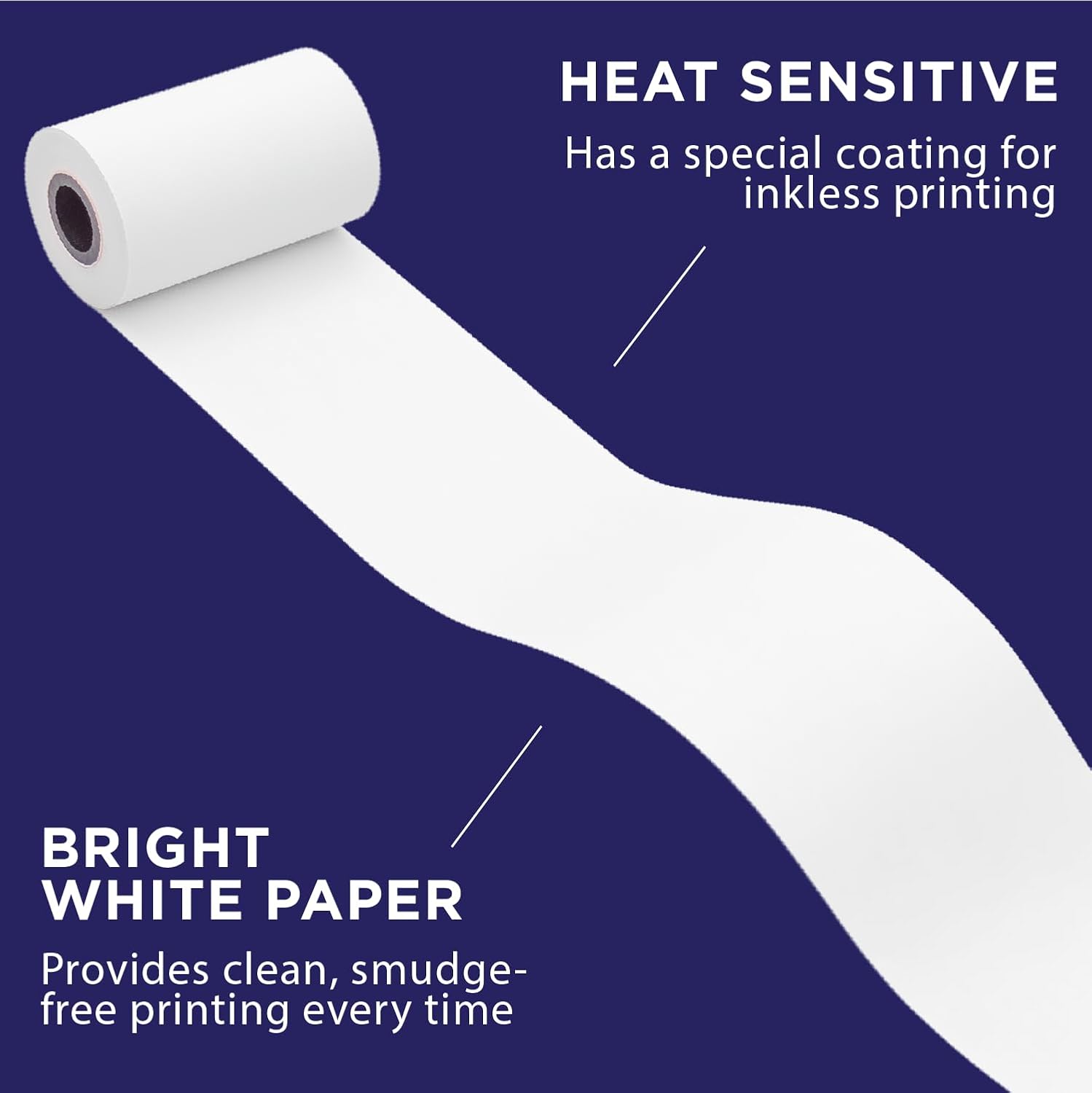
Figure 6.1: An unrolled section of PaperPlanet thermal paper, highlighting its bright white surface and heat-sensitive properties essential for inkless printing.
7. Troubleshooting
If you encounter issues while using PaperPlanet Thermal Receipt Paper, consider the following:
- Faint or No Print:
- Ensure the paper roll is inserted correctly, with the thermal side facing the print head.
- Check if the printer's thermal head is clean. Refer to your printer's manual for cleaning instructions.
- Verify the paper has not been exposed to excessive heat or light, which can degrade the thermal coating.
- Paper Jams:
- Ensure the paper roll is properly seated and not too tight or loose in the compartment.
- Check for any debris or small pieces of paper obstructing the paper path.
- Confirm the paper roll dimensions match the printer's requirements (80mm x 40mm for Clover Compact C801).
- Smudged Prints:
- Allow receipts to cool briefly after printing before handling.
- Ensure the paper is stored in a cool, dry environment away from chemicals.
8. Specifications
| Attribute | Detail |
|---|---|
| Brand | PaperPlanet |
| Model Number (Paper) | ABZKIT11C |
| Compatible Printer Model | Clover Compact C801 |
| Sheet Size | 80mm x 40mm |
| Paper Finish | Matte |
| Color | White |
| Material Feature | BPA-Free, Heat-Sensitive |
| Item Weight (30 rolls) | 3.21 pounds (1.46 Kilograms) |
| Package Dimensions | 7.8 x 7.72 x 5.16 inches |
9. Warranty and Support
Specific warranty information for PaperPlanet Thermal Receipt Paper is not provided in this manual. For details regarding product warranty, returns, or customer support, please refer to the purchase documentation or contact PaperPlanet directly through their official website or the retailer where the product was purchased.