

Introduction
This manual provides essential information for the setup, operation, maintenance, and troubleshooting of your Varmilo Sword68 Sakura Aluminum 65% Hotswap Wireless RGB Mechanical Keyboard. Please read this manual thoroughly to ensure proper use and to maximize your keyboard's performance and longevity.
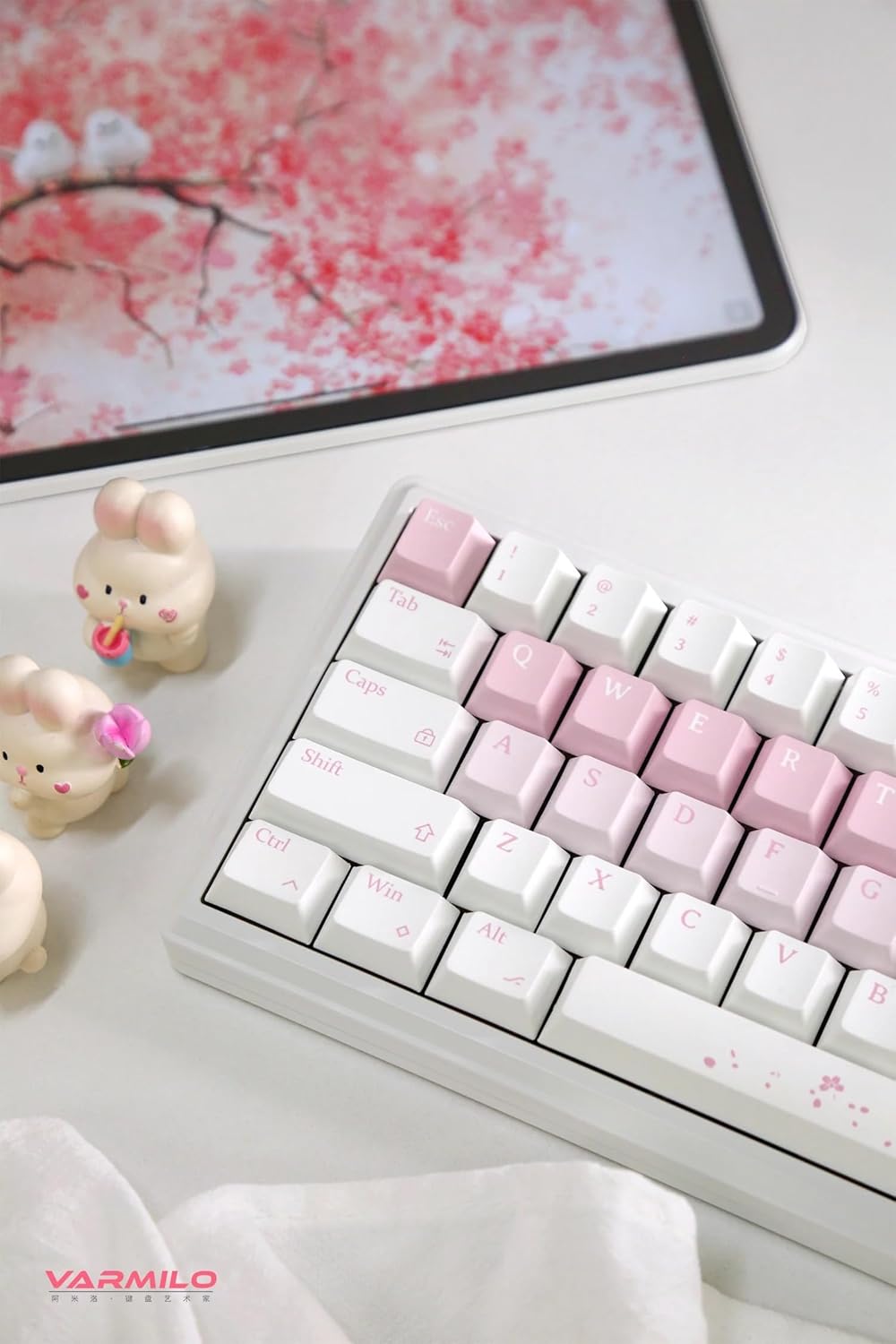
This image presents an overhead view of the Varmilo Sword68 Sakura keyboard positioned on a desk. It shows the keyboard in a typical usage environment, accompanied by a tablet displaying a cherry blossom theme and decorative bunny figurines, emphasizing the product's aesthetic appeal and its integration into a personalized workspace.
Package Contents
Upon unboxing, please verify that all components are present:
- Varmilo Sword68 Sakura Mechanical Keyboard
- USB-C Cable
- Keycap Puller (typically included for hotswap keyboards)
- Switch Puller (typically included for hotswap keyboards)
- User Manual (this document)
Setup
Your Varmilo Sword68 keyboard offers three connectivity options: wired USB-C, Bluetooth 5.0, and 2.4 GHz wireless.
1. Wired Connection
- Locate the USB-C port on the keyboard.
- Connect one end of the provided USB-C cable to the keyboard and the other end to an available USB port on your computer.
- The keyboard will be automatically recognized by your operating system.
2. Wireless Connection (Bluetooth 5.0)
- Ensure the keyboard is charged or connected via USB-C initially.
- Switch the keyboard to Bluetooth mode (refer to keyboard's specific switch/key combination for mode selection, usually Fn + a number key).
- On your device (PC, Laptop, Tablet, Smartphone), enable Bluetooth and search for new devices.
- Select "Varmilo Sword68" from the list of available devices to pair.
- Follow any on-screen prompts to complete the pairing process.
3. Wireless Connection (2.4 GHz)
- Locate the 2.4 GHz USB receiver (dongle), typically stored in a compartment on the keyboard or included separately.
- Plug the USB receiver into an available USB port on your computer.
- Switch the keyboard to 2.4 GHz wireless mode (refer to keyboard's specific switch/key combination for mode selection).
- The keyboard should automatically connect to the receiver.
Charging the Keyboard
The keyboard is equipped with a 4000mAh rechargeable battery. Connect the keyboard via the USB-C cable to a powered USB port on your computer or a USB wall adapter. The RGB backlighting may indicate charging status (e.g., pulsing light) and full charge (e.g., solid light).
Operating Instructions
Key Functions and Layout
The Varmilo Sword68 features a 65% layout with 68 keys. Many functions are accessed via the Fn key combined with other keys. Refer to the keycap legends for specific secondary functions.

This close-up image focuses on the right-hand side of the Varmilo Sword68 Sakura keyboard. It clearly shows the dedicated arrow keys, along with the Delete, Page Up, and Page Down keys. The Enter key is visible, featuring a subtle Sakura design, emphasizing the keyboard's aesthetic theme.
RGB Backlighting Control
The keyboard features customizable RGB backlighting. Specific key combinations (e.g., Fn + \ or Fn + arrow keys) are typically used to cycle through lighting modes, adjust brightness, and change colors. Consult the keyboard's quick guide or software for detailed instructions on RGB customization.
Custom Software
For advanced customization of RGB lighting, key remapping, and macro creation, download and install the official Varmilo software from the Varmilo website. The software allows for fine-tuning your keyboard experience to your preferences.
Hot-Swappable PCB
The keyboard's hot-swappable PCB allows you to change mechanical switches without soldering. This feature supports both plate mount and PCB mount stabilizers. Use the provided switch puller to carefully remove switches and insert new ones, ensuring pins are aligned correctly.

This image provides an angled perspective of the Varmilo Sword68 Sakura keyboard, drawing attention to the spacebar which is adorned with a delicate cherry blossom pattern. The photograph also showcases the profile and texture of the white and pink keycaps, giving a sense of the keyboard's overall design and build quality.
Maintenance
Cleaning the Keyboard
- Disconnect the keyboard from your computer before cleaning.
- Use a soft brush or compressed air to remove dust and debris from between the keycaps.
- For keycap cleaning, gently remove keycaps using a keycap puller. Clean them with a mild soap solution and a soft cloth, then dry thoroughly before reattaching.
- Wipe the keyboard case with a slightly damp, lint-free cloth. Avoid excessive moisture.
Switch and Keycap Replacement
Due to the hot-swappable design, switches and keycaps can be replaced. Use appropriate tools (keycap puller, switch puller) to avoid damage. Ensure replacement switches are compatible with the PCB's socket type.
Troubleshooting
Keyboard Not Responding
- Wired: Check USB-C cable connection at both ends. Try a different USB port or cable.
- Wireless (Bluetooth/2.4 GHz): Ensure the keyboard is in the correct wireless mode. Check battery level. Re-pair Bluetooth or re-insert 2.4 GHz dongle.
- Restart your computer.
RGB Backlighting Not Working/Incorrect
- Ensure RGB is enabled via key combinations.
- Check settings in the Varmilo custom software.
- Verify keyboard is fully charged.
Keys Not Registering
- For individual keys, carefully remove the keycap and switch. Re-seat the switch firmly into the PCB. If the issue persists, the switch may need replacement.
- Ensure no debris is lodged under the keycap or switch.
Connectivity Issues (Wireless)
- Reduce distance between keyboard and receiver/device.
- Remove potential sources of interference (other wireless devices, large metal objects).
- Ensure drivers are up to date on your computer.
Specifications
| Feature | Detail |
|---|---|
| Model | Varmilo Sword68 Sakura |
| Layout | 65% (68 Keys) |
| Case Material | Full 6063 Aluminum CNC with Electrophoresis Finish |
| Mounting Style | Leaf Spring Gasket Mount |
| Connectivity | Wired (USB-C), Bluetooth 5.0, 2.4 GHz Wireless |
| Switches | Kailh Prestige Silent (Hot-swappable) |
| Keycaps | Double Shot ABS |
| Backlighting | RGB |
| Battery Capacity | 4000mAh |
| Sound Absorption | 3x Poron foam, 2x PET foam, 1x IXPE foam |
| Compatible Devices | Laptop, PC, Tablet, Smartphone |
| Country of Origin | China |
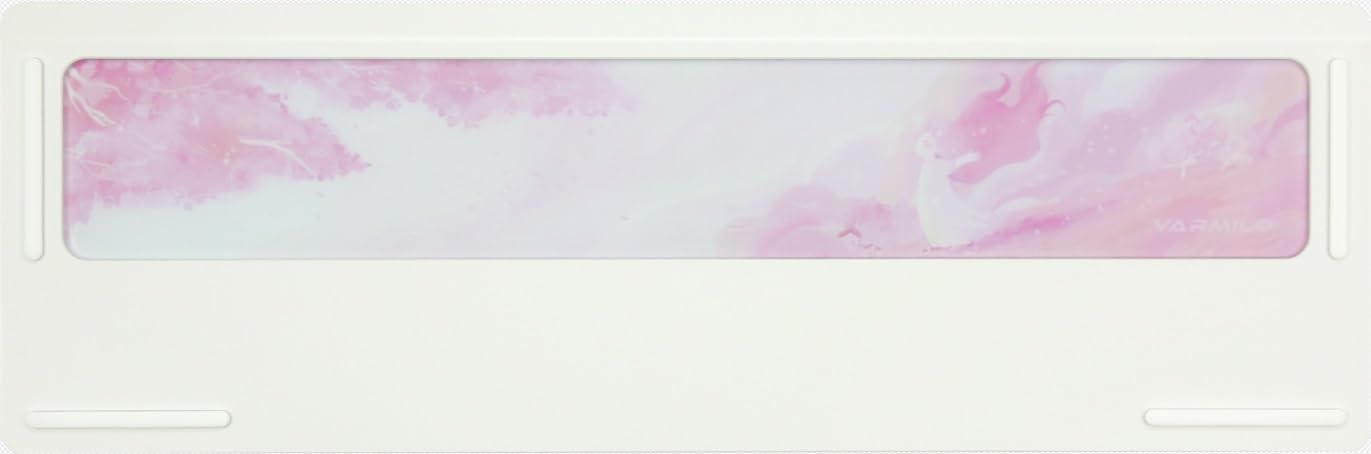
This image displays the underside of the Varmilo Sword68 Sakura keyboard. The prominent feature is the frosted glass weight, which is integrated into the aluminum case and subtly etched with a cherry blossom motif, adding to the keyboard's aesthetic appeal and stability.
Warranty and Support
Varmilo products are manufactured to high quality standards. For information regarding warranty coverage, please refer to the warranty card included with your product or visit the official Varmilo website. For technical support, troubleshooting assistance beyond this manual, or inquiries about replacement parts, please contact Varmilo customer service through their official channels.
Note: Warranty terms may vary by region and retailer. Keep your proof of purchase for warranty claims.


