
realme RMX3933
Contents
Realme Note 60 User Manual
Model: RMX3933
1. Introduction
Welcome to the user manual for your new Realme Note 60 smartphone. This guide provides essential information on setting up, operating, maintaining, and troubleshooting your device. Please read this manual carefully to ensure optimal performance and longevity of your smartphone.
The Realme Note 60 is a powerful and versatile smartphone designed for everyday use, featuring a robust processor, ample storage, and a long-lasting battery.
2. Package Contents
Upon opening your Realme Note 60 package, please verify that all the following items are included:
- Realme Note 60 Smartphone
- USB Cable
- Quick Start Guide (may vary by region)
- SIM Ejector Tool (may vary by region)
If any items are missing or damaged, please contact your retailer or Realme customer support.
3. Device Layout
Familiarize yourself with the physical components of your Realme Note 60.
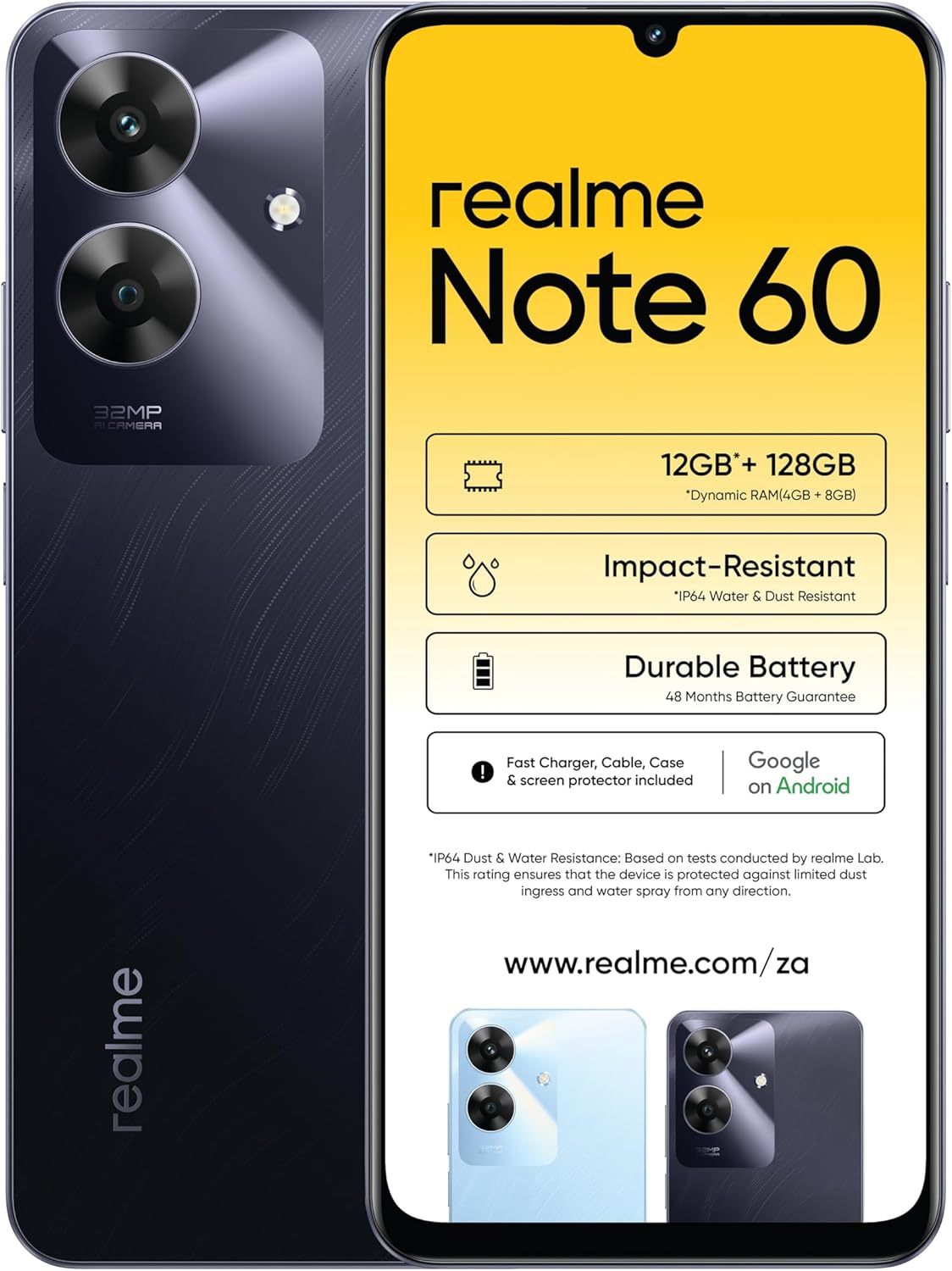
Figure 3.1: Front and back view of the Realme Note 60 smartphone, showcasing the display, camera module, and branding.

Figure 3.2: Side view of the Realme Note 60, illustrating the placement of the power button and volume rocker.

Figure 3.3: Top and bottom view of the Realme Note 60, highlighting the USB port, headphone jack, and speaker grille.
3.1. Front View
- Front Camera: For selfies and video calls (5 MP).
- Display: 6.74-inch IPS LCD with 90Hz refresh rate.
- Earpiece: For audio during calls.
3.2. Rear View
- Main Camera: 32 MP, f/1.8, (wide), PDAF.
- Auxiliary Lens: Additional camera lens.
- LED Flash: For illumination in low-light conditions.
3.3. Side Views
- Power Button: To turn the device on/off or wake/sleep the screen.
- Volume Buttons: To adjust media volume and call volume.
- SIM/microSD Card Tray: For inserting SIM cards and a microSDXC card.
3.4. Top and Bottom Views
- USB Port: For charging and data transfer (USB Cable included).
- Speaker: For audio output.
- Microphone: For voice input during calls and recordings.
- 3.5mm Headphone Jack: For connecting wired headphones.
4. Setup
4.1. Inserting SIM Cards and microSD Card
- Locate the SIM/microSD card tray on the side of your device.
- Insert the SIM ejector tool into the small hole next to the tray and push gently until the tray pops out.
- Place your Nano-SIM cards (up to two) and/or a microSDXC card into the designated slots on the tray. Ensure the gold contacts face downwards.
- Carefully push the tray back into the slot until it is flush with the device's side.
Important Network Compatibility Note:
This smartphone is designed for GSM networks. It will work with GSM carriers such as AT&T and T-Mobile in the USA. It is NOT compatible with CDMA networks like Verizon, Sprint, or US Cellular. Please verify network compatibility with your service provider before use.
4.2. Initial Power On and Setup Wizard
- Press and hold the Power button until the Realme logo appears.
- Follow the on-screen instructions to complete the initial setup. This includes selecting your language, connecting to a Wi-Fi network, setting up your Google account, and configuring security features like fingerprint or face unlock.
- Ensure your device has sufficient battery charge before starting the setup process.
5. Operating Your Device
5.1. Basic Operations
- Power On/Off: Press and hold the Power button. Select 'Power off' or 'Restart' from the options.
- Screen Lock/Unlock: Briefly press the Power button. Swipe up on the screen or use your configured security method to unlock.
- Navigation: Use gestures or the traditional navigation bar (Back, Home, Recents) as configured in settings.
- Volume Adjustment: Use the Volume Up/Down buttons on the side of the device.
5.2. Making Calls and Sending Messages
- Calls: Open the 'Phone' app, enter the number, or select a contact, then tap the call icon.
- Messages: Open the 'Messages' app, tap 'Start chat', enter the recipient's number or name, and type your message.
5.3. Camera Usage
Your Realme Note 60 features a 32 MP main camera and a 5 MP front camera.
- Open the 'Camera' app.
- Select your desired mode (Photo, Video, Portrait, etc.).
- Tap the shutter button to capture a photo or start/stop video recording.
- Tap the camera switch icon to toggle between front and rear cameras.
5.4. Storage Management
The device comes with 128GB of internal storage, expandable via a dedicated microSDXC slot.
- To view storage usage, go to Settings > Storage.
- Regularly clear cache and unnecessary files to free up space.
- Utilize the microSD card for storing photos, videos, and other media to preserve internal storage.
5.5. Connectivity
- Wi-Fi: Go to Settings > Network & internet > Wi-Fi to connect to available networks.
- Bluetooth: Go to Settings > Connected devices > Bluetooth to pair with Bluetooth accessories.
- Mobile Data: Ensure mobile data is enabled in Settings > Network & internet > Mobile network for internet access via your SIM card.
6. Maintenance
6.1. Battery Care
Your Realme Note 60 is equipped with a 5000mAh non-removable battery.
- Use the provided USB cable for charging.
- Avoid extreme temperatures, as they can degrade battery life.
- For optimal battery health, avoid frequently draining the battery completely or charging it to 100% for extended periods.
- Enable battery saver mode in Settings > Battery to extend usage time when needed.
6.2. Cleaning Your Device
- Use a soft, lint-free cloth to clean the screen and body of the phone.
- Avoid using harsh chemicals or abrasive materials.
- Do not expose the device to excessive moisture.
6.3. Software Updates
Regularly check for software updates to ensure your device has the latest features, security patches, and performance improvements.
- Go to Settings > About phone > Software update to check for and install available updates.
- Ensure your device is connected to Wi-Fi and has sufficient battery charge before performing an update.
7. Troubleshooting
This section addresses common issues you might encounter with your Realme Note 60.
7.1. Device Not Turning On
- Ensure the battery is charged. Connect the device to a charger and wait a few minutes before attempting to power on.
- Press and hold the Power button for at least 10-15 seconds to force a restart.
7.2. Apps Crashing or Freezing
- Close the problematic app and reopen it.
- Clear the app's cache and data in Settings > Apps > [App Name] > Storage & cache.
- Ensure the app is updated to its latest version.
- Restart your device.
7.3. Network Connectivity Issues
- No Signal/Calls: Check if your SIM card is properly inserted. Ensure you are within network coverage. Restart your device.
- Wi-Fi Not Connecting: Restart your Wi-Fi router. Forget the network in your phone's Wi-Fi settings and reconnect.
- Mobile Data Not Working: Ensure mobile data is enabled in settings. Check your data plan with your service provider.
7.4. Slow Performance
- Close unused background apps.
- Clear cache and temporary files regularly.
- Ensure sufficient storage space is available.
- Restart your device periodically.
If issues persist, consider performing a factory reset (Settings > System > Reset options > Erase all data (factory reset)). Warning: This will erase all data on your phone. Back up important data before proceeding.
8. Technical Specifications
Below are the detailed specifications for the Realme Note 60 (Model: RMX3933):
| Feature | Specification |
|---|---|
| Model Name | Realme Note 60 |
| Item Model Number | RMX3933 |
| Operating System | Android 14, Realme UI |
| Processor | Unisoc Tiger T612 (12 nm), Octa-core (2x1.8 GHz Cortex-A75 & 6x1.8 GHz Cortex-A55) |
| RAM | 4 GB |
| Internal Storage | 128 GB |
| Expandable Storage | microSDXC (dedicated slot) |
| Display Size | 6.74 Inches |
| Display Type | IPS LCD, 90Hz |
| Display Resolution | 720 x 1600 pixels |
| Rear Camera | 32 MP, f/1.8, (wide), PDAF, Auxiliary lens |
| Front Camera | 5 MP, (wide) |
| Battery Capacity | 5000 mAh (non-removable) |
| Phone Talk Time | 32.5 Hours |
| SIM Support | Dual-SIM (Nano-SIM) |
| Network Technology | 2G GSM, 3G WCDMA, 4G LTE (FDD & TDD) |
| Wireless Connectivity | Wi-Fi, Bluetooth |
| Human Interface Input | Buttons, Touchscreen |
| Color | Marble Black |
| Product Dimensions | 6.59 x 3.02 x 6.57 inches |
| Item Weight | 6.6 ounces (187 Grams) |
9. Safety Information
Please observe the following safety guidelines for safe and proper use of your device:
- Do not use the device in prohibited areas (e.g., aircraft, hospitals).
- Avoid exposing the device to extreme temperatures, direct sunlight, or high humidity.
- Use only approved chargers and accessories.
- Do not attempt to disassemble or repair the device yourself.
- Keep the device away from children and pets.
- Dispose of the device and its battery responsibly according to local regulations.
10. Warranty and Support
For warranty information, please refer to the warranty card included with your purchase or visit the official Realme website. Warranty terms and conditions may vary by region and retailer.
For technical support, troubleshooting assistance beyond this manual, or service inquiries, please contact Realme customer support through their official channels. You can typically find contact information on the Realme website or in your device's settings under 'About phone'.
No official product videos were available from the seller for embedding in this manual.
Ask a question about this manual
Ask about setup, troubleshooting, compatibility, parts, safety, or missing instructions. Manuals+ will review the question and use this page’s manual context to help answer it.