
1. Introduction
Thank you for choosing the Ftoghe 7-inch HD Touchscreen Car Stereo Radio. This manual provides essential information for the proper installation, operation, and maintenance of your new car stereo system. Please read it thoroughly before use to ensure optimal performance and safety.
This advanced car stereo features a 7-inch IPS touchscreen, Android 13 operating system, 2GB RAM + 32GB ROM, Wireless CarPlay, Android Auto, GPS navigation, Bluetooth, FM radio, DSP sound processing, WiFi connectivity, and supports a backup camera. It is designed to enhance your driving experience with modern technology and convenience.
2. Applicable Models
This car stereo radio is specifically designed for the following Ford truck models:
- Ford F150: 2004-2014
- Ford F250: 2004-2014
- Ford F350: 2004-2014
Note: This unit is not compatible with original cars equipped with factory navigation systems. Please verify the dimensions and shape of your vehicle's center console and existing connectors before purchasing and installing.

Image: Applicable Ford F-Series models and required stereo panel size (188*120mm) with compatible connector types.
3. What's in the Box
Your package should contain the following items:
- Ftoghe 7-inch HD Touchscreen Car Stereo Unit
- Power Cable Harness
- RCA Input/Output Cables
- 2 USB Cables
- Camera Input Cable
- USB Adapter Cable
- GPS Antenna
- Instruction Manual
- Protocol Box (CANBUS)
- Radio Adapter
- Universal Loose Wire
- External Microphone
- HD Backup Camera

Image: Overview of the car stereo unit and all included accessories and cables.
Package Contents Video Overview
Video: A detailed look at all items included in the package for the Ford F150 radio, demonstrating each component.
4. Setup & Installation
Proper installation is crucial for the functionality and longevity of your car stereo. It is recommended to have this unit installed by a professional if you are not familiar with car audio wiring.
Wiring Diagram
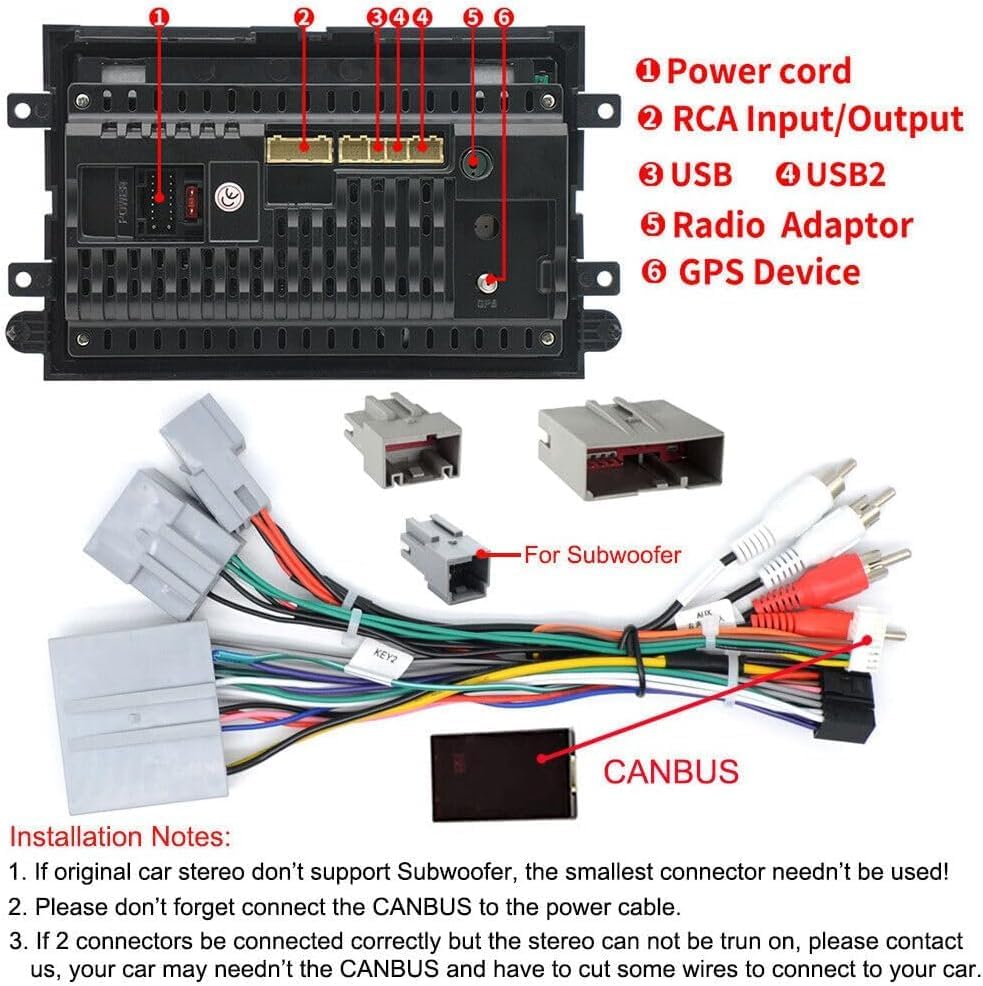
Image: Comprehensive wiring diagram illustrating the connections for power, RCA input/output, USB ports, radio adapter, GPS device, and CANBUS.
Installation Notes
- If your original car stereo does not support a subwoofer, the smallest connector on the harness is not needed.
- Ensure the CANBUS is correctly connected to the power cable.
- If two connectors are correctly connected but the stereo does not power on, please contact customer support. You may need to bypass the CANBUS and connect some wires directly to your car's system.
- Connect the 4G antenna (if applicable to your configuration) and GPS antenna securely.
- Connect the camera extension cables and the rear camera signal wire as indicated.
Car Radio Installation Guide
Video: Step-by-step guide demonstrating the installation process of a car radio, including connecting various cables and components.
Before and After Installation Comparison

Image: Visual comparison showing the original car stereo setup versus the new 7-inch HD touchscreen unit installed in a Ford F-Series dashboard.
5. Operating Instructions
Wireless CarPlay & Android Auto
Connect your smartphone wirelessly to access navigation, music, calls, and messages directly from the car stereo's touchscreen. Supports voice control for hands-free operation.

Image: The car stereo screen displaying the user interfaces for both Apple CarPlay and Android Auto, highlighting accessible applications.
GPS Navigation
Utilize both online and offline maps for precise navigation. The built-in GPS module and WiFi connectivity allow for easy download of offline maps and real-time traffic updates.

Image: The car stereo screen displaying a GPS navigation map with route details and location markers.
Bluetooth Hands-free
Connect your phone via Bluetooth for hands-free calling and audio streaming. The built-in microphone ensures clear communication.

Image: The car stereo screen showing a hands-free call interface, with a phone connected via Bluetooth for communication and music playback.
FM/RDS Radio
Enjoy your favorite radio stations with 18 preset stations and RDS (Radio Data System) functionality for enhanced information display.

Image: The car stereo screen showing the FM/RDS radio interface, including frequency display and preset station options.
Steering Wheel Control (SWC)
Control essential functions of your car stereo directly from your steering wheel for safer driving. The system supports learning and customizing SWC buttons.

Image: Illustration of steering wheel controls and the corresponding car stereo menu for learning and assigning functions to these buttons.
Customizing Steering Wheel Buttons
Video: This video demonstrates how to customize the single key button shortcut functions on the car stereo, allowing users to program buttons for various purposes like volume control, track skipping, and app access.
DSP Equalizer
The built-in DSP (Digital Sound Processor) allows for customized sound settings, optimizing audio playback for different seating positions and preferences.

Image: The car stereo screen displaying the DSP equalizer settings, allowing users to fine-tune audio frequencies and select various sound effects.
6. Backup Camera
The included HD backup camera automatically displays a clear rearview image on the device screen when reversing, aiding in safe parking and maneuvering.

Image: The car stereo screen displaying a high-definition rearview camera feed with dynamic parking guidelines, enhancing visibility during reverse maneuvers.
7. Troubleshooting
Power Issues
If the unit does not power on, ensure all power connections are secure and correctly wired according to the diagram in the 'Setup & Installation' section. Check the vehicle's fuse box for any blown fuses related to the stereo system.
Connectivity Issues (CarPlay/Android Auto/Bluetooth/WiFi)
If you experience issues connecting your smartphone or accessing network features:
- Ensure Bluetooth and WiFi are enabled on both your phone and the car stereo.
- Verify that the correct Bluetooth device ('CarBT') is selected and paired.
- For CarPlay/Android Auto, ensure the respective app is enabled in your phone's settings and on the car stereo.
- Try restarting both your phone and the car stereo.
How to Connect Bluetooth, CarPlay, and WiFi
Video: This video provides instructions on how to connect Bluetooth, CarPlay, and WiFi to the car stereo, guiding users through the pairing and connection processes.
Screen Calibration
If the touchscreen is unresponsive or inaccurate, it may require calibration. Access the calibration settings through the system menu.
Calibrate Car Radio Screen
Video: This video demonstrates the process of calibrating the car radio screen, ensuring accurate touch response and display alignment.
8. Specifications
| Feature | Detail |
|---|---|
| Brand | Ftoghe |
| Model Name | Android 13 Car Stereo Radio |
| Screen Size | 7 Inches |
| Operating System | Android 13 |
| RAM + ROM | 2GB RAM + 32GB ROM |
| Special Features | Bluetooth, IPS Touchscreen, Steering Wheel Control, Wireless Carplay & Android Auto, Wireless HD Mirror Link, Backup Camera |
| Connectivity Technology | Wi-Fi |
| Map Type | Worldwide (Online/Offline) |
| Audio Output Mode | Surround Sound (DSP) |
| Mounting Type | Dashboard Mount |
| Item Weight | 2.7 pounds |
| Package Dimensions | 11.42 x 7.52 x 4.29 inches |
9. Support
For technical assistance, warranty claims, or any questions regarding your Ftoghe car stereo, please contact our customer support team.
You can typically find support contact information on the product packaging, the seller's Amazon store page, or by visiting the manufacturer's official website.
Online Support: Visit the Lans-us Amazon Store and click 'Ask a question' for direct assistance.