
Introduction
This manual provides detailed instructions for the installation, operation, and maintenance of your INSEETECH 1080P Magnetic Wireless Backup Camera. Please read this manual thoroughly before using the product to ensure proper function and safety. This camera is designed to assist with backup, monitoring, and general surveillance for various vehicles and scenarios.
Product Features
- Easy Magnetic Installation: Features a robust magnetic base for effortless attachment to compatible metal surfaces, eliminating the need for drilling or complex wiring.
- Continuous Solar Power: Equipped with an efficient solar panel and a 3000mAh rechargeable battery, requiring approximately 2 hours of daily sunlight for year-round operation.
- Smart Power Management: Includes an intelligent power-saving mode controllable via the companion app, allowing users to set specific working hours to extend battery life.
- Full HD 1080P Resolution: Delivers sharp, clear images day and night with a 150° wide-angle lens and 1080P HD resolution.
- Adjustable Viewing Angle: The camera offers a 90° adjustable viewing angle for comprehensive coverage.
- Stable WiFi Connectivity: Provides stable WiFi connectivity with a range of up to 197 feet (60 meters) in open spaces, suitable for vehicles up to 30 feet long.
- IP66 Weatherproof: Designed to withstand various weather conditions, offering heat resistance, cold resistance, and general weatherproofing.

Image: Overview of key features of the INSEETECH Magnetic Wireless Backup Camera.
Setup Instructions
- Step 1: Download and Install the App
Download and install the "INSEECam" app from the App Store (for iOS devices) or Google Play Store (for Android devices). Search for "INSEECam" in your device's app store.

Image: Instructions for downloading the INSEECam app.
- Step 2: Mount the Camera and Power On
Attach the camera to a suitable metal surface on your vehicle using its strong magnetic base. Ensure the camera is securely mounted and then power it on. The solar panel should face upwards to receive sunlight.

Image: The INSEETECH camera mounted and powered on, with a smartphone showing its live feed.
- Step 3: Connect to the Camera's WiFi
On your smartphone or tablet, go to your device's WiFi settings. Locate and connect to the WiFi network starting with "WFS-XXXXX" (where XXXXX is a unique identifier for your camera).
- Step 4: Open the App and Start Using
Once connected to the camera's WiFi, open the INSEECam app. The live camera feed should appear, allowing you to begin using the backup camera.
Operating Instructions
App Functions
The INSEECam app provides various functions to enhance your experience:
- Parking Line: Toggle parking guidelines on or off for easier maneuvering.
- Screenshot: Capture still images from the live feed.
- Video Recording: Record video footage directly from the camera.
- 1080P HD: View the feed in high-definition resolution.
- Horizontal Flip: Adjust the image orientation horizontally.
- Vertical Flip: Adjust the image orientation vertically.
- Aspect Ratio: Change the display aspect ratio (e.g., 16:9).
- Full Screen: View the camera feed in full-screen mode.
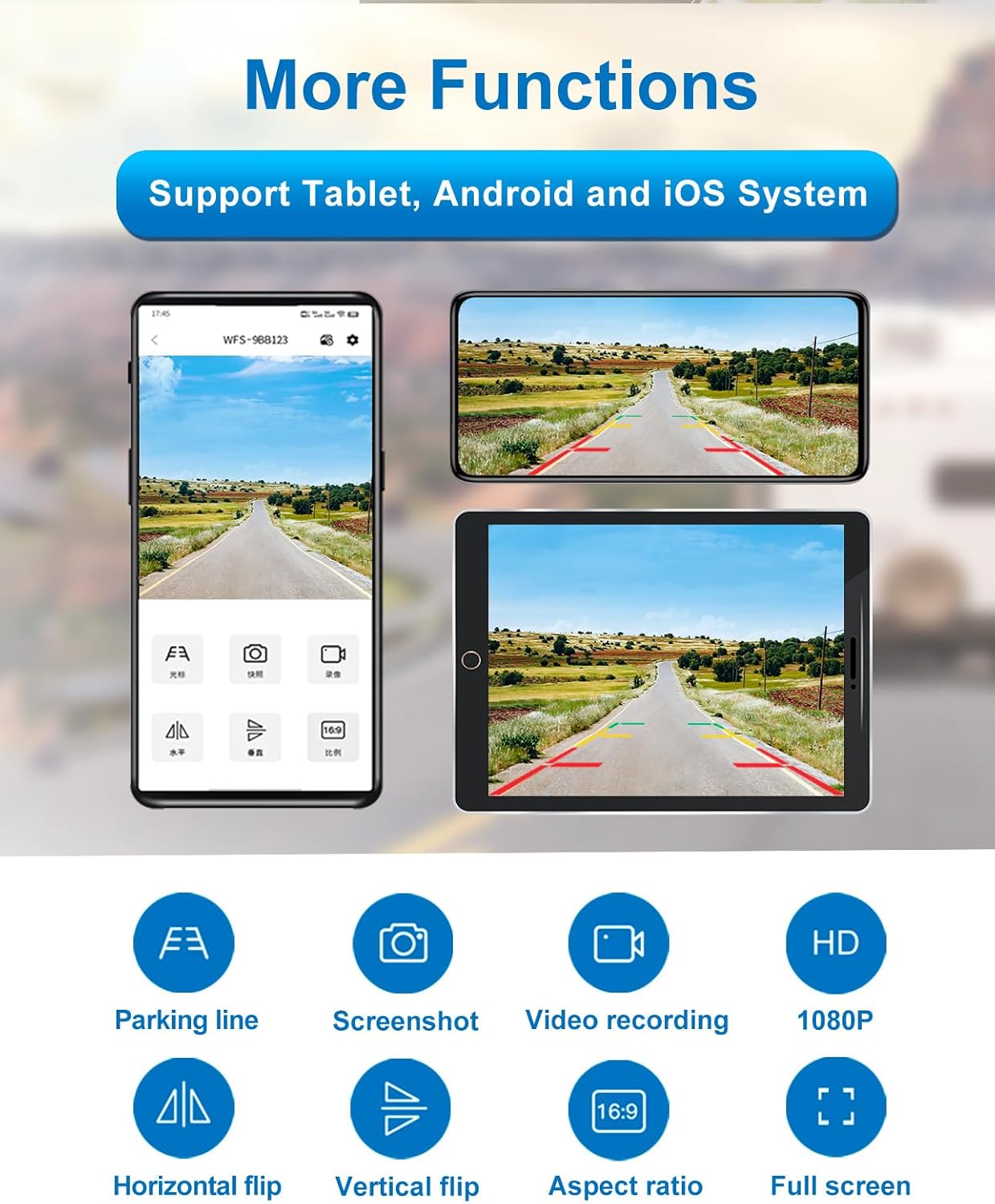
Image: INSEECam app interface displaying various control options.
Power Management
The camera features an intelligent power-saving mode. You can configure specific working hours through the INSEECam app to optimize battery usage. This ensures the camera operates only when needed, extending its standby time.
Charging the Camera
Your INSEETECH camera offers multiple charging options:
- Solar Charging: The integrated solar panel charges the 3000mAh battery. Approximately 2 hours of direct sunlight per day is recommended for continuous operation.
- USB Charging: Connect the camera to a standard USB power source using a compatible cable.
- Car Charger: Use a car charger adapter to power the camera while in your vehicle.

Image: Various charging methods for the INSEETECH camera and WiFi signal range.
Troubleshooting
- No Image on App: Ensure the camera is powered on and fully charged. Verify that your device is connected to the camera's WiFi network (WFS-XXXXX). Restart both the camera and your mobile device.
- Weak WiFi Signal: The transmission distance can vary based on vehicle type and environment. Try to reduce obstacles between the camera and your receiving device. Ensure the camera is within the optimal range (up to 197 feet in open space).
- Battery Not Holding Charge: Ensure the solar panel receives adequate direct sunlight (at least 2 hours daily). If using USB or car charging, verify the cable and power source are functional.
- Image Quality Issues: Check the camera lens for dirt or obstructions. Ensure the app settings are configured for 1080P HD viewing.
- Camera Not Attaching Securely: Ensure the mounting surface is made of iron, cobalt, or nickel. Clean the mounting surface and the camera's magnetic base to ensure optimal contact.
Specifications
| Product Dimensions | 3.66"L x 3.46"W x 10.99"H |
| Optical Sensor Technology | CMOS |
| Lens Type | Fixed Wide Angle |
| Real Angle of View | 150 Degrees |
| Connector Type | Wireless |
| Installation Type | Surface Mount (Magnetic) |
| Battery Capacity | 3000mAh (Rechargeable) |
| Weather Resistance | IP66 Weatherproof |
Maintenance
- Cleaning: Regularly clean the camera lens and solar panel with a soft, damp cloth to ensure optimal performance and image clarity. Avoid abrasive cleaners.
- Battery Care: For prolonged storage, ensure the battery is charged to at least 50%. Store the camera in a cool, dry place.
- Magnetic Base: Keep the magnetic base clean and free of debris to maintain a strong attachment to your vehicle.
Warranty and Support
For warranty information and technical support, please refer to the official INSEETECH website or contact INSEETECH customer service directly. Details can typically be found on the product packaging or the brand's online store.
Manufacturer: INSEETECH
Date First Available: November 13, 2024