Introduction
This manual provides comprehensive instructions for the FOLLOWM Active Stylus Pen, Model AEM-089MSII. Designed for precision and ease of use, this stylus enhances your interaction with compatible MESWAO tablets, offering a natural writing and drawing experience. Please read this manual thoroughly to ensure proper use and maintenance of your stylus pen.

Image: The FOLLOWM Active Stylus Pen, shown in white, accompanied by three spare pen tips.
Compatibility
The FOLLOWM Active Stylus Pen is specifically designed for use with MESWAO 14-inch and MESWAO 15.6-inch tablets. It is not compatible with other tablet models, smartphones (iPhone, Android), Microsoft devices, or any other non-MESWAO tablet devices. Please verify your tablet model before attempting to use this stylus.

Image: A visual representation confirming compatibility with MESWAO 14-inch and 15.6-inch tablets, with the stylus pen positioned below them.
Key Features
High Precision and Smooth Performance
Experience precise and detailed strokes with 4096 levels of pressure sensitivity. The fine tip ensures ink flows smoothly without lag or delay, making it ideal for note-taking, sketching, and professional work. An integrated eraser button allows for quick corrections.

Image: A hand holding the stylus pen, writing or drawing on a MESWAO tablet screen, demonstrating smooth and precise input.
Palm Rejection Technology
Advanced palm rejection allows you to rest your hand comfortably on the tablet screen while writing or drawing, mimicking the natural feel of using a traditional pen or pencil. This feature prevents accidental touches from interfering with your work, ensuring seamless creativity and productivity.

Image: A hand resting on the tablet screen while using the stylus, illustrating the palm rejection feature.
Tilt Sensitivity
The stylus features tilt sensitivity, enabling artists and designers to achieve realistic shading and adjust line thickness by simply tilting the pen. This functionality enhances detailed drawings and lifelike handwriting, elevating your creative output.

Image: Two examples showing the stylus used at different angles (90 degrees for notes, 60 degrees for drawing) to illustrate tilt sensitivity.
Powerful Long-Lasting Battery
Equipped with a smart automation design, the stylus automatically powers off and enters sleep mode after 3 minutes of inactivity to conserve battery. It fully charges in approximately one hour via USB-C, providing up to 100 hours of continuous use on a single charge. No drivers or Bluetooth pairing are required; simply use it out of the box.
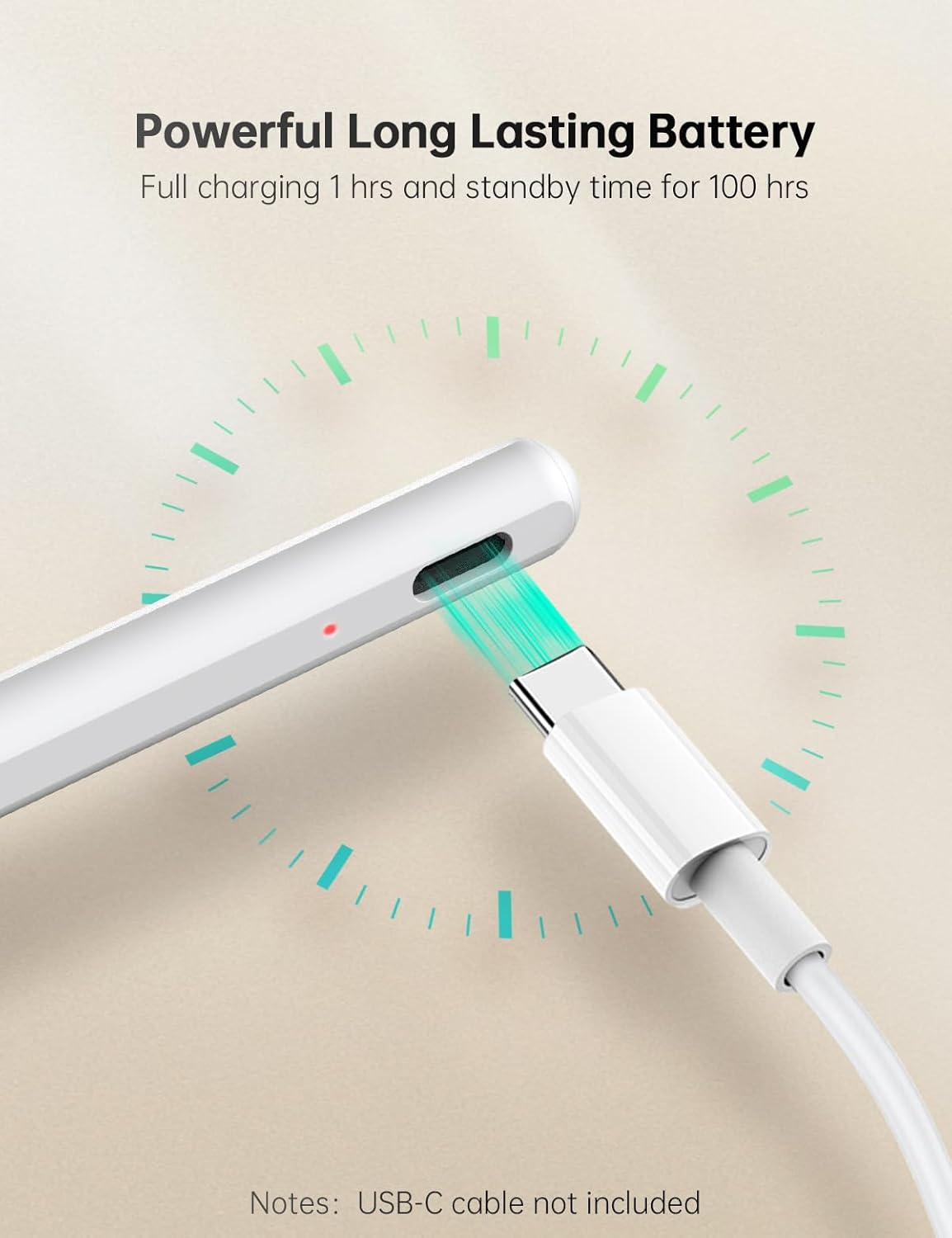
Image: A close-up of the stylus pen's USB-C charging port with a charging cable connected, indicating its long-lasting battery.
Setup
Charging the Stylus
- Locate the USB-C charging port on the top end of the stylus pen.
- Connect a standard USB-C charging cable (not included) to the stylus port.
- Plug the other end of the USB-C cable into a compatible USB power adapter or a computer's USB port.
- The indicator light on the stylus will illuminate during charging. A full charge typically takes about one hour.
- Once fully charged, the indicator light may change color or turn off, depending on the model. Disconnect the charging cable.
Power On/Off
- Power On: Press the On/Off button located on the side of the stylus. The indicator light will briefly illuminate to confirm it is powered on.
- Power Off: Press and hold the On/Off button for a few seconds until the indicator light turns off. The stylus will also automatically power off after 3 minutes of inactivity to conserve battery.

Image: A detailed diagram highlighting the various components of the stylus, including the indicator light, USB-C port, On/Off button, eraser button, and replaceable pen tip.
Operating Instructions
Basic Use
- Ensure your MESWAO tablet is powered on and unlocked.
- Power on the stylus pen as described in the "Setup" section.
- Begin writing or drawing directly on the tablet screen. The stylus does not require Bluetooth pairing or driver installation.
- Utilize the palm rejection feature by resting your hand naturally on the screen while you work.
- Experiment with tilting the stylus to achieve different line thicknesses and shading effects in compatible applications.
Using the Eraser Button
The eraser button is conveniently located on the side of the stylus, near your thumb. While using the stylus in a compatible application (e.g., note-taking or drawing app), press and hold this button to activate the eraser function. Release the button to return to the pen function.
Maintenance
Cleaning
To clean your stylus, gently wipe the body with a soft, dry, lint-free cloth. Do not use abrasive cleaners, solvents, or spray directly onto the stylus. Keep the pen tip clean and free of debris.
Replacing the Pen Tip
Over time, the pen tip may wear down. Replace it with one of the provided spare tips to maintain optimal performance.
- Gently pull the old pen tip straight out from the stylus body. Do not twist.
- Take a new replacement tip.
- Carefully insert the new tip straight into the stylus until it is firmly seated. Do not force it.
Image: A visual guide demonstrating the process of removing and inserting a replaceable pen tip.
Troubleshooting
| Problem | Possible Cause | Solution |
|---|---|---|
| Stylus not responding on tablet. | Stylus is off or battery is low. Incorrect tablet model. |
Ensure stylus is powered on and fully charged. Verify your tablet is a MESWAO 14-inch or 15.6-inch model. |
| Stylus not charging. | Faulty cable or power adapter. Port obstruction. |
Try a different USB-C cable and power adapter. Check the USB-C port on the stylus for any debris. |
| Inaccurate or skipping lines. | Worn-out pen tip. Screen protector interference. |
Replace the pen tip. Ensure screen protector is properly applied or try without it if issues persist. |
| Eraser button not working. | Application does not support eraser function. Stylus not powered on. |
Ensure the application you are using supports the eraser function. Confirm the stylus is powered on. |
Specifications
| Feature | Detail |
|---|---|
| Model Number | AEM-089MSII |
| Compatibility | MESWAO 14-inch and 15.6-inch Tablets ONLY |
| Pressure Sensitivity | 4096 Levels |
| Palm Rejection | Yes |
| Tilt Sensitivity | Yes |
| Charging Port | USB-C |
| Charging Time | Approx. 1 hour |
| Continuous Use Time | Up to 100 hours |
| Auto Sleep | After 3 minutes of inactivity |
| Color | White |
| Item Weight | 0.317 ounces (approx. 9 grams) |
| Dimensions | 7.72 x 1.57 x 0.87 inches (Package Dimensions) |
Support
For further assistance or inquiries regarding your FOLLOWM Active Stylus Pen, please refer to the product support information provided at the point of purchase or contact the manufacturer directly. Keep your purchase receipt for any warranty claims.