
1. Introduction
Thank you for choosing the Bmax B8 Pro Mini PC. This compact and powerful desktop computer is designed for a wide range of applications, from office work and streaming to web browsing and home entertainment. Featuring an Intel 12th Generation i7-1255U processor, 24GB LPDDR5 RAM, and a 1TB NVMe SSD, it offers excellent performance and efficiency in a small form factor. This manual provides essential information for setting up, operating, maintaining, and troubleshooting your new Mini PC.

Image 1.1: The Bmax B8 Pro Mini PC, showcasing its compact design.
2. What's in the Box
Please check the contents of your package to ensure all items are present:
- 1 x B8 Pro MINI PC
- 1 x Power Adapter
- 1 x User Guide
- 1 x HDMI cable
- 1 x Metal Bracket (for VESA mounting)

Image 2.1: All components included in the Bmax B8 Pro Mini PC package.
3. Product Overview and Features
3.1. Key Components and Ports
The Bmax B8 Pro Mini PC is designed with essential ports for connectivity and expansion. Familiarize yourself with the layout:
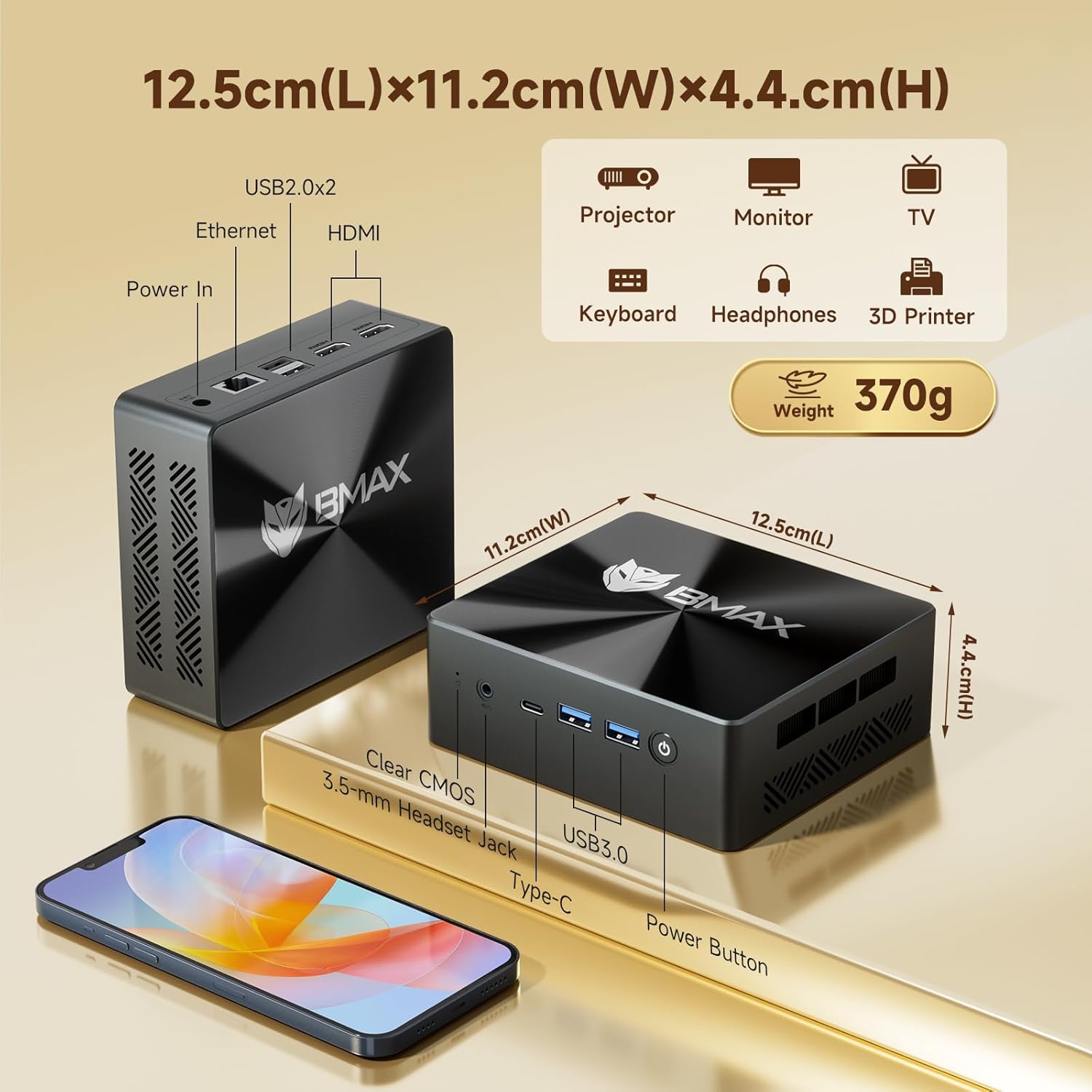
Image 3.1: Dimensions and port configuration of the Bmax B8 Pro Mini PC. Includes USB 2.0, USB 3.0, Ethernet, HDMI, Type-C, 3.5mm Headset Jack, and Power In.
- Front Panel: Power Button, 3.5mm Headset Jack, USB 3.0 ports (x2), Type-C port.
- Rear Panel: USB 2.0 ports (x2), HDMI ports (x2), Gigabit Ethernet port, Power Input.
3.2. Performance Highlights
The B8 Pro is equipped with advanced hardware for robust performance:
- Processor: Intel 12th Generation i7-1255U Processor (10 Cores, 12 Threads, up to 4.7 GHz). This CPU provides significant improvements in single-thread, multi-thread, and graphics performance compared to previous generations.
- Memory: 24GB LPDDR5 RAM (5200MHz) for high-speed multitasking and efficient application handling.
- Storage: 1TB NVMe SSD (M.2_NVMe 2280 x1) ensuring fast boot times and rapid application loading.
- Connectivity: Integrated WiFi 6 for faster wireless transmission speeds and Bluetooth 5.2 for lower latency and more stable connections with peripherals.
- Display Support: Supports 4K/60Hz triple-display output via Type-C and HDMI ports, ideal for multi-monitor setups.
- Cooling System: Features a smart fan and two copper heat pipes for efficient heat dissipation, ensuring stable performance even under load.

Image 3.2: Detailed specifications of the Intel Core i7-1255U processor.
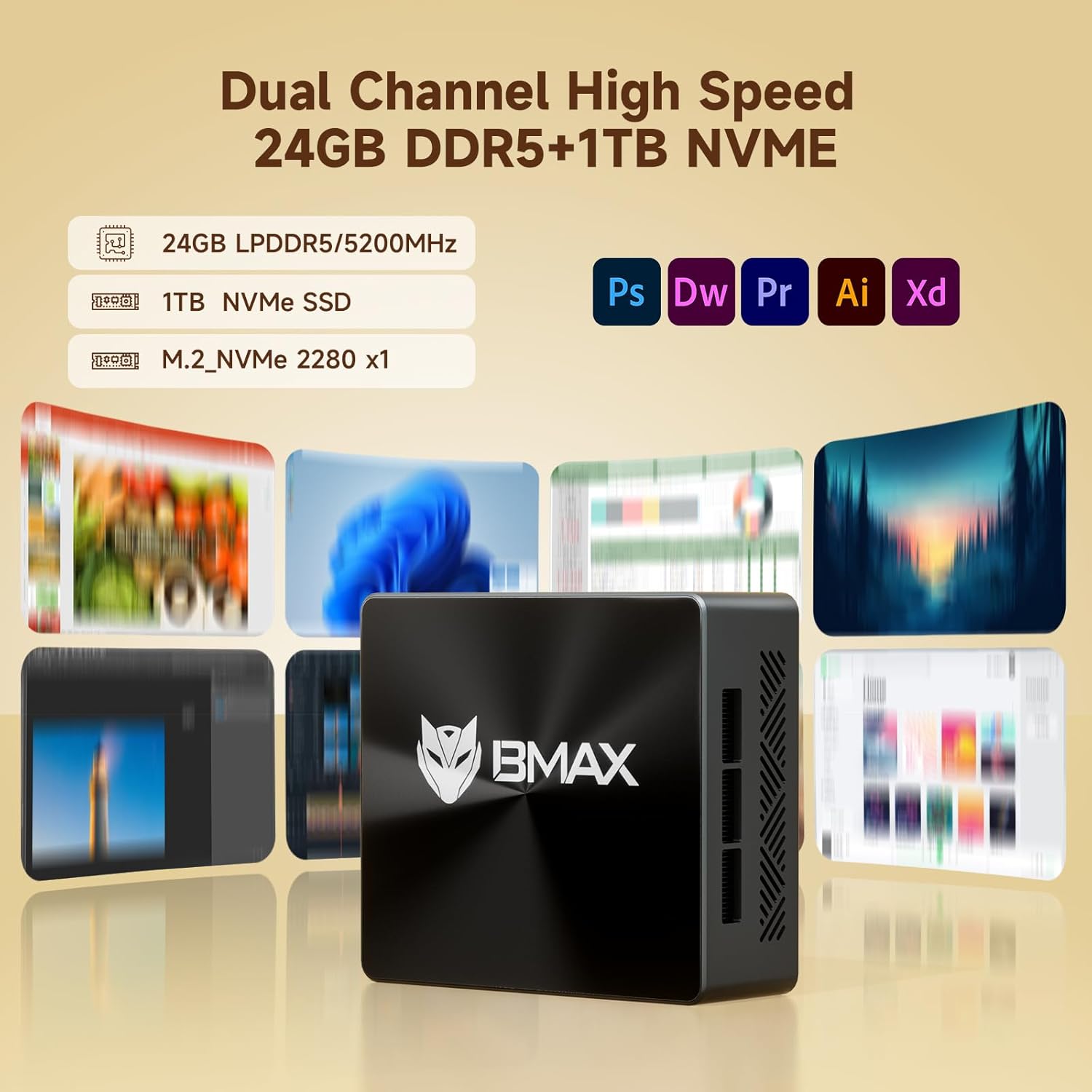
Image 3.3: Illustration of the high-speed memory and storage capabilities.

Image 3.4: Comparison of WiFi 5 and WiFi 6 speeds, highlighting Bluetooth 5.2 benefits.

Image 3.5: Diagram illustrating the smart fan and copper heat pipe cooling solution.
4. Setup Guide
Follow these steps to set up your Bmax B8 Pro Mini PC:
- Connect to Display: Connect your monitor, TV, or projector to the Mini PC using an HDMI cable. The B8 Pro supports dual HDMI output and one Type-C output for triple display configurations.
- Connect Peripherals: Plug in your keyboard and mouse to the available USB ports (USB 2.0 or USB 3.0).
- Connect to Power: Connect the power adapter to the DC-in port on the Mini PC, then plug the adapter into a power outlet.
- Power On: Press the power button located on the front panel of the Mini PC. The power indicator light will illuminate.
- Initial Setup: Follow the on-screen instructions to complete the Windows 11 Pro initial setup, including language, region, network connection, and user account creation.
- Network Connection: Connect to your network via Ethernet cable or Wi-Fi. For Wi-Fi, select your network from the available list and enter the password.
5. Operating Instructions
5.1. Basic Operation
- Power On/Off: Press the power button to turn on the PC. To shut down, click the Start button in Windows, then select Power > Shut down.
- Restart: From the Start menu, select Power > Restart.
- Sleep Mode: From the Start menu, select Power > Sleep.
5.2. Connecting to External Devices
- USB Devices: Connect USB flash drives, external hard drives, printers, or other USB devices to any available USB port.
- Bluetooth Devices: To connect Bluetooth headphones, speakers, or other devices, go to Windows Settings > Bluetooth & devices, turn on Bluetooth, and pair your device.
- Audio Output: Use the 3.5mm headset jack on the front panel for headphones or external speakers. Alternatively, audio can be output through HDMI to your display.
6. Maintenance
Proper maintenance ensures the longevity and optimal performance of your Mini PC:
- Cleaning: Regularly clean the exterior of the Mini PC with a soft, dry cloth. Use compressed air to gently clear dust from the ventilation grilles to prevent overheating. Ensure the device is powered off and unplugged before cleaning.
- Software Updates: Keep your Windows operating system and drivers updated. Go to Windows Settings > Windows Update to check for and install updates.
- Storage Management: Periodically check your storage usage. Delete unnecessary files, uninstall unused programs, or use Windows Disk Cleanup to free up space on your 1TB NVMe SSD.
- Ventilation: Ensure the Mini PC is placed in a well-ventilated area. Do not block the air vents.
7. Troubleshooting
If you encounter issues with your Bmax B8 Pro Mini PC, refer to the following common problems and solutions:
| Problem | Possible Cause | Solution |
|---|---|---|
| No power / PC does not turn on | Power adapter not connected properly; Power outlet issue; Faulty power adapter. | Ensure power adapter is securely connected to both PC and outlet. Try a different power outlet. Verify power adapter is working. |
| No display on monitor | HDMI/Type-C cable loose or faulty; Incorrect input source on monitor; Monitor off or faulty. | Check display cable connections. Ensure monitor is on and set to the correct input source (HDMI 1, HDMI 2, etc.). Try a different cable or monitor. |
| No internet connection (Wi-Fi) | Wi-Fi disabled; Incorrect Wi-Fi password; Router issue; Driver issue. | Ensure Wi-Fi is enabled in Windows settings. Re-enter Wi-Fi password. Restart your router. Check for updated Wi-Fi drivers. |
| No sound | Volume muted; Incorrect audio output device selected; Driver issue. | Check volume levels and ensure it's not muted. In Windows Sound settings, select the correct output device. Update audio drivers. |
| PC runs slowly or freezes | Too many applications running; Low disk space; Overheating; Malware. | Close unnecessary applications. Free up disk space. Ensure proper ventilation. Run a malware scan. |
8. Specifications
Detailed technical specifications for the Bmax B8 Pro Mini PC:
| Feature | Specification |
|---|---|
| Brand | Bmax |
| Model Name | B8 Pro |
| Processor | Intel 12th Generation Core i7-1255U (4.7 GHz max) |
| RAM | 24GB LPDDR5 |
| Hard Drive | 1TB NVMe SSD |
| Graphics Card | Integrated |
| Operating System | OS (Windows 11 Pro pre-installed) |
| Screen Resolution | 3840 x 2160 (4K) |
| USB 2.0 Ports | 2 |
| USB 3.0 Ports | 2 |
| Connectivity | WiFi 6, Bluetooth 5.2, Gigabit Ethernet |
| Dimensions (L x W x H) | 12.5cm x 11.2cm x 4.4cm (approx. 4.92 x 4.41 x 1.73 inches) |
| Item Weight | 1.87 pounds (approx. 848g) |
9. Warranty and Support
Bmax products are designed for reliability and performance. For specific warranty terms and conditions, please refer to the warranty card included with your product or visit the official Bmax website. If you encounter any issues that cannot be resolved using the troubleshooting guide, or require further assistance, please contact Bmax customer support through their official channels. When contacting support, please have your product model number (B8 Pro) and purchase information ready.


