1. Introduction
This manual provides essential information for the proper installation, operation, and maintenance of your SPIRIT SP POS 58 IVU Thermal Receipt Printer. Please read this manual thoroughly before using the printer to ensure optimal performance and longevity. This printer is designed for efficient receipt printing in various business environments, including shops and restaurants.
2. Safety Information
- Always use the power adapter supplied with the printer. Using an incorrect adapter may damage the device or pose a safety risk.
- Do not expose the printer to water, moisture, or extreme temperatures.
- Avoid placing the printer in direct sunlight or near heat sources.
- Ensure the printer is placed on a stable, flat surface to prevent accidental falls.
- Do not attempt to disassemble or repair the printer yourself. Refer to qualified service personnel for any repairs.
- Keep the printer away from children.
3. Package Contents
Verify that all items are present in the package:
- SPIRIT SP POS 58 IVU Thermal Receipt Printer
- Power Adapter
- USB Cable
- Starter Thermal Paper Roll
- User Manual (this document)
4. Product Overview
The SPIRIT SP POS 58 IVU is a compact thermal receipt printer designed for high-speed, inkless printing. It features a 58mm paper width and USB connectivity for versatile use.
4.1 Front View
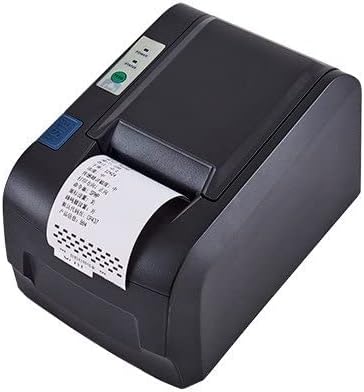
Image: Front view of the SPIRIT SP POS 58 IVU Thermal Receipt Printer, showing a printed receipt exiting the front slot. The power and status indicator lights are visible on the top panel.
4.2 Top View
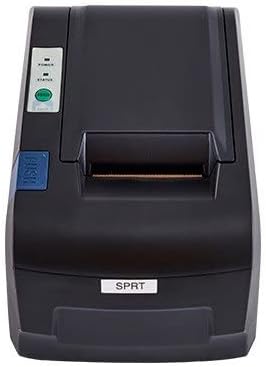
Image: Top-down view of the SPIRIT SP POS 58 IVU Thermal Receipt Printer, highlighting the power and status indicators, the 'PUSH' button for opening the paper cover, and the paper exit slot.
4.3 Internal Components (Paper Compartment Open)

Image: The SPIRIT SP POS 58 IVU Thermal Receipt Printer with its top cover open, revealing the thermal paper roll compartment and the print head mechanism. This view is essential for paper loading.
5. Setup
5.1 Unpacking
- Carefully remove the printer and all accessories from the packaging.
- Retain the packaging for future transport or storage.
5.2 Connecting Power
- Ensure the printer is powered off.
- Connect the power adapter cable to the power port on the back of the printer.
- Plug the power adapter into a suitable electrical outlet.
5.3 Loading Thermal Paper
- Press the 'PUSH' button located on the side of the printer to open the top cover.
- Insert a new 58mm thermal paper roll into the compartment, ensuring the paper feeds from the bottom and the leading edge is straight.
- Pull a small amount of paper out past the cutting edge.
- Close the top cover firmly until it clicks into place.
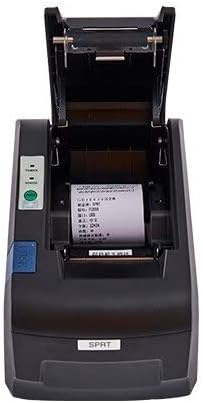
Image: Top view of the printer with the paper cover open, showing a thermal paper roll correctly placed within the compartment, ready for the cover to be closed.
5.4 Driver Installation (USB Connection)
- Connect the printer to your computer using the provided USB cable.
- Turn on the printer.
- For Windows operating systems, the printer drivers may install automatically. If not, insert the driver CD (if provided) or download the latest drivers from the manufacturer's website.
- Follow the on-screen instructions to complete the driver installation.
- After installation, verify the printer is recognized in your computer's 'Devices and Printers' settings.
6. Operating Instructions
6.1 Powering On/Off
- To power on, ensure the power adapter is connected and press the power button. The 'POWER' indicator light will illuminate.
- To power off, press and hold the power button until the 'POWER' indicator light turns off.
6.2 Indicator Lights
- POWER (Green): Indicates the printer is powered on.
- STATUS (Red/Orange): Indicates an error condition, such as out of paper or print head overheating. Refer to the troubleshooting section.
6.3 Basic Printing
- Ensure the printer is connected to your computer and powered on.
- Open the document or application from which you wish to print (e.g., POS software, text editor).
- Select 'Print' from the application's menu.
- Choose the 'SPIRIT SP POS 58 IVU' printer from the list of available printers.
- Adjust any necessary print settings (e.g., paper size, orientation) and click 'Print'.
6.4 Cashier Support (Cash Drawer Connection)
The printer supports connection to a 12V cash drawer. Connect the cash drawer's RJ11/RJ12 cable to the dedicated port on the back of the printer. Your POS software will typically send a command to the printer to open the cash drawer automatically after a transaction.
7. Maintenance
7.1 Cleaning the Print Head
Regular cleaning of the print head ensures clear print quality and extends the printer's lifespan.
- Turn off the printer and disconnect the power cable.
- Open the top cover to access the print head.
- Gently wipe the thermal print head surface with a cotton swab lightly dampened with isopropyl alcohol.
- Allow the print head to dry completely before closing the cover and reconnecting power.
7.2 Replacing Paper Roll
Refer to Section 5.3 'Loading Thermal Paper' for detailed instructions on replacing the paper roll.
8. Troubleshooting
This section addresses common issues you might encounter with your printer.
- Printer not powering on:
- Check if the power adapter is securely connected to both the printer and the electrical outlet.
- Ensure the power outlet is functional.
- No print output:
- Verify that the printer is powered on and the 'POWER' indicator is lit.
- Check if the paper roll is loaded correctly and there is sufficient paper. The 'STATUS' light may indicate an out-of-paper condition.
- Ensure the USB cable is securely connected to both the printer and the computer.
- Confirm that the correct printer driver is installed and selected in your application's print settings.
- Poor print quality:
- Clean the thermal print head as described in Section 7.1.
- Ensure you are using high-quality thermal paper.
- Check print density settings in the printer driver.
- Paper jam:
- Turn off the printer and open the top cover.
- Carefully remove any jammed paper.
- Ensure the paper roll is loaded correctly and the cover is closed firmly.
9. Specifications
| Feature | Description |
|---|---|
| Model Name | SP POS 58 IVU |
| Printing Technology | Direct Thermal Printing (No Ink Needed) |
| Paper Width | 57.5 ± 0.5 mm |
| Print Speed | Up to 70mm/s (Monochrome) |
| Print Head Life | Up to 50 km of print |
| Connectivity Technology | USB |
| Cashier Support | Compatible with 12V money box (cash drawer) |
| Product Dimensions | 20 x 13 x 15 cm |
| Item Weight | 1.4 kg (1400 Grams) |
| Color | Black |
10. Warranty and Support
For warranty information and technical support, please refer to the documentation provided at the time of purchase or contact your retailer. Keep your purchase receipt as proof of purchase for warranty claims.


