
Luqeeg Luqeeghpcf4d6g9i-12
Contents
Luqeeg 56MP Digital Camera User Manual
Model: Luqeeghpcf4d6g9i-12
1. Introduction
This manual provides instructions for the operation and maintenance of your Luqeeg 56MP Digital Camera, Model Luqeeghpcf4d6g9i-12. This camera is designed for capturing high-resolution photos and 4K videos, featuring a 20x digital zoom, autofocus, and a built-in fill light. Please read this manual thoroughly before using the camera to ensure proper function and longevity.
2. Package Contents
Verify that all items listed below are included in your package:
- 1 x Luqeeg Digital Camera
- 1 x USB Charging Cable
- 1 x Storage Bag
- 1 x Lanyard
- 1 x Memory Card (Pre-installed)

Image: The Luqeeg Digital Camera displayed with its included accessories: a USB charging cable, a storage bag, a lanyard, and a pre-installed memory card.
3. Product Overview
The Luqeeg Digital Camera features a compact design with essential controls for photography and videography.

Image: Front view of the Luqeeg Digital Camera, showing the lens, flash, and "56 MEGA PIXELS" and "20x DIGITAL ZOOM" markings.
Key Components:
- Lens: Captures images and videos.
- Flash/Fill Light: Provides illumination in low-light conditions.
- 2.7-inch Color Screen: For viewing live feed, playback, and menu navigation.
- Control Buttons: Power, Shutter, Zoom (W/T), Menu, OK, DISP, and directional buttons.
- USB Port: For charging and data transfer.
- Battery Compartment: Houses the rechargeable Li-ion battery.
- Memory Card Slot: For inserting the included memory card.
4. Setup
4.1. Battery Installation and Charging
The camera comes with a built-in 750mAh Li-ion battery. Ensure the battery is charged before first use.
- Locate the battery compartment cover on the bottom of the camera.
- Open the cover and ensure the battery is securely seated.
- Connect the camera to a power source using the provided USB charging cable. The charging indicator light will illuminate.
- Charging does not require removing the battery.

Image: The Luqeeg Digital Camera with its battery compartment open, showing the removable 750mAh Li-ion battery. The camera can be charged via USB without removing the battery.
4.2. Memory Card
A memory card is pre-installed in the camera. If you need to replace it, ensure the camera is powered off before inserting or removing the card.
4.3. Powering On/Off
Press and hold the Power button to turn the camera on or off.
5. Operating Instructions
5.1. Taking Photos and Recording Videos
The camera is capable of capturing 56MP photos and recording 4K videos.
- To take a photo: In photo mode, frame your shot using the screen and press the Shutter button.
- To record a video: Switch to video mode (if applicable, or press the video record button), then press the Shutter button to start recording. Press again to stop.
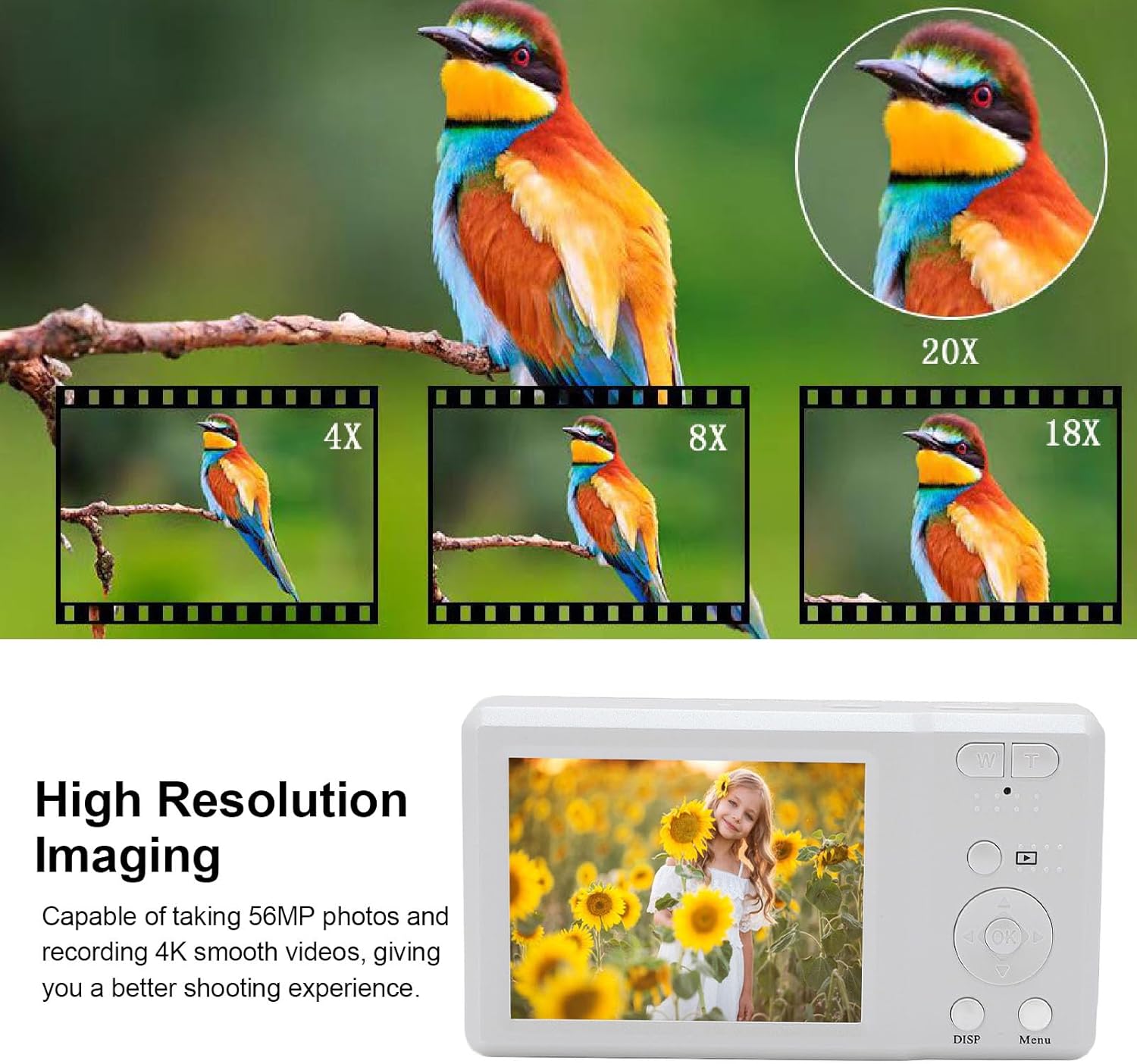
Image: The camera's screen displaying a high-resolution image, with an inset demonstrating the 20x digital zoom capability on a bird.
5.2. Digital Zoom
Use the W (Wide) and T (Telephoto) buttons to adjust the 20x digital zoom. Press 'T' to zoom in and 'W' to zoom out.
5.3. Autofocus Function
The camera features an autofocus function to ensure subjects are sharp and clear. The camera will automatically adjust focus when you half-press the shutter button or when framing a shot.

Image: A split image demonstrating the effect of autofocus, showing a bee in sharp focus with autofocus enabled, compared to a blurred image without it.
5.4. Fill Light
The built-in fill light provides additional illumination for photos and videos in dimly lit environments. This feature can be activated or set to automatic via the camera's menu.
5.5. Creative Filters
Explore 20 unique filters available in the camera's settings to add creative effects to your photos and videos.
5.6. Self-Timer Function
Utilize the self-timer for group photos or self-portraits. Options typically include 2-second, 5-second, and 10-second delays, configurable through the menu.

Image: The camera screen showing a group photo taken with the self-timer, with icons indicating 2s, 5s, and 10s timer options.
5.7. Webcam Functionality
The camera can function as a webcam. Connect it to your computer via the USB cable and select the webcam mode (if prompted) to use it for video calls or streaming.
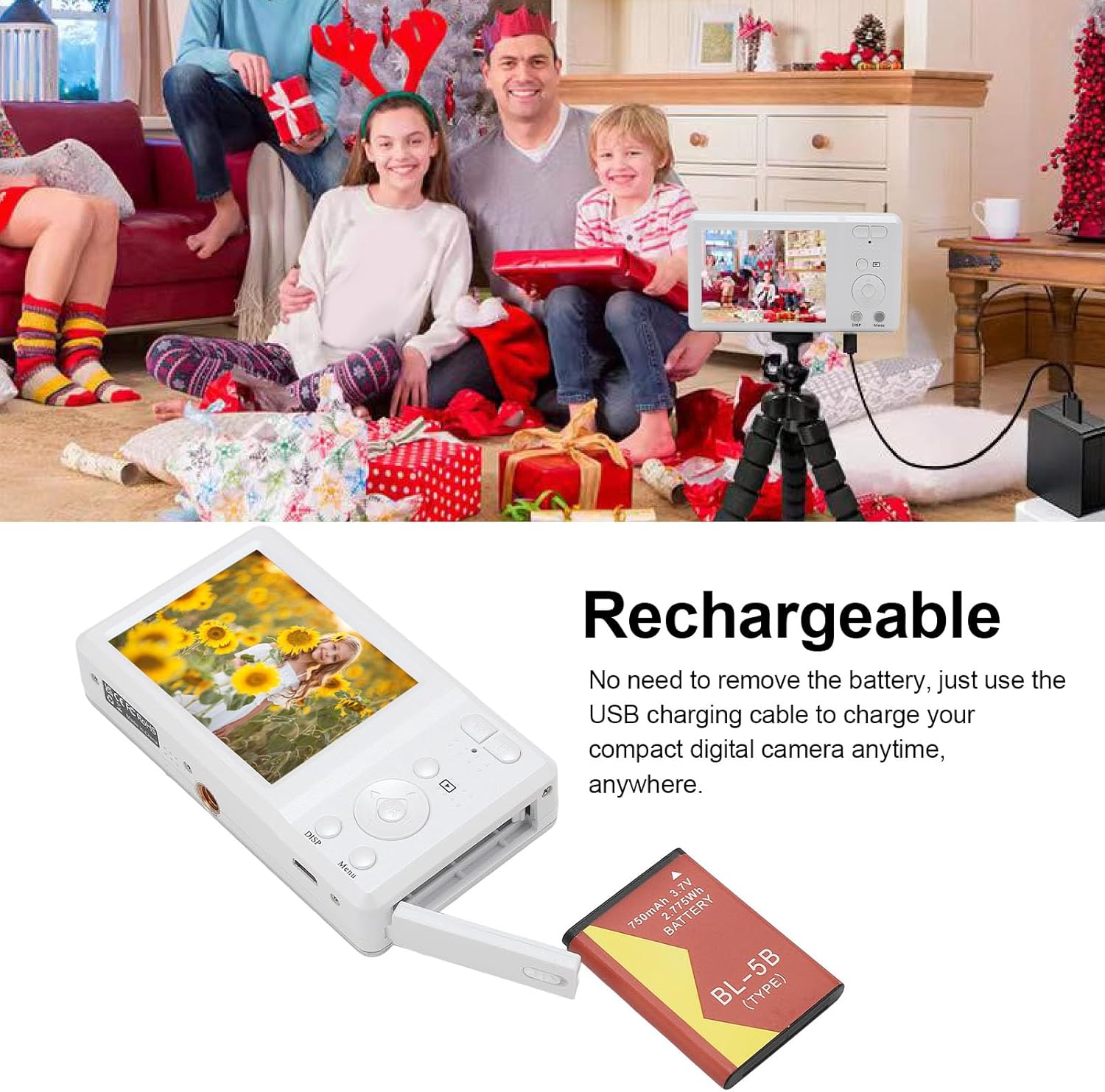
Image: The Luqeeg Digital Camera mounted on a tripod, connected to a laptop and displaying a live video feed, illustrating its use as a webcam.
5.8. Transferring Files
To transfer photos and videos to a computer or smartphone:
- Via USB Cable: Connect the camera to your computer using the provided USB cable. The camera will appear as a removable drive, allowing you to copy files.
- Via Card Reader (Not Included): Remove the memory card from the camera and insert it into a compatible card reader connected to your computer or smartphone.
6. Maintenance
6.1. Charging
Regularly charge the camera's battery using the provided USB cable. Avoid using unapproved chargers to prevent damage.
6.2. Cleaning
- Use a soft, lint-free cloth to clean the camera body.
- For the lens and screen, use a specialized lens cleaning cloth and solution. Avoid abrasive materials.
- Do not use strong chemical cleaners.
6.3. Storage
When not in use, store the camera in the provided storage bag in a cool, dry place away from direct sunlight and extreme temperatures.
7. Troubleshooting
| Problem | Possible Solution |
|---|---|
| Camera does not power on. | Ensure the battery is charged. Connect the camera to a power source using the USB cable. |
| Cannot take photos/record videos. | Check if the memory card is inserted correctly and has sufficient free space. Ensure the camera is in the correct mode (photo/video). |
| Images are blurry. | Ensure autofocus is enabled. Clean the lens. Check lighting conditions and use the fill light if necessary. |
| Camera not recognized by computer. | Ensure the USB cable is securely connected. Try a different USB port or cable. Restart both the camera and computer. |
8. Specifications
| Feature | Detail |
|---|---|
| Item Type | Digital Camera |
| Material | ABS |
| Display | 2.7 Inch Color Screen |
| Maximum Video Resolution | 4K |
| Maximum Photo Pixels | 56MP |
| Digital Zoom | 20x |
| Battery Information | 750mAh Li Battery (Built-in) |
| Item Weight | 6.9 ounces |
| Package Dimensions | 4.33 x 3.54 x 2.76 inches |
| Model Number | Luqeeghpcf4d6g9i-12 |
9. Warranty and Support
For warranty information or technical support, please refer to the documentation provided at the time of purchase or contact Luqeeg customer service through their official channels. Keep your purchase receipt as proof of purchase.
Ask a question about this manual
Ask about setup, troubleshooting, compatibility, parts, safety, or missing instructions. Manuals+ will review the question and use this page’s manual context to help answer it.