
Trevi T-FIT 510 A
Trevi T-FIT 510 A Smartwatch User Manual
Model: T-FIT 510 A | Brand: Trevi
Introduction
Welcome to the user manual for your new Trevi T-FIT 510 A Smartwatch. This guide provides essential information on setting up, operating, maintaining, and troubleshooting your device to ensure optimal performance and longevity. Please read this manual thoroughly before using your smartwatch.
What's in the Box
Upon opening the package, please verify that all components are present:
- Trevi T-FIT 510 A Smartwatch
- Replacement strap
- Charging cable
- User manual (this document)
- Warranty card
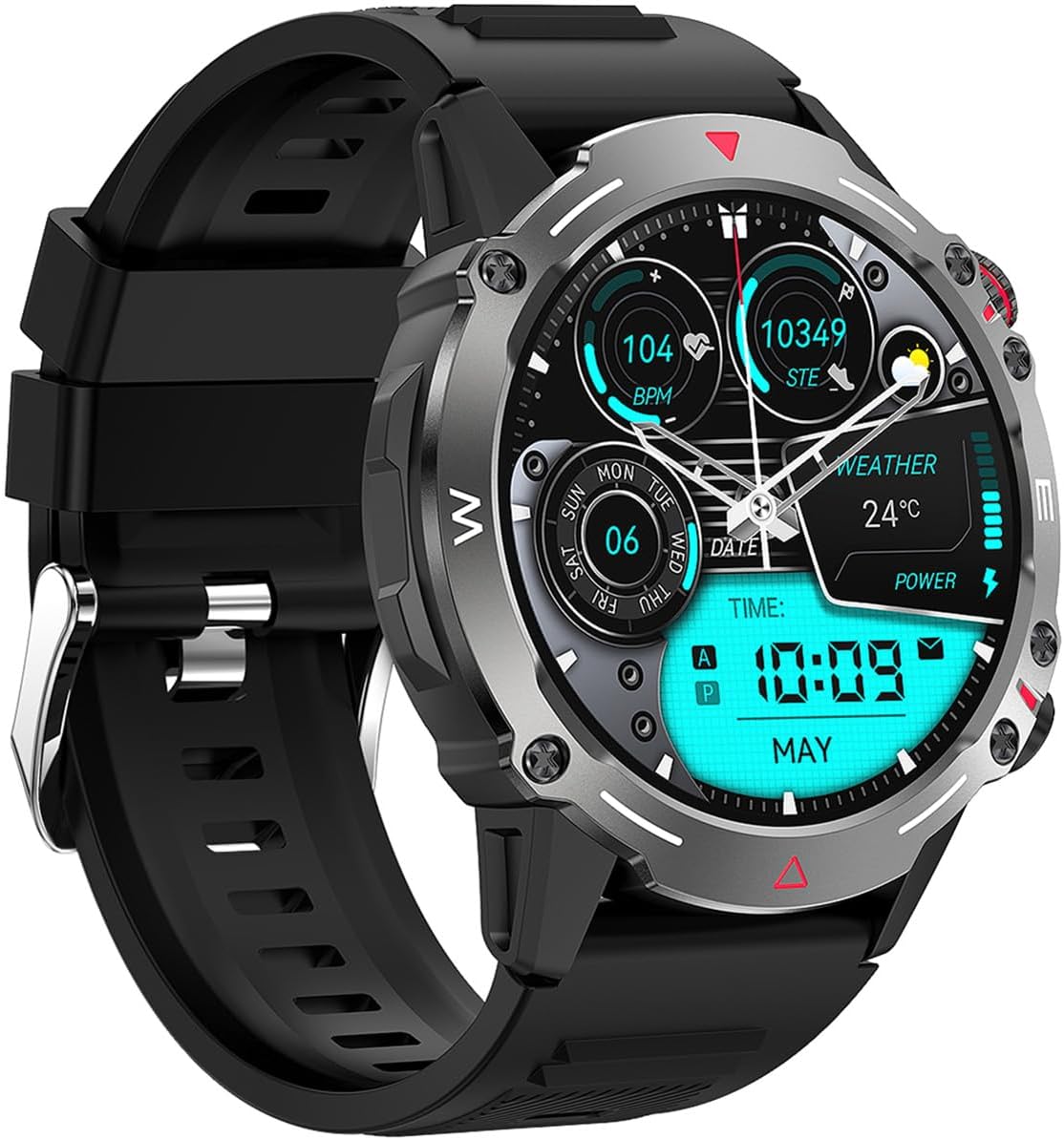
Image: The Trevi T-FIT 510 A Smartwatch, featuring a black strap and a round display showing time, heart rate, and step count.
Setup
1. Charging the Smartwatch
Before first use, fully charge your Trevi T-FIT 510 A Smartwatch. Connect the charging cable to the charging port on the back of the watch and plug the USB end into a compatible power adapter (not included) or a computer's USB port.
- A full charge typically takes approximately 2 hours.
- The battery indicator on the screen will show charging progress.
2. Downloading the App
To unlock the full functionality of your smartwatch, download the dedicated FitCloudPro app on your smartphone. The app is available on both iOS and Android app stores.
- Search for "FitCloudPro" in your smartphone's app store.
- Download and install the app.
- Ensure your smartphone's Bluetooth is enabled.
3. Pairing with Your Smartphone
Follow these steps to pair your smartwatch with the FitCloudPro app:
- Open the FitCloudPro app on your smartphone.
- Create an account or log in if prompted.
- Navigate to the "Device" or "Add Device" section within the app.
- The app will search for nearby devices. Select "T-FIT 510 A" from the list.
- Confirm the pairing request on both your smartphone and the smartwatch screen.
- Once paired, the time and date on your smartwatch will automatically synchronize with your phone.

Image: Front view of the Trevi T-FIT 510 A Smartwatch, showcasing its round display and side buttons.
Operating Your Smartwatch
Basic Navigation
- Touchscreen: Swipe left/right, up/down to navigate through menus and features. Tap to select.
- Side Buttons: The smartwatch features multiple side buttons. Typically, one button serves as a power/home button, while others may provide quick access to specific functions like sports modes or health monitoring. Refer to the on-screen prompts for specific button functions.
Key Features
- Wireless Call Function:
The Trevi T-FIT 510 A allows you to make and receive calls directly from your wrist. Ensure your smartwatch is connected to your smartphone via Bluetooth. Use the virtual keyboard on the watch to dial numbers or answer incoming calls.
- Health Monitoring:
Monitor your heart rate, blood pressure, and blood oxygenation levels. Access these features from the health menu on your watch. For accurate readings, ensure the watch is worn snugly on your wrist.

Image: The smartwatch display showing various health metrics, including heart rate and blood oxygen levels.
- Physical Activity Tracking:
Track over 100 different sports activities. Select your desired activity from the sports mode menu to start tracking. The watch will record data such as steps, distance, calories burned, and activity duration.
- Notifications:
Receive notifications for calls, text messages, and social media alerts directly on your smartwatch. Configure notification settings within the FitCloudPro app.
- Sleep Monitor:
The smartwatch automatically monitors your sleep patterns. View detailed sleep analysis, including deep sleep, light sleep, and awake times, in the FitCloudPro app.
- Customizable Watch Faces:
Personalize your smartwatch by choosing from a variety of watch faces available through the FitCloudPro app. You can also create custom watch faces using your own photos.

Image: The Trevi T-FIT 510 A Smartwatch displaying an alternative watch face with a focus on activity tracking.
Maintenance
Cleaning Your Smartwatch
- Wipe the watch body and strap regularly with a soft, damp cloth.
- Do not use harsh chemicals, abrasive cleaners, or solvents.
- Ensure the charging contacts are clean and dry before charging.
Water Resistance (IP68)
The Trevi T-FIT 510 A Smartwatch is rated IP68, meaning it is resistant to dust and can withstand immersion in water up to 1.5 meters for up to 30 minutes. While it is suitable for daily use and light water activities, it is not recommended for diving, hot showers, or prolonged submersion in water.
- Avoid exposing the watch to hot water or steam.
- Dry the watch thoroughly after exposure to water.
Battery Care
- Avoid fully discharging the battery frequently.
- Store the watch in a cool, dry place if not used for extended periods.
- Charge the watch periodically (e.g., every 3 months) if stored to prevent deep discharge.
Troubleshooting
| Problem | Possible Cause | Solution |
|---|---|---|
| Smartwatch won't turn on. | Low battery. | Charge the smartwatch for at least 30 minutes. |
| Cannot pair with smartphone. | Bluetooth off; app issue; watch too far. | Ensure Bluetooth is on. Restart app/phone/watch. Keep watch close to phone. |
| Notifications not received. | App permissions; notification settings. | Check app notification permissions on your phone. Verify notification settings in FitCloudPro app. |
| Inaccurate health readings. | Loose fit; movement during measurement. | Ensure the watch is worn snugly on your wrist. Remain still during measurements. |
| Screen unresponsive. | Software glitch. | Restart the smartwatch by pressing and holding the power button. |
Specifications
| Feature | Detail |
|---|---|
| Model Name | T-FIT 510 A |
| Brand | Trevi |
| Display | 1.43 Inches AMOLED |
| Connectivity Technology | Bluetooth |
| Operating System | Wear OS |
| Special Features | Voice Call, Sedentary Reminder, Multisport Tracker, Custom Activity Tracking, Notifications |
| Water Resistance | IP68 |
| Battery | 1 12V battery (included) |
| Product Dimensions | 10 x 150 x 15 cm; 200 g |
Warranty and Support
Your Trevi T-FIT 510 A Smartwatch comes with a standard manufacturer's warranty. Please refer to the included warranty card for specific terms and conditions, including warranty period and coverage details.
For technical support, troubleshooting assistance beyond this manual, or warranty claims, please contact Trevi customer service. Contact information can typically be found on the warranty card or the official Trevi website.
Note: Keep your purchase receipt as proof of purchase for warranty purposes.
Related documentsT-FIT 510 A


Ask a question about this manual
Ask about setup, troubleshooting, compatibility, parts, safety, or missing instructions. Manuals+ will review the question and use this page’s manual context to help answer it.