
1. Introduction
The ORICO MiniMate 1TB External SSD is designed to provide instant storage expansion and high-speed data transfer capabilities. It is dimensionally precise to seamlessly complement devices like the Mac mini M4, enhancing both aesthetics and functionality. Optimized for Thunderbolt speeds, it ensures exceptional performance for large file transfers and is compatible with other USB 4.0 devices, offering versatile storage options.

Figure 1: Top view of the ORICO MiniMate 1TB External SSD.
2. Package Contents
Please verify that all items listed below are included in your package:
- ORICO MiniMate External SSD (1TB)
- User Manual
- 40Gbps USB-C to USB-C Cable (0.15m)
- 40Gbps USB-C to USB-C Cable (1m)
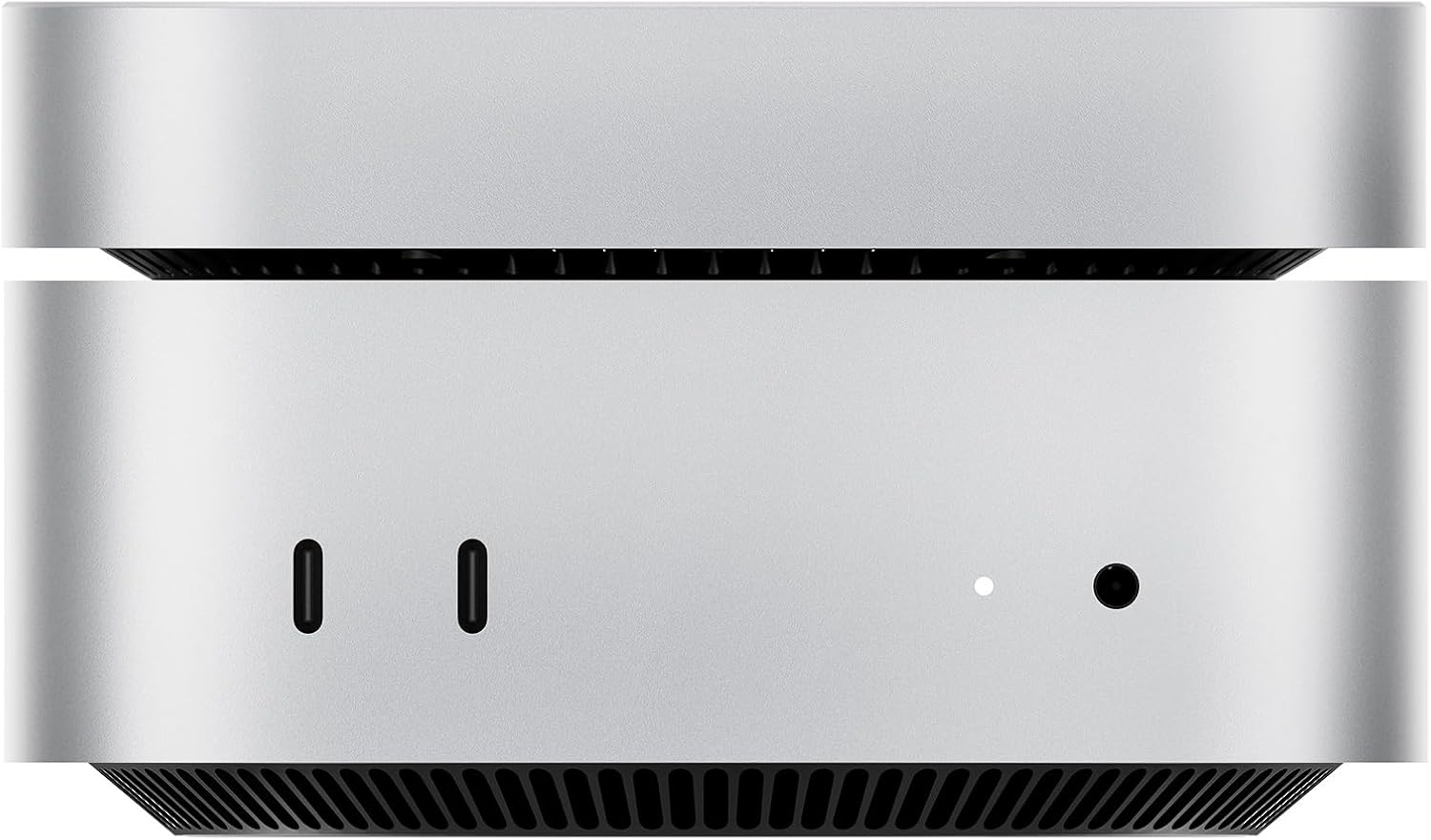
Figure 2: Contents included in the ORICO MiniMate package.
3. Setup
- Unpack the Device: Carefully remove the ORICO MiniMate SSD and its accessories from the packaging.
- Connect the Cable: Use one of the provided 40Gbps USB-C to USB-C cables. Insert one end into the Thunderbolt/USB 4.0 port on the ORICO MiniMate SSD.
- Connect to Host Device: Insert the other end of the cable into a compatible Thunderbolt or USB 4.0 port on your host device (e.g., Mac mini M4).
- Placement: The compact design allows for flexible placement. You can place the MiniMate beside your Mac mini, or stack it directly on top or underneath for a seamless aesthetic integration.

Figure 3: The ORICO MiniMate's compact size allows for seamless integration with devices like the Mac mini.

Figure 4: Proper cable connection between the ORICO MiniMate and a Mac mini.
4. Operating Instructions
4.1 Data Transfer
The ORICO MiniMate supports up to 40Gbps transmission speeds, making it ideal for transferring large files quickly. Simply drag and drop files to and from the SSD as you would with any other external drive. For optimal performance, ensure your host device supports Thunderbolt or USB 4.0.

Figure 5: Visual representation of the 40Gbps high-speed data transfer capability.
4.2 Storage Expansion
Utilize the MiniMate to expand your storage for various types of data, including videos, documents, materials, and large software files, without impacting the performance of your primary device's internal storage.

Figure 6: The MiniMate serves as a versatile storage expansion companion for various data types.
5. Maintenance
- Cleaning: Use a soft, dry cloth to clean the exterior of the SSD. Avoid using liquid cleaners or aerosols.
- Physical Protection: While portable, avoid dropping or subjecting the SSD to severe physical shocks, as this can damage internal components.
- Proper Ejection: Always safely eject the SSD from your operating system before disconnecting the cable to prevent data corruption.
- Ventilation: Ensure the device's ventilation holes are not obstructed to allow for proper heat dissipation. The MiniMate features an internal fan for cooling.

Figure 7: Internal view showing the fan for heat dissipation.
6. Troubleshooting
6.1 Device Not Recognized
- Check Cable Connection: Ensure the USB-C cable is securely connected to both the SSD and your host device.
- Try Another Port/Cable: Test with a different Thunderbolt/USB 4.0 port on your computer or use the other provided cable to rule out port or cable issues.
- Restart Computer: A simple restart can often resolve recognition problems.
- Disk Management (Windows) / Disk Utility (macOS): Check if the drive appears in your operating system's disk management tool. It might need to be initialized or formatted.
6.2 Slow Data Transfer Speeds
- Verify Port Type: Ensure you are connected to a Thunderbolt or USB 4.0 port on your computer. Connecting to older USB standards (e.g., USB 3.0, USB 2.0) will result in significantly lower speeds.
- Cable Quality: Use only the high-quality 40Gbps cables provided with the MiniMate. Lower quality or incompatible cables can limit speed.
- Background Processes: Close any unnecessary applications or background processes that might be consuming system resources or disk I/O.
- File Size: Transferring many small files is generally slower than transferring a single large file of the same total size.
6.3 Fan Noise
The ORICO MiniMate is equipped with an internal fan for active cooling, especially during intensive operations. Some fan noise is normal during operation. Ensure the device has adequate ventilation and is not placed in an enclosed space that could restrict airflow, which might cause the fan to work harder.
7. Specifications
| Feature | Detail |
|---|---|
| Brand | ORICO |
| Model Series | M4Pro |
| Digital Storage Capacity | 1 TB (Current Product) / Up to 8TB (Available) |
| Hard Disk Interface | Thunderbolt |
| Connectivity Technology | USB (Thunderbolt/USB 4.0 compatible) |
| Data Transfer Speed | Up to 40Gbps |
| Read Speed | Up to 3000 MB/s |
| Special Feature | Portable |
| Compatible Devices | Mac mini M4, other USB 4.0 devices |
| Item Weight | ~1.01 pounds |
| Dimensions | ~12.7cm x 12.7cm x 2.5cm (5 x 5 x 1 inches) |
8. Warranty and Support
ORICO products typically come with a manufacturer's warranty. Please refer to the warranty card included in your package for specific terms and conditions, or visit the official ORICO website for detailed warranty information and support resources.
For technical assistance, troubleshooting, or product inquiries, please contact ORICO customer support through their official channels. Contact information can usually be found on the product packaging, the included user manual, or the ORICO official website.


