
1. Product Overview
The ORICO MiniMate is a high-capacity external Solid State Drive (SSD) designed to seamlessly integrate with your Mac mini M4, as well as other compatible computers and laptops. It provides significant storage expansion and high-speed data transfer capabilities, making it an ideal companion for managing large files, creative projects, and extensive data libraries.
Key Features:
- Massive Storage Expansion: Effortlessly store videos, documents, and materials, meeting growing storage needs without impacting your device's internal space.
- Perfect Mac mini M4 Complement: Precisely sized for a seamless and aesthetically pleasing integration with the new Mac mini M4.
- High-Speed Data Transfer: Offers 10Gbps (1000MB/s) transmission for daily needs, with potential for 20Gbps speeds on devices supporting USB 3.2 Gen 2x2.
- Convenient Connectivity: Includes two high-quality cables for easy connection to various devices.
- Broad Compatibility: Works with Mac mini M4, other computers, and laptops, providing versatile expansion options.
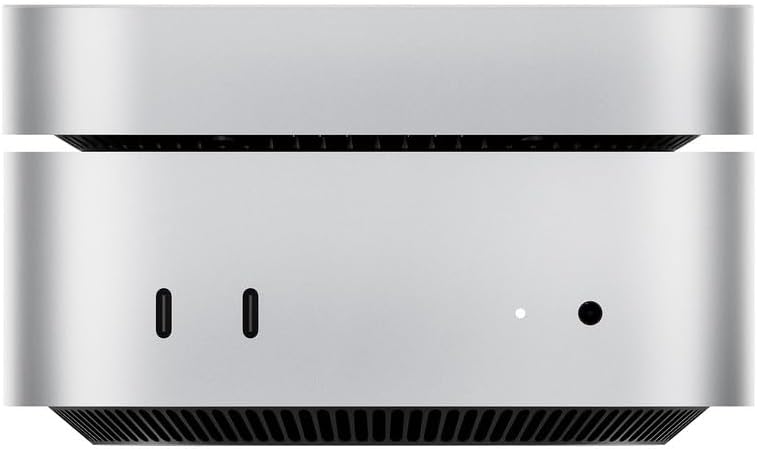
Image: The ORICO MiniMate External SSD, showcasing its compact and sleek design.
Video: An official overview of the ORICO External Solid State Drive for Mac mini M4, highlighting its features and integration.
2. Package Contents
Upon opening your ORICO MiniMate package, please verify that all the following items are included:
- 1 x ORICO MiniMate External SSD
- 1 x User Manual
- 2 x High-quality cables (USB-C to USB-C)
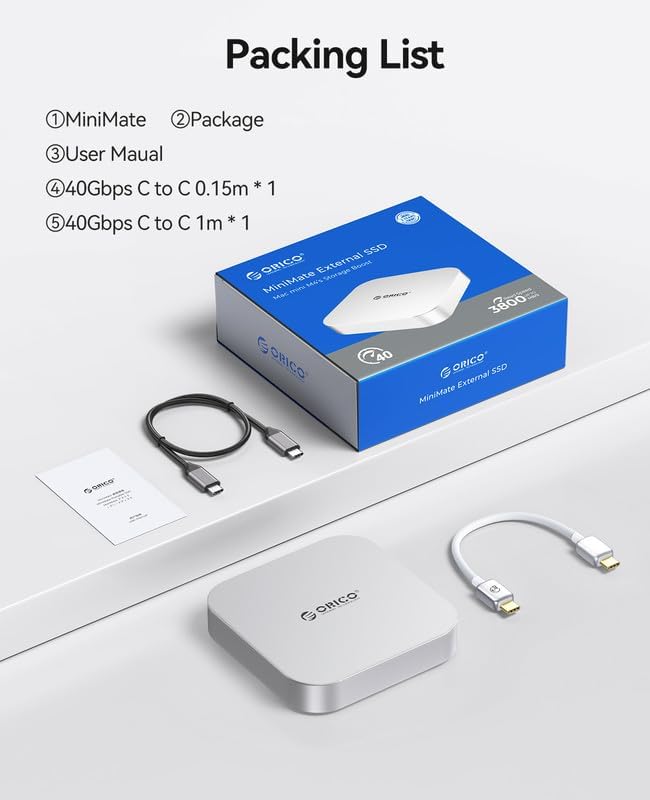
Image: Contents of the ORICO MiniMate package, including the SSD unit, user manual, and two USB-C cables.
3. Setup Guide
Connecting the MiniMate:
- Positioning: Place the ORICO MiniMate on a stable, flat surface, ideally next to or beneath your Mac mini M4 for optimal integration.
- Cable Connection: Use one of the provided high-quality USB-C cables. Connect one end to the USB-C port on the ORICO MiniMate.
- Host Device Connection: Connect the other end of the USB-C cable to an available USB-C (Thunderbolt) port on your Mac mini M4 or other compatible computer/laptop.
- Power: The MiniMate is bus-powered via the USB-C connection and does not require an external power adapter.
The device should be automatically recognized by your operating system. For initial use, you may need to format the drive if it's not already formatted for your specific operating system (e.g., APFS for macOS, NTFS for Windows).

Image: The ORICO MiniMate connected to a Mac mini, showing the cable connections at the rear.
4. Operating Instructions
Data Transfer and Storage:
Once connected and recognized by your system, the ORICO MiniMate functions like any other external storage device. You can drag and drop files, copy and paste, or use your system's file management tools to transfer data to and from the SSD.
- High-Speed Transfers: Leverage the 10Gbps (or 20Gbps with compatible ports) speed for rapid transfer of large files such as 4K videos, high-resolution images, and extensive codebases.
- Application Storage: Install applications directly onto the MiniMate to free up space on your primary drive, especially useful for large software suites or games.
- Backup Solution: Utilize the MiniMate as a reliable backup destination for your important documents, photos, and system files.
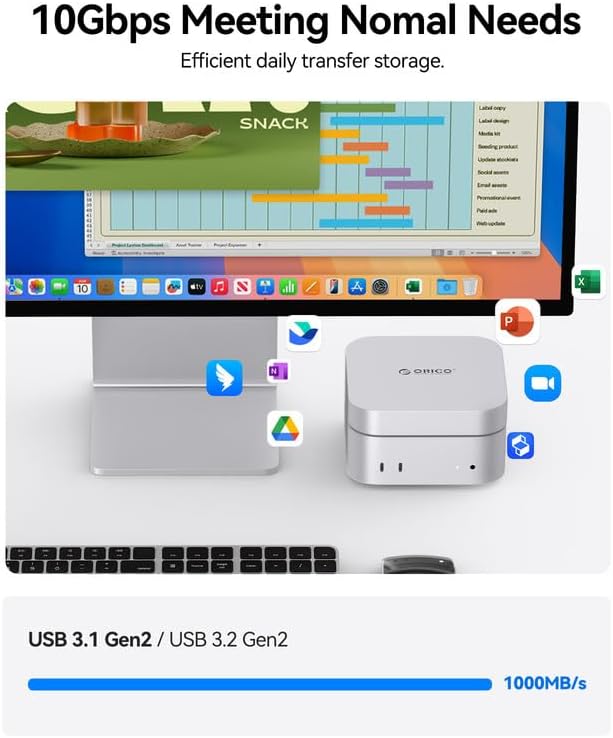
Image: Illustration of the ORICO MiniMate's 10Gbps transfer speed, suitable for efficient daily storage and large file transfers.
Usage Scenarios:
The ORICO MiniMate is versatile and can enhance various workflows:
- Creativity: Store and access large media files for video editing, graphic design, and music production.
- Coding: Keep development environments, large code repositories, and virtual machines on the external SSD for quick access and performance.
- Gaming: Store game libraries to expand your playable collection without filling your internal drive, benefiting from fast load times.

Image: Visual representation of the ORICO MiniMate's utility in various fields such as creative work, software development, and gaming.
5. Maintenance
To ensure the longevity and optimal performance of your ORICO MiniMate External SSD, follow these maintenance guidelines:
- Safe Ejection: Always safely eject the SSD from your operating system before physically disconnecting it. This prevents data corruption.
- Physical Care: Keep the device clean and free from dust. Use a soft, dry cloth for cleaning. Avoid liquid cleaners.
- Temperature and Environment: Store and operate the SSD within recommended temperature ranges. Avoid extreme heat, cold, or humidity.
- Avoid Drops and Impacts: While durable, the device is still sensitive to physical shocks. Handle with care to prevent internal damage.
- Firmware Updates: Periodically check the ORICO official website for any available firmware updates that may improve performance or stability.
6. Troubleshooting
If you encounter issues with your ORICO MiniMate, refer to the following common problems and solutions:
Device Not Recognized:
- Check Connections: Ensure the USB-C cable is securely connected to both the MiniMate and your computer.
- Try Different Port/Cable: Connect the MiniMate to a different USB-C port on your computer or try using the second provided cable.
- Restart Computer: A simple restart can often resolve recognition issues.
- Disk Management (Windows) / Disk Utility (macOS): Check if the drive appears in your system's disk management tools. It might need to be initialized or formatted.
Slow Transfer Speeds:
- Verify Port Speed: Ensure you are connected to a USB 3.2 Gen 2 (10Gbps) or USB 3.2 Gen 2x2 (20Gbps) port on your computer. Older USB ports will result in slower speeds.
- Cable Quality: Use the high-quality cables provided with the MiniMate. Lower quality or longer cables can affect performance.
- System Load: High CPU or disk usage on your computer can impact transfer speeds. Close unnecessary applications.
- Drive Fragmentation (HDD only): While less common for SSDs, ensure your drive is not excessively full.
Drive Disconnects Randomly:
- Power Management: Check your computer's power settings to ensure USB ports are not set to power down to save energy.
- Cable Integrity: Inspect the cable for any damage.
- Overheating: Ensure the MiniMate is in a well-ventilated area. While it has a cooling system, extreme ambient temperatures can affect stability.
7. Specifications
| Feature | Detail |
|---|---|
| Brand | ORICO |
| Series | M4Plus |
| Model Number | M4Plus-8TB |
| Digital Storage Capacity | 8 TB |
| Hard Disk Interface | USB 1.1 (Note: Product features indicate 10Gbps/20Gbps, this specification might be a generic entry. Refer to product features for actual speed.) |
| Connectivity Technology | USB |
| Special Feature | Portable |
| Hard Disk Form Factor | 2.5 Inches |
| Hard Disk Description | Solid State Drive |
| Compatible Devices | Mac mini |
| Installation Type | External Hard Drive |
| Item Weight | 1.06 pounds |
| Package Dimensions | 6.93 x 6.65 x 2.4 inches |
| Manufacturer | SHENZHEN ORICO TECHNOLOGIES CO.,LTD |
| Date First Available | November 12, 2024 |
8. Warranty and Support
ORICO products are designed for reliability and performance. For specific warranty information regarding your MiniMate External SSD, please refer to the warranty card included in your product packaging or visit the official ORICO website.
For technical support, product registration, or to download the latest drivers and firmware, please visit:
- ORICO Official Website: http://www.orico.cc
- ORICO Direct US Store (Amazon): ORICO Direct US Store
Please have your model number (M4Plus-8TB) and purchase information ready when contacting support.