
1. Product Overview
The MekedeTech DUDUAUTO DUDU4 is an advanced Android car multimedia head unit designed specifically for Ford F150 models from 2009 to 2014. This unit features a 9.5-inch in-cell screen, an 8-core UIS8581A CPU, 4GB RAM, and 64GB ROM, providing a significant upgrade to your vehicle's infotainment system. It supports both wired and wireless CarPlay and Android Auto, offering seamless smartphone integration.
Key features include:
- 9.5-inch 1280*720 in-cell screen for clear visuals.
- 8-Core UIS8581A CPU with 4GB RAM and 64GB ROM for responsive performance.
- Integrated Wireless and Wired CarPlay and Android Auto.
- Qualcomm 3031 Bluetooth 5.0 chip for stable and high-quality audio streaming and calls.
- Support for 4G LTE (via SIM card) and 5G Wi-Fi connectivity.
- Compatibility with original steering wheel controls for convenience and safety.
- Optional 360-degree panoramic system support.
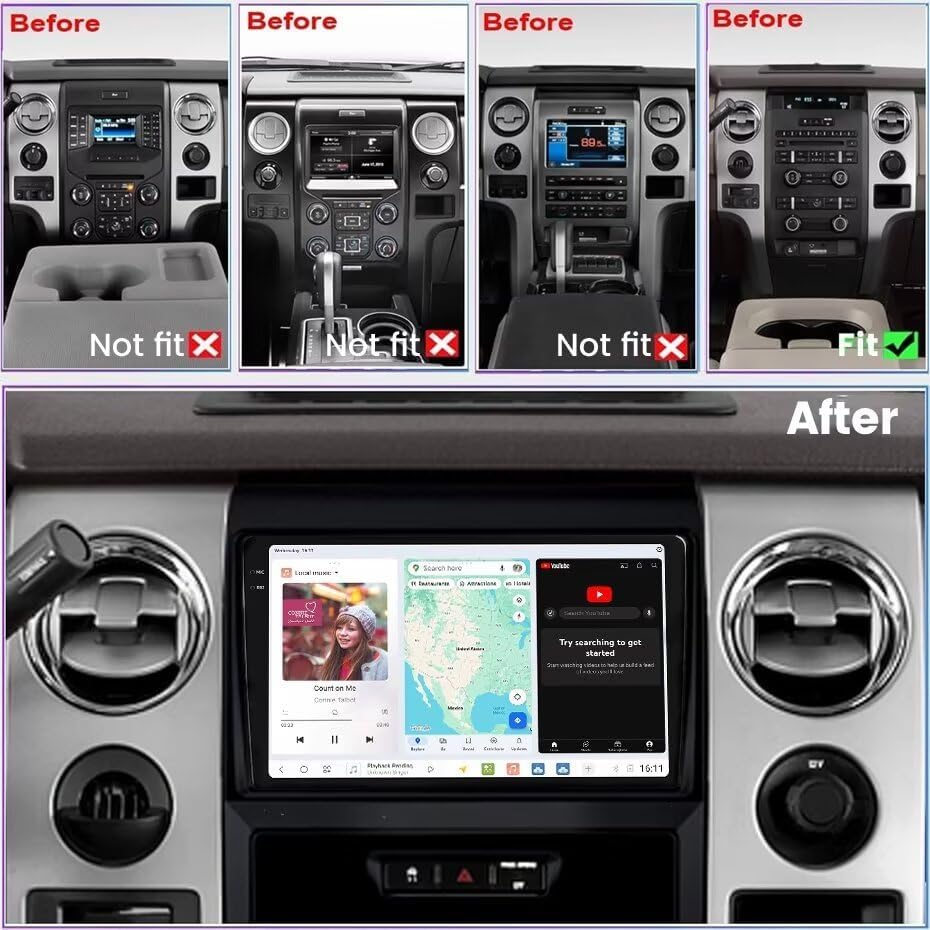
Image: This image illustrates various Ford F150 dashboard configurations from 2009-2014, showing which original setups are compatible ('Fit') and incompatible ('Not fit') with the DUDUAUTO DUDU4 unit. The 'After' section displays the DUDUAUTO DUDU4 unit seamlessly integrated into a compatible F150 dashboard, showcasing its large screen and user interface.
2. Setup and Installation
2.1 Package Contents
Before beginning installation, verify that all components are present in the package:
- 9.5 inch screen (Main Unit)
- Bezel kit
- Plug and play harness and CANbus
- RCA harness
- USB cables (multiple)
- Reverse cables
- Microphone (MIC)
- Fakra 4G Antenna
- Fakra GPS Antenna (for DUDU7 only, not included with DUDU4)

Image: This image displays the complete contents of the DUDUAUTO DUDU4 package, including the main machine unit, power cable with CANbus box, microphone, RCA cable, reversing camera cable, USB plugs (x3), Fakra 4G antenna, and Fakra GPS antenna (note: GPS antenna shown is for DUDU7/DUDU6, DUDU4 may have integrated GPS or different antenna).
2.2 Installation Process
The DUDUAUTO DUDU4 is designed for easy, plug-and-play installation. It integrates with your vehicle's existing wiring and retains original steering wheel control functions. For detailed installation steps, it is recommended to consult vehicle-specific tutorials or a professional installer.
General Steps:
- Preparation: Ensure the vehicle's battery is disconnected before starting.
- Remove Original Unit: Carefully remove the factory radio and dashboard bezel.
- Connect Wiring: Connect the provided plug-and-play harness to the vehicle's wiring and the DUDU4 unit. Ensure all necessary connections, including power, speakers, USB, RCA, and antennas, are securely made.
- Antenna Connections: Connect the Radio Antenna, WiFi antenna, GPS Antenna, and 4G Antenna to their respective ports on the back of the unit.
- CANbus Integration: The included CANbus box facilitates communication with the vehicle's systems, retaining features like steering wheel controls.
- Test Functionality: Before fully reassembling the dashboard, reconnect the battery and test all functions of the new head unit.
- Reassemble: Secure the DUDU4 unit and reattach the new bezel kit.

Image: This diagram illustrates the rear panel of the DUDU4 unit, labeling various connection ports. These include the Reverse video cable (C), 6Pin USB (D), 4Pin USB (E), Protocol Serial (F) for CANbus, 360 panoramic device port, RCA Cable (B) with 4G Card Slot, Radio Antenna (8), WiFi (7), GPS Antenna (6), 4G Antenna (4), and Power Cable (G). Individual connectors for MIC, 4G Antenna, GPS Antenna, 6Pin USB, 4Pin USB, RCA Cable, and Reversing camera are also shown.
3. Operating Instructions
3.1 Power On/Off
The unit powers on automatically with the vehicle's ignition. To turn off the screen while driving, refer to the system settings for display options. The unit typically enters a sleep mode when the ignition is off for quick boot-up.
3.2 User Interface (DUDU OS 3.5)
The DUDUAUTO DUDU4 operates on DUDU OS 3.5, an Android-based system designed for automotive use. It offers both "Simple" and "Enthusiast" modes, allowing customization of the interface to suit user preferences. Navigate the system using the responsive touchscreen.

Image: This image showcases various screens and features of the DUDU OS 3.5 user interface, including navigation, media playback, vehicle settings, and system information. It highlights the intuitive design and customizable options available.
3.3 Wireless CarPlay and Android Auto
The unit supports both wireless and wired CarPlay (for iOS devices) and Android Auto (for Android devices). This allows for seamless integration of your smartphone's navigation, communication, and media apps directly onto the head unit's display.
- Wireless CarPlay (iOS System):
- Connect your iPhone to the unit via Bluetooth.
- On the unit, click on "Car Link" and wait for the connection to establish.
- Wired Android Auto (Android System):
- Connect your Android phone to the unit using a USB cable.
- On the unit, click on "Car Link" and wait for the connection to establish.

Image: This image demonstrates the wireless CarPlay and Android Auto functionality, showing smartphone applications mirrored on the DUDUAUTO DUDU4 screen. It includes visual guides for connecting both iOS (Wireless CarPlay via Bluetooth) and Android (Wired Android Auto via USB) devices.
3.4 Connectivity (Bluetooth, Wi-Fi, 4G LTE)
- Bluetooth 5.0: Connect your phone for hands-free calls and audio streaming. The Qualcomm 3031 chip ensures low power consumption and stable signal.
- Wi-Fi: Connect to a Wi-Fi hotspot (e.g., from your phone) to access online features, download apps, and browse the internet. Supports 802.11a/b/g/n/ac and 5G Wi-Fi.
- 4G LTE: Insert a 4G SIM card into the designated slot (part of the RCA cable assembly) to enable direct internet access on the unit without needing a separate hotspot.
3.5 Navigation
The unit supports GPS navigation with 3 modes (L1 B1 E1). You can use pre-installed navigation apps or download others from the Google Play Store. Offline maps can be cached for use without an internet connection.
3.6 Audio Settings
The DUDU4 features a TDA7838 power amplifier and AK7604 DSP for enhanced audio quality. Access the audio settings menu to adjust equalizer, balance, fader, and subwoofer levels to customize your listening experience.
4. Maintenance
- Screen Cleaning: Use a soft, lint-free cloth specifically designed for electronics screens. Avoid abrasive cleaners or harsh chemicals.
- Software Updates: Periodically check for system software updates through the unit's settings menu to ensure optimal performance and access to new features.
- Data Management: Manage storage by regularly clearing cache and uninstalling unused applications to maintain system responsiveness.
5. Troubleshooting
| Problem | Possible Cause | Solution |
|---|---|---|
| Unit does not power on. | Loose power connection, blown fuse, vehicle battery issue. | Check all power connections. Inspect vehicle fuses. Ensure vehicle battery is charged. |
| No sound or poor sound quality. | Speaker wiring issues, incorrect audio settings, faulty speaker. | Verify speaker connections. Check audio settings (volume, balance, fader, EQ). Test with different audio sources. |
| CarPlay/Android Auto not connecting. | Bluetooth/USB connection issues, phone settings, app malfunction. | Ensure Bluetooth is enabled on phone and unit. For wired, try a different USB cable. Restart phone and unit. Check phone's CarPlay/Android Auto settings. |
| GPS signal weak or inaccurate. | GPS antenna placement, environmental interference. | Ensure GPS antenna is mounted in a clear location with an unobstructed view of the sky. Check antenna connection. |
| Steering wheel controls not working. | CANbus connection issue, incorrect CANbus settings. | Verify CANbus box is correctly connected. Access unit settings to configure steering wheel controls if necessary. |
| Screen glare or fingerprints. | Environmental factors, screen type. | Clean screen regularly with a microfiber cloth. Adjust screen angle if possible. |
6. Specifications
The following table details the technical specifications of the MekedeTech DUDUAUTO DUDU4 Android Car Radio:
| Feature | Specification |
|---|---|
| Model Name | MKD-DUDU4-4-64 |
| Operating System | Android 10 |
| CPU | 8 Core UIS8581A |
| RAM | 4GB |
| ROM (Memory Storage Capacity) | 64GB (Note: Product specifications list 32GB, but title/feature bullets indicate 64GB. Please verify with product packaging.) |
| Screen Size | 9.5 Inches |
| Display Type | In-cell, OLED (Note: Product specifications list OLED, but feature bullets mention in-cell. In-cell is a type of display technology, OLED is another. Clarification may be needed.) |
| Resolution | 1280*720 |
| Touch Screen Type | Capacitive |
| Bluetooth Chip | Qualcomm 3031 (BT5.0) |
| Wi-Fi Type | 802.11a/b/g/n/ac, supports 5G WIFI |
| GPS | 3 mode L1 B1 E1 (Supported Satellite Navigation System: GPS) |
| Power Amplifier | TDA7838 |
| DSP | AK7604 |
| Radio IC | TDA4755 |
| Work Voltage | 9V~16V |
| Connectivity Technology | Bluetooth, USB, Wi-Fi, Wireless |
| Special Features | Built-In Bluetooth, Touchscreen, Wired Android Auto, Wireless CarPlay, 4G LTE support |
| Compatible Vehicle Type | Ford F150 (2009-2014), RV, SUV, Truck |
| Item Weight | 2.24 Kilograms |

Image: This table provides a detailed comparison of different DUDU series models (DUDU4, DUDU5, DUDU6, DUDU7) across various specifications such as RAM/ROM, CPU, Memory type, GPS, MIC, USB interface, Power amplifier, DSP, Amp, Android version, Car machine system, Audio output, BT chip, Filter capacitance, Screen, CP/AA, Network, Radio, Voice Control, and Supporting accessories. The DUDU4 model is highlighted with its specific features.
7. Warranty and Support
7.1 Warranty Information
The MekedeTech DUDUAUTO DUDU4 Android Car Radio comes with a 1-year warranty from the date of purchase. This warranty covers manufacturing defects and malfunctions under normal use. Please retain your proof of purchase for warranty claims.
The warranty does not cover damage caused by improper installation, misuse, accidents, unauthorized modifications, or normal wear and tear.
7.2 Customer Support
For technical assistance, troubleshooting, or warranty inquiries, please contact MekedeTech customer support. You can find more information and contact details on the official MekedeTech store page: