
1. Introduction
The ORICO MiniMate is a high-performance external solid state drive designed to seamlessly expand the storage capacity of your Mac mini M4 and other compatible devices. With its compact and precise design, it integrates perfectly into your workspace while offering blazing-fast data transfer speeds of up to 10Gbps, and even 20Gbps with USB 3.2 Gen 2x2 interfaces. This manual will guide you through the setup, operation, and maintenance of your MiniMate SSD to ensure optimal performance and longevity.
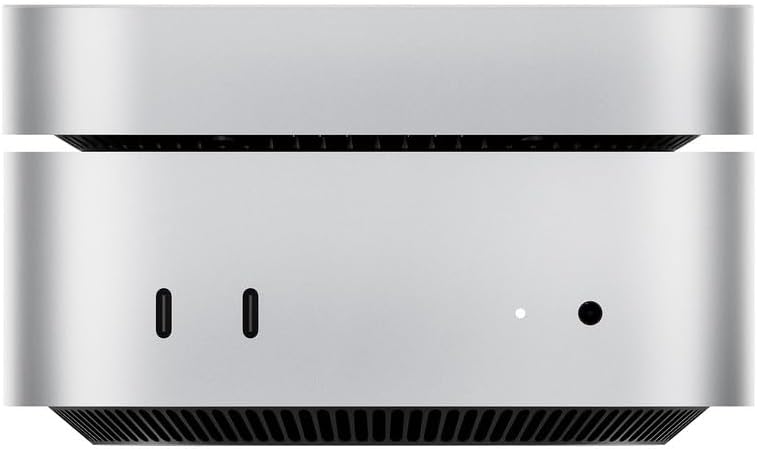
Image: The ORICO MiniMate external SSD, shown stacked with a Mac mini, highlighting its complementary design.
2. What's in the Box
Please check the package contents carefully upon unboxing:
- 1 x ORICO MiniMate External SSD (Model M4-2TB)
- 2 x High-Quality Cables (for versatile connectivity)
- 1 x SSD Cooler (pre-installed or included for optimal thermal management)
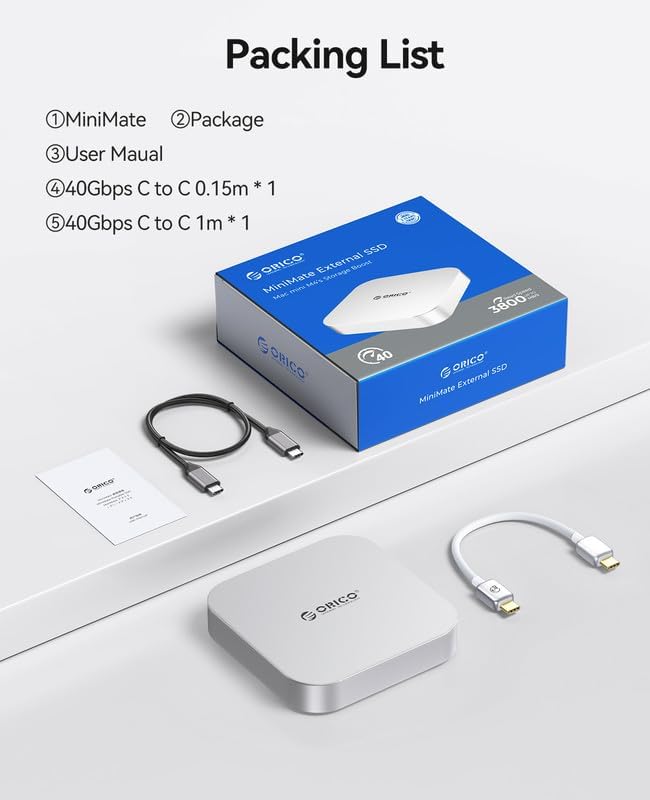
Image: A visual representation of the ORICO MiniMate product packaging and its contents, including the SSD unit, two cables, and documentation.
3. Product Features
3.1. Storage Expansion
The ORICO MiniMate provides significant storage expansion, allowing you to offload large files such as videos, documents, and project materials from your primary device. This frees up internal storage and enhances overall system performance, effortlessly meeting your growing storage needs.

Image: An illustration demonstrating the ORICO MiniMate's role as a storage expansion companion, capable of holding various types of data including videos, information, and databases.
3.2. Dimensionally Precise and Seamless Design
Engineered to perfectly complement the new Mac mini M4, the MiniMate features a dimensionally precise design that seamlessly integrates with your desktop setup. Its sleek aesthetic enhances your workspace with both style and functionality.
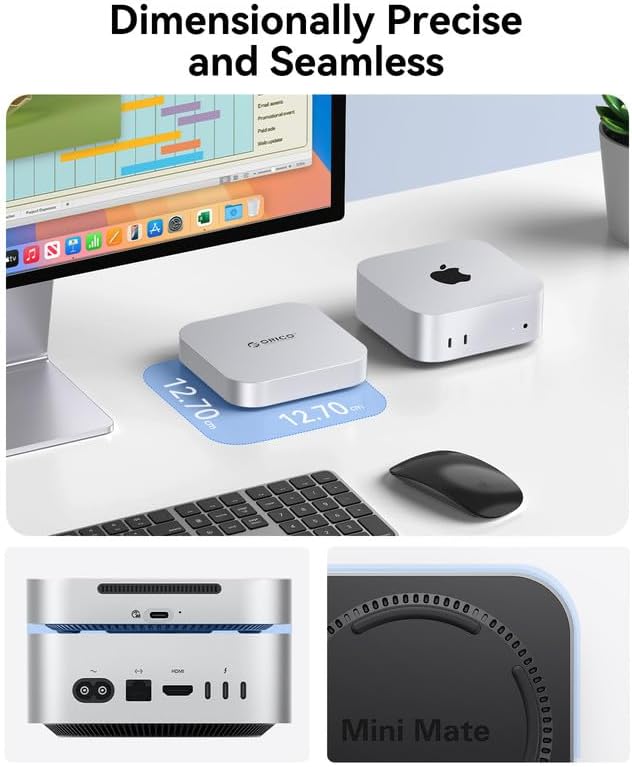
Image: The ORICO MiniMate positioned alongside a Mac mini on a desk, illustrating its exact dimensions and how it seamlessly blends with the Mac mini's design.
3.3. High-Speed Transmission
Experience rapid data transfers with 10Gbps (1000MB/s) speed, sufficient for most daily storage needs. For devices equipped with a USB 3.2 Gen 2x2 interface, the MiniMate can achieve speeds of up to 20Gbps, making it ideal for transferring large files, codes, and high-resolution videos efficiently.
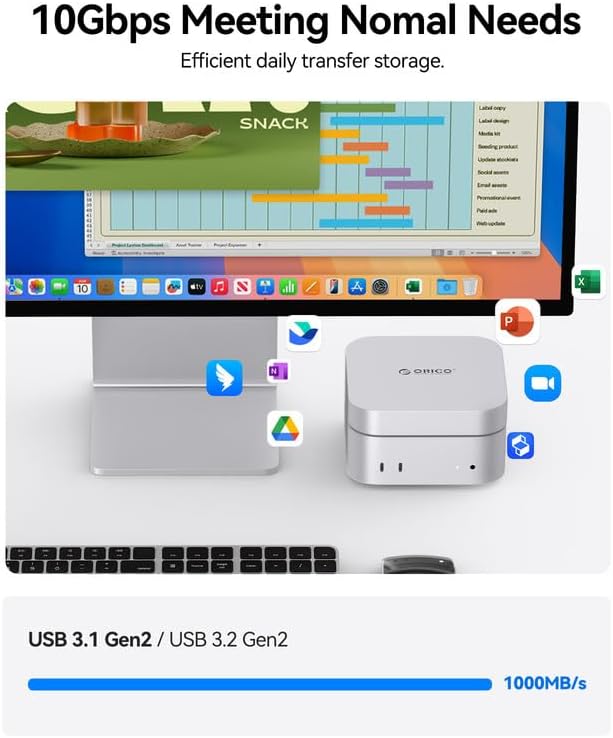
Image: A visual demonstrating the 10Gbps transfer speed of the ORICO MiniMate, indicating its efficiency for everyday storage tasks.
Video: An official product video from ORICO showcasing the MiniMate External Solid State Drive for Mac mini M4, highlighting its features and integration.
3.4. Broad Compatibility and Versatile Applications
Beyond its perfect fit for Mac mini M4, the MiniMate is broadly compatible with various computers and laptops, offering versatile expansion options for all your storage needs. It supports a wide range of creative, coding, and gaming applications.

Image: A collage illustrating the diverse applications of the ORICO MiniMate, including its use in creative work, software development (coding), and gaming setups.
4. Setup Guide
4.1. Connecting Your MiniMate
To connect your ORICO MiniMate, use one of the provided high-quality cables. Connect one end to the USB-C port on the MiniMate and the other end to a compatible USB-C or Thunderbolt port on your computer (e.g., Mac mini M4, laptop, or desktop PC). Ensure the connection is secure.

Image: The ORICO MiniMate external SSD shown connected to a Mac mini, illustrating the cable connection for setup.
4.2. Initializing and Formatting
For first-time use, you may need to initialize and format the SSD. This process prepares the drive for use with your operating system.
- For macOS: Open Disk Utility (Applications > Utilities > Disk Utility). Select the ORICO MiniMate from the sidebar, click 'Erase', choose a format (e.g., APFS for macOS, ExFAT for cross-platform compatibility), and click 'Erase' again.
- For Windows: Right-click 'This PC' or 'My Computer' and select 'Manage' > 'Disk Management'. Find the ORICO MiniMate (it might appear as 'Unallocated Space'), right-click it, and select 'New Simple Volume'. Follow the wizard to format it (e.g., NTFS for Windows, ExFAT for cross-platform compatibility).
- For Linux: Use a disk management tool like GParted or the `fdisk`/`mkfs` commands in the terminal to partition and format the drive to your preferred filesystem (e.g., Ext4, ExFAT).
Ensure you back up any important data before formatting, as this process will erase all existing data on the drive.
5. Operating Instructions
5.1. Data Transfer
Once formatted, your ORICO MiniMate will appear as a new drive on your computer. You can now drag and drop files to and from the SSD just like any other storage device. For optimal performance, ensure you are using a compatible USB 3.2 Gen 2 (10Gbps) or Gen 2x2 (20Gbps) port on your host device.
Video: A demonstration of high-speed data transfer using the ORICO MiniMate, showing files being copied quickly.
5.2. Safe Ejection
Always safely eject the ORICO MiniMate before disconnecting it from your computer to prevent data corruption or loss. This is crucial for maintaining the integrity of your files and the health of the SSD.
- For macOS: Drag the drive icon to the Trash, or right-click the drive icon on the desktop/Finder sidebar and select 'Eject'.
- For Windows: Click the 'Safely Remove Hardware and Eject Media' icon in the system tray (bottom-right corner), then select the ORICO MiniMate.
- For Linux: Right-click the drive icon on your desktop or file manager and select 'Eject' or 'Unmount'.
6. Maintenance and Care
Proper care ensures the longevity and reliability of your ORICO MiniMate SSD.
6.1. Physical Care
- Keep the device clean and free from dust. Use a soft, dry cloth for cleaning.
- Avoid dropping or subjecting the SSD to strong impacts, as this can damage internal components.
- Store the MiniMate in a cool, dry place away from direct sunlight and extreme temperatures.
- Ensure proper ventilation around the device, especially during prolonged use, to allow the built-in cooling fan to operate effectively.
6.2. Software Maintenance
- Regularly back up critical data from your MiniMate to another storage device.
- Keep your operating system and drivers updated to ensure optimal compatibility and performance.
- Avoid filling the SSD to its absolute maximum capacity; leaving some free space can help maintain performance.
7. Troubleshooting
If you encounter issues with your ORICO MiniMate, refer to the following common problems and solutions:
7.1. Device Not Recognized
- Check Cable Connection: Ensure the USB cable is securely connected to both the MiniMate and your computer. Try a different USB port or cable.
- Restart Computer: Sometimes a simple restart can resolve connectivity issues.
- Check Disk Management (Windows) / Disk Utility (macOS): Verify if the drive is visible but uninitialized or unformatted. Follow the steps in Section 4.2 to initialize and format if necessary.
- Try Another Computer: Test the MiniMate on a different computer to rule out issues with your primary device's ports or drivers.
7.2. Slow Transfer Speeds
- Verify USB Port Type: Ensure you are connected to a USB 3.2 Gen 2 (10Gbps) or Gen 2x2 (20Gbps) port on your computer. Older USB 2.0 or 3.0 ports will result in slower speeds.
- Check Cable Quality: Use the provided high-quality cables. Low-quality or damaged cables can limit transfer speeds.
- Background Processes: Close any unnecessary applications or background processes that might be consuming system resources or disk I/O.
- SSD Health: While rare for new SSDs, prolonged heavy use can sometimes impact performance. Ensure sufficient free space on the drive.
7.3. Overheating
- Ensure Ventilation: Make sure the MiniMate is placed in an area with good airflow and its vents are not obstructed.
- Reduce Workload: If performing very large or continuous data transfers, allow the device to cool down periodically.
- Environmental Temperature: Operate the device within recommended ambient temperature ranges.
8. Specifications
Key technical specifications for the ORICO MiniMate 2TB External SSD (Model M4-2TB):
| Feature | Detail |
|---|---|
| Brand | ORICO |
| Model Number | M4-2TB |
| Digital Storage Capacity | 2 TB |
| Hard Disk Interface | USB 3.2 |
| Connectivity Technology | USB |
| Transfer Speed | Up to 10Gbps (USB 3.2 Gen 2), Up to 20Gbps (USB 3.2 Gen 2x2) |
| Item Weight | 3.17 ounces |
| Package Dimensions | 5.91 x 4.25 x 0.98 inches |
| Compatible Devices | Desktop, Laptops (Mac mini M4, etc.) |
| Special Feature | Portable, Built-in Cooling Fan |
9. Warranty and Support
ORICO products are designed for reliability and performance. For information regarding warranty coverage, technical support, and frequently asked questions, please visit the official ORICO website or contact their customer service.
For further assistance, visit the official ORICO website: www.orico.cc


