
1. Introduction
The RODEDIO V519 OBD2 Scanner is a professional diagnostic tool designed to help vehicle owners and mechanics quickly identify and resolve issues with OBDII-compliant vehicles. This manual provides detailed instructions for setting up, operating, and maintaining your V519 scanner, ensuring optimal performance and accurate diagnostics.

Figure 1: The RODEDIO V519 OBD2 Scanner Diagnostic Tool.
2. Key Features
- Full OBDII Modes: Supports all essential OBD2 functions including reading/clearing codes, turning off the Check Engine Light (MIL), displaying freeze frame data, checking I/M readiness, retrieving VIN, testing battery voltage, and showing live data streams with graphing.
- Extensive DTC Library: Features a built-in library of 35,901 Diagnostic Trouble Codes (DTCs) for comprehensive diagnostics and quick code definitions.
- Wide Vehicle Compatibility: Compatible with approximately 98% of vehicles manufactured after 1996 (USA), 2002 (EU), and 2008 (Asia) that have a 16-pin OBD2 port.
- User-Friendly Interface: Equipped with convenient shortcut buttons (F1 for reading codes, F2 for I/M readiness) and left/right navigation for faster menu access.
- Data Playback & Printing: Offers live data playback, DTC history review, and a print function for diagnostic reports via computer connection.
- Lifetime Software Updates: Ensures the device remains up-to-date with the latest functions and enhancements.

Figure 2: Overview of the V519's diagnostic capabilities.
3. Package Contents
Upon opening your RODEDIO V519 package, please ensure all items are present:
- RODEDIO V519 OBD2 Scanner Unit
- User Manual (this document)
- USB Cable (for updates and printing)

Figure 3: The V519 scanner and its included components.
4. Setup
- Locate the OBD2 Port: The 16-pin OBD2 port is typically located under the dashboard on the driver's side of the vehicle. Refer to your vehicle's owner's manual for the exact location.
- Connect the Scanner: Plug the scanner's OBD2 connector firmly into the vehicle's OBD2 port.
- Power On: The scanner will automatically power on once connected to the vehicle. Ensure the vehicle's ignition is in the 'ON' position (engine can be off or running, depending on the test).

Figure 4: Connecting the V519 scanner to the vehicle's OBD2 port.
5. Operating Instructions
5.1. Basic Navigation
Use the directional buttons (Up, Down, Left, Right) to navigate through menus and select options. Press the 'OK' button to confirm a selection and 'EXIT' to go back to the previous screen.
5.2. Reading and Clearing Codes
- From the main menu, select 'OBD/EOBD' and press 'OK'.
- Choose 'Read Codes' to view current, pending, or permanent DTCs.
- To clear codes, select 'Clear Codes' and press 'OK'. Confirm your action when prompted. This will turn off the Check Engine Light (MIL).

Figure 5: The V519 interface displaying options for reading and clearing codes.
5.3. I/M Readiness Check
This function checks if the various emissions-related systems on the vehicle are operating correctly and are ready for inspection and maintenance testing.
- From the main menu, select 'I/M Readiness' or press the 'F2' shortcut button.
- The scanner will display the status of various monitors (e.g., Misfire Monitor, Fuel System Monitor). 'OK' indicates the system is ready, 'INC' indicates incomplete, and 'N/A' indicates not applicable.

Figure 6: I/M Readiness status displayed on the V519 scanner.
5.4. Live Data Stream
View real-time operational data from the vehicle's sensors.
- From the main menu, select 'Data Stream' and press 'OK'.
- You can view all data items or select specific items for graphical display.
5.5. Battery Voltage Test
Quickly check the current voltage of your vehicle's battery.
- From the main menu, select 'Voltage' and press 'OK'.
- The current battery voltage will be displayed on the screen.
5.6. DTC Lookup
Access the built-in DTC library to find definitions for specific trouble codes.
- From the main menu, select 'DTC Lib' and press 'OK'.
- Enter the DTC code using the directional buttons and press 'OK' to view its definition.

Figure 7: The V519's extensive DTC library for quick code definitions.
5.7. Vehicle Information
Retrieve vehicle identification information.
- From the main menu, select 'Vehicle Info' and press 'OK'.
- The scanner will display information such as VIN (Vehicle Identification Number).
5.8. Software Updates and Printing
The V519 supports free lifetime software updates. Connect the device to a computer using the provided USB cable to update the software or print diagnostic reports.
- Visit the manufacturer's website for the latest software and update instructions.
- To print reports, connect the scanner to a computer and use the designated software to retrieve and print stored data.

Figure 8: The V519's print function allows for detailed diagnostic reports.
6. Maintenance
- Keep the scanner clean and dry. Use a soft, damp cloth to wipe the exterior.
- Avoid exposing the device to extreme temperatures or direct sunlight for extended periods.
- Store the scanner in a safe place when not in use to prevent damage.
7. Troubleshooting
7.1. Device Not Powering On
- Ensure the scanner is securely connected to the vehicle's OBD2 port.
- Verify the vehicle's ignition is in the 'ON' position.
- Check the vehicle's battery voltage. If the battery is too low, the scanner may not power on.
7.2. Communication Error
- Confirm the vehicle is OBD2 compliant (most vehicles after 1996).
- Ensure the connection to the OBD2 port is stable and free from debris.
- Try connecting the scanner to a different OBD2-compliant vehicle to rule out a device issue.
7.3. Software Update Issues
- Ensure the USB cable is properly connected to both the scanner and the computer.
- Verify that the correct update software is installed on your computer and that your operating system meets the requirements (e.g., Windows XP).
- If the computer does not recognize the USB device, try a different USB port or restart your computer.
8. Specifications
- Model: V519
- Brand: RODEDIO
- Item Weight: 9.1 ounces
- Product Dimensions: 5.1 x 1.5 x 7.8 inches
- Operating System: Windows XP (for software updates)
- Automotive Fit Type: Universal Fit (for OBD2 compliant vehicles)
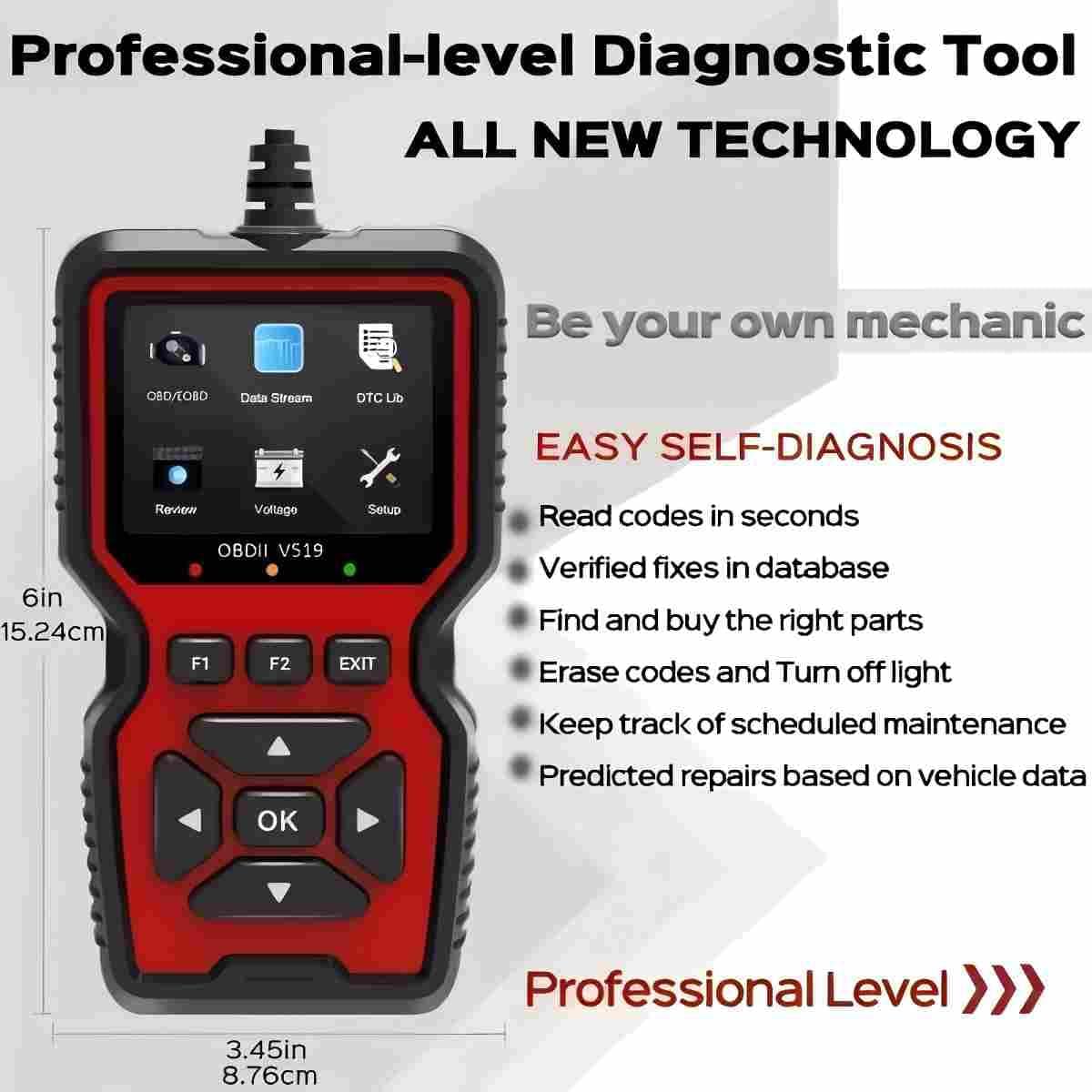
Figure 9: Physical dimensions of the V519 scanner.
9. Official Product Videos
9.1. Professional OBD2 Scanner Diagnostic Tool
Video 1: A demonstration of the RODEDIO OBD2 Scanner's features and functionality, including reading and clearing codes, and live data display.
