1. Introduction and Overview
The InnoView 15.6-inch FHD Dual Portable Monitor is designed to enhance productivity and provide a versatile display solution for various computing environments. This innovative device features a foldable design, auto-rotation capabilities, and multiple display modes, making it ideal for both PC and Mac users.

Image: The InnoView 15.6-inch FHD Dual Portable Monitor in a folded, compact state.
Key features include:
- Efficient Multi-Screen Work: Supports Windows 7, 10, 11, and macOS 10.15 and later. The integrated portable stand eliminates the need for a separate stand and supports wall mounting.
- Superior Image Quality: Features an IPS panel with a 178° viewing angle, delivering vivid images and videos from any perspective. Full HD (1920x1080) resolution ensures clear details.
- Ergonomic Design & Space Saving: The dual-screen setup can be adjusted vertically to suit various viewing needs, reducing fatigue and promoting spinal health. Low blue light mode protects your eyes.
- Auto-Rotation & Foldable Portable Monitor: Built-in gravity sensor enables 180° auto-rotation for easy switching in shared mode. The foldable design protects the screens during travel.
- Product Warranty & Support: 30-day free returns and exchanges. 1-year warranty from purchase date, extendable to 2 years upon registration. Non-human-caused defects during the warranty period are eligible for refund, exchange, or repair.
2. Setup Instructions
Follow these steps to set up your InnoView Dual Portable Monitor:
2.1. Unpacking and Accessories
Carefully unpack your monitor and ensure all accessories are present.

Image: Included accessories: Type-C signal cable, Type-C power cable, 30W adapter, and Standard HDMI cable.
2.2. Port Overview
Familiarize yourself with the available ports on your monitor:

Image: Overview of monitor ports including 3.5mm earphone jack, mode button, up/down buttons, power button, standard HDMI, and Type-C ports.
2.3. Connecting to Your Device
The monitor supports various connection methods:
2.3.1. Type-C Cable Connection (Signal & Power)
For full functionality, connect your device using a single Type-C cable (if your device's Type-C port is 3.0 or higher and supports full-featured output). For Mac devices, a driver installation and system settings adjustment may be required for extended mode (Menu -> Other Settings -> Mac Extension -> On).

Image: Connecting the monitor to a laptop via a single Type-C cable for both signal and power. Ensure your device's Type-C port is 3.0 or higher.
2.3.2. HDMI Cable + Power Cable Connection
When using an HDMI cable, a separate power cable connection is required. HDMI connection supports splicing mode, copy mode, and share mode, but does not support extended mode.

Image: Connecting the monitor to a device using an HDMI cable and a separate power cable.
2.3.3. Mac mini M4 Series Connection
When connecting to a Mac mini M4 series, ensure the monitor is connected to a Thunderbolt port as shown in the diagram. USB-C ports without signal output will not display.

Image: Diagram illustrating the correct connection to a Thunderbolt port on a Mac mini M4 series (green check) versus an incorrect connection to a non-signal USB-C port (red cross).
2.4. General Setup and Usage Overview
Video: Demonstrates the setup and various display modes of the Mydual 15.6-inch Dual Mobile Monitor, including connection via Type-C and auto-rotation.
Video: Shows the setup and functionality of the WT-156PS-BK Mobile Dual Monitor, including VESA compatibility, connection, and various display modes for sharing.
3. Operating Instructions
Your InnoView monitor offers various modes and features to optimize your workflow:
3.1. Display Modes
The monitor supports multiple display configurations to suit your needs:
- Copy Mode: Displays the same content on both screens.
- Splicing Mode: Combines both screens into one large display.
- Extended Mode: Extends your desktop across multiple screens (not supported with HDMI connection).
- Share Mode: Displays the same content on both screens, with the top screen rotating for easy viewing by others.
- Vertical Mode: (Windows only) Optimizes display for long documents or coding.
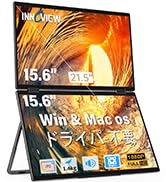
Image: Various display modes including 3-screen office, shared mode for data sharing, splicing mode for smooth reading of long documents, and vertical mode for Windows.

Image: Visual representation of Copy Mode, Splicing Mode, Extended Mode, and Share Mode.
Video: Demonstrates multiple display modes of the JSAUX FlipGo, showcasing how the dual screens can be configured for various tasks and enhanced productivity.
3.2. Auto-Rotation and Sharing
The built-in gravity sensor allows for 180° auto-rotation, making it easy to switch to shared mode for presentations or collaborative work.

Image: The monitor in shared mode, demonstrating 180° gravity rotation for easy collaboration.
3.3. Touch and Pen Input
The monitor supports 10-point multi-touch and stylus pen input for interactive use, such as drawing or annotating documents.
Video: Shows the dual monitor in use, demonstrating virtual keyboard input, 10-point multi-touch functionality, and stylus pen interaction for drawing and annotation.
4. Maintenance
To ensure the longevity and optimal performance of your InnoView monitor, follow these maintenance guidelines:
- Cleaning: Use a soft, lint-free cloth slightly dampened with water or a screen cleaner to wipe the display. Avoid harsh chemicals or abrasive materials.
- Storage: When not in use, fold the monitor to protect the screens from damage. Store it in a cool, dry place away from direct sunlight and extreme temperatures.
- Cable Management: Ensure cables are not kinked or strained to prevent damage to the connectors and ports.
5. Troubleshooting
If you encounter issues with your InnoView monitor, refer to the following common troubleshooting tips:
- No Display:
- Ensure all cables (Type-C or HDMI + Power) are securely connected.
- Verify that your device's output port is functional and configured correctly.
- If using Type-C, confirm your device's port supports video output.
- Try connecting the monitor to a different device or using different cables to isolate the issue.
- Flickering Screen:
- Check cable connections for looseness.
- Ensure adequate power supply. If using a single Type-C cable, try connecting an additional power source.
- Adjust display settings on your connected device (resolution, refresh rate).
- Incorrect Display Mode:
- Use the monitor's mode button or your device's display settings to switch between copy, extend, or other modes.
- For Mac extended mode, ensure the necessary driver is installed and settings are adjusted (Menu -> Other Settings -> Mac Extension -> On).
- No Sound:
- Check the volume settings on both the monitor and your connected device.
- Ensure the audio output is directed to the monitor.
- If using external speakers or headphones, ensure they are properly connected to the 3.5mm earphone jack.
If the problem persists, please contact InnoView customer support for further assistance.
6. Specifications
| Feature | Detail |
|---|---|
| Brand | InnoView |
| Manufacturer | InnoView |
| Product Model Number | PM009-05B |
| Color | Black |
| Product Dimensions (L x W x H) | 39 x 6.1 x 26 cm |
| Item Weight | 2.24 Kilograms |
| Standing Screen Display Size | 15.6 inches |
| Resolution | 1920 x 1080 (FHD 1080p) |
| Aspect Ratio | 16:9 |
| Image Contrast Ratio | 1000:1 |
| USB 3.0 Ports | 2 |
| HDMI Ports | 1 |
7. Warranty and Support
InnoView is committed to providing high-quality products and excellent customer service.
- Return and Exchange Policy: Enjoy 30-day free returns and exchanges from the date of purchase.
- Warranty Period: The product comes with a 1-year warranty. You can extend this warranty by an additional 2 years by registering your product.
- Warranty Claims: For non-human-caused defects occurring during the warranty period, we offer refunds, exchanges, or repairs.
- After-Sales Service: As a specialized manufacturer of mobile monitors, InnoView provides year-round technical support. If you have any questions or concerns, please do not hesitate to contact us.


