
Introduction
This manual provides essential information for setting up, operating, maintaining, and troubleshooting your Lenovo Yoga 7 2-in-1 16IML9 2024 Laptop. Please read this guide thoroughly to ensure optimal performance and longevity of your device.

Image: The Lenovo Yoga 7 2-in-1 laptop in tent mode, showcasing its versatile display for media consumption.
Setup Guide
1. Unpacking and Initial Inspection
Carefully remove your laptop and accessories from the packaging. Verify that all components listed below are present and undamaged.
What's in the Box:
- Lenovo Yoga 7 2-in-1 16IML9 Laptop
- 65W AC Adapter
- 32GB USB 3.0 Flash Drive (complimentary)
- Documentation (Quick Start Guide, Safety Information)
2. Connecting the Power Adapter
Connect the 65W AC adapter to the laptop's power port (one of the USB Thunderbolt 4 ports) and then plug it into a power outlet. It is recommended to fully charge the battery before first use.
3. Initial Power On
Press the power button located on the side of the laptop. The system will guide you through the initial Windows 11 Home setup process, including language selection, network connection, and user account creation.
4. Port Overview
Familiarize yourself with the available ports for connecting external devices.

Image: Detailed view of the laptop's ports, including USB-C Thunderbolt 4, USB-A, HDMI, and audio jack.
- 2 x USB Thunderbolt 4 / USB4 40Gbps Type-C: Supports Power Delivery and DisplayPort.
- 1 x USB 3.2 Gen 1 Type-A (Always On): For connecting USB devices and charging other devices even when the laptop is off.
- 1 x USB 3.2 Gen 1 Type-A: For connecting standard USB devices.
- 1 x HDMI 2.1: For connecting to external displays.
- 1 x Headphone/microphone combo jack: For audio input/output.
- 1 x Micro SD card reader: For reading memory cards.
- 1 x NOVO button: For system recovery options.
Operating Instructions
1. Understanding 2-in-1 Modes
Your Lenovo Yoga 7 is a versatile 2-in-1 device, allowing you to switch between laptop, tent, stand, and tablet modes. The touchscreen display automatically adjusts orientation.

Image: The laptop in tent mode, ideal for video calls or presentations.
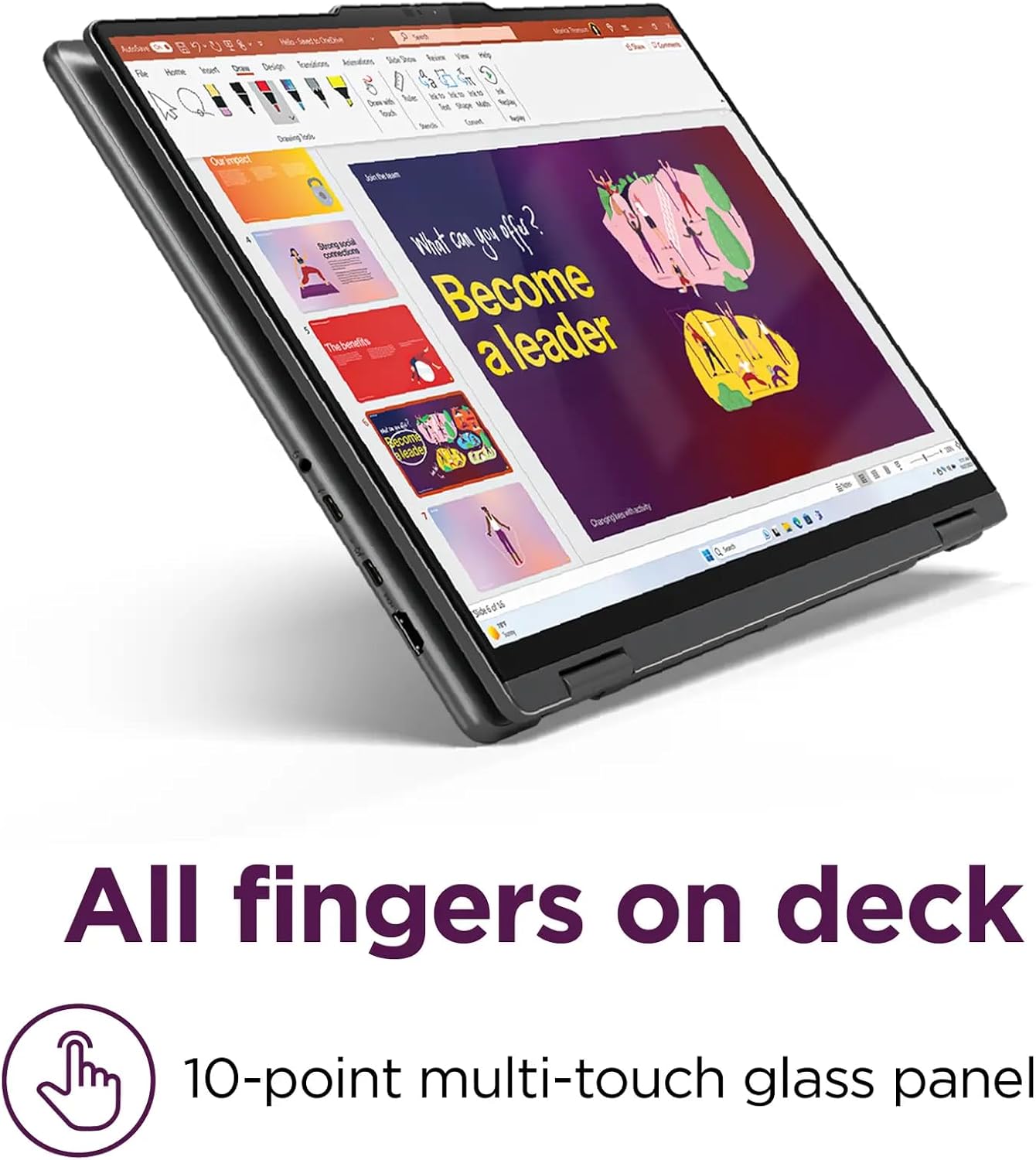
Image: The laptop in tablet mode, demonstrating its multi-touch capabilities for interactive tasks.
2. Display Features
The 16-inch WUXGA (1920 x 1200) IPS touchscreen display offers vibrant visuals with 300 nits brightness, Dolby Vision, and TÜV Low Blue Light certification for eye comfort. It features a glossy, anti-fingerprint glass surface.
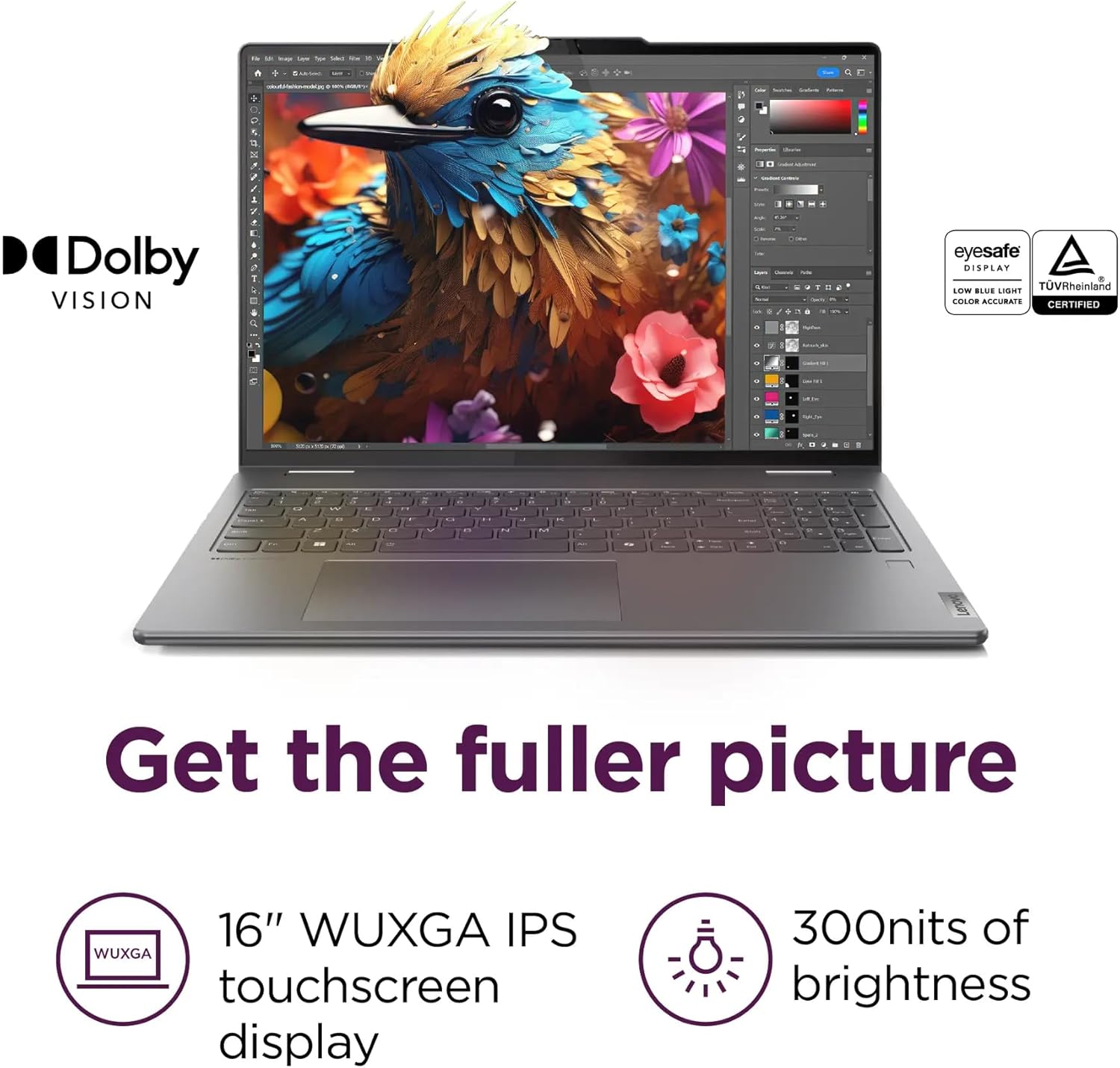
Image: Visual representation of the display's key features, including Dolby Vision and WUXGA resolution.
3. Keyboard and Input
The laptop features a backlit keyboard with a numeric keypad for comfortable typing in various lighting conditions. The integrated fingerprint reader provides secure and convenient login.
4. Audio System
Experience enhanced audio with two speakers optimized by Dolby Atmos. This technology delivers immersive sound for entertainment and communication.

Image: A visual representation of the laptop's audio capabilities with Dolby Atmos.
5. Camera and Privacy
The integrated FHD 1080p + IR Camera includes a physical privacy shutter. Slide the shutter to cover the camera lens when not in use to ensure your privacy.
6. Wireless Connectivity
The laptop supports Intel Wi-Fi 6E AX211 (2x2) for fast and reliable wireless internet access, and Bluetooth 5.3 for connecting wireless peripherals.
7. Battery and Charging
The 71Wh Lithium-Ion battery provides up to 6 hours of usage. The Rapid Charge Express feature allows for quick charging, providing approximately 3 hours of battery life from a 15-minute charge.

Image: Illustration of the Rapid Charge Express feature, highlighting quick charging capabilities.
Maintenance
1. Cleaning Your Laptop
- Screen: Use a soft, lint-free cloth lightly dampened with water or a screen-cleaning solution. Do not spray liquid directly onto the screen.
- Keyboard and Chassis: Use a soft, dry cloth. For stubborn dirt, a slightly damp cloth with mild soap solution can be used, ensuring no liquid enters openings.
- Ports: Keep ports free of dust and debris. Use compressed air carefully if needed.
2. Battery Care
- Avoid extreme temperatures.
- Do not leave the laptop plugged in constantly at 100% charge for extended periods.
- For long-term storage, charge the battery to about 50-60%.
3. Software Updates
Regularly check for and install operating system (Windows Update) and driver updates (Lenovo Vantage software) to ensure optimal performance, security, and compatibility.
Troubleshooting
This section provides solutions to common issues you might encounter.
1. Laptop Does Not Power On
- Ensure the AC adapter is securely connected to both the laptop and a working power outlet.
- Verify the power outlet is functional by plugging in another device.
- If the battery is completely drained, allow it to charge for at least 30 minutes before attempting to power on.
2. Display Issues
- No image on screen: Check if the laptop is powered on. Try connecting an external monitor via HDMI to determine if the issue is with the laptop's display or graphics output.
- Flickering or distorted image: Update your graphics drivers. Adjust display resolution and refresh rate in Windows settings.
3. Wi-Fi or Bluetooth Connectivity Problems
- Ensure Wi-Fi and Bluetooth are enabled in Windows settings.
- Restart your router/modem for Wi-Fi issues.
- Update wireless drivers via Lenovo Vantage or Device Manager.
- For Bluetooth, ensure the device is in pairing mode and within range.
4. Slow Performance
- Close unnecessary applications running in the background.
- Check Task Manager for processes consuming high CPU, memory, or disk usage.
- Ensure your system has sufficient free storage space.
- Run a virus scan.
Technical Specifications
| Model Name | Lenovo Yoga 7 2-in-1 16IML9 (83DL000LXSZ) |
| Processor | Intel Core Ultra 5 125U (12-Core, up to 4.3 GHz, 12 MB Intel Smart cache) |
| Memory | 16GB LPDDR5 7467 MHz |
| Storage | 512GB NVMe M.2 SSD |
| Display | 16" WUXGA (1920 x 1200) IPS Touchscreen, 300 nits, Glossy / Anti-fingerprint, 45% NTSC, 60Hz, Dolby Vision, TÜV Low Blue Light |
| Graphics | Intel Graphics |
| Operating System | Windows 11 Home |
| Wireless Connectivity | Intel Wi-Fi 6E AX211 (2x2), Bluetooth 5.3 |
| Ports | 2x USB Thunderbolt 4 / USB4 40Gbps Type-C (Power Delivery / DisplayPort) 2x USB 3.2 Gen 1 Type-A (1x Always On) 1x HDMI 2.1 1x Headphone/microphone combo 1x Micro SD card reader |
| Camera | FHD 1080p + IR Camera with Privacy Shutter |
| Audio | 2x Speakers optimized by Dolby Atmos |
| Battery | 71Wh Lithium-Ion (up to 6 hours battery life) |
| Power Adapter | 65W AC Adapter |
| Dimensions (LxWxH) | 14.24" x 9.84" x 0.67" inches |
| Weight | 4.39 lbs |
| Color | Storm Grey |
| Keyboard | Backlit Keyboard with Numpad and Fingerprint reader |
Warranty and Support
1. Product Warranty
Your Lenovo Yoga 7 2-in-1 16IML9 Laptop comes with a standard manufacturer's warranty. Please refer to the warranty card included in your product packaging or visit the official Lenovo support website for detailed terms and conditions specific to your region.
Extended protection plans may be available for purchase separately. For information on these plans, please consult your retailer or Lenovo's official channels.
2. Technical Support
For technical assistance, driver downloads, or further support, please visit the official Lenovo Support website:
When contacting support, please have your laptop's model number (83DL000LXSZ) and serial number ready.