
LONGRUF MT8163 2+32
LONGRUF Android 13 Car Stereo User Manual
Model: MT8163 2+32
Product Overview
The LONGRUF Android 13 Car Stereo is a 7-inch touchscreen head unit designed for various Jeep, Dodge, and Chrysler models. It features an Android 13 operating system, 2GB RAM, and 32GB ROM, offering a comprehensive in-car entertainment and navigation solution. Key functionalities include FM/RDS radio, GPS navigation, Bluetooth connectivity, Wireless CarPlay, Android Auto, and support for a backup camera.
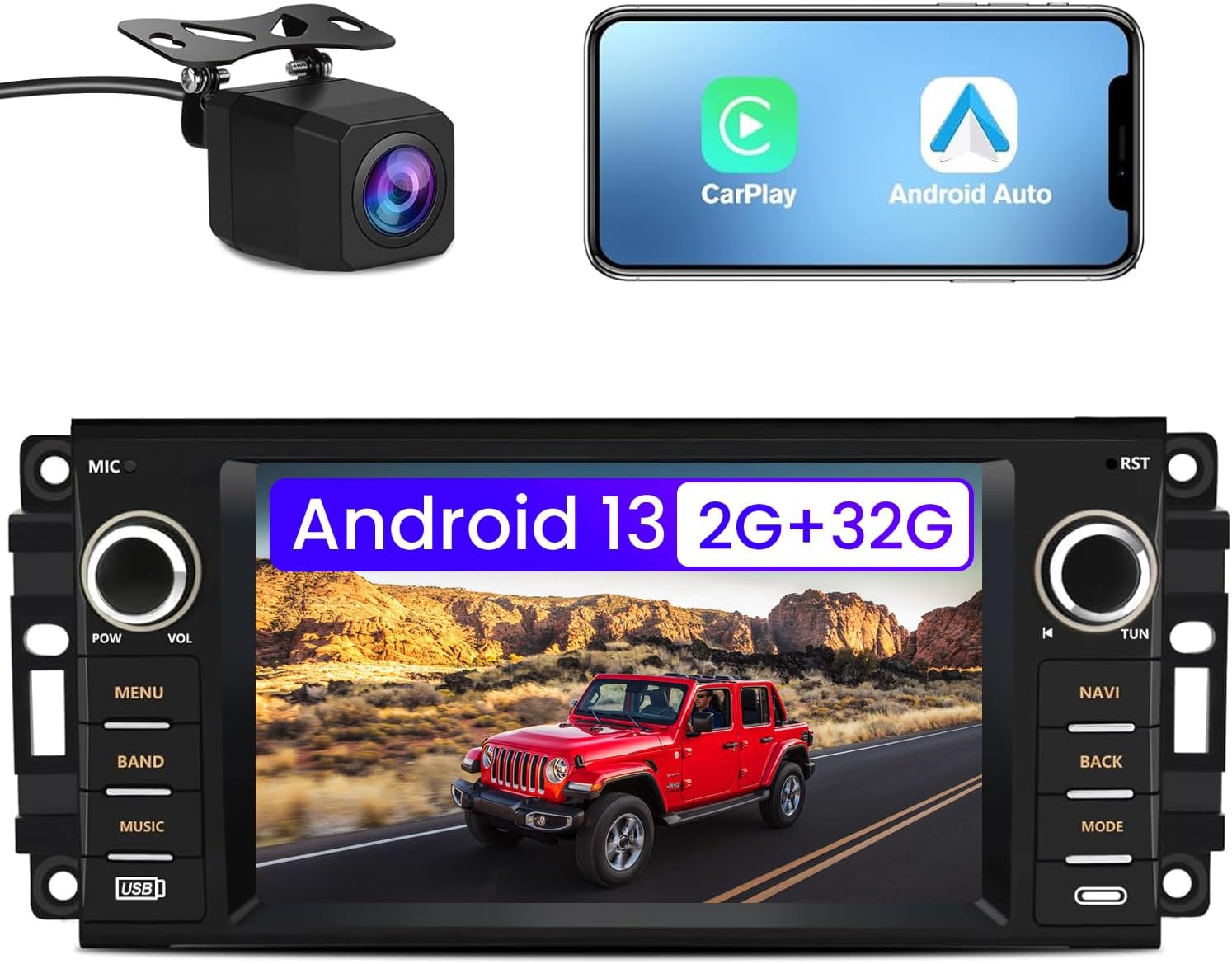
Image: The LONGRUF Android 13 Car Stereo unit, shown with a backup camera and icons representing CarPlay and Android Auto functionality.
Package Contents
Before installation, please verify that all components are present in the package:
- Car Radio Head Unit
- HD Backup Camera
- Microphone (built-in and external)
- GPS Antenna
- Power Cable
- RCA Cable
- USB Cables (x2)
- Reversing Line
- Tools Set
- Instruction Manual (this document)
- Can Bus Decoder (if applicable for your vehicle model)

Image: All included accessories and the main head unit, illustrating the complete package contents.
Setup and Installation
This section provides general guidance for installing your LONGRUF car stereo. Professional installation is recommended if you are unfamiliar with car audio wiring.
1. Pre-Installation Checks
- Ensure the vehicle's ignition is off and the battery is disconnected before starting any wiring.
- Verify compatibility with your vehicle model (Jeep Wrangler/Unlimited 2007-2018, Jeep Compass 2009-2016, Jeep Patriot 2009-2016, Jeep Grand Cherokee 2005-2011, Jeep Liberty 2008-2011, Jeep Commander 2008-2011, Chrysler Sebring 2007-2010, Town&Country 2007-2010, Dodge Grand Caravan 2011-2014, Dodge Charger 2008-2010, Dodge Ram Pickup 1500/2500/3500 2009-2012).
2. Wiring Connections
Connect the provided cables to the corresponding ports on the car stereo and your vehicle's wiring harness. Refer to the wiring diagram for detailed connections.
- Power Cable: Connect the main power harness to the vehicle's power supply.
- RCA Cable: For external audio/video devices or amplifiers.
- GPS Module: Connect the GPS antenna and place it in a location with a clear view of the sky for optimal signal reception.
- Microphone: Connect the external microphone for clearer hands-free calls.
- Can Bus: Connect the Can Bus decoder if your vehicle requires it for steering wheel controls or other integrated functions.
- USB Cables: Connect for data transfer, charging, and wired CarPlay/Android Auto.
- Reversing Line (Camera Signal): Connect the backup camera's video output to the designated input on the stereo. Ensure the camera's power is connected to the vehicle's reverse light circuit for automatic activation.
- Antenna: Connect the vehicle's radio antenna.

Image: Detailed wiring connections for the car stereo, including power, audio, video, and GPS inputs.
3. Mounting the Unit
Carefully mount the head unit into the vehicle's dashboard opening. Secure it using the provided mounting brackets and screws.
4. Initial Power On
Reconnect the vehicle's battery. Turn on the ignition to power up the stereo. Follow any on-screen prompts for initial setup.
Operating Instructions
1. User Interface and Navigation
The stereo runs on Android 13, providing a familiar smartphone-like interface. Navigate through menus and applications using the 7-inch touchscreen. The system supports multiple theme styles for customization.

Image: Examples of different customizable user interface themes and layouts on the car stereo.
2. FM/RDS Radio
Access the FM radio application to listen to local stations. The unit supports RDS (Radio Data System) for displaying station information. You can manually or automatically search for stations and save up to 18 presets.
- Automatic Search: Press the "BAND" button or select the auto-scan option on the screen.
- Manual Tuning: Use the "TUN" knob or on-screen arrows to fine-tune frequencies.
- Presets: Long-press a numbered button on the screen to save the current station.
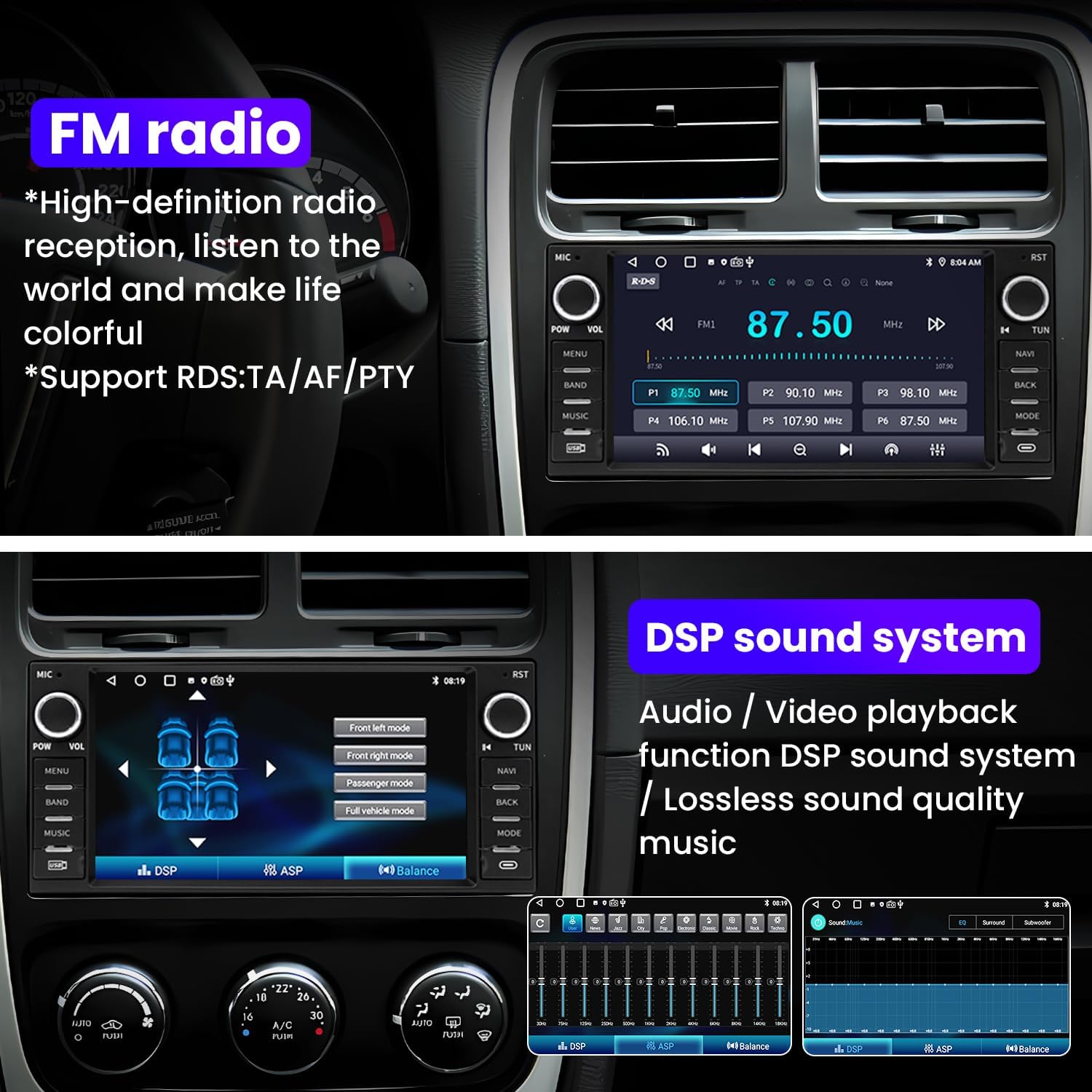
Image: The FM radio interface, demonstrating high-definition radio reception and RDS support.
3. GPS Navigation
The stereo comes pre-loaded with North American maps. For online navigation and real-time traffic updates, connect the unit to Wi-Fi. The included GPS antenna ensures accurate positioning.
- Offline Maps: Use the pre-installed maps without an internet connection.
- Online Maps: Connect to Wi-Fi to use online mapping applications like Google Maps.
- Voice Guidance: Follow spoken directions for turn-by-turn navigation.

Image: The precise positioning GPS feature displaying a navigation map with real-time and offline map options.
4. Bluetooth Connectivity
Pair your smartphone via Bluetooth for hands-free calling, music streaming, and phone book synchronization. The unit includes both a built-in and an external microphone for clear audio during calls.
- Pairing: Go to Bluetooth settings on the stereo and your phone, search for available devices, and select the stereo.
- Hands-Free Calling: Make and receive calls directly from the stereo screen.
- Audio Streaming: Play music from your phone through the car's speakers.

Image: The Bluetooth interface, highlighting hands-free calling and music playback capabilities.
5. Wireless CarPlay & Android Auto
Connect your iPhone or Android phone wirelessly or via USB for seamless integration with CarPlay or Android Auto. This allows access to navigation, calls, messages, and music apps safely while driving.
- Connection: Enable Bluetooth and Wi-Fi on your phone, then connect to the stereo. For wired connection, use a USB cable.
- Voice Assistant: Use Siri or Google Assistant for voice commands.
- App Access: Control compatible apps directly from the stereo's touchscreen.

Image: Demonstrates the Wireless CarPlay and Android Auto interfaces, showing app integration and voice assistant support.
6. Reverse Mode (Backup Camera)
When the vehicle is shifted into reverse gear, the stereo automatically displays the view from the connected backup camera, aiding in safer parking and maneuvering.
Image: The reverse mode display, showing the backup camera feed with parking guidelines.
7. Steering Wheel Controls (SWC)
If your vehicle supports it and the Can Bus is correctly connected, you can program the stereo to respond to your vehicle's steering wheel controls. This allows for safe adjustment of volume, track changes, and call management without taking your hands off the wheel.
- Learning Function: Access the SWC learning menu in the stereo settings to map your vehicle's steering wheel buttons to specific functions.
Image: The steering wheel control learning interface, enabling convenient control of the stereo while driving.
8. DSP Sound System
The integrated Digital Signal Processor (DSP) allows for fine-tuning of audio output, including EQ adjustments (jazz, rock, pop, classic, etc.) and individual speaker volume control, for a high-quality, lossless sound experience.
Image: The DSP sound system interface, providing options for audio equalization and speaker balance.
9. Split Screen Functionality
The stereo supports split-screen mode, allowing you to run two applications simultaneously, such as navigation on one side and music playback on the other.

Image: The split-screen feature in action, displaying two applications side-by-side for enhanced multitasking.
Maintenance
To ensure the longevity and optimal performance of your LONGRUF car stereo, follow these maintenance guidelines:
- Cleaning: Use a soft, dry cloth to clean the touchscreen and exterior. Avoid abrasive cleaners or solvents.
- Software Updates: Periodically check for system software updates to ensure the best performance and access to new features. Updates can typically be performed via Wi-Fi.
- Power Management: Avoid using the infotainment system for extended periods without the engine running, as this can drain the vehicle's battery.
- Environmental Conditions: Operate the unit within the specified working temperature range (-20°C to 80°C) and store within the storage temperature range (-30°C to 80°C).
Troubleshooting
This section addresses common issues you might encounter. For problems not listed here, please contact customer support.
1. No Power / Unit Does Not Turn On
- Check all power connections to ensure they are secure and correctly wired.
- Verify the vehicle's fuse related to the stereo is not blown.
- Ensure the vehicle's battery has sufficient charge.
2. Cannot Find Satellite Signals (GPS)
- Solution: When a brand new device is turned on for the first time, it will take some time to search for satellites. Find an open and unobstructed place to search for satellite signals. Ensure the GPS antenna is properly connected and placed with a clear view of the sky.
3. Backup Camera Not Displaying
- Check the RCA video cable connection from the camera to the stereo.
- Ensure the camera's power wire is correctly connected to the vehicle's reverse light circuit.
- Verify the camera itself is receiving power.
4. Steering Wheel Controls Not Working
- Confirm the Can Bus decoder is correctly installed and connected.
- Access the "Steering Wheel Control Learning" menu in the stereo settings and follow the instructions to program the buttons.
5. Bluetooth Connection Issues
- Ensure Bluetooth is enabled on both the stereo and your smartphone.
- Delete previous pairings on both devices and attempt to pair again.
- Move your phone closer to the stereo.
Specifications
| Feature | Detail |
|---|---|
| System Software | Android 13 |
| CPU | MT8163 (4-core ARM Cortex A53, 1.3GHz) |
| GPU | Mali-T720 MP2 |
| RAM/ROM | 2GB RAM + 32GB ROM |
| Display Size | 7 Inches |
| Screen Resolution | Support 1024x600 / 1280x720 / 1280x800 / 1024x768 / 1280x480 |
| Radio | FM/RDS (MT6625), FM/AM/RDS (Si4755) |
| Sound Effects | EQ/ASP_CD3313, DSP_AKM7604 |
| Camera Support | HD AHD 1080P/720P, standard PAL, NTSC camera |
| WiFi | 2.4GHz (built-in), 5GHz (built-in) |
| GPS Support | GPS/QZSS/SBAS |
| Bluetooth | Built-in Bluetooth chip 4.1 |
| Audio Output | Front left/front right/rear left/rear right channel line output, subwoofer line output |
| Video Input | Two video inputs: 1 AUX video input / 1 reversing video input |
| USB Ports | 2 USB ports |
| Working Voltage | DC:14.4V |
| Working Temperature | -20°C to 80°C |
| Storage Temperature | -30°C to 80°C |
| Item Weight | 2.97 pounds |
| Product Dimensions | 9 x 2.2 x 4 inches |
| Country of Origin | China |

Image: Comprehensive specifications and features of the car stereo, highlighting its powerful performance and configuration.
Warranty and Support
LONGRUF provides comprehensive support for your car stereo:
- Warranty: The product comes with a 2-year manufacturer warranty.
- Money-Back Service: Enjoy a 30-day money-back service from the date of purchase.
- After-Sales Support: 24 months of after-sales support is provided.
- Technical Support: 7*24 hours of after-sales technical support is available to assist with installation and operation problems.
- Map Updates: Permanent free map updates are provided, typically updated once a year in March-April. You can find the map update address on page 9 of the user manual (referring to the original manual, not this generated one).
For assistance, please contact LONGRUF customer service through the Amazon platform or via the contact information provided in your original product packaging.

Image: Guide on how to access 24-hour technical support by contacting the seller through Amazon.
Ask a question about this manual
Ask about setup, troubleshooting, compatibility, parts, safety, or missing instructions. Manuals+ will review the question and use this page’s manual context to help answer it.