Introduction
Welcome to the user manual for your SANWA GMATB128BK Wired Ergonomic Trackball Mouse. This guide provides instructions for setup, operation, maintenance, and troubleshooting to ensure optimal performance and longevity of your device.

Image Description: A hand resting comfortably on the SANWA GMATB128BK wired ergonomic trackball mouse, which features a red trackball. A separate black replacement trackball is visible in the foreground.
Product Overview
The SANWA GMATB128BK is a wired ergonomic trackball mouse designed for comfortable and precise cursor control. It features a silent click mechanism and adjustable DPI settings.
Components
Identify the key components of your trackball mouse:

Image Description: An overhead view of the SANWA GMATB128BK trackball mouse with labels pointing to its main components: Left Button, Right Button, Scroll Wheel, LED indicator, DPI Switch Button, and the Track Ball.
- Left Button: Standard left-click function.
- Right Button: Standard right-click function.
- Scroll Wheel: For vertical scrolling.
- LED Indicator: Displays DPI setting.
- DPI Switch Button: Cycles through DPI settings.
- Track Ball: For cursor movement.
Setup
Connecting your SANWA GMATB128BK trackball mouse is a straightforward process.
- Unpack: Carefully remove the trackball mouse from its packaging.
- Connect: Plug the USB connector of the mouse into an available USB port on your computer (PC, Laptop, Mac).
- Driver Installation: The mouse is plug-and-play and typically does not require additional driver installation. Your operating system should automatically detect and configure the device.
- Ready for Use: Once connected, the mouse is ready for immediate use.
Operating Instructions
Cursor Control
Move the cursor by rotating the trackball with your thumb. The trackball allows for precise movement without needing to move the entire mouse.
Button Functions
- Left Button: Primary click function.
- Right Button: Secondary click function (context menu).
- Scroll Wheel: Roll up or down to scroll through documents and web pages. The scroll wheel also functions as a middle click button.
Adjusting DPI (Sensitivity)
The DPI (Dots Per Inch) setting determines the sensitivity of the cursor movement. Your trackball mouse supports four DPI levels: 600, 800, 1200, and 1600 DPI.
To change the DPI setting, press the DPI Switch Button located on the top of the mouse. The LED indicator will blink to show the current DPI level.

Image Description: A close-up view of the SANWA GMATB128BK trackball mouse showing the red LED indicator and a legend explaining the DPI settings: Blink Once for 600 DPI, Blink Twice for 800 DPI, Blink 3 Times for 1200 DPI, and Blink 4 Times for 1600 DPI.
- Blink Once: 600 DPI
- Blink Twice: 800 DPI
- Blink 3 Times: 1200 DPI
- Blink 4 Times: 1600 DPI
Ergonomic Design
The SANWA GMATB128BK trackball mouse is designed to promote a natural wrist and arm position, reducing muscle tension and fatigue during extended use.

Image Description: A comparison illustrating the ergonomic benefits of the SANWA trackball mouse. An 'Ordinary Mouse' shows a strained forearm position, while the 'SANWA Mouse' demonstrates a natural, relaxed hand and wrist position with a 15-degree tilt, indicating less fatigue.

Image Description: A visual comparison between a 'Normal Mouse' and a 'Trackball.' The normal mouse requires back-and-forth movement, leading to tired wrists. The trackball allows for precise operation and saves space as only the ball is moved, not the entire device.
Maintenance
Regular cleaning of the trackball is essential to maintain smooth and accurate cursor movement.
Cleaning the Trackball

Image Description: A three-step visual guide on how to clean the trackball. Step 1 shows inserting a pen into a hole on the bottom of the mouse to push out the trackball. Step 2 shows removing the trackball and cleaning it with a rag or soft brush. Step 3 shows pushing the cleaned trackball back into the mouse housing.
- First Step: Locate the small hole on the underside of the mouse. Insert a pen or a similar blunt, thin object into this hole to gently push the trackball out from the top.
- Second Step: Once the trackball is removed, use a soft, lint-free cloth or a soft brush to clean the trackball itself and the optical sensors inside the trackball housing. Remove any dust or debris.
- Third Step: Carefully place the cleaned trackball back into its housing until it clicks into place. Ensure it rotates smoothly.
Note: Do not use any harsh cleaners or abrasive materials, as they may damage the surface of the trackball or the mouse.
Replacement Ball Compatibility
This bundle includes a 34mm replacement trackball. This replacement ball is compatible with the SANWA GMATB128BK and other specified trackball mouse models.
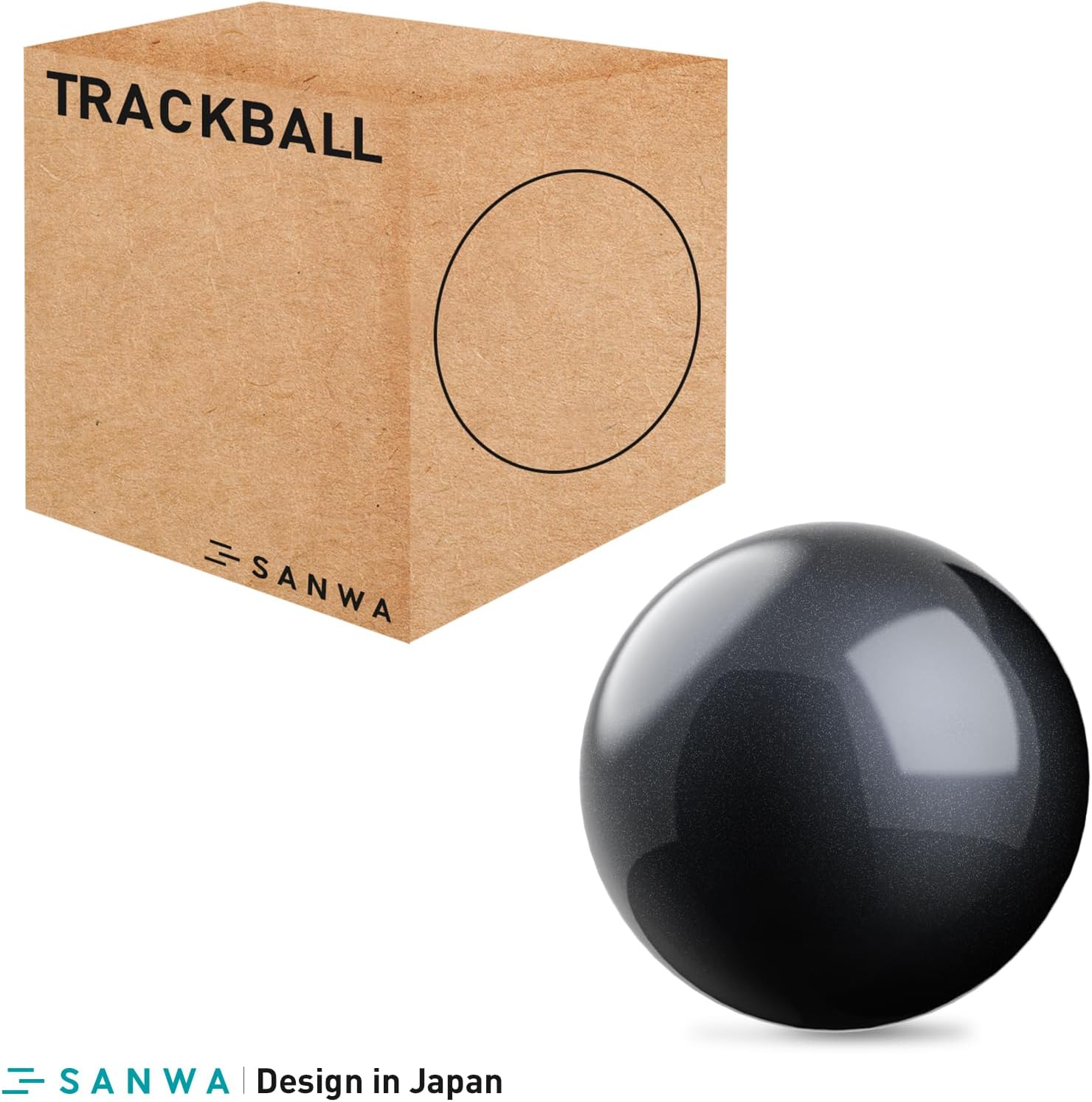
Image Description: A 34mm black replacement trackball next to a brown cardboard box labeled 'TRACKBALL' with the SANWA logo. The image emphasizes the smooth movement and high accuracy provided by the replacement ball.
Compatible SANWA Trackball Mice

Image Description: A SANWA trackball mouse with a 34mm black replacement ball shown next to it. A list of compatible SANWA trackball mouse models is provided.
- GMATB128BK
- GMAWTB129BK
- GMABTTB130BK
- GMATB167
- GMAWTB168
- GMABTTB169
- GMATB155
- GMATB44BKN/RN
- GMABTTB1BK
Compatible Trackball Mice from Other Brands
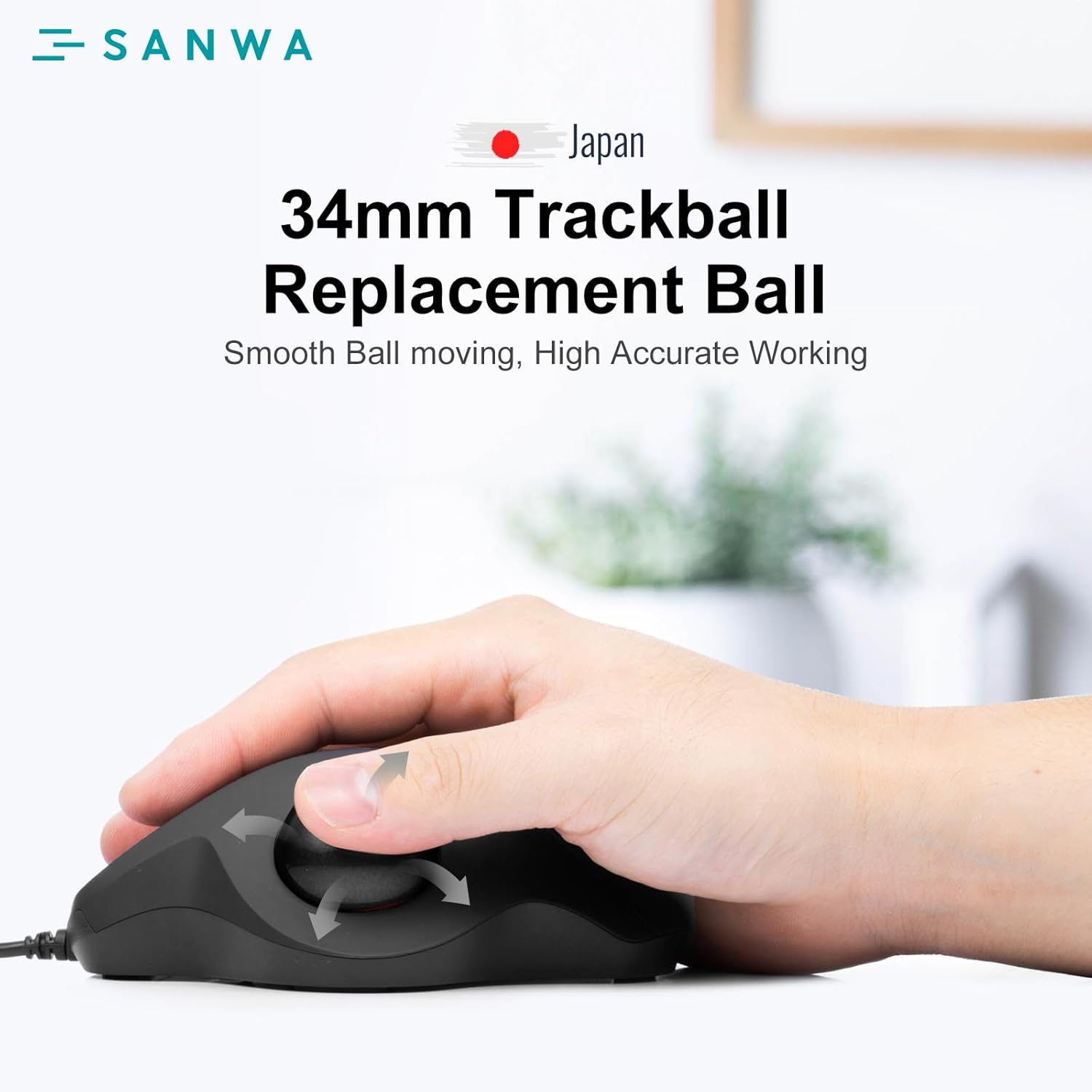
Image Description: A list of compatible trackball mouse models from other brands, including Logitech, Kensington, Perixx, and Protoarc.
- Logitech: M575, M570, MX Ergo Plus, MX Ergo
- Kensington: TB450, TB550, Pro Fit Ergo (K75326WW)
- Perixx: PERIPRO-801, Perimice-517 / 717 / 520 / 720
- Protoarc: EM01
Specifications
| Feature | Detail |
|---|---|
| Model | GMATB128BK |
| Connectivity | Wired USB |
| DPI Settings | 600 / 800 / 1200 / 1600 DPI (Adjustable) |
| Buttons | Left, Right, Scroll Wheel (Clickable), DPI Switch |
| Trackball Diameter | 34mm |
| Click Type | Silent Click (Left and Right buttons) |
| Compatibility | Windows 11/10/8.1/8/7/XP, macOS 10.13~10.15 (Not fully compatible with Apple products) |
| Ergonomics | Ergonomic design for natural wrist and arm position |
Troubleshooting
- Cursor not moving or erratic:
Ensure the USB cable is securely connected to your computer.
Clean the trackball and the optical sensors inside the housing as described in the Maintenance section. Dust or debris can interfere with tracking.
Try plugging the mouse into a different USB port on your computer.
Test the mouse on another computer to determine if the issue is with the mouse or the computer's USB port/drivers.
- Buttons or scroll wheel not responding:
Check the USB connection.
Ensure no debris is lodged under the buttons or around the scroll wheel.
Restart your computer.
- DPI setting not changing:
Press the DPI switch button firmly. Observe the LED indicator for blinks corresponding to DPI changes.
If the issue persists, try reconnecting the mouse.
Warranty and Support
For warranty information and technical support, please refer to the documentation included with your purchase or visit the official SANWA website. Keep your proof of purchase for warranty claims.


