
1. Introduction
The Toladrone TD12LCD is a high-performance, foldable RC quadcopter designed for both beginners and experienced users. It features powerful brushless motors, an advanced remote control with an integrated LCD screen for real-time image transmission, and an optical flow positioning system for stable flight. This manual provides detailed instructions for safe operation, setup, and maintenance.
1.1. What's in the Box
- 1x Toladrone TD12LCD Drone
- 1x Remote Control with LCD Screen
- 1x Modular Battery (3.7V 1800mAh)
- 1x USB Charging Cable
- 4x Spare Propellers
- 4x Propeller Guards
- 1x Screwdriver
- 1x Carrying Case
- 1x User Manual (this document)

Image 1.1: Toladrone TD12LCD Drone, Remote Control, and Carrying Case. This image displays the drone in its unfolded state, the remote control with its integrated LCD screen, and the compact carrying case.
1.2. Product Overview
Video 1.1: TD12LCD Drone Introduction. This video provides a brief overview of the drone's design and key features, including its foldable arms and integrated camera.
2. Safety Guidelines
Always prioritize safety when operating your drone. Failure to follow these guidelines may result in injury, damage to the drone, or property damage.
- Read the Manual: Familiarize yourself with all instructions and warnings before first flight.
- Environmental Conditions: Fly in open, clear areas away from people, animals, buildings, and power lines. Avoid flying in strong winds, rain, or other adverse weather conditions.
- Line of Sight: Always maintain visual line of sight with your drone during flight.
- Battery Safety: Use only the provided charging cable and battery. Do not overcharge or puncture the battery. Discontinue use if the battery is damaged or swollen.
- Propeller Safety: Keep hands, face, and loose clothing away from rotating propellers. Ensure propellers are correctly installed and free from damage before each flight.
- Age Recommendation: This product is recommended for users 12 years and older.
- Respect Privacy: Be mindful of privacy laws and personal space when using the camera function.
3. Components Overview
3.1. Drone Features
- Brushless Motors: Equipped with powerful and stable brushless motors for efficient flight, low noise, and extended service life.
- 1080p Camera: Integrated camera for capturing high-definition photos and videos.
- 90° Motorized Adjustable Camera: Adjust the camera angle remotely for optimal shots.
- Optical Flow Positioning: Ensures accurate positioning and stable hovering at low altitudes.
- Foldable Design: Compact and portable for easy transport in the included carrying case.
- Level 3 Wind Resistance: Provides stable flight performance in moderate wind conditions.

Image 3.1: Drone with Brushless Motors. This image illustrates the powerful brushless motors that provide stable and efficient flight.
3.2. Remote Control Features
- Integrated LCD Screen: Displays real-time footage from the drone's camera for a smooth control and viewing experience.
- SD Card Support: Features an SD card slot (supports up to 32GB, not included) for storing photos and videos directly.
- Intuitive Controls: Ergonomically designed joysticks and buttons for easy operation, including one-key take-off/landing, headless mode, and speed selection.
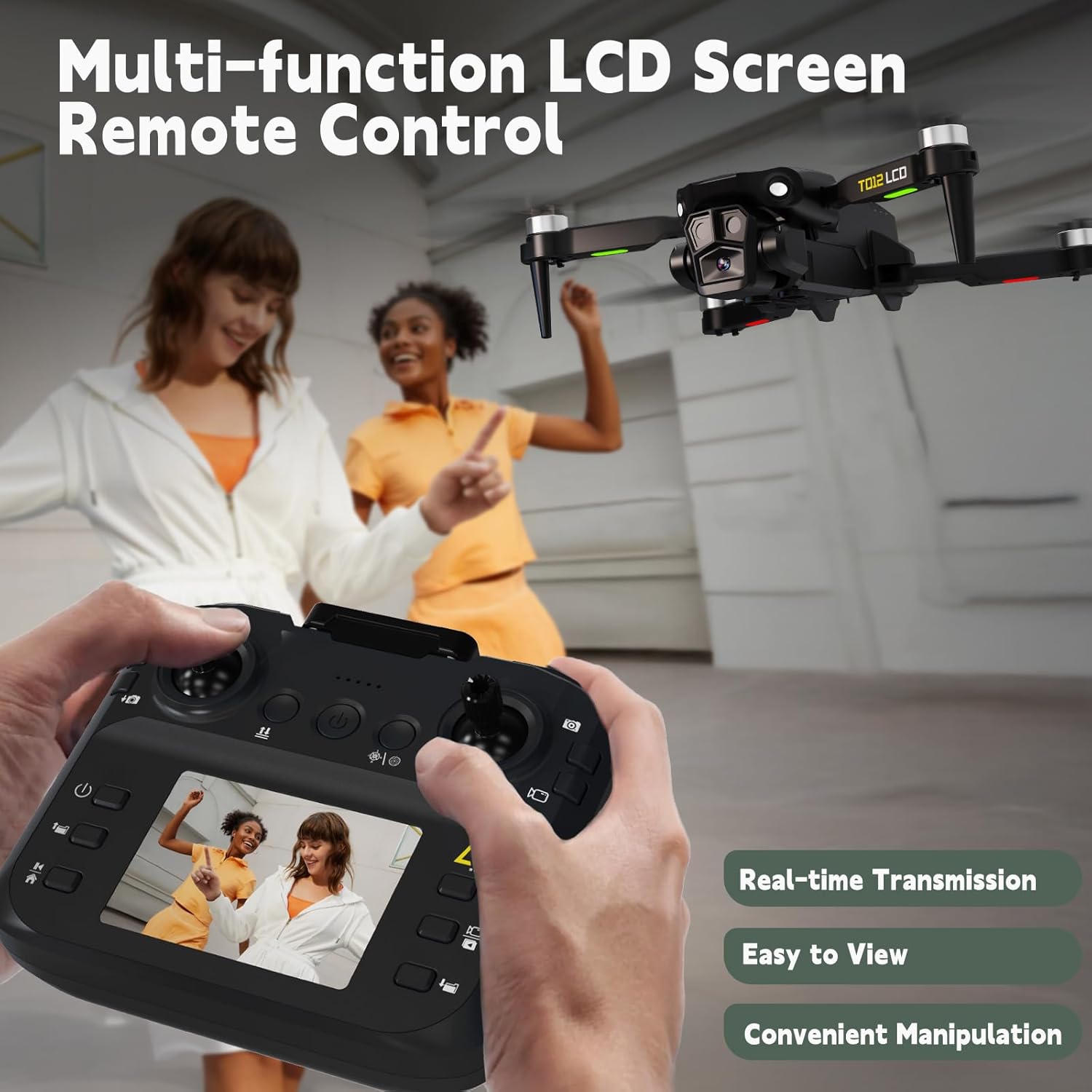
Image 3.2: Remote Control with LCD Screen. This image shows the remote control, highlighting its integrated LCD screen for real-time video feed.
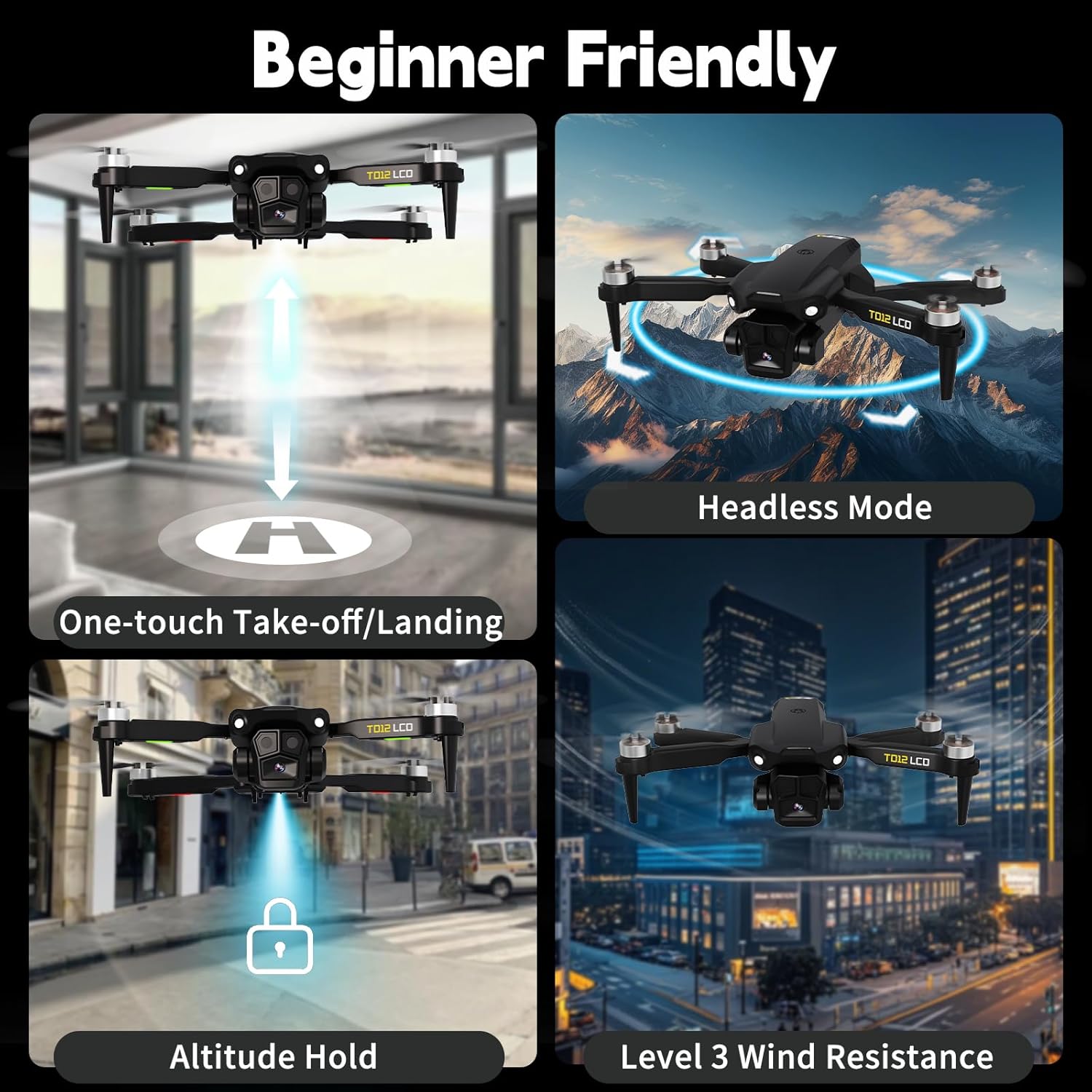
Image 3.3: Remote Control with SD Card Slot. This image details the SD card slot on the remote control, which supports up to 32GB for media storage.
Video 3.1: TD12LCD Drone Features. This video demonstrates various features of the TD12LCD drone, including its camera capabilities and flight stability.
4. Setup
4.1. Battery Installation and Charging
The drone is equipped with a removable 3.7V 1800mAh modular battery, providing approximately 20 minutes of flight time. Ensure the battery is fully charged before each flight.
- Insert the modular battery into the drone's battery compartment until it clicks securely into place.
- Connect the USB charging cable to the battery and a compatible USB power adapter (5V/1A recommended).
- The indicator light on the charging cable will show charging status (refer to the charging cable's specific instructions for light indications). Charging typically takes about 2 hours.
- Once fully charged, disconnect the battery from the charging cable.
4.2. Propeller Installation
The drone comes with pre-installed propellers. If replacement is necessary, follow these steps:
- Identify the correct propeller type (A or B) for each motor arm. The drone's arms and propellers are marked with 'A' or 'B'.
- Place the propeller onto the motor shaft, aligning the screw holes.
- Use the provided screwdriver to secure the propeller with the small screw. Ensure it is tightened firmly but do not overtighten.
- Repeat for all propellers. Incorrect installation will affect flight stability.
Video 4.1: TD12LCD Drone Operation Guide. This video provides a step-by-step guide on pre-flight preparation, including propeller installation and removal.
5. Operating Instructions
5.1. Device Binding and Calibration
- Press and hold the drone's power switch to turn it on. The drone's indicator lights will flash.
- Turn on the remote controller's power switch. The remote will emit a "bi-bi" sound, and the drone's indicator lights will stay on, indicating successful binding.
- Calibration: Simultaneously move the left remote controller joystick to the "5 o'clock" position and the right joystick to the "7 o'clock" position. The remote will emit a "bi-bi" sound, and the drone indicator lights will flash quickly for 3 seconds and then stay on, indicating successful calibration.
5.2. One Key Unlock and Take-off/Landing
- One Key Unlock: Simultaneously move the left remote controller joystick to the "7 o'clock" position and the right joystick to the "5 o'clock" position. The drone propellers will unlock and start rotating.
- One Key Take-off: After unlocking, briefly press the "One Key Take-off/Landing" button on the remote. The drone will automatically take off and hover.
- One Key Landing: During flight, briefly press the "One Key Take-off/Landing" button again. The drone will automatically land.
- Manual Take-off/Landing: After unlocking, push the left remote controller joystick upward to take off. To land, continuously push the left joystick downward.

Image 5.1: Beginner-Friendly Features. This image highlights features like one-touch take-off/landing, headless mode, and altitude hold, making the drone easy for beginners to operate.
5.3. Basic Flight Operations
- Ascend/Descend: Push the left joystick upward to ascend, downward to descend.
- Turn Left/Right: Push the left joystick to the left to turn left, to the right to turn right.
- Forward/Backward: Push the right joystick upward to fly forward, downward to fly backward.
- Fly Left/Right: Push the right joystick to the left to fly left, to the right to fly right.
5.4. Headless Mode
In Headless Mode, the drone's orientation is fixed relative to the remote control, regardless of its actual front. This simplifies control for beginners.
- During flight, press and hold the "Headless Mode" button on the remote control. The drone's indicator lights will flash intermittently.
- To exit Headless Mode, press and hold the "Headless Mode" button again.
5.5. Speed Adjustment
The TD12LCD drone offers 3 speed modes (Low, Medium, High) to suit different skill levels and environments.
- Briefly press the "Speed Control Keys" button on the remote control to cycle through the speed modes.
- Each press will change the speed level, indicated by a sound from the remote.
5.6. 360° Flip
Perform impressive aerial stunts with the 360° Flip function.
- During flight, briefly press the "3D Flip" button on the remote control. The remote will emit a "bi-bi" sound.
- Immediately push the right joystick in the desired direction (forward, backward, left, or right) to perform a flip in that direction.
5.7. Camera Adjustment
Adjust the drone's camera angle remotely to capture the perfect shot.
- Press the "Camera Up" button to adjust the camera upward.
- Press the "Camera Down" button to adjust the camera downward.
5.8. Taking Photos and Recording Videos
To save your aerial footage, ensure a Micro SD card (up to 32GB, not included) is inserted into the remote control's SD card slot.
- Take Photo: Briefly press the "Take Photo" button on the remote control. The LCD screen will display a camera icon, indicating a photo has been taken and saved.
- Record Video: Briefly press the "Record Video" button to start recording. A recording icon and timer will appear on the LCD screen. Press the button again to stop recording.
- View Files: Press and hold the "View Photo Files" or "View Video Files" button to enter file mode. Use the "Next File" and "Previous File" buttons to navigate. For videos, press the "Play/Pause" button to start/pause playback. Press and hold the "Return to Home" button to exit file mode.
6. Maintenance
6.1. Propeller Replacement
Regularly inspect propellers for damage. Replace any bent, cracked, or broken propellers immediately to ensure safe and stable flight. Refer to Section 4.2 for installation instructions.
6.2. Battery Care
- Store batteries in a cool, dry place away from direct sunlight and heat.
- Do not leave batteries unattended while charging.
- If the drone will not be used for an extended period, charge the battery to approximately 50% before storage.
6.3. Cleaning
Use a soft, dry cloth to clean the drone and remote control. Avoid using harsh chemicals or solvents.
7. Troubleshooting
| Problem | Possible Cause | Solution |
|---|---|---|
| Drone does not respond to remote control. | Not bound or low battery. | Ensure drone and remote are powered on and successfully bound. Charge batteries. |
| Unstable flight/Drifting. | Not calibrated or damaged propellers. | Perform calibration (Section 5.1). Check and replace damaged propellers. |
| No image on remote LCD screen. | Connection issue or screen off. | Ensure drone and remote are properly connected. Turn on remote controller screen power switch. |
| Cannot take photos/videos. | No SD card or full SD card. | Insert a Micro SD card (up to 32GB). Ensure the SD card has sufficient space. |
| Short flight time. | Battery not fully charged or aged battery. | Fully charge the battery. Consider replacing the battery if it's old. |
8. Specifications
| Feature | Detail |
|---|---|
| Brand | Toladrone |
| Model | TD12LCD |
| Motor Type | Brushless Motor |
| Video Capture Resolution | 1080p |
| Battery Capacity | 1800 Milliamp Hours (3.7V) |
| Flight Time | Approx. 20 minutes |
| Control Type | Remote Control with LCD Screen |
| Material | Plastic |
| Product Dimensions (Folded) | 7.1"L x 6.3"W x 2.4"H |
| Item Weight | 1.41 pounds |
| SD Card Support | Up to 32GB (Micro SD, not included) |
| Special Features | 360 Degree Flip, Foldable, Optical Flow Positioning, Headless Mode, 3 Speed Modes |
9. Warranty and Support
For warranty information, technical support, or any inquiries regarding your Toladrone TD12LCD drone, please contact our customer service team.
Customer Support Email: Toladrone_support@163.com
Please provide your model number (TD12LCD) and a detailed description of your issue when contacting support for faster assistance.