Introduction
This manual provides comprehensive instructions for the installation, operation, and maintenance of the ENS SN4432/M 32-Channel 12MP+ Network Video Recorder (NVR). The SN4432/M is a high-performance surveillance solution designed for demanding security installations, offering advanced features such as 12MP+ resolution support, RAID capabilities, and Point-of-Sale (PoS) integration. Please read this manual thoroughly before using the device to ensure proper setup and optimal performance.
Safety Information
Always follow these safety precautions to prevent injury or damage to the device:
- Ensure the power supply voltage is correct before connecting the NVR.
- Do not expose the NVR to water or moisture.
- Avoid placing the NVR in direct sunlight or near heat sources.
- Use only manufacturer-approved accessories and power adapters.
- Do not open the NVR casing; refer all servicing to qualified personnel.
- Ensure proper ventilation to prevent overheating.
Package Contents
Verify that all items are present in the package:
- ENS SN4432/M Video Recorder
- Installation Hardware (screws, cables)
- User Manual (this document)
- Power Adapter
- USB Mouse
- Remote Control (optional, depending on region)
Product Overview
The ENS SN4432/M NVR is designed for robust surveillance, supporting up to 32 IP cameras with resolutions exceeding 12MP. Key features include dual HDMI outputs, RAID support for data redundancy, and advanced H.265+ compression.
Front Panel
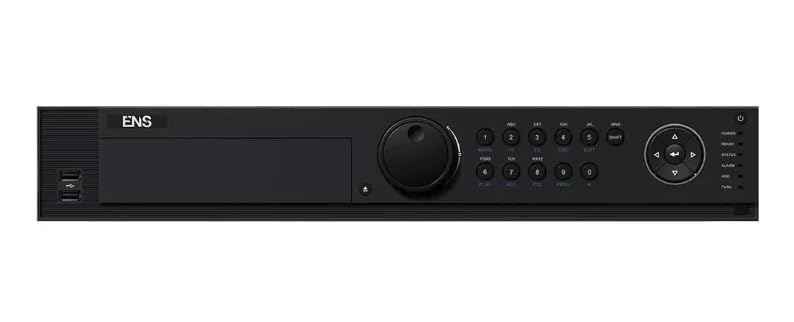
Image Description: A front view of the ENS SN4432/M NVR, showing the power indicator, status LEDs, and USB ports. This image represents the general appearance of the device. (Note: Specific front panel image not provided, using main product image as a general representation.)
Rear Panel
The rear panel contains all essential connection ports. These typically include:
- Power Input
- Ethernet Ports (LAN, IP Camera Network)
- HDMI Outputs (Dual)
- VGA Outputs (Dual)
- USB Ports
- Audio Input/Output
- Alarm Input/Output
- RS-485 Port
(Note: A specific image of the rear panel would be included here if available, detailing each port.)
Setup
1. Hardware Installation
- Install Hard Drives: Open the NVR casing, mount the SATA hard drives into the designated bays, and connect the SATA data and power cables. Secure the drives with screws. The SN4432/M supports up to 4 SATA interfaces.
- Connect Cameras: Connect your IP cameras to the NVR's network ports or to a PoE switch connected to the NVR's LAN port.
- Connect Display: Connect a monitor to one of the HDMI or VGA output ports.
- Connect Mouse: Plug the USB mouse into a USB port on the NVR.
- Connect Network: Connect the NVR to your local network using an Ethernet cable.
- Power On: Connect the power adapter to the NVR and then to a power outlet. Press the power button if available.
2. Initial Configuration
- First-Time Wizard: Upon first boot, the NVR will typically launch a setup wizard. Follow the on-screen prompts to set up basic parameters.
- Set Password: Create a strong administrator password.
- Network Settings: Configure network settings (DHCP or Static IP) to ensure the NVR can communicate with your network and cameras.
- Time and Date: Set the correct time zone, date, and time.
- HDD Initialization: Initialize the installed hard drives for recording. This process will format the drives.
- Add Cameras: Use the camera management interface to search for and add IP cameras to the NVR. Ensure cameras are on the same network segment or properly routed.
Operating Instructions
1. User Interface Navigation
The NVR's graphical user interface (GUI) can be accessed via a connected monitor and mouse, or remotely via a web browser or client software. The main screen typically displays live camera feeds.
- Live View: Displays real-time video from connected cameras.
- Playback: Accesses recorded footage.
- Configuration: Allows adjustment of system settings, camera parameters, and recording schedules.
- Event Log: Reviews system events and alarms.
2. Camera Management
From the configuration menu, you can manage all connected cameras:
- Add/Delete Cameras: Search for new cameras or remove existing ones.
- Modify Parameters: Adjust camera resolution, frame rate, bit rate, and image settings.
- Motion Detection: Configure motion detection zones and sensitivity.
- Privacy Masking: Define areas to be excluded from surveillance.
3. Recording and Playback
- Recording Schedule: Set continuous, motion-triggered, or alarm-triggered recording schedules for each camera.
- Manual Recording: Initiate recording manually from the live view.
- Playback: Navigate to the playback interface, select the desired camera and time range to review recorded footage. Use the timeline and search functions to find specific events.
- Export Footage: Select and export recorded video clips to a USB drive or network location.
4. Advanced Features
- RAID Configuration: Access the storage management menu to configure RAID 0, 1, 5, 6, or 10 for data redundancy and performance. Refer to the RAID section for detailed setup.
- PoS Integration: Connect Point-of-Sale (PoS) devices to the NVR. Configure the PoS settings to overlay transaction data on video footage and trigger recordings based on transaction events.
- Remote Access: Configure network settings for remote viewing via a web browser or mobile application. Ensure port forwarding or P2P services are correctly set up.
- Alarm Management: Set up alarm inputs, outputs, and notification methods (e.g., email, push notifications).
Maintenance
- Firmware Updates: Regularly check the manufacturer's website for firmware updates. Download and install updates to ensure optimal performance and security. Follow the provided instructions carefully.
- Storage Management: Monitor HDD health through the NVR's system status menu. Replace failing drives promptly. Configure automatic overwriting of old footage or set up archiving as needed.
- Cleaning: Periodically clean the NVR's exterior with a soft, dry cloth. Ensure ventilation openings are free from dust and obstructions.
- Backup Configuration: Regularly back up the NVR's configuration settings to a USB drive or network location.
Troubleshooting
| Problem | Possible Cause | Solution |
|---|---|---|
| No video output on monitor | Loose HDMI/VGA cable, incorrect input selected on monitor, NVR not powered on. | Check cable connections. Ensure monitor is set to the correct input source. Verify NVR power. |
| Cameras not displaying | Network issue, camera not powered, incorrect camera IP address, camera not added to NVR. | Check network cables and connections. Verify camera power. Ensure camera IP is correct and added to NVR. Check firewall settings. |
| No recording | HDD not initialized, no recording schedule, HDD full, HDD failure. | Initialize HDDs. Configure recording schedules. Check HDD status and free space. Replace faulty HDDs. |
| Remote access not working | Network configuration issues, incorrect port forwarding, firewall blocking. | Verify NVR network settings. Check router port forwarding rules. Disable firewall temporarily for testing. Ensure P2P service is enabled if used. |
Specifications
| Feature | Detail |
|---|---|
| Model Number | SN4432/M |
| Number of Channels | 32 |
| Max Resolution Support | 12MP+ per channel (up to 32 channels at 1080p or 2 channels at 32MP decoding) |
| Video Compression | H.265+, H.265, H.264+, H.264 |
| Video Outputs | Dual HDMI (up to 8K), Dual VGA |
| Audio Input/Output | Supported |
| SATA Interfaces | 4 SATA interfaces |
| RAID Support | RAID 0, 1, 5, 6, 10 (with N+M hot spare) |
| Incoming Bandwidth | 320 Mbps |
| Outgoing Bandwidth | 400 Mbps |
| PoS Integration | Supported |
| Manufacturer | ENS |
Warranty and Support
For warranty information and technical support, please refer to the official ENS website or contact your authorized dealer. Keep your purchase receipt as proof of purchase for warranty claims.