
1. Introduction
The COCOMM F360 is a versatile fixed phone designed for both residential and professional environments, offering communication capabilities without the need for traditional physical landline infrastructure. It operates using a mobile SIM card, providing 4G connectivity, VoLTE for high-quality calls, and Bluetooth 5.0 for enhanced connectivity. Key features include dedicated memory keys and an SOS button for emergency situations, ensuring clear, efficient, and secure usability.

Figure 1.1: Front angled view of the COCOMM F360 Fixed Phone, showcasing its white color, keypad, display, and handset.
2. Package Contents
Please check the box for the following items:
- COCOMM F360 Fixed Phone Unit
- Handset and Handset Cable
- USB-C Cable
- USB-C Charger
- Rear Stand
- Security Screw with Tool
- User Manual (this document)
3. Product Overview
Familiarize yourself with the components of your COCOMM F360 phone.
3.1 Front and Side View

Figure 3.1: Side view of the COCOMM F360, showing the USB-C port for charging and the handset connection port.
The phone features a clear LCD display, a standard numeric keypad, dedicated call keys, and four programmable memory keys (M1-M4). The side of the device includes the USB-C charging port and the port for connecting the handset.
3.2 Rear View and Stand

Figure 3.2: Rear view of the COCOMM F360, illustrating the detachable stand and the security screw for the battery/SIM compartment.
The rear of the phone is designed for stability and includes a slot for the detachable stand. A security screw is provided to prevent unauthorized access to the battery and SIM card compartment, enhancing device security.
3.3 Dimensions
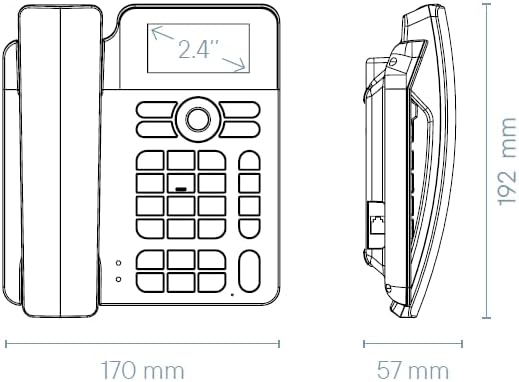
Figure 3.3: Technical diagram showing the dimensions of the COCOMM F360: 170 mm (width) x 192 mm (height with stand) x 57 mm (depth).
The compact design allows for flexible placement in various environments, including wall mounting if desired.
4. Setup
Follow these steps to set up your COCOMM F360 phone for first-time use.
4.1 SIM Card and Battery Installation
- Remove the Rear Cover: Gently slide or unclip the rear cover of the phone. If a security screw is installed, use the provided tool to remove it first.
- Insert SIM Card: Locate the SIM card slot. Insert your 4G-enabled SIM card into the designated slot, ensuring the gold contacts face downwards and the notched corner is correctly aligned.
- Insert Battery: Place the included 1050 mAh Lithium-Ion battery into its compartment, ensuring the connectors align properly.
- Replace Rear Cover: Securely reattach the rear cover. If applicable, re-insert and tighten the security screw.
4.2 Handset Connection
Connect the coiled handset cable to the port on the side of the phone unit and to the corresponding port on the handset.
4.3 Powering On and Initial Charge
- Connect Power: Plug the USB-C cable into the phone's USB-C port and connect the USB-C charger to a power outlet.
- Power On: Press and hold the Power button (usually a red button or a dedicated power key) until the screen illuminates.
- Initial Charge: For optimal battery life, it is recommended to fully charge the phone before its first use.
4.4 Network Connection
Upon powering on, the phone will automatically attempt to connect to the 4G mobile network using the installed SIM card. The network signal strength will be displayed on the screen.
5. Operating Instructions
This section details the basic functions of your COCOMM F360 phone.
5.1 Making and Receiving Calls
- Making a Call:
- Lift the handset.
- Dial the desired phone number using the keypad.
- Press the green 'Call' button to initiate the call.
- Receiving a Call:
- When the phone rings, lift the handset.
- Alternatively, press the green 'Call' button to answer a call without lifting the handset (speakerphone mode).
- Ending a Call:
- Place the handset back on the cradle.
- Alternatively, press the red 'End Call' button.
5.2 Adjusting Volume
Use the dedicated volume buttons (usually labeled '+' and '-') on the phone unit to adjust the call volume during a conversation or the ringer volume when idle.
5.3 Using Memory Keys (M1-M4)
The F360 features four programmable memory keys (M1, M2, M3, M4) for quick dialing of frequently used numbers.
- Programming Memory Keys:
- Access the phone's menu or settings (refer to the on-screen prompts or a dedicated 'Menu' button).
- Navigate to 'Speed Dial' or 'Memory Key Settings'.
- Select the desired memory key (M1-M4) and enter the phone number you wish to assign.
- Save the setting.
- Using Memory Keys:
- Lift the handset.
- Press the desired memory key (M1-M4) to automatically dial the stored number.
5.4 Using the SOS Button
The dedicated SOS button is designed for emergencies. When pressed, it will automatically dial a pre-programmed emergency contact number.
- Programming SOS Number:
- Access the phone's menu or settings.
- Navigate to 'SOS Settings' or 'Emergency Call'.
- Enter the emergency contact number.
- Save the setting.
- Activating SOS:
- In an emergency, press and hold the SOS button for a few seconds.
- The phone will automatically dial the programmed emergency number.
5.5 Bluetooth Pairing
The F360 supports Bluetooth 5.0 for connecting to compatible devices such as headsets.
- Enable Bluetooth:
- Go to the phone's 'Settings' menu.
- Select 'Bluetooth' and turn it 'On'.
- Pairing:
- Put your Bluetooth device (e.g., headset) into pairing mode.
- On the F360, select 'Search for Devices'.
- Choose your device from the list and follow any on-screen prompts to complete pairing.
6. Maintenance
Proper care ensures the longevity and optimal performance of your COCOMM F360 phone.
- Cleaning: Use a soft, dry, lint-free cloth to clean the phone's surface and display. Avoid using harsh chemicals, cleaning solvents, or abrasive materials.
- Battery Care: Avoid exposing the battery to extreme temperatures. If the phone will not be used for an extended period, store it with a partial charge (around 50%) and recharge it periodically.
- Environment: Keep the phone away from dust, moisture, and direct sunlight. Ensure adequate ventilation if placed in an enclosed space.
- Security Screw: If the security screw is used, periodically check that it is tightened to prevent accidental access to the SIM/battery compartment.
7. Troubleshooting
If you encounter issues with your COCOMM F360, refer to the following common problems and solutions.
| Problem | Possible Cause | Solution |
|---|---|---|
| Phone does not power on | Low battery; Power button not pressed correctly | Charge the phone for at least 30 minutes. Press and hold the Power button firmly. |
| No network signal | SIM card not inserted correctly; Out of network coverage; SIM card issue | Check SIM card insertion. Move to an area with better network coverage. Contact your mobile operator. |
| Cannot make or receive calls | No network signal; SIM card not active; Call barring enabled | Verify network signal. Ensure SIM card is active with your operator. Check call settings for any restrictions. |
| Handset audio issues | Handset cable loose; Volume too low | Ensure handset cable is securely connected. Adjust call volume using the '+' button. |
| SOS button not working | SOS number not programmed; No network signal | Program an emergency number in SOS settings. Ensure the phone has network coverage. |
If the problem persists after trying these solutions, please contact COCOMM customer support for further assistance.
8. Specifications
Detailed technical specifications for the COCOMM F360 Fixed Phone.
| Feature | Specification |
|---|---|
| Brand | COCOMM |
| Model Name | F360 |
| Model Number | F360C10000 |
| Dimensions (L x W x H) | 170 x 19.2 x 5.7 cm (740 g) |
| Color | White |
| Form Factor | Desktop Phone with SIM |
| GSM Technology | 4G |
| Display Size | 2.4 Inches |
| Display Type | LCD |
| Max Resolution | 128x64 Pixels per inch |
| Operating System | Mocor-Droid |
| Battery Type | Lithium Ion |
| Battery Capacity | 1050 mAh |
| Power Source | Battery Powered |
| Other Features | SOS Button, Memory Keys, VoLTE, Bluetooth 5.0 |
| Compatible Devices | Mobile networks, VoIP services, fixed networks |
| Installed Flash Memory | 128 MB |
| Installed RAM Memory | 48 MB |
9. Warranty and Support
The COCOMM F360 Fixed Phone is covered by a manufacturer's warranty. For specific warranty terms and conditions, please refer to the documentation included with your purchase or visit the official COCOMM website.
For technical support, troubleshooting assistance beyond this manual, or warranty claims, please contact COCOMM customer service. Contact information can typically be found on the product packaging, the official COCOMM website, or through your point of purchase.


