
1. Introduction
Thank you for choosing the Inateck Magnetic Keyboard Case. This manual provides detailed instructions for setting up, operating, and maintaining your keyboard case, designed to enhance your iPad experience. This accessory combines a protective case with a full-featured keyboard and trackpad, transforming your iPad into a versatile workstation.
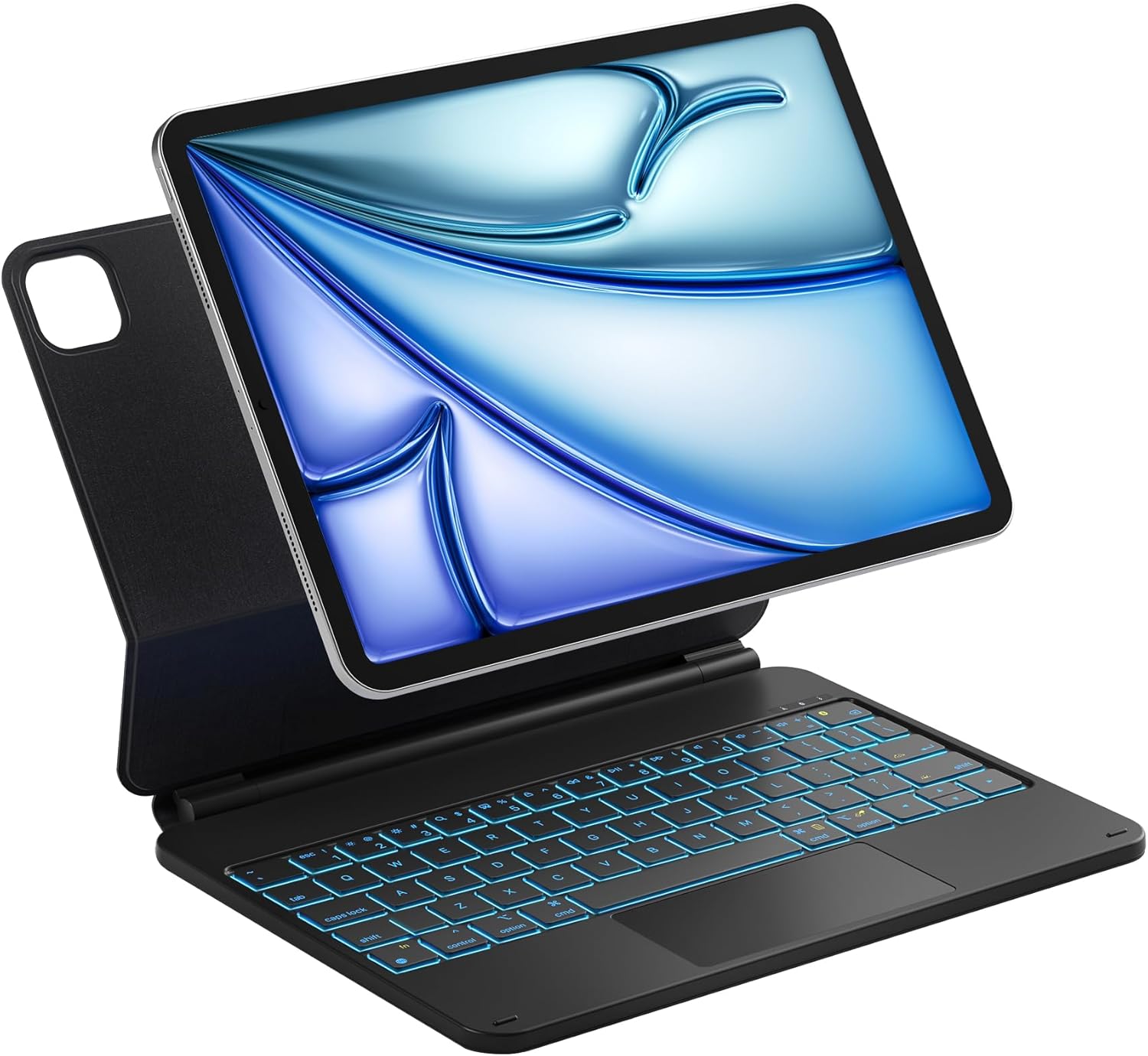
Image: Inateck Magnetic Keyboard Case with iPad Pro 11-inch attached.
2. Product Overview and Features
The Inateck Magnetic Keyboard Case offers a range of features for optimal productivity and protection:
- Magnetic Floating Stand: Securely attaches your iPad and allows for adjustable viewing angles up to 130 degrees.
- 7-Color Backlight: Customize your typing experience with seven distinct backlight colors and three brightness levels.
- Precise Multi-touch Trackpad: Supports various gestures for intuitive navigation and control.
- Smart Screen On/Off: Automatically wakes your iPad when opened and puts it to sleep when closed, conserving battery.
- Scissor-switch Keys: Provides a comfortable and responsive typing experience with 1.4mm key travel.
- Illuminated Keycaps: Ensures clear visibility for typing in low-light conditions.
- Multi-function Hotkeys: Access common iPadOS shortcuts for increased efficiency.
3. Compatibility
This keyboard case is specifically designed for the following iPad models:
- iPad Pro 11 inch (M4) 2024
- iPad A16 11th Gen 2025
- iPad 10th Gen 2022
To verify your iPad model, check the model number starting with "A" on the back of your device.

Image: Compatibility diagram for iPad Pro 11 inch M4 2024.
4. Setup Instructions
4.1 Attaching Your iPad
- Align your iPad with the magnetic back panel of the keyboard case.
- The iPad will magnetically snap into place, securing it to the case.

Image: iPad being magnetically attached to the keyboard case.
4.2 Bluetooth Pairing
- Ensure the keyboard case is charged (refer to Section 6 for charging instructions).
- Turn on the keyboard by sliding the power switch, usually located on the side or back of the keyboard.
- On your iPad, go to Settings > Bluetooth and ensure Bluetooth is enabled.
- Press the Option (Alt) + Delete keys simultaneously on the keyboard to enter Bluetooth pairing mode. The Bluetooth indicator light on the keyboard will flash.
- On your iPad, look for "Inateck Keyboard" or a similar name in the list of available devices and tap to connect.
- Once connected, the Bluetooth indicator light on the keyboard will stop flashing.
5. Operating Instructions
5.1 Adjusting the Floating Cantilever Stand
The magnetic floating stand allows you to adjust your iPad to a comfortable viewing angle up to 130 degrees. Simply tilt the iPad screen to your desired position.

Image: Adjustable floating cantilever stand design.
5.2 Keyboard Backlight Control
The keyboard features a 7-color backlight with 3 brightness levels:
- Press the Light Bulb key (often located near the function keys) to cycle through backlight colors.
- Press the Light Bulb + Up/Down Arrow keys to adjust backlight brightness.

Image: Keyboard with illuminated purple backlight.
5.3 Smart Screen On/Off Function
The case automatically detects when it is opened or closed:
- Open: The iPad screen will automatically wake up.
- Close: The iPad screen will automatically go to sleep.

Image: Smart Screen On/Off feature in action.
6. Keyboard Functions and Shortcuts
The keyboard supports a full range of iPadOS keyboard shortcuts. Refer to your iPad's user guide for a comprehensive list of available shortcuts. Common function keys are integrated into the top row:

Image: Multi-function hotkeys on the keyboard.
7. Trackpad Gestures
The multi-touch trackpad provides precise and responsive control, supporting various gestures:
| Gesture | Description |
|---|---|
| Drag | Move items on the screen. |
| Scroll | Navigate through content vertically or horizontally. |
| Swipe | Move between pages or apps. |
| Zoom In/Out | Adjust the magnification of content. |
| Secondary Click | Access contextual menus. |
| Show Desktop | Return to the home screen. |
| App Exposé | View all open applications. |
| Swipe between full-screen apps | Quickly switch between full-screen applications. |

Image: Multi-touch trackpad with gesture illustrations.
8. Charging and Battery Life
The keyboard case is equipped with a rechargeable Lithium Ion battery.
- Charging: Connect the keyboard to a power source using the provided USB-C cable. A full charge typically takes approximately 3 hours.
- Battery Life: After a full charge, the keyboard can last up to one month without backlight usage, or up to one week with consistent backlight usage.
- Power Saving: The ultra-low power standby mode and smart screen on/off feature help extend battery life.
9. Maintenance
To ensure the longevity and optimal performance of your Inateck Keyboard Case, follow these maintenance guidelines:
- Cleaning: Use a soft, dry, lint-free cloth to clean the exterior of the case and keyboard. For stubborn marks, slightly dampen the cloth with water. Avoid harsh chemicals or abrasive materials.
- Storage: When not in use for extended periods, store the keyboard case in a cool, dry place. Ensure the iPad is detached or the case is closed to prevent accidental activation and battery drain.
- Avoid Liquids: Keep the keyboard case away from liquids to prevent damage to electronic components.
- Handle with Care: While durable, avoid dropping the case or subjecting it to excessive force, which could damage the internal mechanisms or your iPad.
10. Troubleshooting
If you encounter issues with your Inateck Keyboard Case, refer to the following common solutions:
10.1 Keyboard Not Connecting via Bluetooth
- Check Power: Ensure the keyboard is turned on and has sufficient battery charge.
- Re-pair Device: Go to your iPad's Bluetooth settings, forget the "Inateck Keyboard" device, and then repeat the pairing process (Section 4.2).
- Restart Devices: Restart both your iPad and the keyboard case.
- Interference: Move away from other wireless devices that might cause interference.
10.2 Keys or Trackpad Not Responding
- Bluetooth Connection: Verify that the keyboard is still connected via Bluetooth.
- Battery Level: Ensure the keyboard has enough charge.
- Restart: Turn the keyboard off and on again.
- Cleanliness: Check for any debris under the keys or on the trackpad that might be obstructing movement.
10.3 iPad Not Holding Securely
- Proper Alignment: Ensure the iPad is correctly aligned with the magnetic area of the case.
- Obstructions: Check for any foreign objects or debris between the iPad and the case that might weaken the magnetic connection.
11. Specifications
| Feature | Detail |
|---|---|
| Brand | Inateck |
| Model Number | KB09119-11-BK-US2 |
| Item Weight | 1.36 pounds |
| Product Dimensions | 9.8 x 7.6 x 0.77 inches |
| Batteries | 1 Lithium Ion battery (included) |
| Connectivity Technology | Bluetooth |
| Keyboard Description | Ergonomic |
| Special Features | Backlit, Floating Cantilever Stand, Trackpad |
| Keyboard Backlighting Color Support | RGB (7 colors) |
| Keyboard Layout | QWERTY |
| Compatible Tablet Models | Apple iPad Pro 11-Inch (M4), iPad A16 11th Gen 2025, iPad 10th Gen 2022 |
12. Warranty and Support
Inateck products come with a manufacturer's warranty. For detailed warranty information, product support, or technical assistance, please visit the official Inateck website or contact their customer service directly. Keep your purchase receipt for warranty claims.
Inateck Official Website: www.inateck.com