Introduction
This manual provides detailed instructions for the setup, operation, maintenance, and troubleshooting of your MOTOSPEED X6MAX Wireless Gaming Mouse. Please read this manual thoroughly before using the product to ensure optimal performance and longevity.

Image: Top view of the MOTOSPEED X6MAX Wireless Gaming Mouse in white, alongside its USB receiver.
Product Features
- Dual-Mode Connectivity: Supports 8K wireless mode and USB-C wired mode for versatile usage.
- Advanced PAW3950 Optical Sensor: Offers up to 30000 DPI resolution, 650 IPS tracking speed, and 1000-8000Hz response rate for precise gaming performance.
- Lightweight Ergonomic Design: Weighs approximately 43 grams, designed for comfortable use and reduced wrist fatigue during extended sessions.
- Programmable Buttons: Features 5 programmable buttons, customizable via dedicated software for DPI settings, key functions, and macro assignments.
- Long Battery Life: Equipped with a 300mAh battery, providing approximately 100 hours of usage on a single charge.

Image: An illustration highlighting the MOTOSPEED X6MAX as a "Performance Monster" with icons representing lightweight design, superior output, and stable performance.
Setup Guide
1. Unboxing and Initial Charge
Carefully remove the mouse and all accessories from the packaging. It is recommended to fully charge the mouse before first use. Connect the provided USB-C cable to the mouse's charging port and the other end to a USB power source (e.g., computer USB port, wall adapter).

Image: The MOTOSPEED X6MAX mouse connected via USB-C cable, with an overlay indicating 300mAh battery and approximately 75 hours of 1KHz return rate usage without lighting.
2. Connecting the Mouse
The MOTOSPEED X6MAX supports two primary connection modes: 8K Wireless and USB-C Wired.
2.1. 8K Wireless Mode
- Locate the USB receiver (dongle) included in the package.
- Plug the USB receiver into an available USB port on your computer.
- Ensure the power switch on the bottom of the mouse is set to the "ON" position.
- The mouse should automatically connect to the receiver. If not, press the pairing button (if available, refer to the diagram in Specifications) or re-insert the receiver.

Image: A visual representation of the mouse seamlessly switching between Wireless 2.4G and Wired connection modes, emphasizing dual-mode capabilities.

Image: Close-up of the underside of the MOTOSPEED X6MAX mouse, highlighting the 8K wireless transmission technology and the power switch.
2.2. USB-C Wired Mode
- Connect the provided USB-C cable to the front port of the mouse.
- Connect the other end of the USB-C cable to an available USB port on your computer.
- The mouse will function as a wired mouse and will also charge simultaneously.
3. Software Installation (Optional)
To unlock the full customization potential of your MOTOSPEED X6MAX mouse, including programmable buttons, DPI settings, and macro assignments, download the official software from the MOTOSPEED website. Refer to the product packaging or official website for the exact download link.
Operating Instructions
1. DPI Adjustment
The mouse features a dedicated DPI adjustment button, typically located on the underside or top of the mouse. Press this button to cycle through preset DPI levels. For fine-tuning and custom DPI settings, use the MOTOSPEED software.

Image: A technical diagram illustrating the various buttons and their functions on the MOTOSPEED X6MAX mouse, including Left Click, Right Click, Track Roller Key, DPI Indicator, DPI Adjustment Key, Rate of Return Button, Forward Button, and Backspace Button. Dimensions are also shown: Length 122mm, Width 65.5mm, Height 36mm.
2. Programmable Buttons
The MOTOSPEED X6MAX has 5 programmable buttons. These can be customized using the MOTOSPEED software to assign various functions, macros, or shortcuts, enhancing your gaming and productivity experience.
3. Polling Rate Adjustment
The mouse supports a high polling rate, up to 8000Hz, for ultra-responsive tracking. The polling rate can be adjusted via the MOTOSPEED software to suit your preferences and system capabilities.
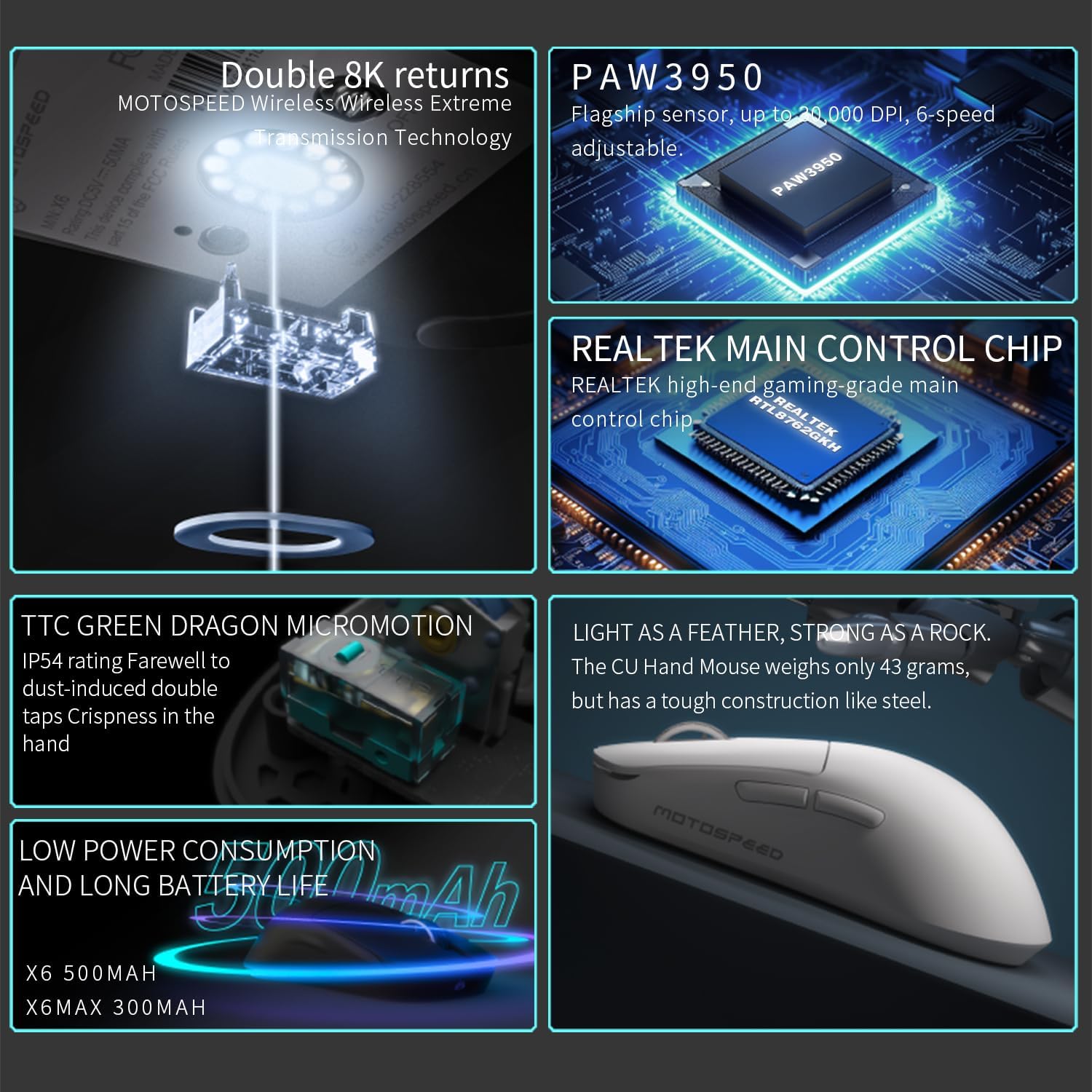
Image: A composite image detailing the internal technologies of the MOTOSPEED X6MAX mouse, including the "Double 8K returns" wireless transmission, the PAW3950 flagship sensor, the REALTEK main control chip, TTC Green Dragon Micromotion switches (IP54 rated), and the mouse's lightweight 43-gram construction.

Image: An artistic rendering of the Renesas high-performance master controller chip, depicted as the "brain" of the mouse, emphasizing its role in stable connectivity, low latency, and long battery life.
Maintenance
1. Cleaning
To maintain optimal performance and appearance, regularly clean your mouse. Use a soft, dry, lint-free cloth to wipe down the surface. For stubborn dirt, slightly dampen the cloth with water or a mild cleaning solution. Avoid using harsh chemicals or abrasive materials.
2. Battery Care
The MOTOSPEED X6MAX is equipped with a built-in rechargeable Lithium Ion battery. To prolong battery life:
- Avoid fully discharging the battery frequently.
- Store the mouse in a cool, dry place when not in use for extended periods.
- Charge the mouse using the provided USB-C cable or a compatible charger.
Troubleshooting
| Problem | Possible Cause | Solution |
|---|---|---|
| Mouse not responding | Low battery; USB receiver disconnected; Mouse power off; Driver issue. | Charge the mouse; Re-insert USB receiver; Turn mouse ON; Reinstall mouse software/drivers. |
| Lag or erratic movement | Interference; Dirty sensor; Low battery; Incorrect surface. | Move closer to receiver; Clean optical sensor; Charge mouse; Use a suitable mouse pad. |
| Buttons not working | Software conflict; Physical damage. | Restart computer; Reinstall software; Contact customer support if physically damaged. |
| Cannot connect in 8K mode | Receiver not 8K compatible; Software settings. | Ensure you are using the correct 8K receiver; Check software settings for polling rate. |
Specifications
| Feature | Detail |
|---|---|
| Model | X6MAX White |
| Sensor | PAW3950 Optical Sensor |
| DPI Resolution | Up to 30000 DPI (Adjustable) |
| Tracking Speed | 650 IPS |
| Acceleration | 50G |
| Polling Rate | 1000-8000Hz (Adjustable) |
| Connectivity | 8K Wireless (2.4G) / USB-C Wired |
| Programmable Buttons | 5 |
| Battery Type | 1 Lithium Ion (Included) |
| Battery Capacity | 300mAh |
| Battery Life | Approx. 100 hours |
| Weight | Approx. 43g (Mouse only) |
| Dimensions (L x W x H) | 122mm x 65.5mm x 36mm (Approximate) |
| Manufacturer | MOTOSPEED |
| Country of Origin | China |
Official Product Video
Video: An official product video showcasing the MOTOSPEED X6 Wireless Gaming Mouse, highlighting its design, features, and usage in a gaming context. The video demonstrates the mouse's form factor, button layout, and responsiveness.
Warranty and Support
For warranty information and technical support, please refer to the official MOTOSPEED website or contact their customer service directly. Keep your purchase receipt for warranty claims.
MOTOSPEED Official Website: www.motospeed.cn


