1. Introduction
This manual provides detailed instructions for the setup, operation, and maintenance of your QDDQ P80 11-inch Android 15 Tablet. Please read this manual thoroughly before using your device to ensure proper functionality and to maximize your user experience. Keep this manual for future reference.
2. Package Contents
Verify that all items listed below are included in your package. If any items are missing or damaged, please contact customer support.
- 1 x 11-inch QDDQ Tablet
- 1 x Keyboard
- 1 x Mouse
- 1 x Stylus
- 1 x Foldable Protective Case
- 1 x Screen Protector (pre-applied or separate)
- 1 x Charging Adapter
- 1 x USB-C Charging Cable
- 1 x User Manual

Image: Visual representation of the QDDQ P80 tablet and its complete set of accessories.
3. Product Overview
The QDDQ P80 is an 11-inch Android 15 tablet designed for versatile use, from entertainment to productivity. It features a sleek design and comes with essential accessories to enhance its functionality.

Image: The QDDQ P80 tablet shown with its full accessory kit, highlighting its 11-inch display and Android 15 operating system.

Image: The QDDQ P80 tablet's slim 6.9mm metal unibody design, emphasizing its lightweight and durable construction.
4. Setup
4.1 Initial Power On and Setup
- Charge the Tablet: Before first use, fully charge the tablet using the provided USB-C cable and charging adapter.
- Power On: Press and hold the power button located on the side of the tablet until the QDDQ logo appears.
- Follow On-Screen Prompts: The tablet will guide you through the initial setup process, including language selection, Wi-Fi connection, Google account login, and security settings.
4.2 Connecting Accessories
Your QDDQ P80 tablet comes with a Bluetooth keyboard, wireless mouse, and stylus for enhanced productivity.
- Bluetooth Keyboard:
- Ensure the keyboard is charged.
- Turn on the keyboard's power switch.
- On your tablet, go to Settings > Connected devices > Bluetooth and turn Bluetooth on.
- Select the keyboard from the list of available devices and follow any pairing instructions.
- Wireless Mouse:
- Insert the USB receiver (usually found in the mouse's battery compartment) into the tablet's USB-C port via an adapter if necessary, or connect via Bluetooth if it's a Bluetooth mouse.
- Turn on the mouse's power switch. The tablet should automatically detect and connect to the mouse.
- Stylus: The stylus is typically passive and does not require pairing. Simply use it to interact with the screen.
Video: An overview of the QDDQ 11-inch tablet, demonstrating its features and accessories, including the keyboard. This video provides a visual guide to the tablet's functionality and how accessories can be used.
5. Operating Instructions
5.1 Android 15 Features
Your QDDQ P80 tablet runs on the Android 15 operating system, offering enhanced performance and user-friendly features.
- Personalized Settings: Customize your home screen with widgets for quick access to information and apps.
- Split-Screen Functionality: Multitask efficiently by running two applications side-by-side.
- Parental Controls: Manage content and screen time for younger users.
- Multi-User Features: Create separate user profiles for different individuals.
- Privacy and Security: Benefit from data encryption, user permissions, and notification management.
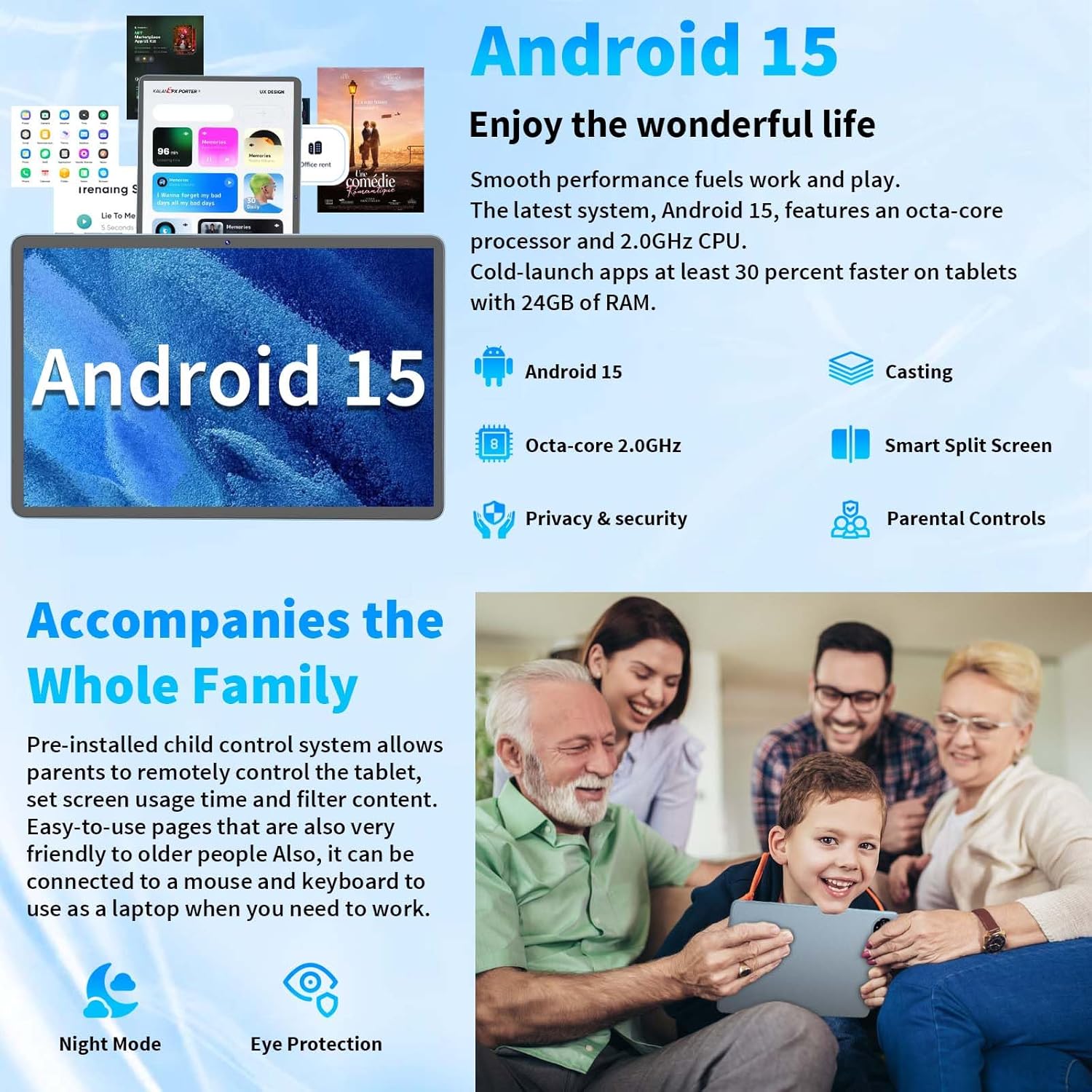
Image: The Android 15 interface on the QDDQ P80, illustrating key features such as split-screen and parental controls.

Image: A visual breakdown of Android 15's benefits, including GMS certification for app access and robust data protection features.
5.2 Productivity Modes
The included accessories transform your tablet into a versatile workstation.
- Laptop Mode: Attach the Bluetooth keyboard and use the wireless mouse for a traditional laptop experience.
- PC Mode: Utilize the tablet's interface with the mouse and keyboard for efficient work and study.
- Split View: Open two apps simultaneously to enhance multitasking.
- Drag-and-Drop: Easily move content between applications.

Image: The QDDQ P80 tablet showcasing its versatility with accessories, enabling laptop-like functionality and efficient multitasking.
6. Connectivity
The QDDQ P80 offers robust connectivity options to keep you connected.
- Wi-Fi: Supports dual-band 2.4GHz and 5GHz Wi-Fi for fast and stable internet access, with speeds up to 433Mbps.
- Bluetooth 5.0: Provides high-fidelity and efficient wireless connection to peripherals such as headphones, speakers, and the included keyboard and mouse.
- GPS: Integrated GPS for accurate navigation and location services.

Image: Visual explanation of the tablet's dual-band Wi-Fi and Bluetooth 5.0 capabilities for fast and reliable connections.

Image: The tablet in various usage scenarios, demonstrating its Wi-Fi, Bluetooth, and GPS functionalities.
7. Camera Features
Capture moments with the tablet's integrated cameras.
- Rear Camera: 13MP with autofocus for clear photos and videos.
- Front Camera: 5MP for video calls and selfies.

Image: The tablet's camera specifications, showing the 13MP rear and 5MP front cameras, suitable for capturing high-quality photos and videos.
8. Display and Audio
Experience immersive visuals and clear audio with your QDDQ P80 tablet.
- Display: 11-inch IPS display with 1280 x 800 resolution, 276 PPI, 250 nits brightness, 16.7 million colors, 16:10 aspect ratio, and 1000:1 contrast.
- Widevine L1: Certified for 1080P HD video playback on streaming platforms like Netflix, Disney+, and Prime Video.
- Audio: Dual speakers for stereo sound and an independent 3.5mm headphone jack.
- Anti-Blue Light: Features intelligent software to reduce blue light emissions, minimizing eye strain.

Image: Detailed specifications of the 11-inch IPS display, highlighting its resolution and color capabilities.

Image: The tablet's Widevine L1 certification, ensuring high-definition streaming quality across popular platforms.

Image: Illustration of the tablet's dual speaker system, providing enhanced audio experience.

Image: The Anti Blue Light feature in action, designed to protect users' eyes during extended use.
9. Battery Management
The QDDQ P80 is equipped with an 8000mAh high-capacity battery for extended use.
- Charging: Use the provided 18W fast charging adapter and USB-C cable.
- Battery Life: The efficient operating system and energy-saving features allow for prolonged usage.

Image: The 8000mAh battery and USB-C charging port, indicating long-lasting power and convenient recharging.
10. Storage and Performance
The tablet offers ample storage and efficient performance for your applications and media.
- Processor: Powered by a T615 Octa-core processor for smooth operation.
- RAM: Up to 24GB RAM (6GB physical RAM + 18GB virtual RAM). To view, navigate to Settings > System > Memory Expansion.
- Internal Storage: 128GB ROM.
- Expandable Storage: Supports up to 2TB via a microSD card (FAT32 format, sold separately).

Image: A visual representation of the tablet's memory and storage capabilities, including RAM expansion and internal ROM.

Image: The Unisoc T615 Octa-Core processor, emphasizing its role in delivering outstanding performance with low power consumption.
11. Maintenance
11.1 Cleaning
- Use a soft, lint-free cloth to clean the screen and body of the tablet.
- Avoid using harsh chemicals or abrasive materials.
11.2 Software Updates
Regularly check for and install system updates to ensure optimal performance and security. Go to Settings > System > System update.
11.3 Storage Management
Periodically clear unnecessary files and apps to maintain performance. You can manage storage in Settings > Storage.
12. Troubleshooting
If you encounter issues with your QDDQ P80 tablet, refer to the following common solutions:
| Problem | Possible Solution |
|---|---|
| Tablet does not power on | Ensure the battery is charged. Connect the charger and wait a few minutes before attempting to power on again. |
| Screen is unresponsive | Restart the tablet by holding the power button. If unresponsive, force restart (refer to device-specific instructions if available, usually holding power for 10-15 seconds). |
| Wi-Fi connection issues | Check if Wi-Fi is enabled in settings. Restart your router. Forget the network and reconnect. |
| Bluetooth device not connecting | Ensure Bluetooth is enabled on both devices. Make sure the accessory is in pairing mode. Try restarting both devices. |
| Slow performance | Close unused apps. Clear cache. Check for system updates. Consider a factory reset as a last resort (Settings > System > Reset options). |
Video: A detailed demonstration of the QDDQ Android 14 Tablet (similar to Android 15), showcasing its features and operation. This video can be helpful for visual troubleshooting and understanding tablet functions.
13. Specifications
Detailed technical specifications for the QDDQ P80 11-inch Android 15 Tablet.
| Feature | Specification |
|---|---|
| Model Name | P80 |
| Operating System | Android 15 |
| Screen Size | 11 Inches |
| Screen Resolution | 1280 x 800 pixels |
| Processor | Unisoc T615 Octa-Core (ARM Chipset) |
| RAM | Up to 24GB (6GB + 18GB virtual) |
| Internal Storage | 128 GB Flash Memory |
| Expandable Storage | Up to 2TB via microSD card (FAT32) |
| Battery Capacity | 8000mAh Lithium Polymer |
| Average Battery Life | 16 Hours |
| Wireless Connectivity | 802.11ac, 802.11b, 802.11g, 802.11n (Dual-band 2.4GHz/5GHz Wi-Fi) |
| Bluetooth | Bluetooth 5.0 |
| GPS | Yes |
| Rear Camera | 13MP |
| Front Camera | 5MP |
| Dimensions (LxWxH) | 16 x 12 x 16 inches (Product Dimensions) |
| Item Weight | 3.1 pounds |
| Color | Silver |
14. Warranty and Support
For warranty information and customer support, please refer to the documentation included with your purchase or contact QDDQ customer service directly. Details can typically be found on the manufacturer's official website or through your retailer.


