
Introduction
This manual provides essential information for the proper use and maintenance of your OSCAL 50 Tablet. Please read this manual thoroughly before using your device to ensure optimal performance and longevity. Keep this manual for future reference.
1. Setup
1.1 Package Contents
Verify that your package contains the following items:
- OSCAL 50 Tablet
- USB Cable
- Power Adapter
- User Manual (this document)
1.2 Device Layout
Familiarize yourself with the physical components of your tablet.
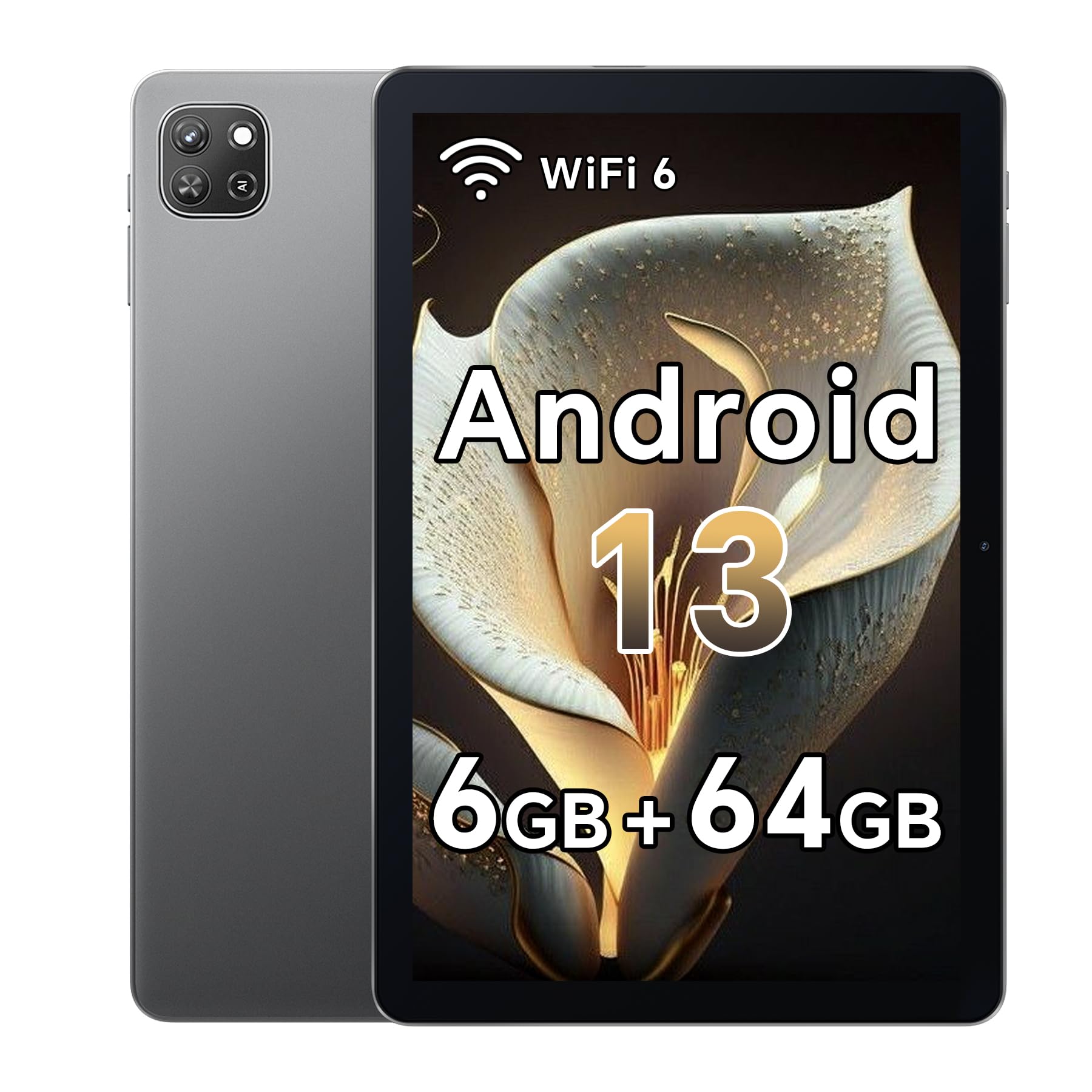
Image 1.2.1: Front view of the OSCAL 50 Tablet. This image displays the tablet's screen, front-facing camera, and overall design.
Image 1.2.2: Side view of the OSCAL 50 Tablet. This image illustrates the location of the power button, volume controls, USB-C port, and headphone jack.
1.3 Charging the Tablet
Before first use, fully charge the tablet. Connect the USB cable to the tablet's charging port and the power adapter, then plug the adapter into a wall outlet. The battery indicator on the screen will show charging status.
1.4 Powering On/Off
- To Power On: Press and hold the Power button until the OSCAL logo appears on the screen.
- To Power Off: Press and hold the Power button until the power options menu appears. Select "Power off" and confirm.
- To Restart: From the power options menu, select "Restart" and confirm.
1.5 Initial Setup
Upon first power-on, the tablet will guide you through an initial setup process:
- Select your preferred language.
- Connect to a Wi-Fi network.
- Accept the terms and conditions.
- Sign in with your Google account or create a new one.
- Set up screen lock (PIN, pattern, or password).
- Review and adjust other settings as prompted.
1.6 Installing a MicroSD Card (Optional)
The tablet supports expandable storage via a MicroSD card. Locate the card slot on the side of the tablet. Gently insert the MicroSD card with the gold contacts facing down until it clicks into place. To remove, gently push the card until it springs out.
2. Operating the Tablet
2.1 Basic Navigation
- Tap: Touch the screen once to open an app, select an item, or press a button.
- Tap & Hold: Touch and hold an item to access contextual menus or move icons.
- Swipe: Drag your finger across the screen to scroll through pages or lists.
- Pinch: Use two fingers to zoom in or out on images and web pages.
2.2 Home Screen and Apps
The Home screen is your central hub. You can customize it with app shortcuts and widgets. Swipe up from the bottom of the screen to access the app drawer, which lists all installed applications.
Image 2.2.1: OSCAL 50 Tablet Home Screen. This image shows the default layout of the home screen with pre-installed applications and widgets.
2.3 Notifications and Quick Settings
Swipe down from the top of the screen to view notifications and access Quick Settings. Quick Settings allow you to quickly toggle Wi-Fi, Bluetooth, screen brightness, and other common functions.
2.4 Connecting to Wi-Fi and Bluetooth
- Wi-Fi: Go to Settings > Network & internet > Wi-Fi. Turn Wi-Fi on, select your network, and enter the password if required.
- Bluetooth: Go to Settings > Connected devices > Bluetooth. Turn Bluetooth on, then select "Pair new device" to connect to Bluetooth accessories.
2.5 Camera Usage
Open the Camera app from the Home screen or app drawer. Tap the shutter button to take a photo. Swipe left or right to switch between photo and video modes. Use the on-screen icons to adjust settings like flash, timer, and camera switch (front/rear).
3. Maintenance
3.1 Cleaning the Device
Use a soft, lint-free cloth to clean the tablet screen and body. For stubborn smudges, slightly dampen the cloth with water or a screen cleaner specifically designed for electronics. Avoid using harsh chemicals, abrasive materials, or excessive moisture.
3.2 Battery Care
- Avoid exposing the tablet to extreme temperatures.
- Do not allow the battery to fully discharge frequently.
- Use only the provided charger or a certified compatible charger.
- If the tablet will not be used for an extended period, charge it to about 50% before storing.
3.3 Software Updates
Regularly check for and install software updates to ensure your tablet has the latest features, security patches, and performance improvements. Go to Settings > System > System update to check for updates.
3.4 Storage Management
To optimize performance, periodically manage your tablet's storage. Delete unnecessary files, uninstall unused apps, and move large media files to a MicroSD card or cloud storage. Go to Settings > Storage to view storage usage.
4. Troubleshooting
4.1 Common Issues and Solutions
- Tablet not turning on: Ensure the battery is charged. Connect the charger and wait a few minutes before attempting to power on again.
- Screen unresponsive: Try restarting the tablet by holding the Power button for about 10-15 seconds until it reboots.
- Wi-Fi connection issues: Check if Wi-Fi is enabled in Quick Settings or Settings > Network & internet > Wi-Fi. Restart your Wi-Fi router. Forget the network and reconnect.
- Apps crashing or freezing: Close the app and reopen it. Clear the app's cache (Settings > Apps > [App Name] > Storage & cache > Clear cache). If the issue persists, uninstall and reinstall the app.
- Slow performance: Close unused apps, clear cache, free up storage space, and restart the tablet.
4.2 Factory Reset
If persistent issues cannot be resolved, a factory reset may be necessary. Warning: This will erase all data on your tablet. Back up important data before proceeding. Go to Settings > System > Reset options > Erase all data (factory reset) and follow the on-screen instructions.
5. Specifications
| Feature | Detail |
|---|---|
| Model Name | OSCAL 50 |
| Screen Size | 10.1 inches |
| Max Screen Resolution | 800 x 1280 |
| Operating System | Android 13 |
| Processor Brand | Allwinner |
| Internal Memory Storage Capacity | 64 GB |
| Expandable Flash Memory Size | Up to 2 TB (via MicroSD card) |
| Item Weight | 9.6 ounces (approx. 272 grams) |
| Product Dimensions (LxWxH) | 9.4 x 6 x 0.4 inches (approx. 23.9 x 15.2 x 1.0 cm) |
| Batteries | 1 Lithium Polymer battery (included) |
6. Warranty and Support
6.1 Warranty Information
Your OSCAL 50 Tablet is covered by a limited warranty. Please refer to the warranty card included in your product packaging for detailed terms, conditions, and duration of coverage. Keep your proof of purchase for warranty claims.
6.2 Customer Support
For technical assistance, troubleshooting beyond this manual, or warranty inquiries, please contact OSCAL customer support. Refer to the official OSCAL website or your product packaging for the most current contact information.


