
Introduction
Welcome to the user manual for the IHSENO ZigBee Smart Knob Dimmer Switch. This device offers wireless control for smart lighting and scene automation within a ZigBee ecosystem. It requires a compatible ZigBee hub (e.g., Tuya Gateway) for full functionality.

Image description: Four IHSENO ZigBee Smart Knob Dimmer Switches, a smartphone displaying the control app, and the product packaging.
Product Overview
The IHSENO ZigBee Smart Knob Dimmer Switch is a versatile device designed for smart home integration. It functions as both a scene controller and a dimmer for ZigBee-compatible lights.
Key Features
- Wireless ZigBee connectivity (requires ZigBee hub).
- Supports single click and double click for scene activation.
- Rotatable knob for dimming ZigBee lights.
- Press and rotate function for color temperature adjustment (with compatible lights).
- Long press function for color setting (with compatible lights).
- Compact design.

Image description: A diagram illustrating the connectivity of the Smart Knob Scene Switch to a Tuya ZigBee hub, which then connects to a Wi-Fi router and a smartphone for control.
Package Contents
- Smart Knob Dimmer
- User Manual
- Sticker for mounting
Setup
Requirements
- A compatible ZigBee hub (e.g., Tuya Gateway).
- Smartphone with the appropriate smart home application (e.g., Tuya Smart App).
- CR2450 battery (pre-installed or needs installation).
Battery Installation/Replacement
The device uses a CR2450 battery. To access the battery compartment, locate the small screw on the back of the device. Unscrew it carefully, remove the back plate, and insert or replace the CR2450 battery, ensuring correct polarity. Secure the back plate and screw.
Pairing with a ZigBee Hub
- Ensure your ZigBee hub is powered on and connected to your network.
- Open your smart home application (e.g., Tuya Smart App) on your smartphone.
- Navigate to the device addition section within the app.
- Follow the app's instructions to add a new ZigBee device. This typically involves putting the hub into pairing mode.
- On the Smart Knob Dimmer, perform the pairing action as specified by the app or device instructions (often a long press on the button until an indicator light flashes).
- Once successfully paired, the device will appear in your app.

Image description: A smartphone screen showing the Tuya Smart App interface, demonstrating how to add intelligence or smart scenes for the knob switch.
Operating Instructions
The IHSENO ZigBee Smart Knob Dimmer Switch supports various operations for controlling smart devices and activating scenes.
Remote Mode Operations (for controlling ZigBee lamps)
To control ZigBee dimming lamps wirelessly, first add the Smart Knob Switch to your ZigBee gateway. Then, within the app, add the ZigBee light bulb under the remote dimming interface.
- Single Press: Turns the connected ZigBee bulb ON or OFF.
- Rotate: Adjusts the brightness (dimmer function) of the connected ZigBee bulb.
- Press and Rotate: Adjusts the color temperature of the connected ZigBee bulb (if supported).
- Long Press (more than 3 seconds): Sets the color of the connected ZigBee bulb (if supported).
Scene Mode Operations (for activating smart scenes)
In scene mode, the knob switch can trigger predefined smart scenes created in your smart home application.
- Single Click: Activates a predefined "Home Mode" scene. This can be configured to turn on lights, air conditioners, fans, and other electronic devices.

Image description: A hand pressing the Smart Knob Dimmer Switch, with text indicating "Single Click for Home Mode" to activate a scene.
- Double Click: Activates a predefined "Away Mode" scene. This can be configured to turn off all lights, air conditioners, fans, and other electronic devices before leaving.

Image description: A hand pressing the Smart Knob Dimmer Switch, with text indicating "Double Click for Away Mode" to activate a scene for leaving home.
You can create and customize these smart automations within your smart home app to suit your lifestyle.
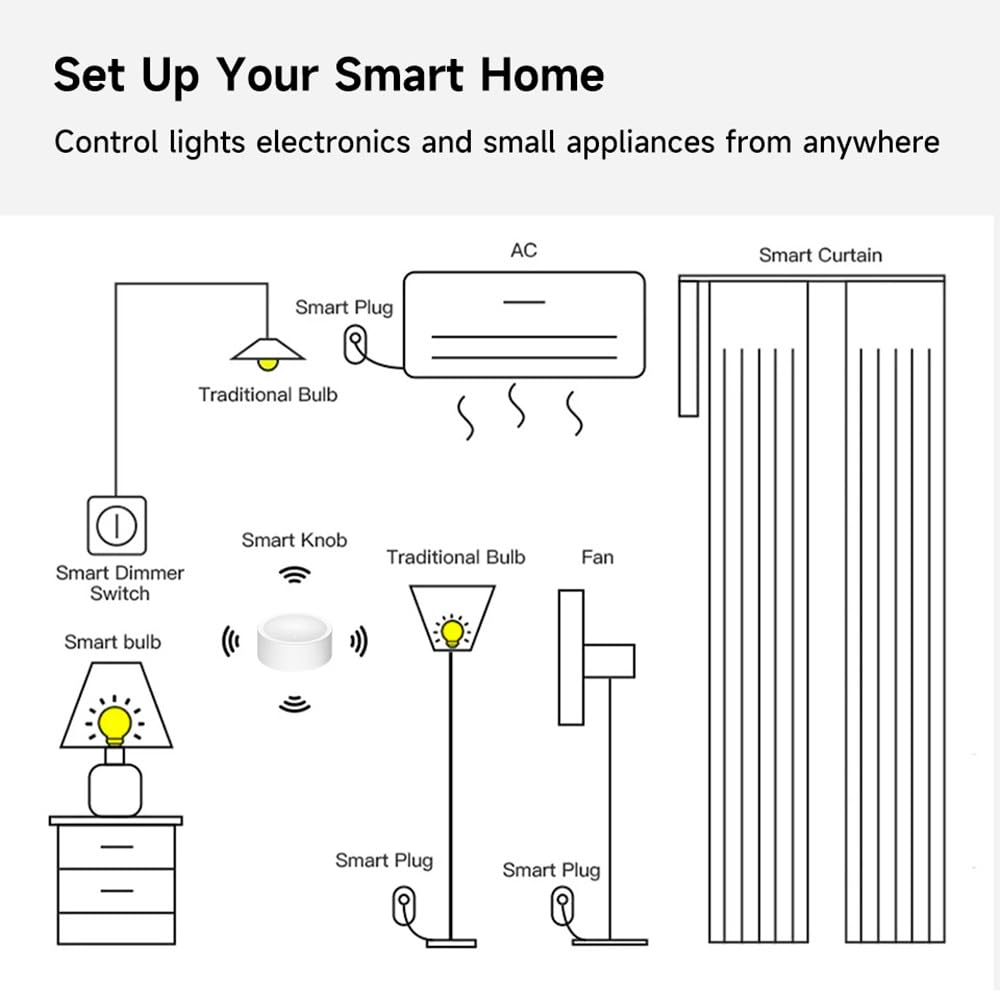
Image description: A diagram illustrating a smart home setup, showing how the Smart Knob can control various devices like smart bulbs, smart plugs, and smart curtains through a smart dimmer switch.
Maintenance
- Cleaning: Wipe the device with a soft, dry cloth. Avoid using abrasive cleaners or solvents.
- Battery: Replace the CR2450 battery when the device's performance degrades or the app indicates low battery.
- Environment: Operate the device within the specified temperature and humidity ranges (-5°C to 55°C, ≤95% humidity, non-condensing).
Troubleshooting
Device Not Responding
- Check the battery level. Replace the CR2450 battery if it is low or depleted.
- Ensure the device is within range of your ZigBee hub.
- Verify that the ZigBee hub is powered on and functioning correctly.
- Re-pair the device with your ZigBee hub if connectivity issues persist.
Dimming/Color Control Not Working
- Confirm that the connected light bulb is a ZigBee-compatible dimmable or color-changing bulb.
- Ensure the light bulb is properly paired with your ZigBee hub and linked to the Smart Knob Dimmer in the app.
- Check app settings to ensure the correct control mode is selected for the knob.
Scene Activation Issues
- Verify that the scenes are correctly configured in your smart home application.
- Ensure all devices included in the scene are online and responsive.
- Check the app for any error messages related to scene execution.
Specifications
| Parameter | Value |
|---|---|
| Product Name | Smart Knob Dimmer |
| Model Number | zigbee smart knob |
| Dimensions | 50 x 50 x 24.5 mm (5.08 x 5.08 x 2.54 cm) |
| Built-in Battery | CR2450 |
| Operating Voltage | DC 3V |
| Standby Current | < 8uA |
| Wireless Protocol | ZigBee 3.0 |
| Wireless Transmission Distance | ≥ 30 meters (open range) |
| Operating Environment Temperature | -5°C to 55°C (23°F to 131°F) |
| Operating Environment Humidity | ≤ 95% (non-condensing) |
| Material | ABS |
| International Protection Rating | IP55 |

Image description: A visual representation of the product's dimensions and a table summarizing key specifications like wireless protocol, battery type, working current, temperature, and humidity.
Warranty and Support
For warranty information and technical support, please refer to the official IHSENO website or contact your retailer. Keep your purchase receipt for warranty claims.
