1. Introduction
This manual provides essential information for setting up, operating, and maintaining your Dell Precision 5560 laptop. The Dell Precision 5560 is a high-performance mobile workstation designed for demanding tasks, featuring an Intel Core i7-11850H processor, 32GB RAM, a 1TB Solid State Drive, and an Nvidia RTX A2000 4GB graphics card. It comes pre-installed with Windows 11 Pro 64-bit, offering a user-friendly interface and advanced features for an optimal computing experience.
2. What's in the Box
- Dell Precision 5560 Laptop
- AC Adapter
3. Product Overview
3.1 Exterior Features
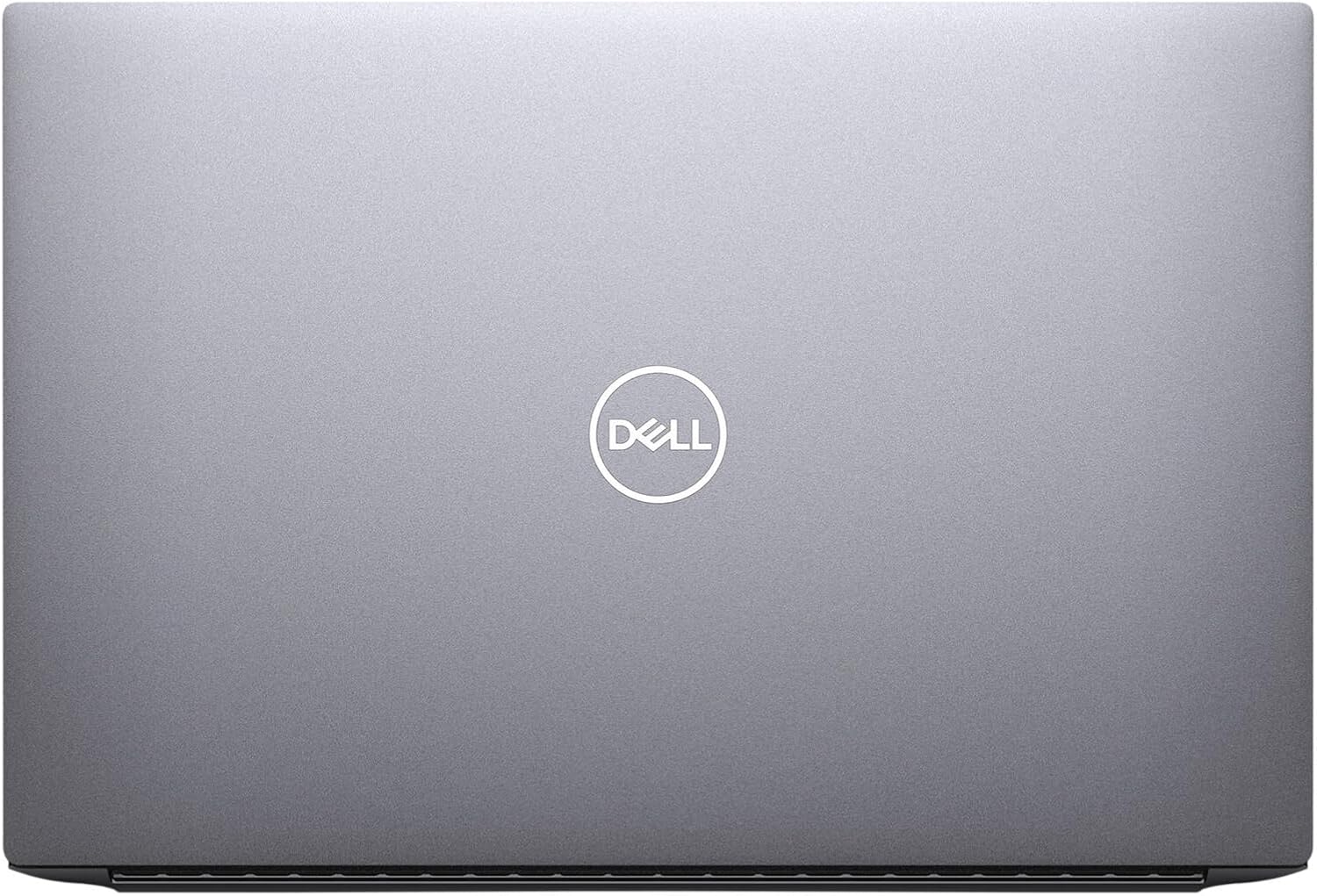
Figure 3.1.1: Top view of the Dell Precision 5560 laptop when closed, showcasing its sleek design and Dell logo.

Figure 3.1.2: Open view of the Dell Precision 5560, displaying the full-size keyboard, large touchpad, and the 15.6-inch display.
- Display: 15.6-inch LED Backlight Display with 1920 x 1080 pixels resolution.
- Keyboard: Full-size keyboard with tactile keys.
- Touchpad: Large, multi-gesture trackpad for precise navigation.
3.2 Ports and Connectors

Figure 3.2.1: Left side of the Dell Precision 5560, showing the security cable lock slot and two Thunderbolt 4 ports with Power Delivery.
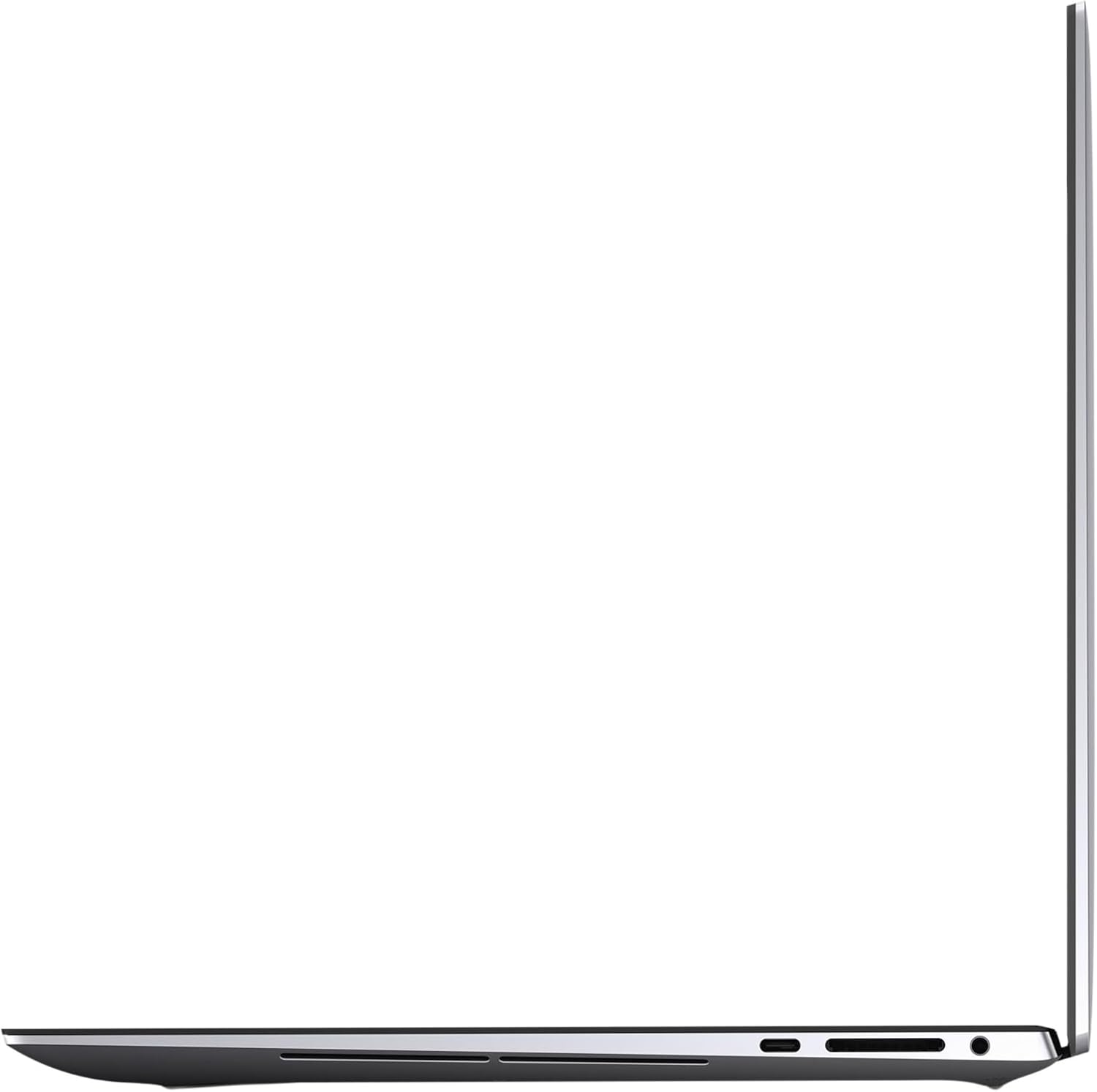
Figure 3.2.2: Right side of the Dell Precision 5560, featuring a USB 3.2 Gen 2 Type-C port with DisplayPort Alt Mode, a Secure Digital card slot, and a headphone jack.
- Left Side:
- Security Cable Lock Slot
- 2x Thunderbolt 4 ports with Power Delivery
- Right Side:
- 1x USB 3.2 Gen 2 Type-C port with DisplayPort Alt Mode
- Secure Digital (SD) Card Slot
- Headphone/Microphone Combo Jack
3.3 Interior Components

Figure 3.3.1: Interior view of the Dell Precision 5560, showing the dual M.2 hard drive slots, two DDR4 memory slots, and the 86Wh battery.
- Storage: Two M.2 hard drive slots, both supporting PCIe Gen 4x4.
- Memory: Two DDR4 memory slots, supporting up to 3200MHz, with a maximum capacity of 64GB RAM.
- Battery: 86Wh Standard battery.
4. Setup
- Unpack the Laptop: Carefully remove the laptop and AC adapter from the packaging.
- Connect Power: Plug the AC adapter into a power outlet and then into the laptop's Thunderbolt 4 port (either on the left side).
- Initial Power On: Open the laptop lid and press the power button located on the top-right of the keyboard.
- Operating System Setup: Follow the on-screen instructions to complete the Windows 11 Pro setup, including language, region, network connection, and user account creation.
- Connect Peripherals: Connect any external devices such as a mouse, keyboard, or external monitor to the available ports.
5. Operating Your Laptop
5.1 Keyboard and Touchpad
- The keyboard provides a comfortable typing experience. Utilize the function keys (F1-F12) for quick access to system controls like volume, brightness, and external display options.
- The large touchpad supports multi-touch gestures for scrolling, zooming, and navigating. Refer to Windows 11 settings for customizing touchpad gestures.
5.2 Display Settings
To adjust display resolution or scaling:
- Right-click on an empty area of the desktop.
- Select 'Display settings'.
- Under 'Scale & layout', you can change the size of text, apps, and other items (scaling) and adjust the 'Display resolution'. The recommended resolution for the 15.6-inch display is 1920x1080 pixels.
5.3 Port Usage
- Thunderbolt 4 Ports: Use these for high-speed data transfer, connecting external displays, or charging the laptop.
- USB 3.2 Gen 2 Type-C Port: Connect compatible USB-C devices or external displays using DisplayPort Alt Mode.
- SD Card Slot: Insert Secure Digital cards for transferring photos and other media.
- Headphone/Microphone Combo Jack: Connect headphones, external speakers, or a headset with a microphone.
6. Maintenance
- Cleaning: Use a soft, lint-free cloth to clean the screen and exterior. Avoid harsh chemicals. For the keyboard, use compressed air to remove dust and debris.
- Battery Care: To prolong battery life, avoid extreme temperatures and fully discharging the battery frequently. For optimal performance, keep the laptop plugged in when possible, especially during intensive tasks.
- Software Updates: Regularly update your Windows operating system and Dell drivers to ensure optimal performance and security.
- Storage Management: Periodically clean up unnecessary files and applications to maintain sufficient storage space and system speed.
7. Troubleshooting
If you encounter issues with your Dell Precision 5560, consider the following basic troubleshooting steps:
- No Power: Ensure the AC adapter is securely connected to both the laptop and a working power outlet. Check the power light indicator.
- Display Issues: If the screen is blank or flickering, try adjusting the display brightness using the function keys. If using an external monitor, ensure cables are connected correctly and check display settings.
- Slow Performance: Close unnecessary applications, check for background processes, and ensure sufficient free space on your SSD. Restarting the laptop can often resolve temporary performance issues.
- Peripheral Not Detected: Ensure the peripheral is properly connected to the correct port. Try connecting it to a different port or restarting the laptop.
For more detailed troubleshooting or persistent issues, refer to Dell's official support resources.
8. Specifications
| Feature | Detail |
|---|---|
| Processor | Intel Core i7-11850H (2.5 GHz) |
| RAM Memory Installed Size | 32 GB DDR4 SDRAM |
| Max Memory Capacity | 64 GB DDR4 SDRAM |
| Hard Disk Size | 1 TB SSD (Solid State Drive) |
| Hard Drive Interface | Solid State (PCIe Gen 4x4) |
| Graphics Coprocessor | Nvidia RTX A2000 4GB |
| Screen Size | 15.6 Inches |
| Max Screen Resolution | 1920x1080 pixels |
| Operating System | Windows 11 Pro 64-bit |
| Wireless Type | 802.11n |
| Product Dimensions (LxWxH) | 9.07 x 13.56 x 0.45 inches |
| Color | Gray |
| Power Source | AC & Battery |
| Optical Drive Type | No Optical Drive |
9. Warranty and Support
This Dell Precision 5560 is a Certified Refurbished product. It has been tested and certified to look and work like new. The refurbishing process includes functionality testing, basic cleaning, inspection, and repackaging. The product ships with all relevant accessories and a minimum 90-day warranty.
For warranty claims, technical support, or additional product information, please visit the official Dell support website or contact your retailer.