1. Introduction
This manual provides essential information for the safe and efficient use of your Samsung 75-Inch Class QLED 4K Q70D Series Smart TV. Please read these instructions thoroughly before operating the device and retain them for future reference. This television combines advanced QLED display technology with smart features for an enhanced viewing experience.

Image 1.1: Front view of the Samsung Q70D Series QLED 4K Smart TV.
2. What's in the Box
Verify that all components are present in the packaging before proceeding with setup.
- Samsung 75-Inch QLED 4K Q70D Series Smart TV
- Power Cable
- User Manual (this document)
- SolarCell Remote™ (TM2360E)

Image 2.1: Diagram showing the TV dimensions and included accessories: TV, Power Cable, User Manual, and SolarCell Remote™.
3. Setup Guide
3.1. Physical Installation
Choose a suitable location for your TV. Ensure the surface is stable and can support the TV's weight. For wall mounting, consult a professional or refer to the wall mount kit's instructions.
- Stand Assembly: If using the included stand, carefully attach it to the TV following the diagrams in the quick setup guide. Ensure all screws are securely fastened.
- Placement: Position the TV to avoid direct sunlight or strong artificial light, which can cause glare. Maintain adequate ventilation around the TV.
3.2. Connecting Power
Connect the power cable to the TV's power input port and then to a wall outlet. Do not plug the TV into an outlet until all other connections are made.
3.3. Initial Setup
Once powered on, the TV will guide you through the initial setup process, including language selection, network connection (Wi-Fi or Ethernet), and channel scanning.
4. Operating Instructions
4.1. Remote Control
The included SolarCell Remote™ allows you to control your TV. It charges via indoor lighting or USB-C. Familiarize yourself with the button layout for power, volume, channel, navigation, and smart hub access.
4.2. Basic Navigation
Use the directional pad and 'Select' button on the remote to navigate the on-screen menus. The 'Home' button provides access to the Smart Hub, where you can find apps, connected devices, and settings.
4.3. Input Selection
Press the 'Source' button on your remote to switch between connected devices such as Blu-ray players, game consoles, or cable boxes.
4.4. Smart TV Features (Tizen OS)
Your Samsung TV runs on the Tizen operating system, providing access to a wide range of streaming services, apps, and smart functionalities. Connect to the internet to utilize these features.
5. Key Features
The Samsung Q70D Series TV incorporates several advanced technologies for an optimized viewing and listening experience.
- Dual LED: This technology provides a natural, realistic picture with accurate contrast that automatically adjusts to match your content. It uses a combination of warm and cool LED backlights to fine-tune color tones.
- 100% Color Volume with Quantum Dot: Experience breathtaking color that remains true at any brightness level. Quantum Dot technology transforms light into over a billion shades, ensuring vibrant and accurate color reproduction.
- Quantum HDR: This feature optimizes imagery by providing a wide range of color, contrast, and detail, ensuring a beautifully optimized picture regardless of the content.
- Motion Xcelerator 120Hz: Enjoy smooth action with exceptional motion enhancements. This technology delivers crisp visuals at a speed of 120 frames per second for a seamless picture, ideal for fast-paced content.
- Quantum Processor 4K with AI Upscaling: This processor powers the TV's 4K HDR picture and sound, delivering sharp details, clear resolution, and vivid color and contrast by upscaling lower-resolution content to near 4K quality.
- Object Tracking Sound Lite: Experience 3D surround sound that follows the movement on screen using virtual top channel audio, creating an immersive audio experience.
- Samsung Tizen OS: The Smart TV platform powered by Tizen allows you to stream favorite shows, play games, and access various apps and streaming services.
- Pantone Validated: Enjoy color validated by industry experts at Pantone, ensuring that images on the screen appear accurate and true to life, with precise hues, tints, and skin tones.
- Eye Comfort Mode: This mode automatically adjusts the amount of blue light emitted by the screen from day to night. It intelligently adapts the display based on sunrise and sunset times to reduce blue light and enhance eye comfort.
- Gaming Hub: A centralized platform for gaming, allowing you to stream games directly from your TV without a console. It also provides recommendations based on your preferences.
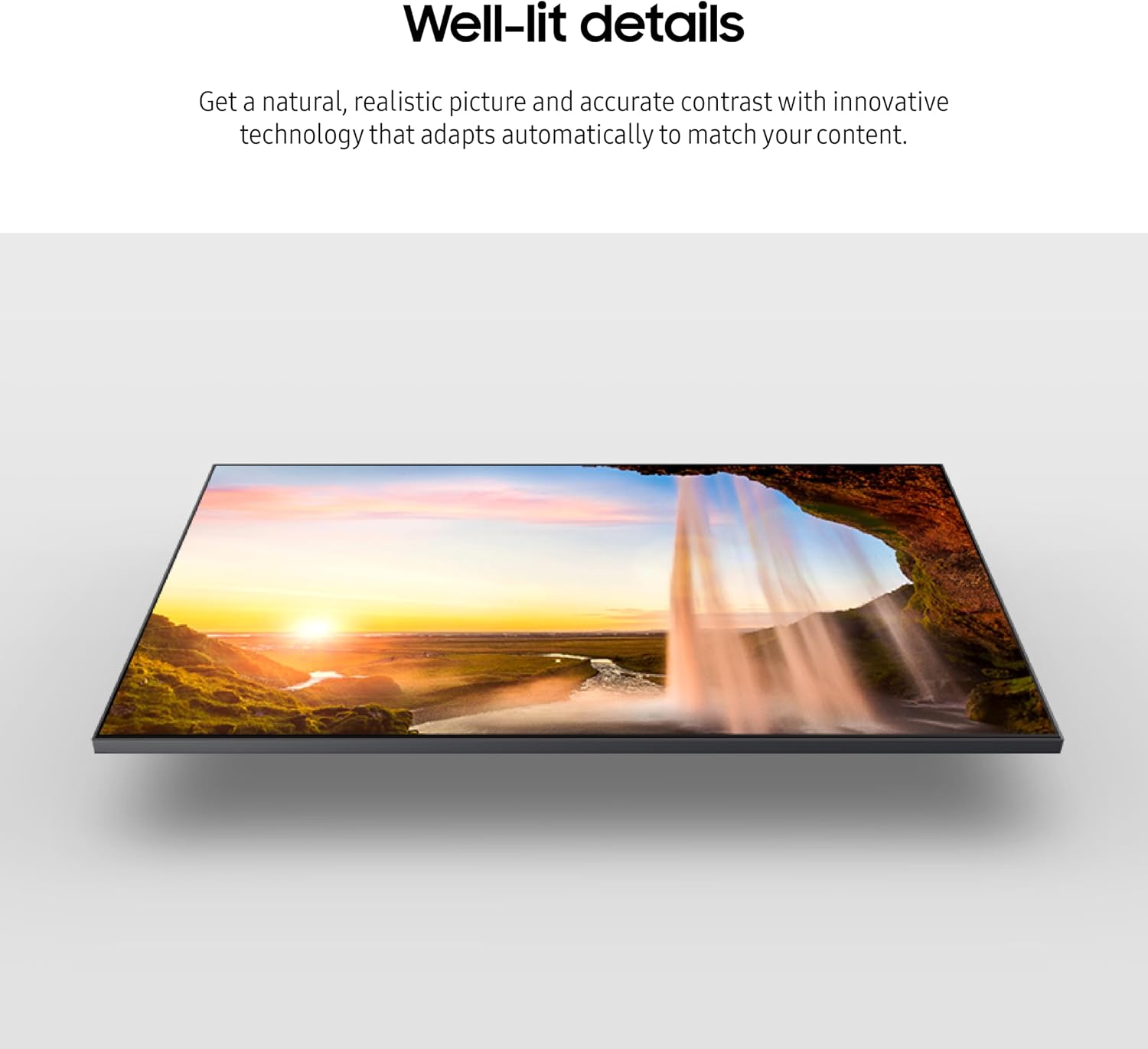
Image 5.1: The TV screen showcasing well-lit details and natural contrast.

Image 5.2: The TV screen demonstrating true-to-life color volume with Quantum Dot technology.

Image 5.3: The TV screen illustrating distinct contrast and optimized imagery with Quantum HDR.

Image 5.4: The TV screen showing smooth motion during a high-speed scene.

Image 5.5: The TV screen depicting incredible audio with Object Tracking Sound Lite.
6. Connectivity
Your TV offers various ports and wireless options for connecting external devices and networks.
- HDMI Ports: Multiple HDMI inputs (including eARC) for connecting high-definition devices like game consoles, Blu-ray players, and soundbars.
- USB Ports: For connecting USB storage devices to view media files.
- LAN Port: An Ethernet port for a wired internet connection.
- Antenna/Cable Input: For connecting an antenna or cable TV signal.
- Wireless Connectivity: Built-in Wi-Fi for internet access and Bluetooth for connecting wireless accessories like headphones or speakers.

Image 6.1: Rear panel connections of the Samsung Q70D Series TV.
7. Maintenance
7.1. Cleaning the Screen
Gently wipe the screen with a soft, dry microfiber cloth. For stubborn marks, lightly dampen the cloth with water or a specialized screen cleaner. Avoid harsh chemicals or abrasive materials.
7.2. Cleaning the Cabinet
Wipe the TV cabinet with a soft, dry cloth. Do not use liquid cleaners directly on the TV.
7.3. Software Updates
Ensure your TV's software is up to date for optimal performance and security. You can usually check for updates through the TV's settings menu.
8. Troubleshooting
If you encounter issues with your TV, refer to the following common solutions:
- No Power: Ensure the power cable is securely connected to both the TV and a working wall outlet. Try a different outlet.
- No Picture/Sound: Verify the correct input source is selected. Check all cable connections (HDMI, antenna). Restart connected devices.
- Remote Not Working: Ensure the SolarCell Remote™ is charged. Point the remote directly at the TV.
- Poor Picture Quality: Check the signal source. Adjust picture settings (brightness, contrast, sharpness) in the TV menu.
- No Internet Connection: Check your Wi-Fi network or Ethernet cable connection. Restart your router and modem.
For more detailed troubleshooting, consult the comprehensive e-Manual accessible through your TV's settings or visit the Samsung support website.
9. Specifications
| Feature | Detail |
|---|---|
| Brand | Samsung |
| Model Number | QN75Q70D |
| Screen Size | 75 Inches |
| Display Technology | QLED |
| Resolution | 4K |
| Refresh Rate | 120Hz |
| Product Dimensions (W x H x D) | 66 x 40.4 x 13.9 inches (with stand) |
| Item Weight | 76.5 pounds |
| Connectivity Technology | Bluetooth, HDMI, Wi-Fi |
| Supported Internet Services | Netflix, Hulu, Amazon Prime Video, and more via Tizen OS |
| Special Features | Built-In Speaker, Dual LED, Quantum HDR, Motion Xcelerator 120Hz, Object Tracking Sound Lite, Gaming Hub, Eye Comfort Mode |
10. Warranty & Support
For warranty information, please refer to the warranty card included with your product or visit the official Samsung website. Support resources, including FAQs, software downloads, and contact information, are available on the Samsung support portal.
Online Support: Visit samsung.com/us/support/
Customer Service: Refer to your region's Samsung website for local contact numbers.