1. Introduction
This manual provides detailed instructions for the UGREEN 2-Port USB-C to HDMI Switch (Model 55451). This device allows you to connect two USB-C source devices, such as laptops, tablets, or smartphones, to a single HDMI display, enabling seamless switching between the two sources. It supports high-resolution video output up to 4K@60Hz, along with HDR, HDCP 2.2, and Dolby Atmos for an enhanced visual and audio experience.
2. Product Overview
The UGREEN USB-C to HDMI Switch is designed for efficiency and high performance. Its compact aluminum and ABS construction ensures durability and effective heat dissipation.
Package Contents:
- UGREEN 2-Port USB-C to HDMI Switch (Model 55451)
- User Manual
Key Features:
- 2-in-1 Out USB-C Switch: Connects two USB-C sources to one HDMI display.
- 4K@60Hz Resolution: Supports 4K@60Hz, 4K@30Hz, and 1080P@60Hz.
- Advanced Audio/Video: Compatible with HDR, HDCP 2.2, and Dolby Atmos.
- High Bandwidth: 18Gbps data transmission for stable signals.
- Durable Construction: Aluminum shell and ABS material for scratch resistance and heat dissipation.
- Plug and Play: Driver-free operation across various operating systems.

Image 2.1: The UGREEN 2-Port USB-C to HDMI Switch, showing its compact design and port labels.

Image 2.2: Diagram illustrating the interface of the UGREEN USB-C Switch, including PC1 Input, PC2 Input, HDMI Out, indicator lights, and the switch button.
3. Setup Instructions
Follow these steps to correctly set up your UGREEN USB-C to HDMI Switch.
- Verify Device Compatibility: Ensure that the USB-C ports on your source devices (laptops, tablets, smartphones) support DisplayPort Alternate Mode (DP Alt Mode) for video output. Devices with USB-C ports that only support data transfer or charging are not compatible for video output through this switch.
- Connect Source Devices: Use fully functional USB-C cables (Thunderbolt 4 or equivalent, not exceeding 2 meters in length) to connect your two USB-C source devices to the "PC1 INPUT" and "PC2 INPUT" ports on the UGREEN switch.
- Connect to Display: Connect an HDMI cable from the "HDMI OUT" port on the UGREEN switch to the HDMI input of your monitor, TV, or projector. Ensure your display supports HDCP.
- Power On: The switch typically does not require an external power supply, drawing power from the connected USB-C devices. Ensure your source devices are powered on.
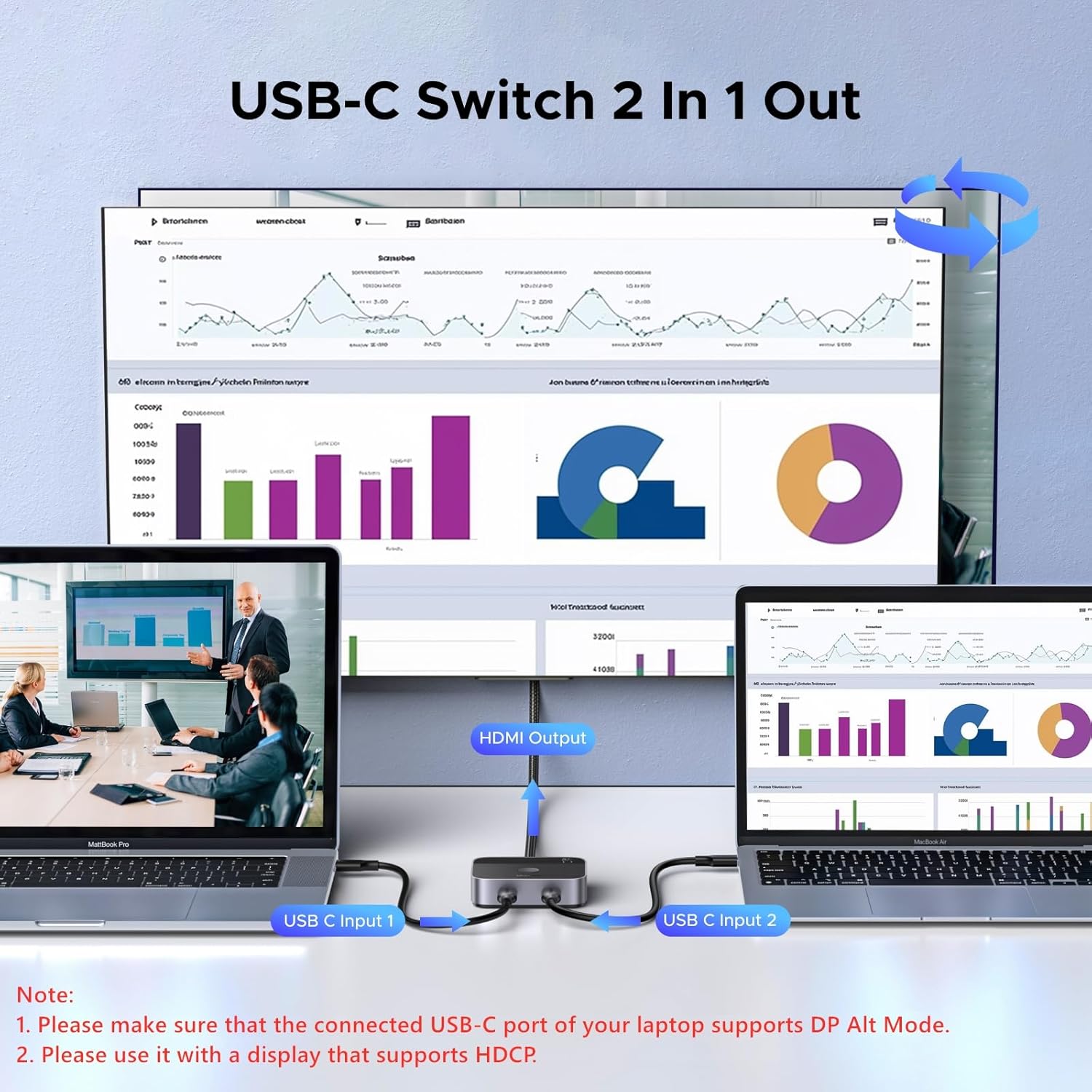
Image 3.1: Visual guide for connecting two USB-C input devices (laptops) to the UGREEN switch, which then outputs to a single HDMI display.

Image 3.2: Illustration showing the UGREEN switch connected without an external power source, emphasizing that the USB-C port of the input device must support charging, data transfer, and video simultaneously.
4. Operating Instructions
Operating the UGREEN USB-C to HDMI Switch is straightforward.
- Switching Between Sources: Press the button located on the top of the switch to toggle between the two connected USB-C input devices (PC1 and PC2). The indicator lights (1 and 2) will illuminate to show which input is currently active.
- Automatic Detection: The switch will automatically detect the active input and display it on your monitor.

Image 4.1: Demonstrates the one-click switching functionality of the UGREEN USB-C to HDMI Switch, allowing users to easily alternate between two input sources on a single display.
5. Compatibility
The UGREEN USB-C to HDMI Switch offers broad compatibility with various devices and operating systems.
Compatible Devices:
- Laptops/PCs: MacBook Air/Pro, iMac All-in-One Desktop Computer, DELL XPS15-9510 2021, DELL XPS13-9360, Google Pixelbook Go, Razer Blade 18, Dell Latitude 5420/7760/7740, etc.
- Tablets: iPad Pro/Air, iPad mini 6, Surface Pro 9, Galaxy Tab, etc.
- Smartphones: iPhone 15/16, Samsung Galaxy S23 Ultra/S22 Ultra, etc.
- Gaming Consoles: Steam Deck, ASUS ROG Ally.
Compatible Operating Systems:
- Windows
- macOS
- Linux
- iOS
- iPadOS

Image 5.1: Overview of the UGREEN USB-C Switch's wide compatibility with various laptops, mobile phones, tablets, and operating systems like Windows, macOS, iOS, and Linux.
Important Compatibility Notes:
- The connected USB-C port of your laptop or source device must support DP Alt Mode for video output.
- This switch is not bi-directional; it only supports two USB-C inputs to one HDMI output. It cannot display on two monitors simultaneously.
- Connect to a monitor that supports HDCP for proper image output.
- Does NOT support Automatic Switching. Manual button press is required.
- Does NOT support ARC, CEC, and Free Sync.
- Do NOT connect Thunderbolt Docking Stations or Thunderbolt Hard Drive Enclosures.
- It is recommended to use a Thunderbolt 4 cable or a fully functional USB-C cable, and the length must not exceed 2 meters to ensure signal integrity.

Image 5.2: Diagram illustrating compatible USB-C port types (Data Transfer + DP Alt Mode, Thunderbolt, USB 4) and incompatible types (Data transfer only, Charging only).
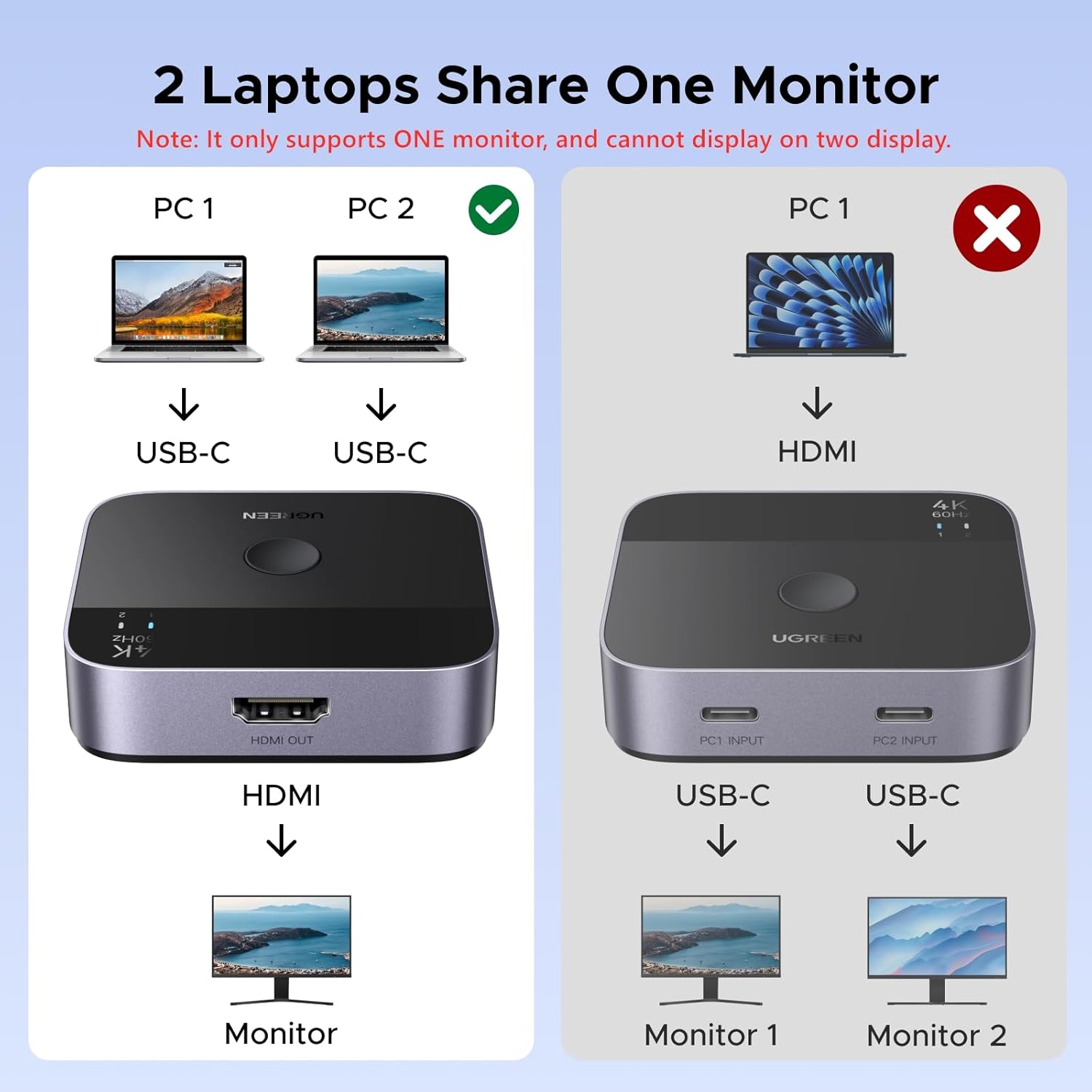
Image 5.3: Visual representation of the correct setup (two USB-C laptops to one monitor) versus an incorrect setup (one laptop to two monitors), highlighting that the switch only supports one monitor output.
6. Specifications
| Feature | Detail |
|---|---|
| Product Dimensions | 2.2 x 2.5 x 0.67 inches |
| Item Weight | 3.46 ounces |
| Model Number | 55451 |
| Color | Black |
| Connector Type | USB Type-C (Input), HDMI (Output) |
| Max Resolution | 4K@60Hz |
| Data Transmission | 18Gbps |
| Supported Technologies | HDR, HDCP 2.2, Dolby Atmos |
| Manufacturer | Ugreen Group Limited |

Image 6.1: Table detailing recommended input and output cable lengths and AWG (American Wire Gauge) for different resolutions (4K@60Hz, 4K@30Hz, 1080P@60Hz).
7. Troubleshooting
If you encounter issues with your UGREEN USB-C to HDMI Switch, refer to the following common solutions:
- No Signal/Flickering Display:
- Ensure your source device's USB-C port supports DisplayPort Alternate Mode (DP Alt Mode).
- Verify that your HDMI display supports HDCP.
- Check all cable connections. Disconnect and reconnect both USB-C and HDMI cables.
- Try using different, high-quality USB-C cables (Thunderbolt 4 or fully functional USB-C) and ensure they are no longer than 2 meters. Cable quality can significantly impact signal stability, especially at 4K resolutions.
- Ensure the HDMI cable is also of good quality and appropriate for 4K@60Hz transmission.
- Restart your source devices and display.
- Incorrect Resolution/Refresh Rate:
- Confirm your display and source device both support the desired resolution and refresh rate (e.g., 4K@60Hz).
- Check display settings on your source device to ensure the correct resolution and refresh rate are selected.
- No Audio:
- Verify audio output settings on your source device.
- Ensure your HDMI display or connected audio system is properly configured for audio input via HDMI.
- Switching Issues:
- Press the switch button firmly. The indicator light should change to reflect the active input.
- The switch does not support automatic switching; manual selection is required.
8. Maintenance
To ensure the longevity and optimal performance of your UGREEN USB-C to HDMI Switch, follow these maintenance guidelines:
- Cleaning: Use a soft, dry cloth to clean the device. Avoid using liquid cleaners or aerosols.
- Storage: Store the switch in a cool, dry place away from direct sunlight and extreme temperatures.
- Handling: Handle the device with care. Avoid dropping it or subjecting it to strong impacts.
- Ventilation: Ensure the device has adequate ventilation to prevent overheating, although its aluminum casing is designed for efficient heat dissipation.
9. Warranty and Support
UGREEN products are designed for reliability and performance. For warranty information and technical support, please refer to the official UGREEN website or contact their customer service directly.
- Official Website: Visit www.ugreen.com for product registration, FAQs, and support resources.
- Customer Service: Contact UGREEN customer support for assistance with product issues or inquiries.


