
Introduction
This user manual provides comprehensive instructions for the UMIDIGI G9 5G Cell Phone. It covers setup, operation, maintenance, and troubleshooting to ensure optimal performance and user experience. Please read this manual thoroughly before using your device.

Figure 1: UMIDIGI G9 5G Cell Phone (White)
The UMIDIGI G9 5G features a sleek design with a powerful camera system and a large display.
Product Overview
Key Features
- Octa-Core 5G Processor: Equipped with the UNISOC T765 5G processor (6nm manufacturing process) for enhanced multitasking and data processing.
- Android 14 OS: Runs on the latest Android 14 system, offering improved personalization, security, and accessibility.
- Advanced Camera System: Features a 50MP ultra-clear main camera, 8MP front camera, and 2MP macro camera for diverse photography needs.
- Memory & Storage: 12GB RAM (6GB physical + 6GB virtual) and 128GB ROM, expandable up to 1TB via TF card.
- Large Display: 6.75-inch HD+ display with a 90Hz refresh rate and 20:9 aspect ratio for comfortable viewing.
- Long-Lasting Battery: 5000mAh battery with 18W fast charging capability.
- Multi-functional: Includes fingerprint and face ID unlock, FM radio (speakers/3.5mm headphone support), GPS navigation, OTG, and a 3.5mm headphone jack.
Package Contents
The UMIDIGI G9 5G package includes the following items:
- 1 x UMIDIGI G9 5G Phone
- 1 x Protective Film (pre-applied)
- 1 x Phone Case
- 1 x Type-C Cable
- 1 x Power Adapter
- 1 x SIM Tray Ejector
- 1 x Quick Start Guide

Figure 2: Included accessories with the UMIDIGI G9 5G.
The phone comes with essential accessories for immediate use, including a pre-applied screen protector and a protective case.
Physical Components
Familiarize yourself with the physical layout of your UMIDIGI G9 5G phone:
- 3.5mm Headphone Jack: Located at the top.
- Type-C Port: For charging and data transfer, located at the bottom.
- Speaker: Located at the bottom.
- Hotkey: Customizable button on the left side.
- Power Button: On the right side, also functions as the side fingerprint sensor.
- Volume +/- Keys: On the right side, above the power button.
- SIM Card/TF Card Slot: On the left side.
- Front Camera: 8MP, located at the top center of the display.
- Rear Cameras: 50MP Main Camera, 2MP Macro Camera, 2MP Depth Camera, with Rear Flash, located on the back.
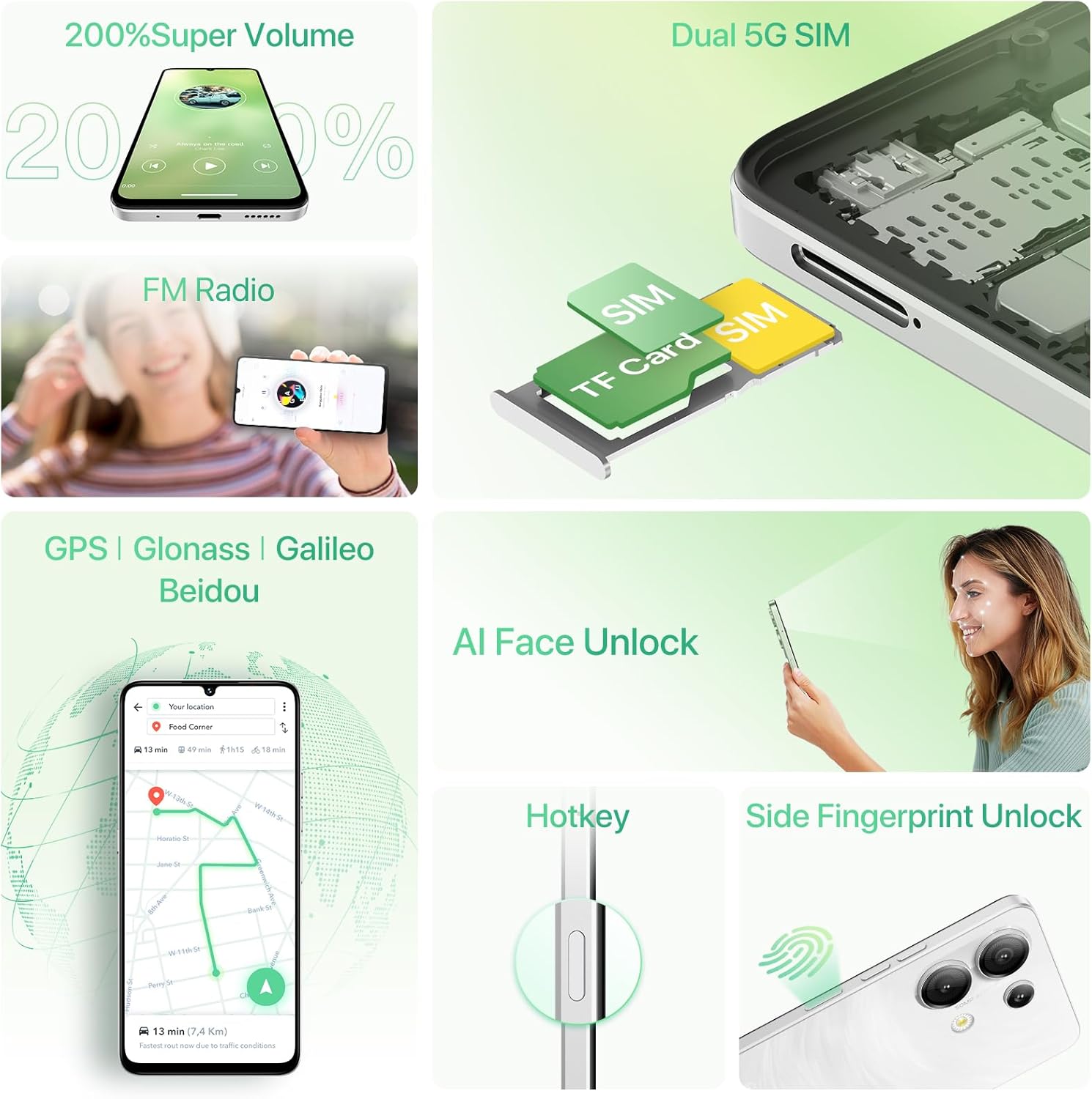
Figure 3: Key features and ports of the UMIDIGI G9 5G.
The phone's design integrates essential functionalities for ease of use.
Setup
SIM Card and TF Card Installation
The UMIDIGI G9 5G supports dual Nano-SIM cards or one Nano-SIM card and one TF (microSD) card for expandable storage up to 1TB.
- Locate the SIM card tray on the left side of the phone.
- Insert the SIM tray ejector tool into the small hole next to the tray and press firmly until the tray pops out.
- Carefully pull out the SIM tray.
- Place your Nano-SIM card(s) and/or TF card into the designated slots on the tray. Ensure the gold contacts are facing down and the cards are correctly oriented.
- Gently push the SIM tray back into the phone until it clicks into place.
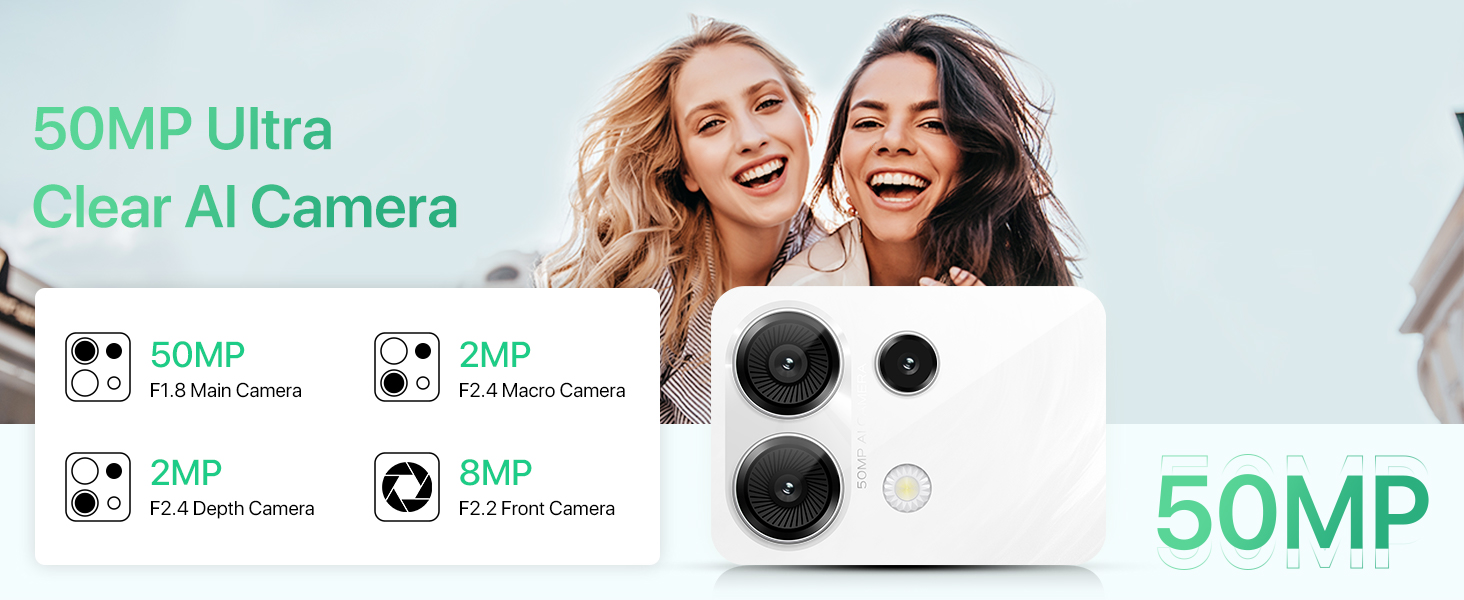
Figure 4: SIM and TF card tray with slots for dual SIM or SIM + TF card.
Proper insertion of SIM and TF cards is crucial for network connectivity and storage expansion.
Initial Power On and Configuration
To power on your device for the first time:
- Press and hold the Power button on the right side of the phone until the UMIDIGI logo appears.
- Follow the on-screen prompts to complete the initial setup, including language selection, Wi-Fi connection, Google account sign-in, and security settings.
Video 1: UMIDIGI G9 5G Cell Phone Unboxing and Initial Power On.
This video demonstrates the unboxing process and the first power-on sequence of the UMIDIGI G9 5G, showing the initial setup screen.
Operating Instructions
Display and Navigation
The UMIDIGI G9 5G features a 6.75-inch HD+ display with a 90Hz refresh rate for smooth visuals. Navigation is primarily touch-based, utilizing gestures and on-screen buttons.
- Swiping: Swipe up, down, left, or right to navigate through menus, home screens, and applications.
- Tapping: Tap icons to open applications or select options.
- Pinching: Pinch in or out to zoom on images or web pages.
- Long Press: Press and hold an item for additional options or to move icons.

Figure 5: The 6.75-inch HD+ display with 90Hz refresh rate provides a comfortable viewing experience.
The display is optimized for smooth interaction and visual clarity.
Camera Usage
The UMIDIGI G9 5G is equipped with a versatile camera system:
- Main Camera (50MP): For high-resolution photos in various lighting conditions.
- Front Camera (8MP): Ideal for selfies and video calls.
- Macro Camera (2MP): For detailed close-up shots of small objects.
- Depth Camera (2MP): Assists in creating portrait mode effects with blurred backgrounds.
To access the camera, tap the Camera icon on your home screen or app drawer. Switch between modes (Photo, Video, Portrait, Macro, Night, Pro) by swiping across the screen or selecting from the options.
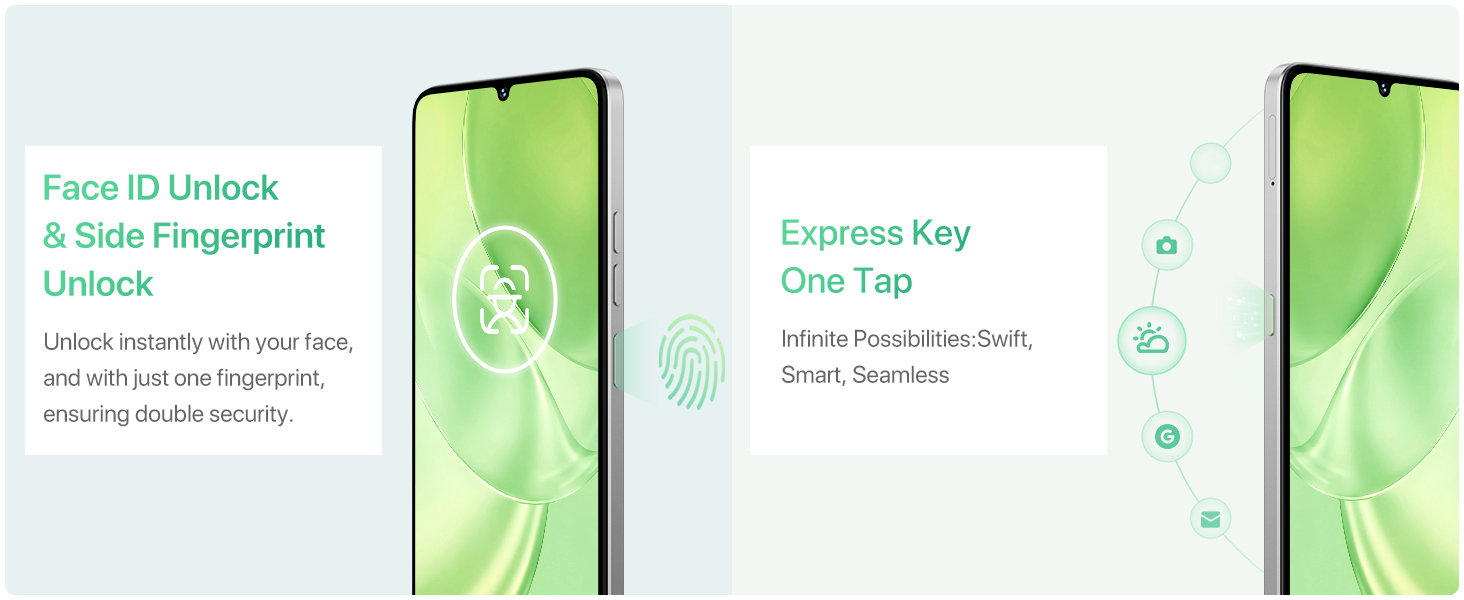
Figure 6: The UMIDIGI G9 5G camera setup with 50MP main lens.
The camera system is designed to capture high-quality images in diverse scenarios.
Battery Management
The UMIDIGI G9 5G is powered by a 5000mAh battery. For optimal battery life and charging:
- Use the provided 18W fast charger and Type-C cable for efficient charging.
- Avoid extreme temperatures, which can affect battery performance.
- To check battery usage and optimize settings, go to Settings > Battery.

Figure 7: The 5000mAh battery supports 18W fast charging.
The large battery capacity ensures extended usage, and fast charging minimizes downtime.
Security Features
Your UMIDIGI G9 5G offers multiple security options:
- Fingerprint Unlock: The side-mounted fingerprint sensor provides quick and secure access. To set up, go to Settings > Security & privacy > Fingerprint unlock.
- Face ID Unlock: Use your face to unlock the device. Set up via Settings > Security & privacy > Face unlock.
- Pattern, PIN, Password: Standard Android security options are also available.
Connectivity
The phone supports various connectivity options:
- 5G Cellular: Enjoy high-speed 5G connectivity where available. The phone supports dual 5G SIMs.
- Wi-Fi: Connect to wireless networks for internet access. Go to Settings > Network & internet > Wi-Fi.
- Bluetooth: Pair with Bluetooth devices like headphones or speakers. Go to Settings > Connected devices > Bluetooth.
- GPS: Utilize GPS, Glonass, Galileo, and Beidou for accurate navigation.
Memory Expansion (Virtual RAM)
The UMIDIGI G9 5G features 6GB of physical RAM, which can be expanded by an additional 6GB (total 12GB) using virtual RAM from your internal storage. This can improve performance for demanding applications.
- Go to Settings on your phone.
- Find and tap Memory Expansion.
- Click Set RAM extend Size.
- Select the desired RAM expansion size (e.g., 6 GB).
- The phone will prompt you to reboot. Select Reboot for the changes to take effect.
Note: Any change to the Memory Expansion settings requires a restart to take effect.

Figure 8: Steps to enable and configure Memory Expansion (Virtual RAM).
Expanding RAM can enhance the phone's multitasking capabilities.
Other Features
- FM Radio: The phone has a built-in FM antenna. You can listen directly without needing headphones as an antenna.
- OTG (On-The-Go): Supports OTG for connecting USB devices like flash drives or keyboards.
- Hotkey: A customizable button on the left side that can be assigned to quickly access a specific function or application.
Maintenance
Cleaning Your Device
To maintain the appearance and functionality of your UMIDIGI G9 5G:
- Use a soft, lint-free cloth to wipe the screen and body.
- Avoid using harsh chemicals, abrasive cleaners, or compressed air.
- Keep ports free of dust and debris.
Software Updates
Regular software updates provide new features, security enhancements, and bug fixes. To check for updates:
- Ensure your phone is connected to Wi-Fi.
- Go to Settings > System > System update.
- Follow the on-screen instructions to download and install any available updates.
Troubleshooting
This section addresses common issues you might encounter with your UMIDIGI G9 5G.
| Problem | Possible Solution |
|---|---|
| Phone does not turn on | Ensure the battery is charged. Connect to the charger for at least 10 minutes, then try powering on. If unresponsive, perform a forced restart by holding the Power button for 10-15 seconds. |
| Poor network signal | Check if your SIM card is properly inserted. Move to an area with better network coverage. Restart the phone. Verify APN settings with your carrier if issues persist. |
| Apps crashing or freezing | Close background apps. Clear cache for the problematic app (Settings > Apps > [App Name] > Storage & cache > Clear cache). Ensure sufficient storage space. Consider enabling Memory Expansion. |
| Battery drains quickly | Reduce screen brightness. Disable unused features like Wi-Fi, Bluetooth, GPS when not needed. Limit background app activity. Check battery usage in Settings to identify power-hungry apps. |
| Fingerprint/Face unlock not working | Ensure your finger/face is clean and dry. Re-register your fingerprint/face in Settings. Ensure adequate lighting for face unlock. |
For more complex issues, please refer to the "Warranty and Support" section or contact UMIDIGI customer service.
Specifications
Detailed technical specifications for the UMIDIGI G9 5G:
| Feature | Detail |
|---|---|
| Model Name | G9 5G New |
| Operating System | Android 14 |
| Processor | UNISOC T765 Octa-Core 5G Processor (6nm) |
| RAM | 12GB (6GB physical + 6GB virtual) |
| Internal Storage (ROM) | 128GB |
| Expandable Storage | Up to 1TB via TF Card |
| Display Size | 6.75 Inches |
| Display Resolution | HD+ (1600x720) |
| Refresh Rate | 90Hz |
| Main Camera | 50MP |
| Front Camera | 8MP |
| Macro Camera | 2MP |
| Depth Camera | 2MP |
| Battery Capacity | 5000mAh |
| Charging | 18W Fast Charging (Type-C) |
| SIM Card Support | Dual Nano-SIM (or 1 Nano-SIM + 1 TF Card) |
| Connectivity | 5G, LTE, Wi-Fi, Bluetooth |
| Navigation | GPS, Glonass, Beidou, Galileo |
| Unlock Methods | AI Face Unlock, Side Fingerprint Unlock |
| Dimensions | 7.05 x 3.43 x 2.05 inches (Package) |
| Item Weight | 0.704 ounces |
Warranty and Support
UMIDIGI provides after-sales support for your product. If you encounter any issues or have questions, please use the following methods to contact support:
- Through the "Service Center" App:
- Find and open the "Service Center" app on your phone.
- Enter "Customer Service".
- Click on "Questions".
- Fill in the content according to the prompts and confirm (Required fields).
- Through Amazon:
- Go to the product page on Amazon.
- Click on the store name "UMIDIGI Store".
- Click on "Ask question" in the upper right corner.
- Alternatively, go to your Order history, find the applicable order, and contact the Seller.
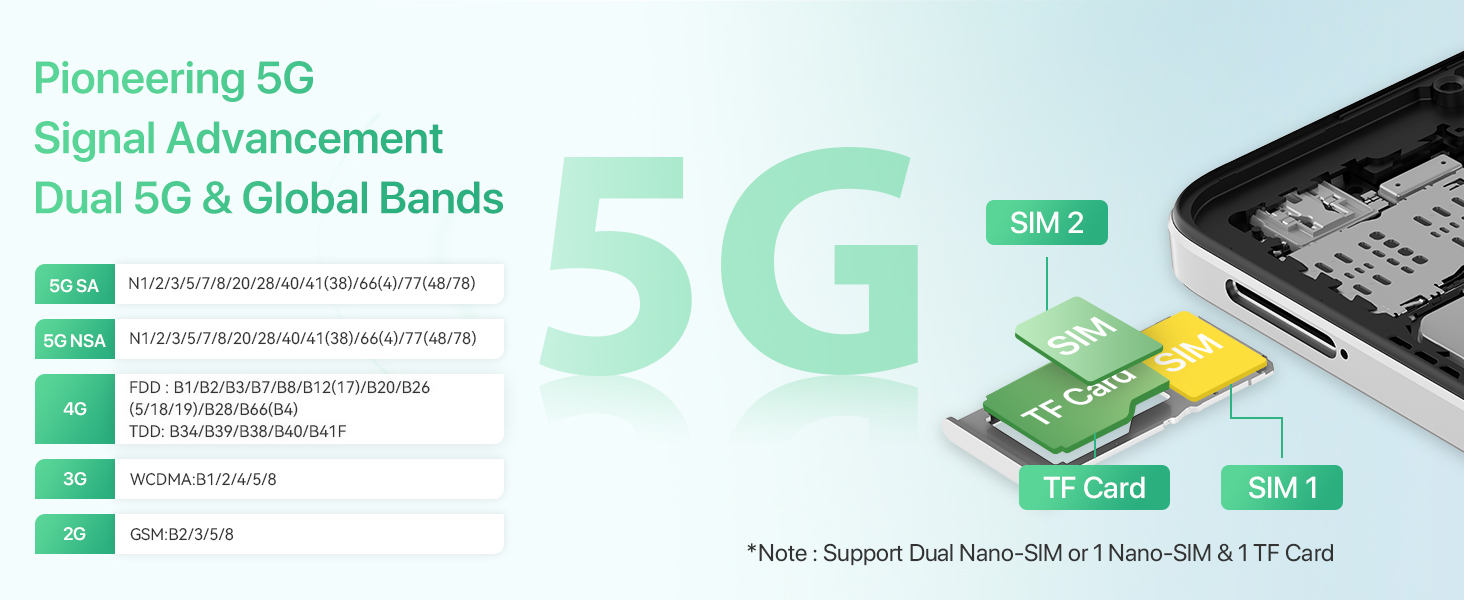
Figure 9: Steps to access UMIDIGI's after-sales service via the Service Center app.
UMIDIGI is committed to meeting customer needs and earning their trust through reliable support.