
1. Introduction
The XTOOL TP150 TPMS Programming Tool is a comprehensive device designed for maintaining and servicing Tire Pressure Monitoring Systems (TPMS). This tool, often bundled with XTOOL TS100 TPMS Sensors, provides a full range of functions to ensure your vehicle's tire pressure system operates correctly and safely.
Key capabilities include:
- Monitoring and repairing the TPMS System.
- Checking tire pressure, temperature, and battery life.
- Reading sensor IDs and diagnosing issues.
- Reading and clearing Diagnostic Trouble Codes (DTCs).
- Resetting TPMS to turn off warning lights.
- Activating, programming, and relearning sensors after replacement.
- Broad compatibility with 99% of U.S., Asian, and European vehicles.
- Unlimited wireless programming for TS100 sensors.

Figure 1.1: The XTOOL TP150 TPMS Programming Tool shown alongside two XTOOL TS100 TPMS Sensors and a stack of tires, illustrating its primary function in tire maintenance.
2. Setup
2.1 Initial Power-On and Charging
Before first use, ensure the XTOOL TP150 device is fully charged. Connect the provided charging cable to the device and a suitable power source. The charging indicator will show the charging status.
2.2 Device Overview

Figure 2.1: Front view of the XTOOL TP150 device, highlighting its display and navigation buttons, with a stylized tire icon.
Familiarize yourself with the device's interface. The main screen displays options for TPMS functions, recent tests, settings, and upgrades. Navigation is typically done using the directional pad and 'OK' button.
2.3 TS100 Sensor Installation (if applicable)
If you are installing new XTOOL TS100 sensors, ensure they are correctly mounted within the tire. These sensors are designed for easy installation and are compatible with both 315MHz and 433MHz systems.

Figure 2.2: Close-up view of two XTOOL TS100 TPMS Sensors, showing their design and specifications.
3. Operating Instructions
The XTOOL TP150 offers various functions to manage your vehicle's TPMS. Follow these steps for common operations.
3.1 TPMS Sensor Activation/Triggering
This function allows you to activate all OEM/Universal TPMS sensors to initiate the relearn process and monitor their current status. This ensures sensors are properly connected and functioning, providing real-time data.
- Select the "TPMS" option from the main menu.
- Choose the "Activate/Trigger Sensors" option.
- Follow the on-screen prompts to position the tool near each tire sensor.
- The tool will display sensor ID, pressure, temperature, and battery status upon successful activation.

Figure 3.1: The XTOOL TP150 displaying activated sensor data, including ID, pressure, and temperature, with a tire in the background.
3.2 TPMS Sensor Programming (for XTOOL TS100 sensors)
The TP150 can program XTOOL TS100 universal sensors. This is exclusive to TS100 sensors and offers multiple programming methods.
- Select "TPMS" then "Programming" from the menu.
- Choose one of the following programming methods:
- Method 1: Auto ID Generation - Generates a new, unique ID for the sensor.
- Method 2: Manual ID Input - Allows you to manually enter an existing sensor ID.
- Method 3: Copy ID by Activation - Copies the ID from an activated original sensor.
- Method 4: Copy ID by OBD - Copies the ID from the vehicle's ECU via the OBD port.
- Follow the on-screen instructions for the chosen method.
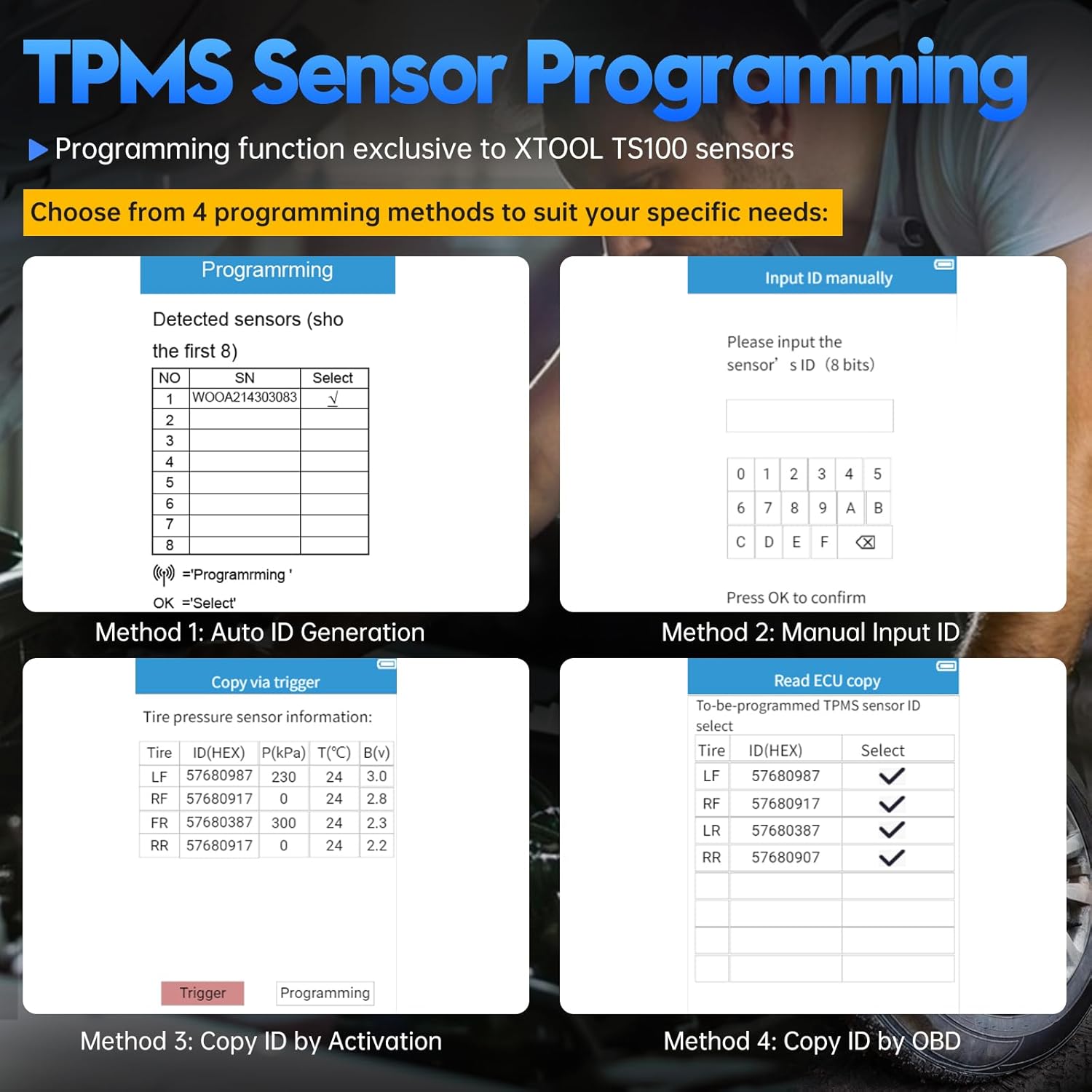
Figure 3.2: The XTOOL TP150 displaying the four programming methods for TS100 sensors: Auto ID Generation, Manual ID Input, Copy ID by Activation, and Copy ID by OBD.
3.3 TPMS Relearn/Reset
After replacing or rotating tires, sensors need to be relearned to the vehicle's system. The TP150 supports various relearn modes.
- Select "TPMS" then "Relearn/Reset" from the menu.
- Choose the appropriate relearn type for your vehicle:
- OBD Relearn: Connects to the vehicle's OBD-II port to write new sensor IDs to the ECU.
- Manual Relearn: Guides you through a vehicle-specific procedure, often involving specific actions like horn honks or key cycles.
- Auto Relearn: Some vehicles automatically relearn sensors after driving for a certain period.
- Follow the on-screen instructions to complete the relearn process.

Figure 3.3: The XTOOL TP150 displaying options for TPMS relearn types: OBD relearn, Automatic relearn, and Stationary relearn.
3.4 TPMS System Diagnostics
This function helps diagnose and troubleshoot TPMS problems efficiently, including reading and clearing DTCs and performing TPMS resets to turn off warning lights.
- Connect the TP150 to the vehicle's OBD-II port (if required for diagnostics).
- Select "TPMS" then "Diagnostics" from the menu.
- The tool will scan the TPMS system for fault codes.
- Review the displayed DTCs and their descriptions.
- If applicable, select "Clear Codes" to erase fault codes and "Perform TPMS Reset" to turn off the warning light after repairs.

Figure 3.4: The XTOOL TP150 connected to a vehicle, showing the process of diagnosing and clearing a TPMS warning light on the dashboard.
4. Maintenance
4.1 Software Updates
Regular software updates ensure your TP150 tool has the latest vehicle coverage and features. Connect the device to a computer with internet access and use the XTOOL update software (if provided) or select the "Upgrade" option on the device if it supports Wi-Fi updates.
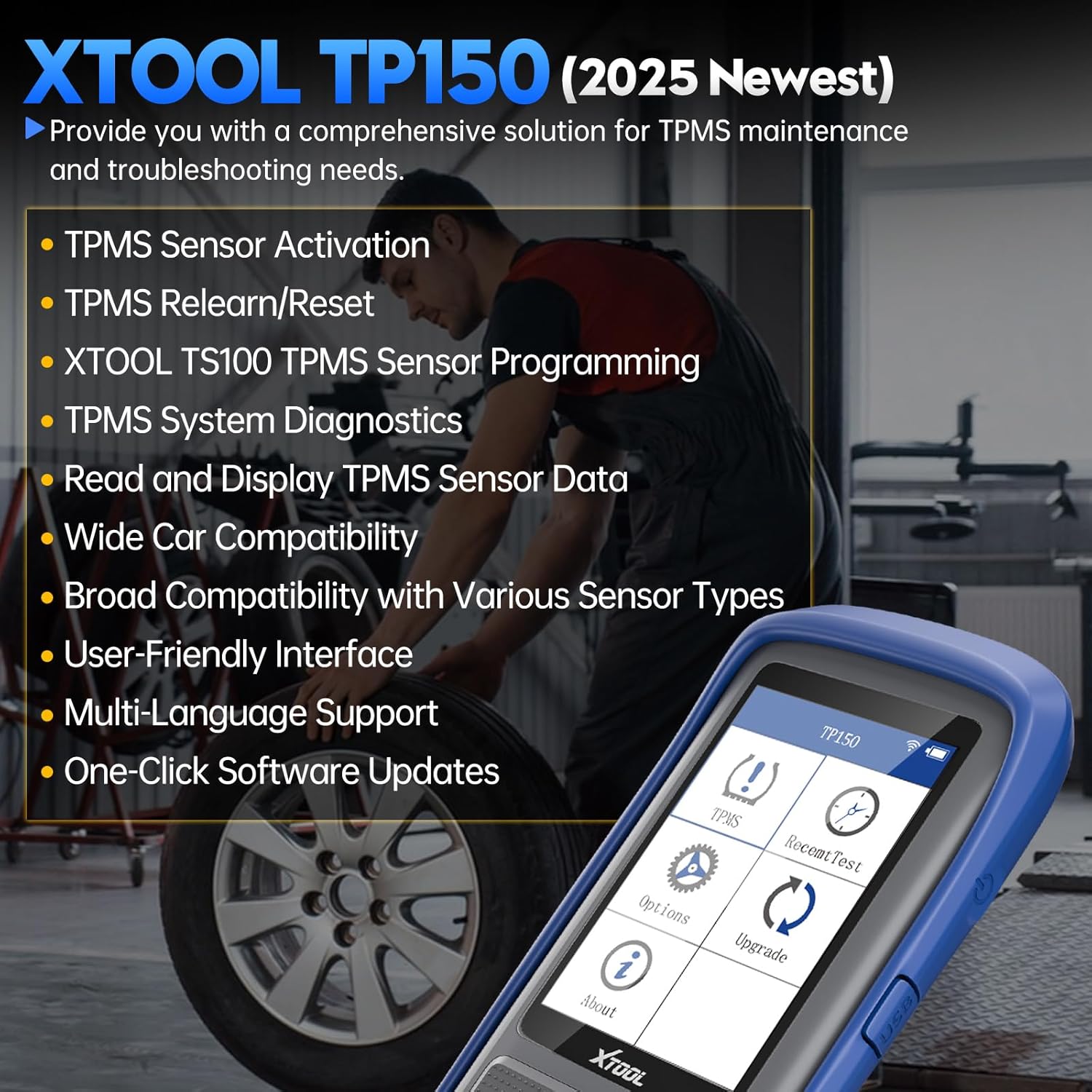
Figure 4.1: The XTOOL TP150 main screen, showing the "Upgrade" option among other features, indicating the availability of software updates.
4.2 General Care
- Keep the device clean and free from dust and moisture.
- Store the device in a cool, dry place when not in use.
- Avoid dropping the device or subjecting it to strong impacts.
5. Troubleshooting
If you encounter issues with your XTOOL TP150, refer to the following common troubleshooting tips:
- Device not powering on: Ensure the device is fully charged. Try connecting it to a power source and waiting a few minutes before attempting to power it on again.
- Sensor not activating:
- Ensure the tool is positioned correctly near the tire valve stem.
- Check the sensor's battery life (if visible on the tool).
- Verify the sensor type is compatible with the vehicle and the TP150 tool.
- Relearn process failing:
- Confirm the correct relearn procedure for your specific vehicle model. Refer to the vehicle's service manual.
- Ensure all sensors are activated and transmitting correctly before starting the relearn.
- For OBD relearn, ensure a stable connection to the vehicle's OBD-II port.
- Software issues/freezing: Try restarting the device. If the issue persists, perform a software update as described in Section 4.1.
For persistent issues or specific vehicle compatibility questions, please contact XTOOL customer support with your device's serial number (S/N).
6. Specifications
| Feature | Detail |
|---|---|
| Brand | XTOOL |
| Model | TP150 |
| ASIN | B0DMF2GFJZ |
| First Available | August 5, 2021 |
| Sensor Compatibility | OEM/Universal TPMS sensors (315MHz & 433MHz) |
| Programming (TS100) | Auto ID Generation, Manual ID Input, Copy ID by Activation, Copy ID by OBD |
| Relearn Modes | OBD Relearn, Manual Relearn, Auto Relearn |
7. Warranty and Support
For warranty information and technical support, please refer to the official XTOOL website or contact their customer service directly. When contacting support, please have your product model (TP150) and serial number ready for faster assistance.
You can visit the official XTOOL store on Amazon for more information: XTOOL Official Store


