
1. Introduction
Thank you for purchasing the AGIMA X3 Projector. This manual provides essential information for setting up, operating, and maintaining your projector. Please read it thoroughly before use to ensure optimal performance and safety.
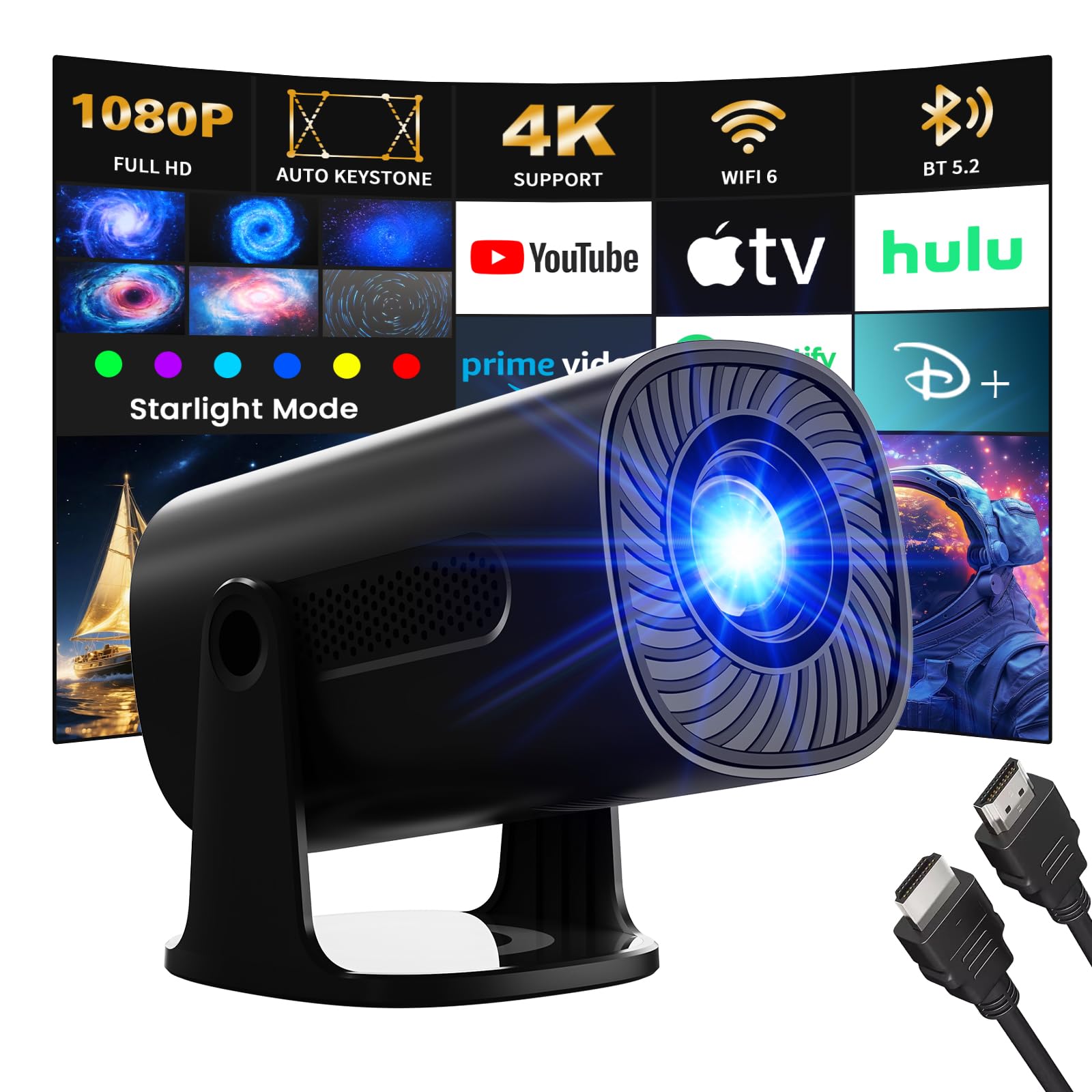
The AGIMA X3 Projector offers a versatile entertainment experience with features such as 4K 1080P support, integrated Android TV OS, WiFi6, Bluetooth 5.2, and automatic keystone correction. It also includes unique star projection modes and ambient lighting options to enhance your viewing environment.
The AGIMA X3 Projector in a modern living room, showcasing its projection capabilities.
2. Safety Information
To prevent fire, electric shock, or injury, please observe the following safety precautions:
- Do not block the ventilation openings. Ensure adequate space around the projector for proper airflow.
- Do not expose the projector to rain or moisture to avoid electric shock.
- Avoid looking directly into the projector lens when the lamp is on, as the bright light can cause eye damage.
- Use only the power adapter supplied with the projector.
- Do not attempt to disassemble or repair the projector yourself. Refer all servicing to qualified personnel.
- Keep the projector away from heat sources and direct sunlight.
- Ensure the projector is placed on a stable, level surface to prevent it from falling.
- The projector features intelligent eye protection, utilizing diffuse reflection imaging to filter blue light and protect your eyes during viewing.

Intelligent eye protection technology helps reduce eye strain during extended viewing.
3. Package Contents
Verify that all items are present in the package:
- 1 x AGIMA X3 Projector
- 1 x Power Adapter with Cable
- 1 x Remote Control
- 1 x User Manual (this document)
4. Product Overview
Familiarize yourself with the projector's components:

Front and side view of the AGIMA X3 Projector, highlighting its compact design and connectivity options.
Ports and Connections:
- HDMI Port: Connect to laptops, game consoles, TV sticks, etc.
- USB Port: Connect USB drives for media playback.
- 3.5mm Audio Jack: Connect external headphones or speakers.
- Power Input: Connect the power adapter.
5. Setup
5.1 Power Connection
- Connect the power adapter to the projector's power input port.
- Plug the power adapter into a wall outlet.
- Press the power button on the projector or remote control to turn it on.
5.2 Placement and Projection
Position the projector on a stable surface. The AGIMA X3 is portable and can be mounted on a table. Adjust the projector's angle to achieve the desired screen position.
- Projection Size: The projector offers projection sizes from 39 inches to 200 inches.
- Projection Distance: Optimal viewing distances range from 4 feet to 25 feet.

Illustration of projection sizes (50", 100", 200") at different distances (1.5m, 3m, 6m).
5.3 Focus Adjustment
Use the manual focus ring (if available) or the remote control to sharpen the projected image until it is clear.
5.4 Automatic Keystone Correction
The AGIMA X3 features automatic keystone correction. This function automatically adjusts the image to be rectangular, even if the projector is placed at an angle. This eliminates the need for manual adjustments.

The automatic keystone correction feature ensures a perfectly rectangular image from various angles.
6. Operating Instructions
6.1 Smart OS Navigation (Android TV)
The projector comes with an integrated Android TV OS, providing access to various applications directly. Use the remote control to navigate the interface.
- Home Screen: Access pre-installed apps like YouTube, Spotify, and Video.
- App Store: Download additional applications.
- Settings: Configure network, display, audio, and system preferences.

The built-in Android TV OS allows direct access to popular streaming and entertainment applications.
6.2 Connecting to Wi-Fi
To access online content and applications, connect your projector to a Wi-Fi network:
- Go to Settings on the home screen.
- Select Network & Internet.
- Choose your desired Wi-Fi network and enter the password.
The projector supports the latest WiFi6 technology for faster and more stable content transfer.

Enjoy a high-speed and smooth projection experience with WiFi 6 connectivity.
6.3 Bluetooth Pairing
Connect external Bluetooth devices like speakers or headphones:
- Go to Settings.
- Select Connected Devices or Bluetooth.
- Turn on Bluetooth and select your device from the list to pair.
The projector features Bluetooth 5.2 for easy and stable connections to audio devices, enhancing your sound experience.

Connect external Bluetooth speakers for an enhanced audio experience.
6.4 Connecting External Devices (HDMI, USB)
- HDMI: Connect your laptop, game console, or TV stick to the HDMI port. The projector will automatically detect the input or you may need to select the HDMI source from the input menu.
- USB: Insert a USB flash drive into the USB port to play media files directly.
6.5 Star Mode and Ambient Light
The AGIMA X3 offers unique visual modes:
- Star Mode: Choose from 6 dynamic galactic projection modes to create a romantic or meditative ambiance.
- Ambient Light: Select from 7 adjustable ambient light colors to transform your space and create a cinematic atmosphere.

Experience immersive star projection modes for a unique ambiance.

Customize your viewing environment with 7 built-in ambient light colors.
6.6 Screen Mirroring (IOS/Android)
The projector supports wireless screen mirroring for both iOS and Android devices. Refer to the on-screen instructions or the projector's settings for specific steps to connect your smartphone or tablet.
6.7 Zoom Function
Adjust the projection size from 50% to 100% without moving the projector. This digital zoom feature allows for flexible installation and fine-tuning of the image size.

The digital zoom function allows you to adjust the screen size from 50% to 100% without repositioning the projector.
7. Maintenance
7.1 Cleaning
- Lens: Use a soft, lint-free cloth specifically designed for optical lenses. Do not use abrasive cleaners or solvents.
- Casing: Wipe the projector's exterior with a soft, dry cloth. For stubborn dirt, use a slightly damp cloth and then dry thoroughly.
- Ventilation Openings: Periodically clean the ventilation openings with a soft brush or compressed air to prevent dust buildup, which can affect performance and lifespan.
7.2 Storage
When not in use for an extended period, store the projector in a cool, dry place. Use the lens cap to protect the lens from dust and scratches.
8. Troubleshooting
If you encounter issues with your AGIMA X3 Projector, refer to the following common problems and solutions:
| Problem | Possible Cause | Solution |
|---|---|---|
| No image projected | Power cable disconnected, incorrect input source, lens cap on. | Check power connection, select correct input source (HDMI/USB), remove lens cap. |
| Blurry image | Out of focus, incorrect keystone. | Adjust focus manually, ensure automatic keystone correction is active or adjust manually if needed. |
| No sound | Volume too low, external audio device not connected, incorrect audio output. | Increase volume, check Bluetooth connection, ensure internal speakers are selected or external audio is properly connected. |
| Wi-Fi connection issues | Incorrect password, out of range, router issues. | Verify password, move projector closer to router, restart router. |
| Remote control not working | Dead batteries, obstruction, out of range. | Replace batteries, remove obstructions, ensure line of sight to projector's IR receiver. |
9. Specifications
Technical specifications for the AGIMA X3 Projector:
| Feature | Detail |
|---|---|
| Brand | AGIMA |
| Model Number | X3 |
| Operating System | Android |
| Display Type | LCD |
| Native Resolution | 1920 x 1080 (Full HD) |
| Supported Resolution | 4K |
| Connectivity Technology | HDMI, USB, WiFi6, Bluetooth 5.2 |
| Hardware Interface | HDMI |
| Device Compatibility | Game console, Laptop, Smartphone, TV Stick |
| Dimensions (L x W x H) | 19.5 x 9.5 x 9.5 cm |
| Form Factor | Portable |
| Special Features | Built-in Speaker, Lightweight, Digital Keystone Correction, Star Modes, Ambient Light |
| Recommended Uses | Home cinema |
10. Warranty and Support
For warranty information and customer support, please refer to the documentation provided with your purchase or contact AGIMA customer service directly. Specific details regarding warranty periods and support channels are typically included with the product packaging or available on the manufacturer's official website.
